
1. Introduction
The PHOVOLT P-0018 WiFi Door Window Sensor is a smart contact sensor designed to enhance home security and automation. It provides real-time notifications when a door or window is opened or closed, and can integrate with smart home systems like Alexa and Google Assistant for automated actions. This manual provides detailed instructions for setup, operation, maintenance, and troubleshooting.

This image illustrates the PHOVOLT P-0018 sensor's role within a comprehensive smart home system, connecting various devices for enhanced automation and security.
2. Product Overview
The PHOVOLT P-0018 sensor consists of two main components: a main sensor unit and a smaller magnetic unit. When these two parts are separated, the sensor detects an open state. The device connects to your home WiFi network to send alerts and communicate with smart home platforms.
2.1. Components
- Main Sensor Unit
- Magnetic Unit
- 3M Adhesive Pads (for installation)
- User Manual

The PHOVOLT P-0018 sensor, compatible with Alexa and Google Assistant, utilizes WiFi, Bluetooth, and Hotspot for connectivity.
3. Specifications
| Feature | Detail |
|---|---|
| Model Number | P-0018 |
| Power Source | Battery Powered |
| Battery Type | 2 x AAA (Alkaline, not included) |
| Voltage | 1.5 Volts |
| Connectivity | 2.4 GHz WiFi (IEEE 802.11 b/g/n) |
| Control Method | App, Voice (Alexa, Google Assistant) |
| Mounting Type | Window Mount (Adhesive) |
| Sensor Technology | Contact Sensor |
| Item Weight | 1.76 ounces |
| Package Dimensions | 3.46 x 1.85 x 0.91 inches |
4. Setup
4.1. Battery Installation
- Gently open the main sensor unit to access the battery compartment.
- Insert two AAA alkaline batteries, ensuring correct polarity.
- Close the battery compartment securely.
4.2. App Download and Pairing
- Download the Tuya Smart or Smart Life app from your smartphone's app store (iOS or Android).
- Register or log in to your account.
- Ensure your smartphone is connected to a 2.4 GHz WiFi network. The sensor does not support 5 GHz WiFi.
- In the app, tap 'Add Device' or the '+' icon.
- Select 'Security & Video Surveillance' > 'Door/Window Sensor (Wi-Fi)'.
- Follow the in-app instructions to put the sensor into pairing mode (usually by pressing and holding a reset button until an indicator light flashes).
- Confirm the WiFi network and enter the password. The sensor will connect to the app.
4.3. Physical Installation
The sensor is designed for easy installation using 3M adhesive pads. No complex tools are required.
- Choose a clean, dry surface on your door or window frame.
- Attach the main sensor unit to the fixed part of the door/window frame.
- Attach the magnetic unit to the moving part of the door/window, aligning it with the main sensor unit's marked line.
- Ensure the gap between the two components is less than 10mm when the door/window is closed. A smaller gap ensures reliable detection.

This image demonstrates the correct installation of the sensor, emphasizing the critical 10mm gap requirement for optimal performance on various surfaces like doors, windows, and drawers.
5. Operating Instructions
5.1. Real-time Alarms and Notifications
Once installed and connected, the sensor will send instant notifications to your smartphone via the Tuya Smart or Smart Life app whenever the monitored door or window is opened or closed. This allows for remote monitoring and immediate awareness of access events.

This image shows a smartphone receiving a real-time notification from the Tuya app when the door sensor detects an opening, highlighting the immediate alert feature.

This image illustrates the mobile remote viewing capability, allowing users to monitor their sensor's status from anywhere.
5.2. Smart Home Integration
The PHOVOLT P-0018 sensor is compatible with Amazon Alexa and Google Assistant, enabling voice control and advanced automation routines.
- Voice Control: Use voice commands through Alexa or Google Assistant devices to check the status of your doors or windows (e.g., "Alexa, is the front door closed?").
- Automation: Create smart scenes or routines in the Tuya Smart/Smart Life app or through Alexa/Google Home to link the sensor with other smart devices. For example:
- When the door opens, turn on the lights.
- When a window opens, trigger a smart siren.
- Receive a "Welcome Home" message from your smart speaker when you enter.

This image demonstrates the voice control functionality, allowing users to query the sensor's status using Google Home or Alexa.
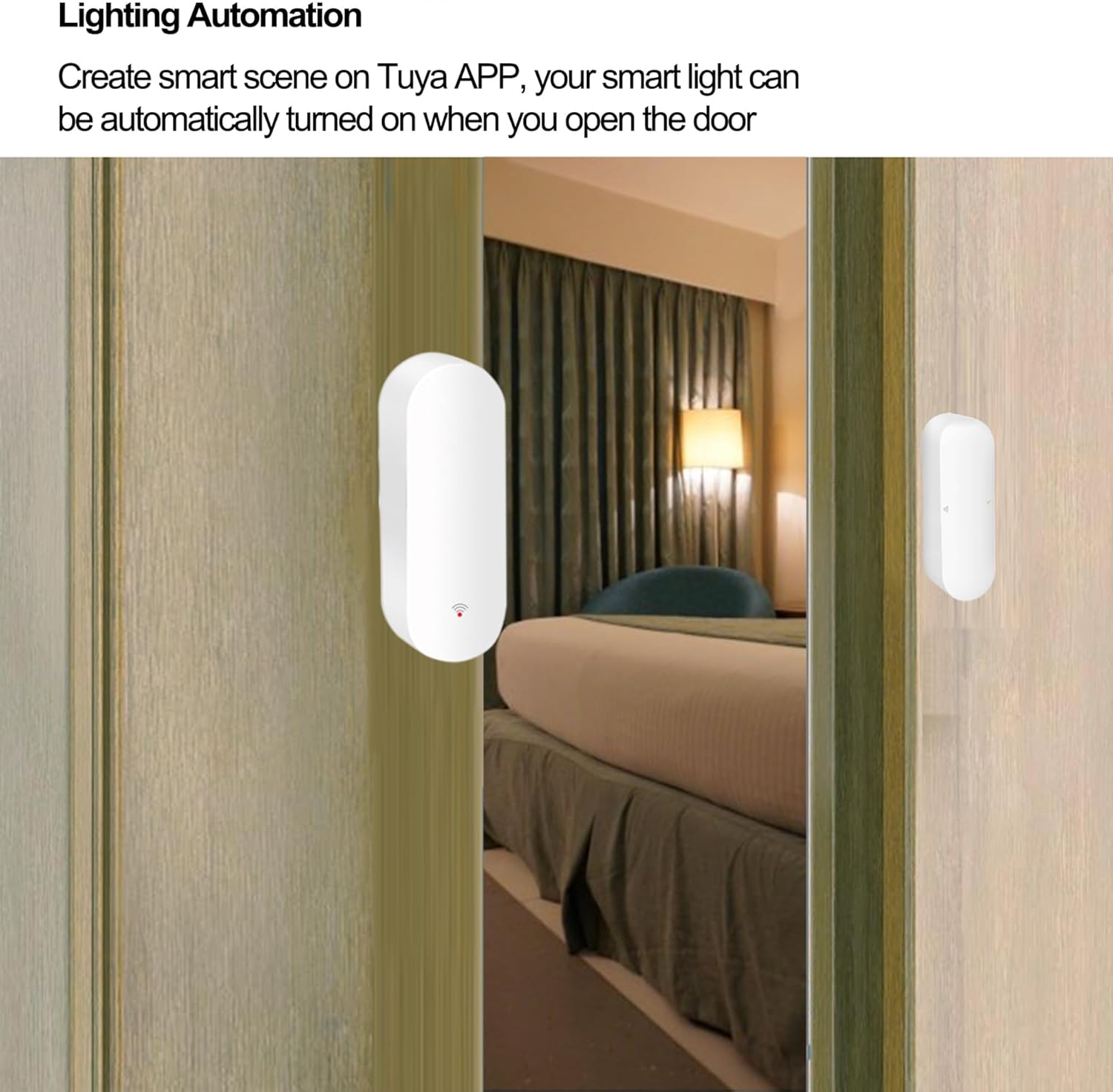
This image illustrates how to set up lighting automation through the Tuya app, where opening a door automatically triggers smart lights.

This diagram provides examples of automation tasks that can be configured with the door sensor, including triggering alarms, smart plugs, and lights.
This video demonstrates the PHOVOLT WiFi door window sensor's compatibility with Alexa and Google Home, showing how opening a door can trigger smart home actions like turning on lights and receiving voice greetings.
5.3. Family Sharing
The Tuya Smart or Smart Life app allows you to share device control with family members. This enables multiple users to receive notifications and manage the sensor's settings.

This image illustrates the family sharing feature, allowing multiple users to access and control the sensor through the Tuya app.
6. Maintenance
6.1. Battery Replacement
The sensor will send a low power warning notification to your app when the battery level is low. Replace the two AAA batteries promptly to ensure continuous operation.

This image shows the low power warning notification on the Tuya app, reminding users to replace the sensor's batteries.
6.2. Cleaning
Wipe the sensor units with a soft, dry cloth as needed to remove dust or debris. Avoid using harsh chemicals or abrasive cleaners.
7. Troubleshooting
- Sensor not connecting to WiFi:
- Ensure your WiFi network is 2.4 GHz. The sensor does not support 5 GHz networks.
- Check if the WiFi signal strength is adequate at the sensor's location.
- Verify the WiFi password entered in the app is correct.
- Try resetting the sensor and re-pairing it with the app.
- No notifications received:
- Check your smartphone's notification settings for the Tuya Smart/Smart Life app to ensure they are enabled.
- Verify the sensor is online in the app.
- Ensure the gap between the sensor units is less than 10mm when closed.
- Alexa/Google Assistant integration issues:
- Ensure the Tuya Smart/Smart Life skill/service is enabled in your Alexa or Google Home app.
- Relink the Tuya Smart/Smart Life account with Alexa/Google Assistant.
- Discover devices again in the Alexa/Google Home app.
- Short battery life:
- Ensure you are using high-quality alkaline AAA batteries.
- Frequent activations (opening/closing) can reduce battery life.
8. Warranty and Support
PHOVOLT provides a standard warranty for its products. For specific warranty terms and conditions, please refer to the product packaging or contact PHOVOLT customer support. If you encounter any issues not covered in this manual, please reach out to our support team for assistance.
PHOVOLT Customer Support:
- Visit the PHOVOLT Store on Amazon for more information and contact options.