
1. Introduction
This manual provides detailed instructions for the installation, operation, and maintenance of your PHOVOLT WiFi Door Window Sensor. Please read this manual thoroughly before using the device to ensure proper function and safety.
2. Product Overview
The PHOVOLT WiFi Door Window Sensor is a smart home security device designed to detect the opening and closing of doors, windows, cabinets, or drawers. It provides real-time notifications to your smartphone and integrates with smart home ecosystems like Amazon Alexa and Google Assistant for enhanced security and automation.
Key Features:
- Real-time remote alerts when a door or window is opened or closed.
- Operates on 2.4 GHz WiFi networks for stable connectivity.
- Compatible with Amazon Alexa and Google Assistant for voice control and smart routines.
- Low battery notification via the mobile application.
- Easy installation using adhesive pads, no complex tools required.
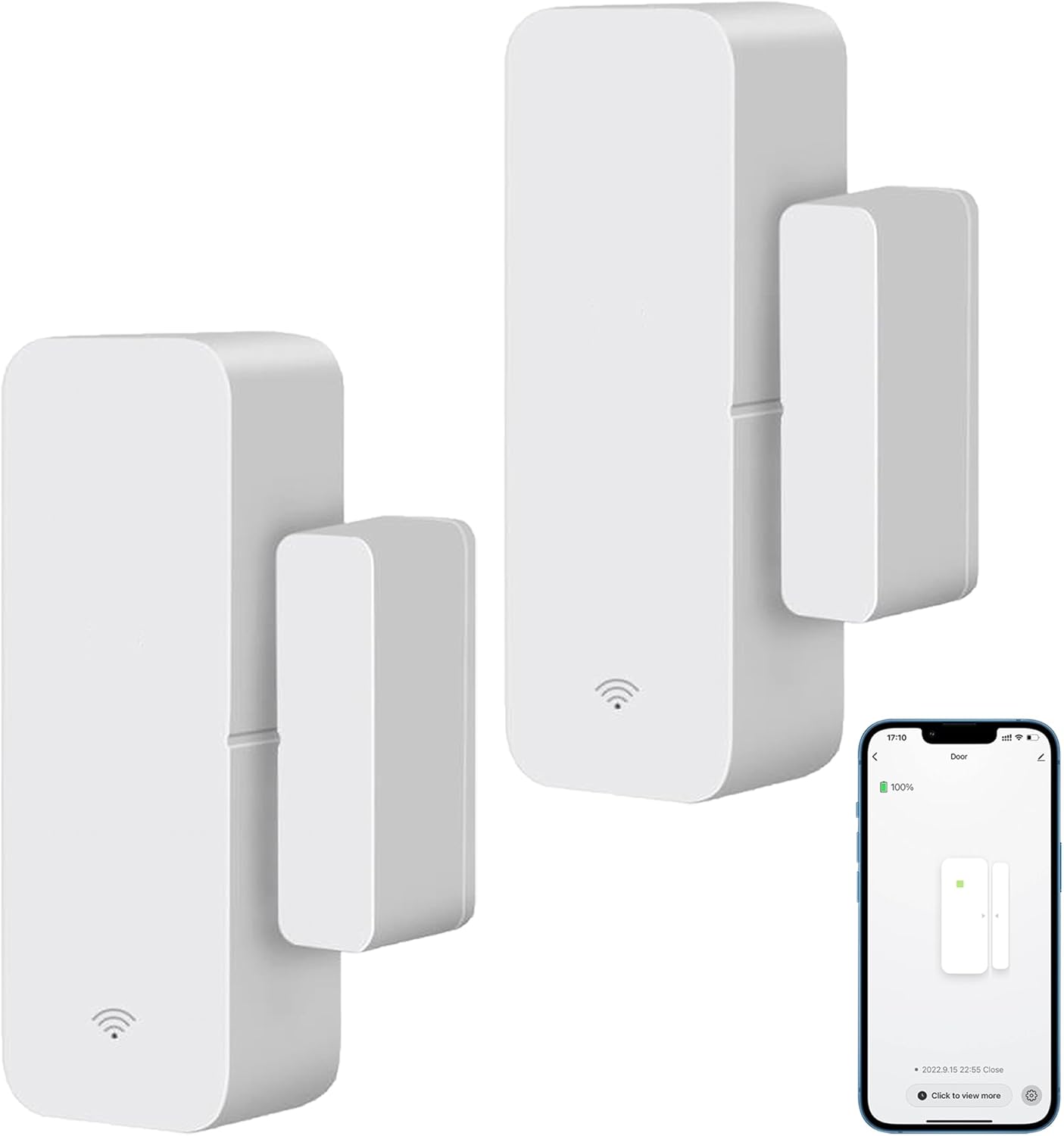
Image: Two PHOVOLT WiFi Door Window Sensor units and a smartphone screen displaying the sensor's status in the app.
3. Package Contents
Please verify that all items are present in your package:
- PHOVOLT WiFi Door Window Sensor (Main Unit)
- PHOVOLT WiFi Door Window Sensor (Magnetic Component)
- AAA Batteries (pre-installed or included)
- Adhesive Pads
- User Manual (this document)
4. Specifications
| Model Number | P-0018 |
| Voltage | 1.5 Volts |
| Control Method | App, Voice |
| Mounting Type | Adhesive (Door, Window, Drawer) |
| Item Weight | 3.2 ounces |
| Batteries | 1 AAA battery required (included) |
| Battery Cell Type | Alkaline |
| Compatible Devices | Home Security System, Smartphone |
| Power Source | Battery Powered |
5. Setup
5.1. Battery Installation
The sensor requires one AAA battery. If not pre-installed, open the sensor casing and insert the battery, ensuring correct polarity. Close the casing securely.
5.2. App Download and Account Registration
- Download the Tuya Smart or Smart Life app from your smartphone's app store (available on iOS and Android).
- Open the app and register for a new account or log in with an existing one.
5.3. Device Pairing
- Ensure your smartphone is connected to a 2.4 GHz WiFi network. The sensor does not support 5 GHz networks.
- In the Tuya Smart/Smart Life app, tap the "+" icon to add a new device.
- Select "Sensor" or "Security Sensor" and then choose "Door/Window Sensor (Wi-Fi)".
- Follow the on-screen instructions to put the sensor into pairing mode (usually involves pressing a button on the sensor).
- Confirm your WiFi network and enter the password. The app will then search for and connect to the sensor.
- Once connected, you can rename the sensor for easy identification (e.g., "Front Door Sensor").
5.4. Mounting the Sensor
The sensor consists of two parts: a main unit and a magnetic component. They must be mounted in close proximity to each other on the moving part and the frame of a door, window, or drawer.
- Clean the surface where you intend to mount the sensor to ensure good adhesion.
- Attach the adhesive pads to the back of both the main sensor unit and the magnetic component.
- Mount the main unit on the door/window frame and the magnetic component on the door/window itself, or vice-versa.
- Ensure the two components are aligned with their alignment marks and the gap between them is less than 10mm when the door/window is closed. This ensures accurate detection.

Image: An illustration demonstrating the correct alignment and maximum gap (less than 10mm) for sensor installation on various surfaces like windows, doors, and drawers.
6. Operating Instructions
6.1. Real-time Notifications
Once installed and paired, the sensor will send instant notifications to your smartphone whenever the monitored door or window is opened or closed. These alerts allow you to monitor your property remotely.

Image: A smartphone screen showing a real-time notification indicating that a door sensor has been triggered, with a cat observing from behind a partially open door.
6.2. Smart Home Integration (Alexa & Google Assistant)
The PHOVOLT WiFi Door Window Sensor can be integrated with Amazon Alexa and Google Assistant for voice control and smart home automation.
- Open your Amazon Alexa or Google Home app.
- Enable the "Tuya Smart" or "Smart Life" skill/service.
- Link your Tuya Smart/Smart Life account when prompted.
- Discover devices. Your door sensor should appear in the list of connected devices.
You can now ask your voice assistant about the status of your door/window (e.g., "Alexa, is the front door closed?").

Image: A woman using voice commands with smart speakers to inquire about the status of a door, demonstrating compatibility with Google Home and Alexa.
6.3. Automation and Smart Scenes
Utilize the Tuya Smart/Smart Life app to create custom automation rules and smart scenes. For example, you can configure the system to:
- Turn on a smart light when a specific door opens.
- Trigger a siren alarm if a window is opened during certain hours.
- Send a notification to other family members.

Image: A bedroom scene illustrating a door sensor and text explaining how to create a smart scene in the Tuya app to automatically turn on lights when the door opens.

Image: A visual representation of smart home automation, demonstrating how a door sensor can be linked with smart plugs and switches to trigger actions like activating an alarm or turning on lights.
6.4. Device Sharing
You can share access to your PHOVOLT WiFi Door Window Sensor with family members or trusted individuals through the Tuya Smart/Smart Life app. This allows multiple users to receive notifications and manage the device.

Image: A family using smart devices, accompanied by a diagram illustrating the process of sharing the door sensor's control and notifications with multiple family members through the Tuya app.
7. Maintenance
7.1. Battery Replacement
The sensor will automatically send a low battery warning notification to your smartphone via the app when the battery level is critical. Replace the AAA battery promptly to ensure continuous and reliable operation of the sensor.

Image: A smartphone displaying a 'Low Power Warning' notification from the Tuya app, reminding the user to replace batteries for a door sensor mounted on a window.
7.2. Cleaning
To clean the sensor, gently wipe it with a dry, soft cloth. Do not use liquid cleaners, abrasive materials, or harsh chemicals, as these can damage the device.
8. Troubleshooting
8.1. Sensor Not Connecting to WiFi
- Check WiFi Frequency: Ensure your home WiFi network is 2.4 GHz. The sensor is not compatible with 5 GHz networks.
- Signal Strength: Verify that the sensor is within range of your WiFi router and has adequate signal strength.
- Router Restart: Try restarting your WiFi router and then attempt the pairing process again.
- App Instructions: Carefully follow the pairing instructions in the Tuya Smart/Smart Life app.
8.2. No Notifications Received
- App Notifications: Check your smartphone's notification settings to ensure that notifications for the Tuya Smart/Smart Life app are enabled.
- Sensor Status: Open the app to confirm the sensor is online and reporting its status correctly.
- Battery Level: Ensure the sensor's battery is not low. Replace if necessary.
8.3. Inaccurate Detection
- Alignment and Gap: Re-check the alignment of the main sensor unit and the magnetic component. The gap between them must be less than 10mm when the door/window is closed.
- Obstructions: Ensure there are no physical obstructions preventing the components from coming close enough.
8.4. Alexa/Google Home Integration Issues
- Skill/Service Enabled: Confirm that the "Tuya Smart" or "Smart Life" skill/service is enabled and properly linked in your Alexa or Google Home app.
- Device Sync: Try re-discovering devices in your Alexa/Google Home app.
- Limited Functionality: Be aware that direct routine triggers (e.g., playing a chime on a Nest speaker) might not be fully supported by all smart home platforms for this type of sensor. Functionality typically includes status checks and basic automation within the Tuya app.
9. Warranty and Support
PHOVOLT products are designed for reliability and performance. For specific warranty details, please refer to the warranty card included with your purchase or visit the official PHOVOLT website. For technical assistance, troubleshooting, or any other inquiries, please contact PHOVOLT customer support.
Contact Information: Please refer to your product packaging or the PHOVOLT official website for the most up-to-date customer support contact details.