
1. Introduction
Thank you for choosing the T-DAGGER Verde T-TGK317 RGB Wireless Bluetooth 5.0 60% Gaming Mechanical Keyboard. This manual provides detailed instructions for setting up, operating, maintaining, and troubleshooting your new keyboard. Please read this manual thoroughly before use to ensure optimal performance and longevity of your device.
2. Package Contents
Ensure all items are present in the package:
- T-DAGGER Verde T-TGK317 RGB Mechanical Keyboard
- USB-C to USB-A Cable
- User Manual
3. Key Features
- 60% Compact Layout: Space-saving design without a numeric keypad.
- RGB Backlighting: Customizable per-key RGB lighting with multiple effects.
- Blue Mechanical Switches: Tactile and clicky feedback for typing and gaming.
- Double Shot Inject Keycaps: Durable keycaps with legends that will not fade.
- Wireless Bluetooth 5.0 Connectivity: Connects to up to three devices simultaneously.
- Wired USB-C Connectivity: Detachable USB-C cable for reliable wired connection and charging.
4. Setup
4.1 Wired Connection
- Locate the USB-C port on the left side of the keyboard.
- Connect the provided USB-C cable to the keyboard.
- Connect the USB-A end of the cable to an available USB port on your computer.
- The keyboard will be automatically recognized and ready for use.

Image: Connecting the USB-C cable for wired mode.
4.2 Bluetooth Wireless Connection
- Locate the power/mode switch on the left side of the keyboard. Slide it to the 'BT' position for Bluetooth mode.
- To pair with a device, press and hold FN + BT1 (or BT2, BT3) for 3-5 seconds until the corresponding key (1, 2, or 3) flashes rapidly. This indicates the keyboard is in pairing mode.
- On your device (computer, tablet, smartphone), open Bluetooth settings and search for new devices.
- Select "T-DAGGER T-TGK317" from the list of available devices.
- If prompted, enter the pairing code displayed on your screen using the keyboard and press Enter.
- Once paired, the corresponding BT key (1, 2, or 3) will stop flashing and remain steadily lit.
- To switch between paired Bluetooth devices, press FN + BT1/BT2/BT3 briefly.

Image: Side view showing the power/mode switch for wired/Bluetooth selection.
5. Operation
5.1 Function Key Combinations (FN)
The T-TGK317 keyboard utilizes the FN key to access secondary functions printed on the keycaps. Press and hold the FN key, then press the desired function key.
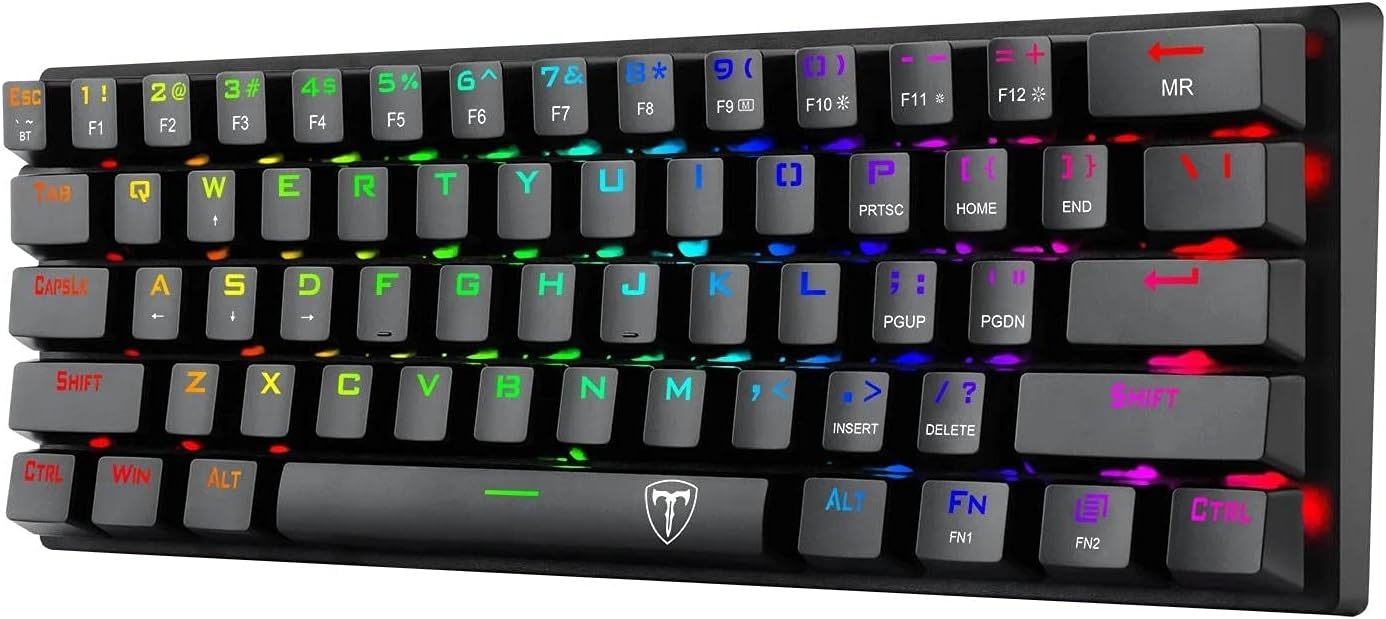
Image: Top view of the keyboard showing FN key and secondary functions.
| Combination | Function |
|---|---|
| FN + 1/2/3 | Switch between Bluetooth devices (short press) / Enter pairing mode (long press) |
| FN + F1-F12 | Multimedia controls (e.g., Play/Pause, Volume Up/Down, Mute) |
| FN + Right Shift | Toggle arrow key functionality (if applicable) |
| FN + \| | Change RGB lighting mode |
| FN + [{ | Decrease backlight brightness |
| FN + ]} | Increase backlight brightness |
| FN + ;: | Decrease backlight speed |
| FN + '" | Increase backlight speed |
| FN + Spacebar | Change backlight color (in certain modes) |
5.2 RGB Lighting Control
The T-TGK317 offers extensive RGB lighting customization:
- Change Lighting Mode: Press FN + \| to cycle through various pre-programmed lighting effects.
- Adjust Brightness: Use FN + [{ to decrease brightness and FN + ]} to increase brightness.
- Adjust Speed: Use FN + ;: to decrease animation speed and FN + '" to increase animation speed.
- Change Color: In certain static or reactive modes, press FN + Spacebar to cycle through different colors.
6. Maintenance
Proper maintenance ensures the longevity and performance of your keyboard:
- Cleaning: Use a soft, dry cloth to wipe the keyboard surface. For deeper cleaning, you may use a can of compressed air to remove dust and debris from between the keycaps. Avoid using harsh chemicals or abrasive materials.
- Keycap Removal: If necessary, keycaps can be carefully removed using a keycap puller (not included) for thorough cleaning. Be gentle to avoid damaging the switches.
- Battery Care (Wireless Mode): To preserve battery life, turn off the keyboard using the power switch when not in use for extended periods. Recharge the keyboard when the battery indicator (if available) shows low power or when performance degrades.
- Storage: Store the keyboard in a cool, dry place away from direct sunlight and extreme temperatures.
7. Troubleshooting
If you encounter issues with your T-DAGGER T-TGK317 keyboard, refer to the following solutions:
| Problem | Solution |
|---|---|
| Keyboard not responding in wired mode. | Ensure the USB-C cable is securely connected to both the keyboard and the computer. Try a different USB port or cable. Ensure the keyboard is switched to wired mode (if applicable, check the side switch). |
| Keyboard not connecting via Bluetooth. | Ensure the keyboard is in Bluetooth mode ('BT' on the side switch). Make sure the keyboard is charged. Put the keyboard into pairing mode (long press FN + BT1/BT2/BT3). Delete previous pairings on your device and try pairing again. Ensure your device's Bluetooth is enabled. |
| Keys are not registering or double-typing. | Clean under the keycaps with compressed air. Ensure the keyboard firmware is up to date (check T-DAGGER website for updates). If the issue persists, contact support. |
| RGB lighting is not working or stuck. | Try cycling through lighting modes (FN + \|). Adjust brightness (FN + [{ / ]}). Ensure the keyboard is not in a low-power state if using Bluetooth. |
| Bluetooth connection is unstable. | Ensure the keyboard is within range of your device. Minimize interference from other wireless devices. Ensure the keyboard battery is sufficiently charged. |
8. Specifications
| Feature | Detail |
|---|---|
| Brand | T-DAGGER |
| Model | T-TGK317 |
| Connectivity | Wireless (Bluetooth 5.0), Wired (USB-C) |
| Switch Type | Blue Mechanical Switches |
| Keycaps | Double Shot Inject Keycaps |
| Backlighting | RGB |
| Layout | 60% (61 keys) |
| Operating System | Windows 10 (Compatible with PC & Laptop) |
| Item Weight | 630 g |
| Color | Black |
9. Warranty and Support
T-DAGGER products are designed for reliability and performance. For information regarding warranty coverage, technical support, or service inquiries, please refer to the warranty card included with your product or visit the official T-DAGGER website. Keep your purchase receipt as proof of purchase for warranty claims.

