
Introduction
Welcome to the instruction manual for your T-DAGGER TGK312-BL Mechanical Gaming Keyboard. This guide provides essential information on how to set up, operate, maintain, and troubleshoot your new keyboard. Please read this manual carefully to ensure optimal performance and longevity of your device.
Setup
Follow these steps to connect your T-DAGGER TGK312-BL keyboard to your computer.
- Unpack the Keyboard: Carefully remove the keyboard from its packaging. Ensure all components are present.
- Connect via USB: Locate an available USB port on your PC or laptop. Insert the keyboard's USB connector firmly into the port.
- Driver Installation: The keyboard is plug-and-play. Your operating system (Windows, macOS, Linux) should automatically detect and install the necessary drivers. This process may take a few moments.
- Verify Connection: Once drivers are installed, the keyboard's backlight should illuminate, indicating a successful connection. Test by typing in a text editor.
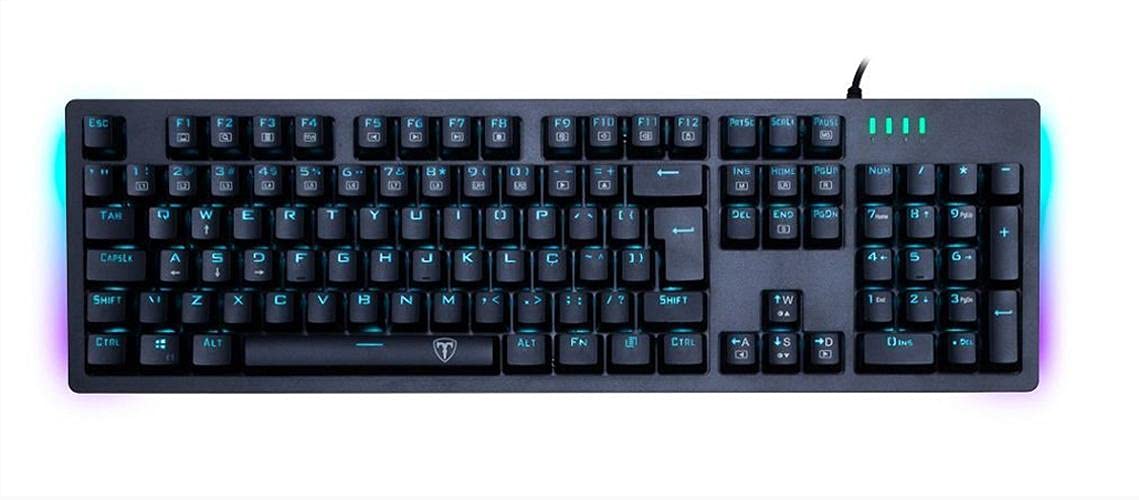
Image: The T-DAGGER TGK312-BL Mechanical Gaming Keyboard, showcasing its full layout and blue backlighting.
Operating Instructions
Your T-DAGGER TGK312-BL keyboard is designed for responsive and comfortable typing, especially for gaming. Here are some basic operating guidelines:
Standard Key Functions
- All standard alphanumeric keys, function keys (F1-F12), and navigation keys operate as expected.
- The keyboard features both English and Arabic characters on the keycaps for versatile use.
Backlight Control
The keyboard features a blue backlight. Specific key combinations, often involving the 'Fn' key (Function key), are typically used to control backlight brightness, modes, or to turn it on/off. Refer to the keyboard's specific keycap legends for backlight control symbols (e.g., Fn + Arrow keys, Fn + Scroll Lock, or dedicated backlight keys).

Image: A detailed top view of the T-DAGGER TGK312-BL keyboard, highlighting the key layout and illuminated English and Arabic characters.
Maintenance
Proper maintenance ensures the longevity and performance of your mechanical keyboard.
- Cleaning: Regularly clean the keyboard to prevent dust and debris buildup. Use a soft brush or compressed air to remove particles between keys. For keycap surfaces, use a slightly damp, lint-free cloth. Avoid excessive moisture.
- Avoid Spills: Liquids can severely damage mechanical keyboards. Keep beverages away from the keyboard. In case of a spill, immediately unplug the keyboard and allow it to dry completely before reconnecting.
- Storage: When not in use for extended periods, store the keyboard in a clean, dry environment, preferably covered to prevent dust accumulation.
- Cable Care: Do not bend or crimp the USB cable excessively. This can damage the internal wires and affect connectivity.
Troubleshooting
If you encounter issues with your T-DAGGER TGK312-BL keyboard, try these basic troubleshooting steps:
- Keyboard Not Responding:
- Ensure the USB cable is securely plugged into both the keyboard and the computer.
- Try plugging the keyboard into a different USB port on your computer.
- Restart your computer.
- Test the keyboard on another computer to determine if the issue is with the keyboard or your system.
- Specific Keys Not Working:
- Check for any physical obstructions under the keycap.
- Clean the area around the affected key.
- If the keyboard has a gaming mode, ensure it is not accidentally activated and causing key conflicts.
- Backlight Not Working:
- Ensure the keyboard is properly connected and powered.
- Use the designated backlight control keys (e.g., Fn combinations) to adjust brightness or cycle through modes.
- Check if any software settings are overriding the keyboard's backlight controls.
If these steps do not resolve the issue, please refer to the Warranty and Support section for further assistance.
Specifications
Detailed technical specifications for the T-DAGGER TGK312-BL Mechanical Gaming Keyboard.
| Feature | Description |
|---|---|
| Brand | T-DAGGER |
| Model Number | TGK312-BL |
| Connectivity Technology | USB |
| Keyboard Description | Mechanical |
| Switch Type | Mechanical (Blue Switches) |
| Backlight | Blue LED |
| Keycap Language | English & Arabic |
| Compatible Devices | PC, Laptop |
| Recommended Use | Gaming |
| Material | Plastic |
| Color | Black |
| Power Source | USB Powered |
| External Product ID | 6950376776662 (GTIN) |

Image: A close-up view revealing the blue mechanical switches beneath the keycaps of the T-DAGGER TGK312-BL keyboard.
Warranty and Support
For warranty information and technical support, please refer to the documentation provided with your product at the time of purchase or visit the official T-DAGGER website. Warranty terms and conditions may vary by region and retailer.
If you require further assistance or have questions not covered in this manual, please contact the manufacturer's customer support or your retailer.
