
Spartan POS 9700
Cipherlab 9700 Mobile Computer User Manual
Model: 9700 Series
1. Introduction
The Cipherlab 9700 Mobile Computer is a robust, high-performance device designed for demanding data collection environments. Featuring a 2D imager, hot-swappable battery, and versatile connectivity options including Bluetooth and Wi-Fi, it is engineered for efficiency and reliability in various industrial and commercial applications.
This manual provides essential information for the safe and effective operation, maintenance, and troubleshooting of your Cipherlab 9700 device.
2. Safety Information
Please read all safety instructions carefully before using the device to prevent injury or damage.
- Do not expose the device to extreme temperatures, direct sunlight, or high humidity.
- Use only manufacturer-approved batteries and power adapters.
- Avoid dropping or subjecting the device to severe impact.
- Do not attempt to disassemble or modify the device. Refer all servicing to qualified personnel.
- Keep the device away from strong magnetic fields.
- When scanning, avoid directing the imager beam directly into eyes.
3. Package Contents
Verify that all items are present in your package:
- Cipherlab 9700 Mobile Computer
- Rechargeable Li-ion Battery (5400 mAh)
- AC Power Adapter
- USB Cable
- Quick Start Guide
- Pistol Grip (if included in your specific model)
4. Device Layout and Components
Familiarize yourself with the key components of your Cipherlab 9700 Mobile Computer.
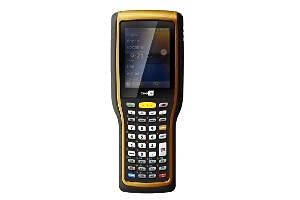
Front view of the Cipherlab 9700 mobile computer, showcasing its display, alphanumeric keypad, and integrated 2D imager.
- Display Screen: QVGA color display for user interface and data viewing.
- Keypad: 53-key alphanumeric keypad for data entry and navigation.
- 2D Imager Window: Located at the top, used for scanning barcodes.
- Scan Trigger: Button to activate the imager, typically on the side or pistol grip.
- Battery Compartment: Located at the rear, houses the hot-swappable battery.
- USB Port: For data transfer and charging.
- Power Button: To turn the device on/off or put it into sleep mode.
5. Setup
5.1. Battery Installation
- Ensure the device is powered off.
- Locate the battery compartment cover on the rear of the device.
- Open the cover and insert the 5400 mAh Li-ion battery, ensuring the contacts align correctly.
- Close the battery compartment cover securely.
5.2. Initial Charging
Before first use, fully charge the battery.
- Connect the USB cable to the device's USB port.
- Connect the other end of the USB cable to the AC power adapter.
- Plug the AC power adapter into a wall outlet.
- The charging indicator light will illuminate. Allow several hours for a full charge.
5.3. Powering On/Off
- To Power On: Press and hold the Power button until the screen illuminates.
- To Power Off: Press and hold the Power button, then follow the on-screen prompts to shut down.
- Sleep Mode: Briefly press the Power button to put the device into sleep mode and conserve battery. Press again to wake.
6. Operating Instructions
6.1. Basic Navigation
Use the keypad and touchscreen (if applicable) to navigate the Windows CE 6.0 operating system interface. The 53-key VT keypad provides comprehensive input capabilities.
6.2. Barcode Scanning (2D Imager)
- Open the application that requires barcode input.
- Point the 2D imager window at the barcode you wish to scan.
- Press the scan trigger button. A red aiming pattern will appear.
- Position the aiming pattern over the entire barcode. A successful scan is typically indicated by a beep or LED flash.
6.3. Connectivity (Bluetooth & Wi-Fi)
6.3.1. Wi-Fi Connection
- Navigate to the Wireless Manager or Network Settings in the operating system.
- Enable Wi-Fi.
- Select your desired Wi-Fi network from the list of available networks.
- Enter the network password (if required) and connect.
6.3.2. Bluetooth Pairing
- Go to Bluetooth settings in the operating system.
- Ensure Bluetooth is enabled on both the Cipherlab 9700 and the device you wish to pair with.
- Search for available devices on the Cipherlab 9700.
- Select the target device from the list and follow the on-screen prompts to complete pairing, entering a PIN if necessary.
7. Maintenance
7.1. Cleaning the Device
- Turn off the device before cleaning.
- Use a soft, lint-free cloth slightly dampened with water or a mild, non-abrasive cleaner.
- Do not use harsh chemicals, solvents, or abrasive materials.
- Gently wipe the screen and casing. For the imager window, use a lens cleaning cloth.
7.2. Battery Care
- To maximize battery life, avoid fully discharging the battery frequently.
- Store the device and spare batteries in a cool, dry place when not in use.
- The 9700 series supports hot-swappable batteries, allowing for continuous operation during battery replacement.
8. Troubleshooting
| Problem | Possible Cause | Solution |
|---|---|---|
| Device does not power on. | Battery is depleted or not installed correctly. | Ensure battery is fully charged and properly seated. Connect to power adapter. |
| Barcode not scanning. | Barcode damaged, imager window dirty, or incorrect scanning angle. | Clean imager window. Adjust distance and angle. Try scanning a different barcode. Ensure scanning application is active. |
| Wi-Fi/Bluetooth connection issues. | Out of range, incorrect password, or interference. | Move closer to access point/device. Re-enter password. Restart device and network equipment. |
| Device is unresponsive. | Software error or temporary glitch. | Perform a soft reset (refer to device documentation for specific key combination, usually holding power button for extended period). |
9. Specifications
| Feature | Description |
|---|---|
| Model | Cipherlab 9700 Series |
| Operating System | Windows CE 6.0 |
| Keypad | 53-key VT (Virtual Terminal) |
| Display | QVGA Color Display |
| Imager | 2D Imager |
| Battery | 5400 mAh Li-ion, Hot-Swappable |
| Connectivity | Bluetooth, Wi-Fi |
| ASIN | B0965LV4LB |
| Manufacturer | Spartan POS |
10. Warranty and Support
For warranty information and technical support, please refer to the documentation provided with your purchase or contact your authorized reseller. Keep your proof of purchase for warranty claims.
For further assistance, you may also visit the official Spartan POS website or contact their customer service department.
Related Documents - 9700
 |
SMSEagle NXS-9700 User's Manual: Features, Setup, and Specifications This comprehensive user manual for the SMSEagle NXS-9700 series (3G, 4G, 5G) SMS gateway provides detailed guidance on setup, features, network monitoring, API integration, troubleshooting, and technical specifications. Learn to configure SMS/MMS, email integration, advanced workflows, and more. |
 |
SMSEagle NXS-9700 Series User Manual | Hardware SMS Gateway Comprehensive user manual for the SMSEagle NXS-9700 series (3G/4G/5G). Learn how to install, configure, and manage your hardware SMS gateway for automated messaging and network monitoring. |
 |
SMSEagle NXS-9700 User Manual: Setup, Features, and Specifications This comprehensive user manual for the SMSEagle NXS-9700 series (3G, 4G, 5G) covers device setup, basic operations, advanced features like SMS/MMS management, phonebook integration, network monitoring, email-to-SMS conversion, API usage, technical specifications, safety information, and regulatory compliance. It guides users through installation, configuration, and daily use of the SMSEagle SMS gateway. |
 |
Boundary Natural Bamboo Bluetooth Speaker Instruction Manual (XO-9700) Comprehensive instruction manual for the Boundary Natural Bamboo Bluetooth Speaker (Model XO-9700), covering setup, functions, safety precautions, and FCC compliance. |
 |
RadioAnalog PTRX-9700 Panadapter Module Installation Manual for ICOM IC-9700 Detailed installation manual for the RadioAnalog PTRX-9700 Panadapter Module, designed for the ICOM IC-9700 radio. Learn how to extend RF/IF signals and monitor spectrum with this solderless installation guide. |
 |
SMSEagle NXS-9750 User's Manual: Setup, Features, and Configuration Guide This user manual provides comprehensive guidance for the SMSEagle NXS-9750 series GSM gateway, covering installation, setup, detailed feature explanations, configuration options, troubleshooting, and technical specifications for effective SMS and communication management. |
Ask a question about this manual
Ask about setup, troubleshooting, compatibility, parts, safety, or missing instructions. Manuals+ will review the question and use this page’s manual context to help answer it.