
RD RD6018W
RD6018W DC Power Supply User Manual
Model: RD6018W
Brand: RD
1. Introduction
The RD6018W is a versatile 60V 18A DC-DC step-down adjustable buck voltage converter and programmable power supply. This comprehensive kit includes the RD6018W module, an S800 metal case, and a 1000W Power Supply Unit (PSU). It features a user-friendly interface with keypad control, a 2.4-inch color display, and supports both APP control via Wi-Fi and PC software control via USB connection. This manual provides essential information for assembly, operation, and maintenance of your RD6018W power supply.

Image 1.1: The RD6018W DC Power Supply Unit.
2. Safety Information
Please read and understand all safety warnings and instructions before operating this device. Failure to do so may result in electric shock, fire, or serious injury.
- Electrical Safety: Ensure proper grounding and use an appropriate AC power cable (not included) for connection to the wall outlet. The PSU is defaulted to 220V AC input; if using 110V AC, adjust the input voltage switch on the PSU accordingly.
- Assembly: This product is not pre-assembled. Follow the assembly instructions carefully. Incorrect assembly can lead to malfunction or safety hazards.
- Ventilation: Ensure adequate ventilation around the power supply to prevent overheating. Do not block ventilation openings.
- Fuse Replacement: A backup fuse is included. If a fuse burns out, replace it with a fuse of the correct rating (25A input/output fuse, 1808-25A-65V Fast Below Fuse). Do not use a fuse with a higher rating.
- Environmental Conditions: Operate the device within the specified working temperature range of -10℃ to 40℃. Avoid exposure to moisture, dust, and corrosive environments.
3. Package Contents
The RD6018W full kit includes the following components:
- 1 x RD6018W DC Power Supply Module
- 1 x S800 Metal Case
- 1 x 1000W Power Supply Unit (PSU)
- 1 x CR1220 Battery (required for Time Display, user-supplied)
- Instruction Card (with link to digital manual)
Note: An AC power cable for connecting the PSU to a wall outlet is not included and must be purchased separately.
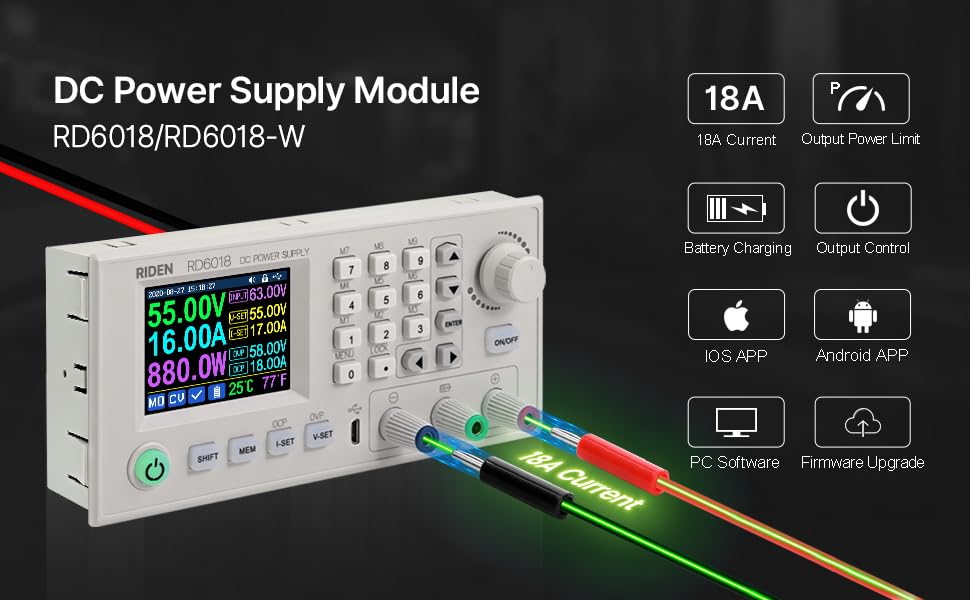
Image 3.1: The RD6018W DC Power Supply Module.
4. Product Features and Components
The RD6018W is designed with several key features for enhanced usability and performance:
- Digital Keypad: For precise input and control of voltage and current settings.
- 2.4-inch Big Screen: Provides a clear and effective display area for monitoring data.
- Max Power Limit: Allows users to set a maximum power output (0-1080W) to protect connected loads.
- User-Friendly Interface: Intuitive menu system for easy navigation and setting adjustments.
- Display Style Selection: Choose between traditional data display or a curve style for real-time graphing of output.
- Data Storage and Recall: Store and recall frequently used voltage and current settings for quick setup.
- Battery Charging Function: Suitable for charging various battery types.
- PC Software Control: Connect via micro USB to a Windows 7 or above PC for advanced control and monitoring.
- APP Wireless Control: Connect via Wi-Fi to Android 5.0 or above and iOS devices for remote control and monitoring.
- Firmware Upgrade Support: Allows for future updates to enhance functionality and performance.
- Load Protection: Includes Over Voltage Protection (OVP), Over Current Protection (OCP), and Over Temperature Protection (OTP) to safeguard connected devices.
- Removable Dual 25A Fuses: Features easily replaceable input and output fuses for protection against overloads.
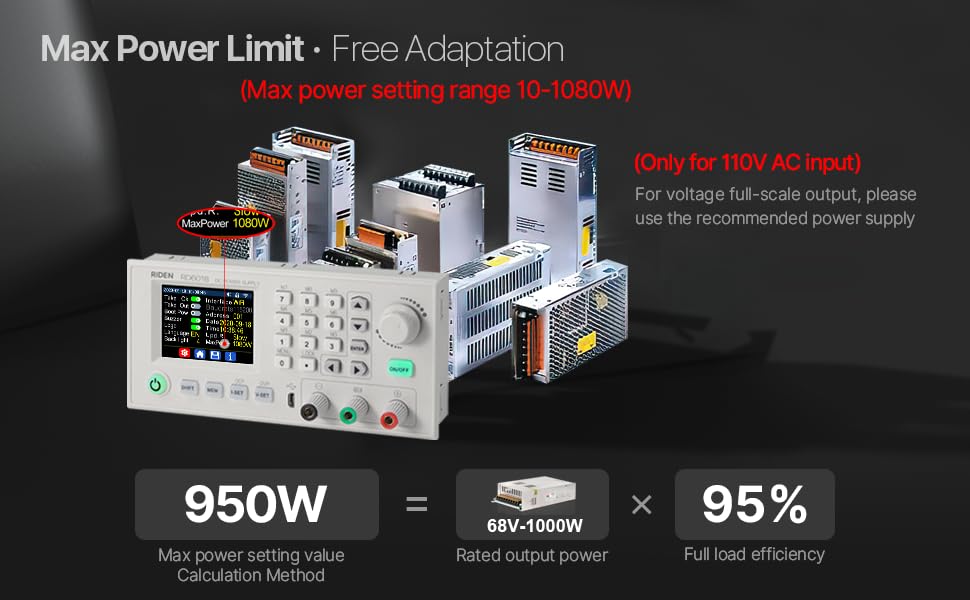
Image 4.1: Max Power Limit feature of the RD6018W.
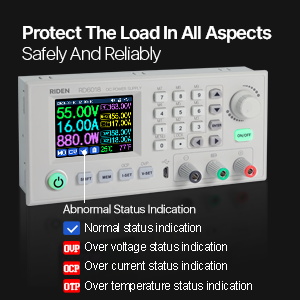
Image 4.2: Display indicators for normal status, over voltage, over current, and over temperature protection.

Image 4.3: Internal view highlighting the removable dual 25A fuses.
5. Setup
The RD6018W kit requires assembly. Please refer to the detailed assembly instructions provided on the instruction card or the official user manual PDF for step-by-step guidance. Key steps include:
- Case Assembly: Mount the RD6018W module and 1000W PSU into the S800 metal case.
- Wiring: Connect the power supply components according to the wiring diagram in the full manual.
- AC Input Voltage: The 1000W PSU is defaulted to 220V AC input. If your region uses 110V AC, ensure you change the input gear/switch on the PSU before connecting to power.
- CR1220 Battery: Install a CR1220 battery (not included) into the designated slot for the time display function.

Image 5.1: The RD6018W is suitable for various applications including laboratory and repair work.
6. Operating Instructions
The RD6018W offers multiple ways to operate and control its functions:
6.1. Keypad Control
Use the digital keypad and rotary encoder to set output voltage, current, and navigate through system settings. The 2.4-inch display provides real-time feedback on all parameters.
6.2. PC Software Control
Connect the RD6018W to your PC (Windows 7 or above) via the micro USB port. Download and install the official PC software to access advanced control, data logging, and firmware update features. Ensure you follow the connection instructions provided in the full manual.
Video 6.1: Demonstration of the RD6018 Power Supply's PC Software Control capabilities.
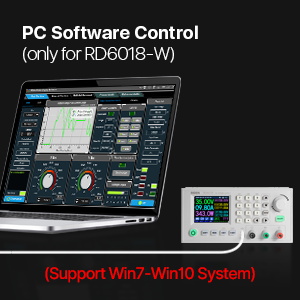
Image 6.2: The RD6018W connected to a computer for PC software control.
6.3. APP Wireless Control
For wireless control, download the official APP (supports Android 5.0+ and iOS). Connect the RD6018W to your Wi-Fi network. The APP allows for remote monitoring, setting adjustments, and data visualization. Check the APP for compatibility with your phone system before extensive use.

Image 6.3: Wireless control of the RD6018W via smartphone application.
7. Maintenance
Proper maintenance ensures the longevity and reliable operation of your RD6018W power supply.
- Cleaning: Keep the device clean and free from dust. Use a soft, dry cloth for cleaning. Do not use liquid cleaners.
- Fuse Replacement: If a fuse blows, replace it with the correct type and rating (25A input/output fuse, 1808-25A-65V Fast Below Fuse). A backup fuse is provided. For temporary use under 10A, you can use the spare socket next to the burned one, but it is recommended to replace the fuse promptly for optimal performance.
- Firmware Updates: Periodically check for and install firmware updates to ensure your device has the latest features and bug fixes. Firmware updates can take approximately 80 seconds.
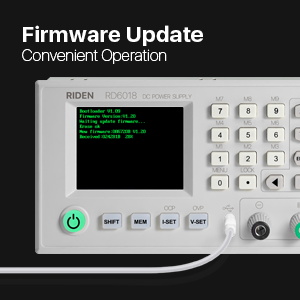
Image 7.1: The RD6018W connected for a firmware update.
8. Troubleshooting
If you encounter issues with your RD6018W, consider the following common troubleshooting steps:
- No Power: Check the AC power cable connection and ensure the PSU's input voltage switch is set correctly (110V/220V). Verify that the fuses are intact.
- No Output: Ensure the output is enabled on the device. Check for any active protection (OVP, OCP, OTP) indicated on the display.
- APP/PC Software Connection Issues: Verify Wi-Fi or USB cable connection. Ensure the APP/PC software version is compatible with your operating system. Refer to the full manual for detailed connection guides.
- Inaccurate Readings: Ensure proper calibration if available (refer to advanced manual). Check for stable input power.
For more detailed troubleshooting or persistent issues, please refer to the comprehensive User Manual (PDF) available via the link provided on the instruction card or contact RD customer support.
9. Specifications
Technical parameters for the RD6018W DC Power Supply:
| Parameter | Value |
|---|---|
| Model | RD6018W |
| Input Voltage Range | 6-70.00V DC |
| Output Voltage Range | 0-60.00V DC |
| Output Current Range | 0-18.00A |
| Output Power Range | 0-1080W |
| Output Voltage Accuracy | ±(0.3%+3 digits) |
| Output Current Accuracy | ±(0.5%+5 digits) |
| Output Ripple Typical | 250mV VPP@6A |
| Working Temperature Range | -10℃~40℃ |
| Constant Voltage Mode Response Time | 2ms (0.1A-5A load) |
| Capacity and Energy Statistical Error | ±2% |
| Working Mode | Buck mode: Voltage drop >1V and >10% |
| Item Weight | 7.04 pounds (3.2 Kilograms) |
| Product Dimensions | 12.2 x 7.09 x 3.54 inches |
| Manufacturer | Hangzhou Ruideng Technology Co.,Ltd |
10. Warranty and Support
For warranty information and technical support, please refer to the official documentation provided with your product or visit the manufacturer's website. If you have any problems, please send us a message, and we will reply as soon as possible.
Additional resources, including the full User Manual (PDF) and Installation Manual (PDF), can be found via the links provided on the product's instruction card or online product page.
Related documentsRD6018W


Ask a question about this manual
Ask about setup, troubleshooting, compatibility, parts, safety, or missing instructions. Manuals+ will review the question and use this page’s manual context to help answer it.