
Introduction
This manual provides comprehensive instructions for the installation, operation, and maintenance of your CORSAIR iCUE H170i ELITE CAPELLIX Liquid CPU Cooler. This high-performance liquid CPU cooler is designed to deliver efficient, low-noise cooling for demanding PC builds, featuring a 420mm radiator, three CORSAIR ML140 RGB PWM fans, and dynamic CAPELLIX RGB LEDs.
For additional support and resources, please refer to the official User Manual (PDF).
What's in the Box
Upon unboxing your CORSAIR iCUE H170i ELITE CAPELLIX Liquid CPU Cooler, verify that all components are present:
- CORSAIR iCUE H170i ELITE CAPELLIX Liquid CPU Cooler (Radiator with attached pump/cold plate and tubing)
- Three CORSAIR ML140 RGB PWM Fans
- CORSAIR iCUE COMMANDER CORE Smart RGB Lighting and Fan Speed Controller
- Mounting Hardware for Intel LGA 115X/1200/2066 and AMD AM4/sTR4 sockets
- USB Cable for COMMANDER CORE
- Fan Screws
- Thermal Paste (pre-applied on cold plate)

Image: The CORSAIR iCUE H170i ELITE CAPELLIX Liquid CPU Cooler packaging and its main components, including the radiator, pump, and fans.
Video: An unboxing overview of the CORSAIR iCUE H170i ELITE CAPELLIX Liquid CPU Cooler, showcasing the contents of the package.
Setup and Installation
Proper installation is crucial for optimal cooling performance. Follow these general steps for mounting the cooler:
- Prepare Motherboard: Identify the correct mounting brackets for your CPU socket (Intel LGA 115X/1200/2066 or AMD AM4/sTR4). Attach the appropriate backplate and standoffs to your motherboard.
- Mount Radiator: Secure the 420mm radiator to an available mounting location in your PC case, typically at the top or front, ensuring adequate airflow.
- Install Fans: Attach the three CORSAIR ML140 RGB PWM fans to the radiator using the provided screws. Ensure the fan orientation promotes optimal airflow (e.g., exhaust out of the top).
- Mount Pump/Cold Plate: Carefully align the pump/cold plate assembly over your CPU. The cooler comes with pre-applied thermal paste. Secure the pump to the CPU socket using the mounting screws, tightening them evenly until snug.
- Connect Cables:
- Connect the pump's 3-pin tach cable to the AIO_PUMP or CPU_FAN header on your motherboard.
- Connect the fans' PWM cables to the CORSAIR iCUE COMMANDER CORE controller.
- Connect the pump's RGB cable to the COMMANDER CORE controller.
- Connect the COMMANDER CORE to your motherboard's USB 2.0 header and a SATA power connector from your power supply.
- Cable Management: Route cables neatly to ensure proper airflow and a clean aesthetic within your PC case.

Image: Compatibility diagram illustrating mounting brackets for Intel LGA 1200/2066, AMD AM4, and AMD sTRX4 sockets, ensuring broad CPU support.

Image: The CORSAIR iCUE H170i ELITE CAPELLIX cooler installed inside a PC case, showcasing its integrated RGB lighting on the pump and fans.
Operating the Cooler with iCUE Software
The CORSAIR iCUE software provides comprehensive control over your cooler's performance and RGB lighting. Download and install the latest version of iCUE from the official Corsair website.
- Fan Speed Control: Adjust fan speeds (400 to 2,000 RPM) to balance cooling performance and noise levels. Create custom fan curves based on CPU temperature for dynamic adjustments.
- RGB Lighting Customization: Control the 33 CAPELLIX LEDs on the pump head and eight RGB LEDs per fan. Choose from various lighting effects, colors, and synchronize them with other iCUE-compatible devices.
- Monitoring: Monitor CPU temperatures, pump speed, and fan RPM in real-time through the iCUE dashboard.
- Performance Profiles: Set up different performance profiles (e.g., Quiet, Balanced, Extreme) to quickly switch between cooling modes depending on your workload.

Image: The CORSAIR iCUE software interface, demonstrating options for RGB lighting effects, fan speed adjustments, and performance curve settings.
Video: An official product video showcasing the features and benefits of the CORSAIR iCUE H170i ELITE CAPELLIX Liquid CPU Cooler, including its RGB lighting and iCUE software integration.
Maintenance
Regular maintenance helps ensure the longevity and optimal performance of your liquid CPU cooler:
- Dust Removal: Periodically clean dust from the radiator fins and fan blades using compressed air. Ensure the fans are not spinning during cleaning to prevent damage.
- Check Tubing and Connections: Inspect the tubing for any kinks or signs of wear. Ensure all connections to the pump, radiator, and COMMANDER CORE are secure.
- Thermal Paste: The cooler comes with pre-applied thermal paste. If you need to remount the cooler, clean off the old thermal paste from both the CPU and the cold plate, and apply a fresh, thin layer of high-quality thermal paste.
Troubleshooting
If you encounter issues with your CORSAIR iCUE H170i ELITE CAPELLIX, consider the following common solutions:
- High CPU Temperatures:
- Verify proper cold plate contact with the CPU.
- Ensure fans are spinning and oriented correctly for airflow.
- Check iCUE software for fan speed settings; try "Extreme" profile.
- Clean dust from radiator fins.
- RGB Lighting Not Working:
- Ensure all RGB cables are securely connected to the COMMANDER CORE.
- Check iCUE software for lighting effect settings and ensure the device is detected.
- Verify the COMMANDER CORE has SATA power and USB connection.
- Pump Noise:
- Ensure the pump is running at an appropriate speed in iCUE.
- Check for air bubbles in the loop by gently tilting your PC case.
- Fans Not Spinning:
- Check fan cable connections to the COMMANDER CORE.
- Verify fan speed settings in iCUE.
- Ensure COMMANDER CORE has sufficient power.
Specifications
| Feature | Detail |
|---|---|
| Brand | Corsair |
| Model Number | CW-9060055-WW |
| Product Dimensions | 17.72"L x 5.51"W x 1.06"H (457mm x 140mm x 27mm) |
| Item Weight | 2.91 Pounds |
| Cooling Method | Water, Fan |
| Fan Size | 140mm (x3) |
| Fan Speed Range | 400 to 2,000 RPM |
| Noise Level | 10 dB (minimum) |
| Pump LEDs | 33 CAPELLIX RGB LEDs |
| Fan LEDs | 8 RGB LEDs per fan |
| Compatible Devices | Desktop |
| Material | Aluminium, Copper |
| Power Connector Type | 4-Pin |
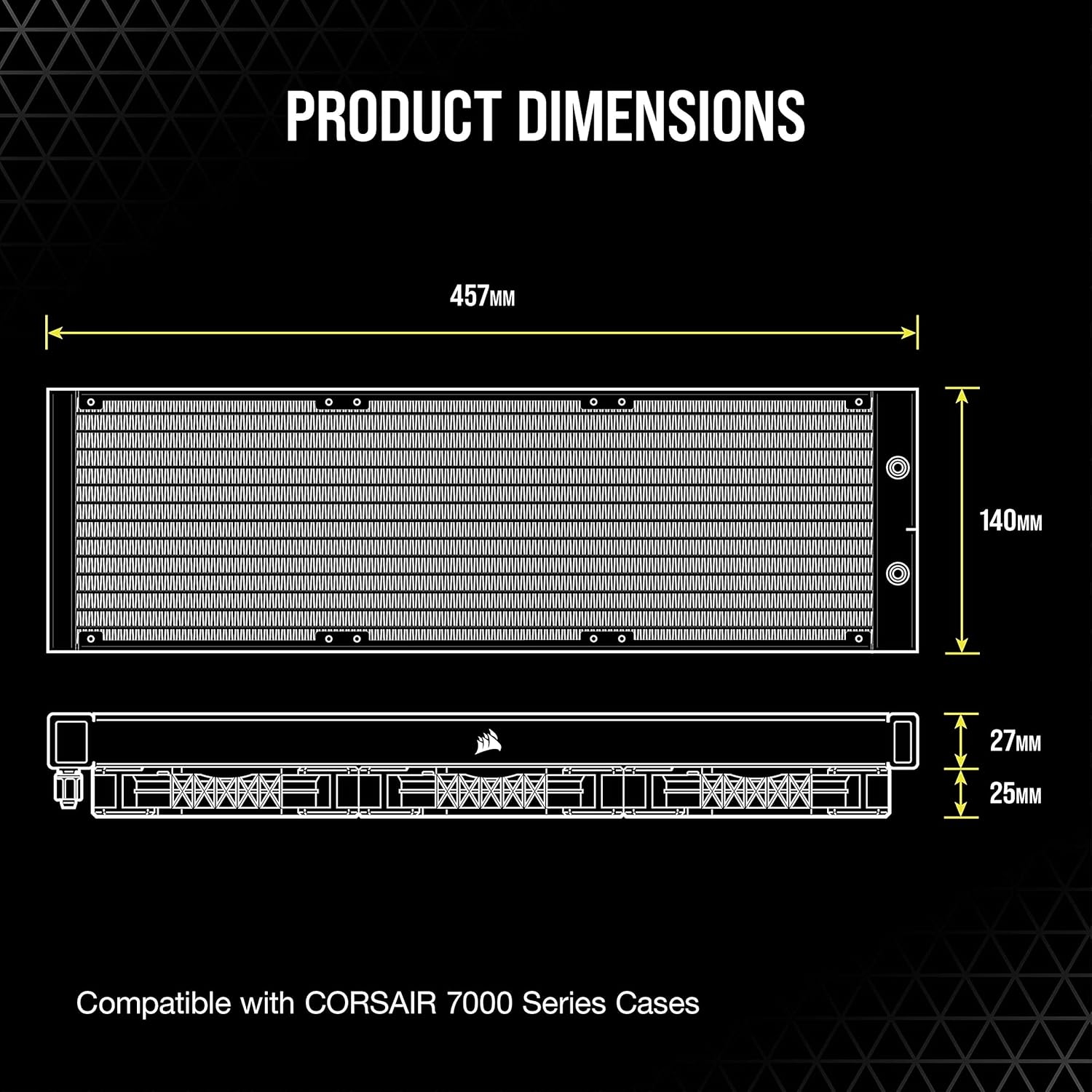
Image: Detailed product dimensions of the CORSAIR iCUE H170i ELITE CAPELLIX radiator, showing its length (457mm), width (140mm), and thickness (27mm).
Warranty and Support
For detailed warranty information and technical support, please visit the official Corsair website or refer to the full User Manual (PDF) provided with your product. You can also explore other Corsair products and accessories at the Corsair Store.