
Introduction
This manual provides detailed instructions for the installation, operation, and maintenance of your GTek F2740C 27-inch 280Hz Curved Gaming Monitor. Please read this manual thoroughly before using the product to ensure proper functionality and to prevent damage.
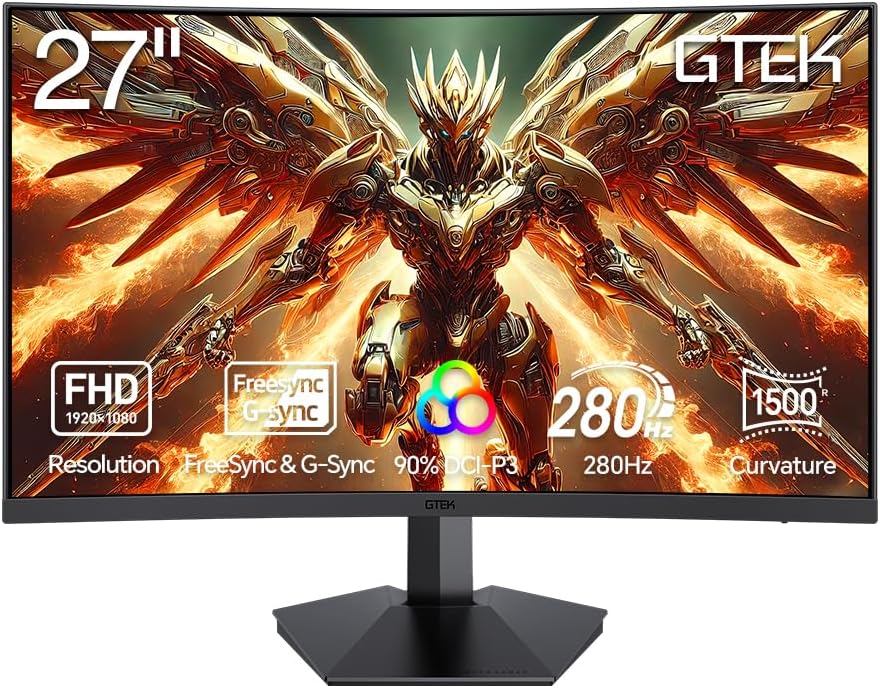
Figure 1: Front view of the GTek F2740C 27-inch 280Hz Curved Gaming Monitor.
1. Setup
1.1 Unpacking the Monitor
Carefully remove all components from the packaging. Ensure all items listed in the "What's in the Box" section are present.
1.2 Assembling the Stand
- Attach the monitor stand to the back of the monitor.
- Secure the stand using the provided screws.
- Place the monitor on a stable, flat surface.
Alternatively, the monitor is VESA 75x75mm compatible for wall or arm mounting.
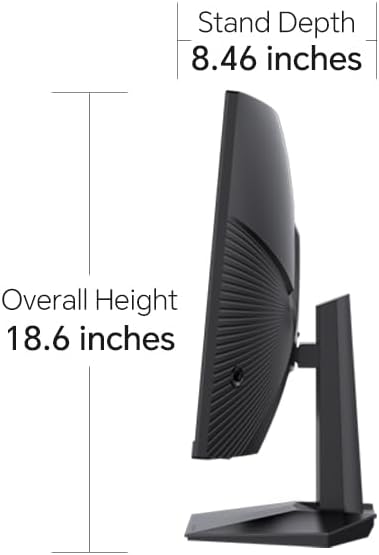
Figure 2: Side view illustrating the monitor's stand depth and VESA mounting points.
1.3 Connecting the Monitor
Connect the monitor to your computer or gaming console using the appropriate cables.
- DisplayPort (DP 1.4): For optimal performance, including 280Hz refresh rate. Use the provided DisplayPort cable.
- HDMI (HDMI 2.0): Two HDMI ports are available for connecting other devices.
- Audio Jack: Connect external speakers or headphones. Note: This monitor does not have built-in speakers.
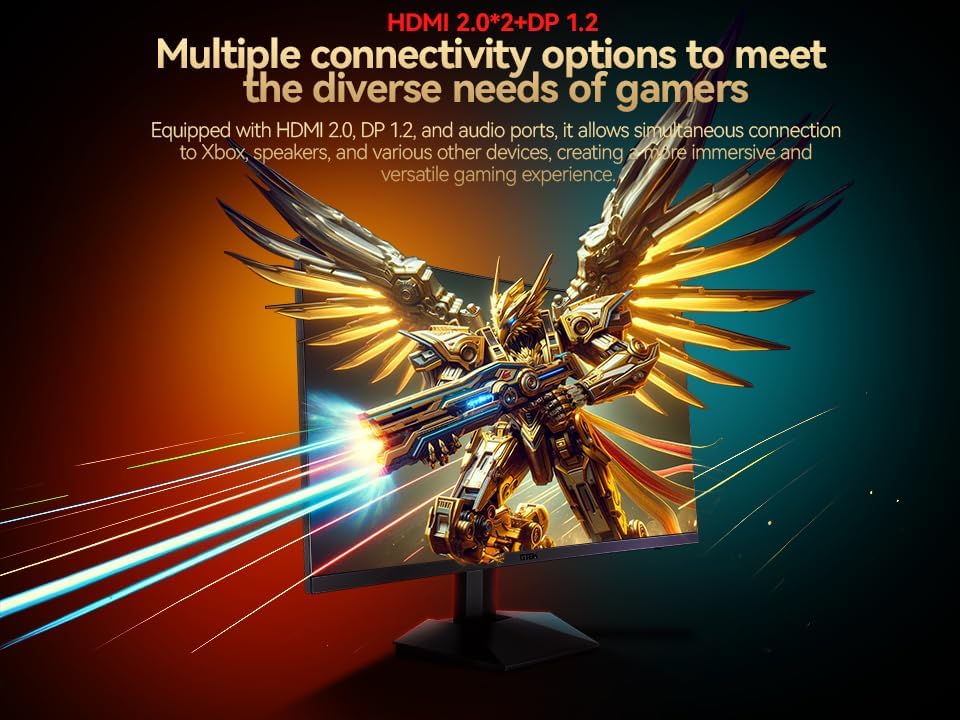
Figure 3: Rear view of the monitor highlighting the HDMI and DisplayPort inputs.
1.4 Powering On
Connect the power adapter to the monitor and a power outlet. Press the power button to turn on the monitor.
2. Operating Instructions
2.1 Adjusting Display Settings
Use the monitor's OSD (On-Screen Display) menu to adjust settings such as brightness, contrast, color temperature, and input source. The OSD menu is typically navigated using buttons or a joystick located on the monitor.
2.2 Optimizing for Gaming
- Refresh Rate: The monitor supports up to 280Hz via DisplayPort. Ensure your computer's display settings are configured to the highest available refresh rate for the smoothest experience.
- Response Time: Features 1ms MPRT (Moving Picture Response Time) to reduce motion blur.
- Adaptive Sync (FreeSync & G-Sync Compatible): This technology synchronizes the monitor's refresh rate with your graphics card's frame rate to eliminate screen tearing and stuttering. Enable this feature in your graphics card control panel and on the monitor's OSD.
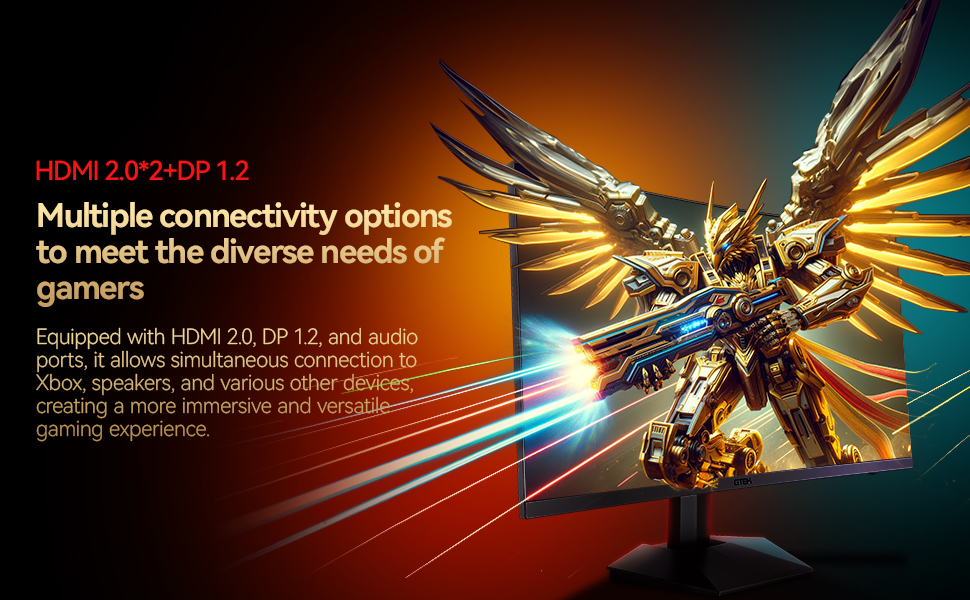
Figure 4: Visual representation of FreeSync and G-Sync technology for tear-free gaming.
2.3 Visual Experience
- 1500R Curved Display: The 1500R curvature provides an immersive visual experience, conforming to the natural curve of the human eye.
- 90% DCI-P3 Color Gamut: Delivers vivid and accurate colors.
- HDR Support: Enhances contrast and color for a more dynamic image.
- Anti-Flicker & Anti-Glare: Technologies designed to reduce eye strain during extended use.

Figure 5: The 1500R curved display offers an immersive viewing experience.
3. Maintenance
3.1 Cleaning the Monitor
- Always power off and unplug the monitor before cleaning.
- Use a soft, lint-free cloth lightly dampened with water or a non-abrasive screen cleaner.
- Do not spray cleaner directly onto the screen.
- Avoid using alcohol, ammonia, or abrasive cleaners, as these can damage the screen surface.
3.2 General Care
- Keep the monitor away from direct sunlight, excessive heat, and moisture.
- Ensure adequate ventilation around the monitor to prevent overheating.
- Avoid placing heavy objects on the monitor or its cables.
4. Troubleshooting
| Problem | Possible Cause | Solution |
|---|---|---|
| No image on screen | Power cable disconnected; Video cable disconnected; Incorrect input source selected. | Check power and video cable connections; Select correct input source via OSD menu. |
| Image is blurry or distorted | Incorrect resolution; Graphics card driver issues. | Set display resolution to 1920x1080; Update graphics card drivers. |
| Screen flickering or tearing | Adaptive Sync (FreeSync/G-Sync) not enabled; Low refresh rate. | Enable Adaptive Sync in monitor OSD and graphics card settings; Set refresh rate to 280Hz (if supported by GPU). |
| No sound from audio jack | External speakers/headphones not connected; Audio output not selected. | Ensure external audio device is connected; Select monitor as audio output in computer settings. |
If the issue persists after attempting these solutions, please contact GTek customer support.
5. Specifications
| Feature | Detail |
|---|---|
| Model Number | F2740C |
| Screen Size | 27 Inches |
| Resolution | 1920 x 1080 (FHD 1080p) |
| Refresh Rate | Up to 280Hz (DisplayPort) |
| Response Time | 1ms MPRT |
| Curvature | 1500R |
| Panel Type | VA |
| Color Gamut | 90% DCI-P3 |
| Contrast Ratio | 4000:1 |
| Brightness | 300 nits |
| HDR Support | Yes |
| Adaptive Sync | FreeSync Compatible |
| Connectivity | 2x HDMI 2.0, 1x DisplayPort 1.4, 1x Audio Jack |
| VESA Compatibility | 75x75mm |
| Tilt Adjustment | -5°~15° |
| Product Dimensions | 1 x 24 x 17 inches |
| Item Weight | 11.48 pounds |
6. Warranty & Support
6.1 Warranty Information
The GTek F2740C monitor comes with a 3-Year Warranty. This warranty covers manufacturing defects, repairs, or replacements for three years from the purchase date. This applies only to orders with a release date on or after September 1, 2025.
6.2 Customer Support
For technical assistance, troubleshooting, or warranty claims, please contact GTek customer support. You can find contact information on the official GTek website or through your retailer.
Visit the official GTek Store for more information: GTek Store