
Introduction
Thank you for choosing the PILOT 720p Vehicle Dash Cam. This manual provides detailed instructions for the proper installation, operation, and maintenance of your new dash camera. Please read this manual thoroughly before use to ensure optimal performance and longevity of the device.
This dash cam is designed to record video footage while driving, offering features such as 720p HD resolution, a wide viewing angle, motion detection, and loop recording. It comes with an 8GB Micro SD card and a universal window mount for convenient setup.
Package Contents
Please verify that all items listed below are included in your package:
- Dash Cam Unit
- 8GB Micro SD Card
- Suction Cup Mount
- USB Car Charger
- USB Charger and Sync Cable
- User Manual (this document)
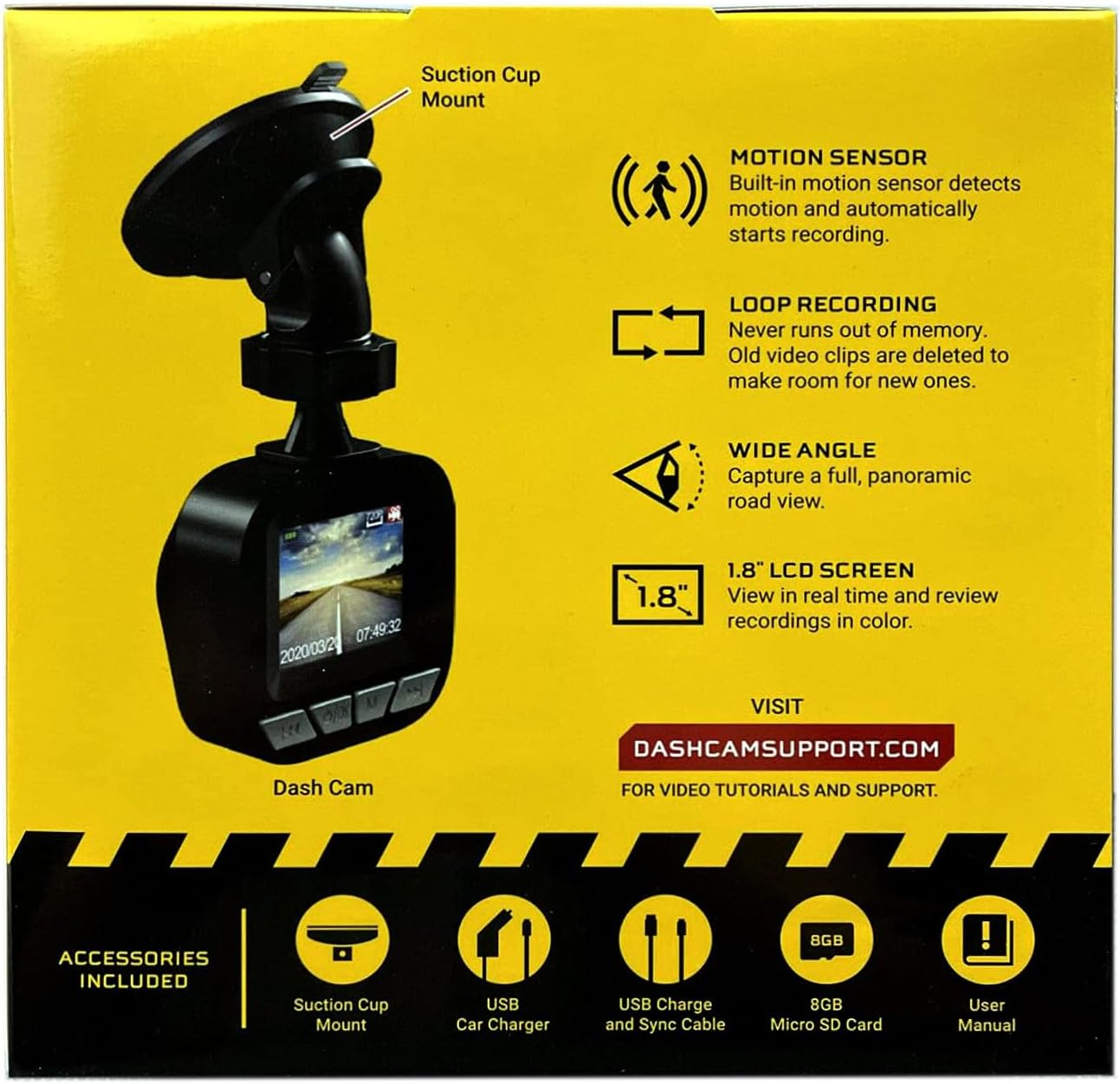
Image: The dash cam unit, suction cup mount, USB car charger, USB charge and sync cable, 8GB Micro SD card, and user manual are shown, along with a summary of key features like motion sensor, loop recording, wide angle, and 1.8" LCD screen.
Product Features
- Resolution: 720p HD video recording.
- Screen Size: 1.8-inch LCD display for real-time viewing and playback.
- Viewing Angle: Wide-angle lens to capture a broad road view.
- Motion Sensor: Built-in sensor detects motion and automatically initiates recording.
- Loop Recording: Automatically overwrites older video clips when the memory card is full, ensuring continuous recording.
- Microphone: Built-in for audio recording.
- Storage: Supports Micro SD cards up to 32GB (8GB card included).
- Power: Built-in rechargeable Lithium-ion battery and USB 2.0 port for charging.
Setup Guide
1. Inserting the Micro SD Card
Locate the Micro SD card slot on the side or bottom of the dash cam. Gently insert the included 8GB Micro SD card into the slot until it clicks into place. Ensure the card is inserted correctly to avoid damage. The dash cam supports cards up to 32GB.
2. Mounting the Dash Cam
- Clean the desired area on your vehicle's windshield where you intend to mount the dash cam. Ensure the surface is dry and free of dust.
- Attach the suction cup mount to the dash cam unit.
- Press the suction cup firmly against the windshield and flip the lever to secure it in place.
- Adjust the angle of the dash cam to ensure a clear view of the road ahead, avoiding any obstructions.

Image: A close-up view of the front of the PILOT dash cam, showing the camera lens and the "PILOT" brand logo. This illustrates the main unit for mounting.
3. Connecting Power
Connect the USB car charger to your vehicle's 12V power outlet (cigarette lighter socket). Then, connect the USB charger and sync cable from the car charger to the USB port on the dash cam. The dash cam will typically power on automatically when the vehicle starts and power is supplied.
Operating Instructions
Power On/Off
- Automatic: The dash cam will power on and begin recording automatically when connected to a power source and the vehicle ignition is turned on. It will power off automatically when the vehicle is turned off and power is disconnected.
- Manual: To manually power on or off, press and hold the power button (usually located on the side or bottom of the unit) for a few seconds.
Recording Modes
- Continuous Loop Recording: The dash cam records video in continuous loops (e.g., 1, 3, or 5-minute segments). When the Micro SD card is full, the oldest unlocked files will be overwritten by new recordings. This ensures you always have the most recent footage.
- Motion Detection Recording: When enabled in the settings, the dash cam will automatically start recording if it detects motion in front of the camera while the vehicle is parked and the dash cam is powered on. This feature is useful for monitoring your vehicle when stationary.
Viewing Recordings
The 1.8-inch LCD screen allows you to view live footage and review recorded videos directly on the device. Use the navigation buttons (typically labeled 'Menu', 'Up', 'Down', 'OK') to browse through the menu options and playback recorded files. Refer to the on-screen interface for specific navigation prompts.
Date and Time Stamp
Ensure the date and time are set correctly in the dash cam's settings menu. This is crucial for accurate record-keeping of video footage.
Maintenance
- Cleaning the Lens: Regularly clean the camera lens with a soft, lint-free cloth to ensure clear video quality. Avoid abrasive materials or harsh chemicals.
- SD Card Management: It is recommended to format the Micro SD card periodically (e.g., once a month) within the dash cam's settings menu. This helps maintain card performance and prevents data corruption. Back up any important footage before formatting.
- Battery Care: The built-in Lithium-ion battery is primarily for emergency recording and saving settings. For continuous operation, keep the dash cam connected to the vehicle's power supply. Avoid exposing the device to extreme temperatures for extended periods.
- Firmware Updates: Check the manufacturer's support website (DASHCAMSUPPORT.COM) periodically for any available firmware updates to improve performance and add new features.
Troubleshooting
| Problem | Possible Solution |
|---|---|
| Dash cam does not power on. |
|
| Dash cam turns off frequently during driving. |
|
| Video footage is blurry or unclear. |
|
| Dash cam is not recording. |
|
Specifications
| Feature | Detail |
|---|---|
| Resolution | 720p HD |
| Screen Size | 1.8 inches |
| Viewing Angle | Wide Angle (135 Degrees Field Of View) |
| Motion Sensor | Built-in |
| Loop Recording | Built-in |
| Microphone | Built-in |
| USB Port | USB 2.0 |
| Battery | Built-in Rechargeable Lithium-ion |
| Memory Card Support | Micro SD up to 32GB (8GB included) |
| Item Weight | 8 ounces |
| Connectivity Technology | USB |
| Mounting Type | Window Mount |
Support
For additional assistance, video tutorials, or further support, please visit the official support website:
Please have your product model information ready when contacting support.

