
1. Introduction
This manual provides essential information for the setup, operation, maintenance, and troubleshooting of your Dell Latitude 5310 Laptop. Please read this document thoroughly to ensure proper use and to maximize the performance and longevity of your device.

Figure 1: Front view of the Dell Latitude 5310 Laptop.
2. Setup
2.1 Unpacking
Carefully remove the laptop and all accessories from the packaging. Verify that all components are present:
- Dell Latitude 5310 Laptop
- AC Power Adapter and Power Cord
- Documentation (this manual and any other included guides)
2.2 Connecting the Power Adapter
Connect the AC power adapter to the power connector on the laptop and then plug the power cord into an electrical outlet. The battery will begin charging automatically.
2.3 Initial Power On and Operating System Setup
Press the power button located on the top-right of the keyboard to turn on the laptop. Follow the on-screen instructions to complete the Windows 10 Pro operating system setup, including language selection, network connection, and user account creation.
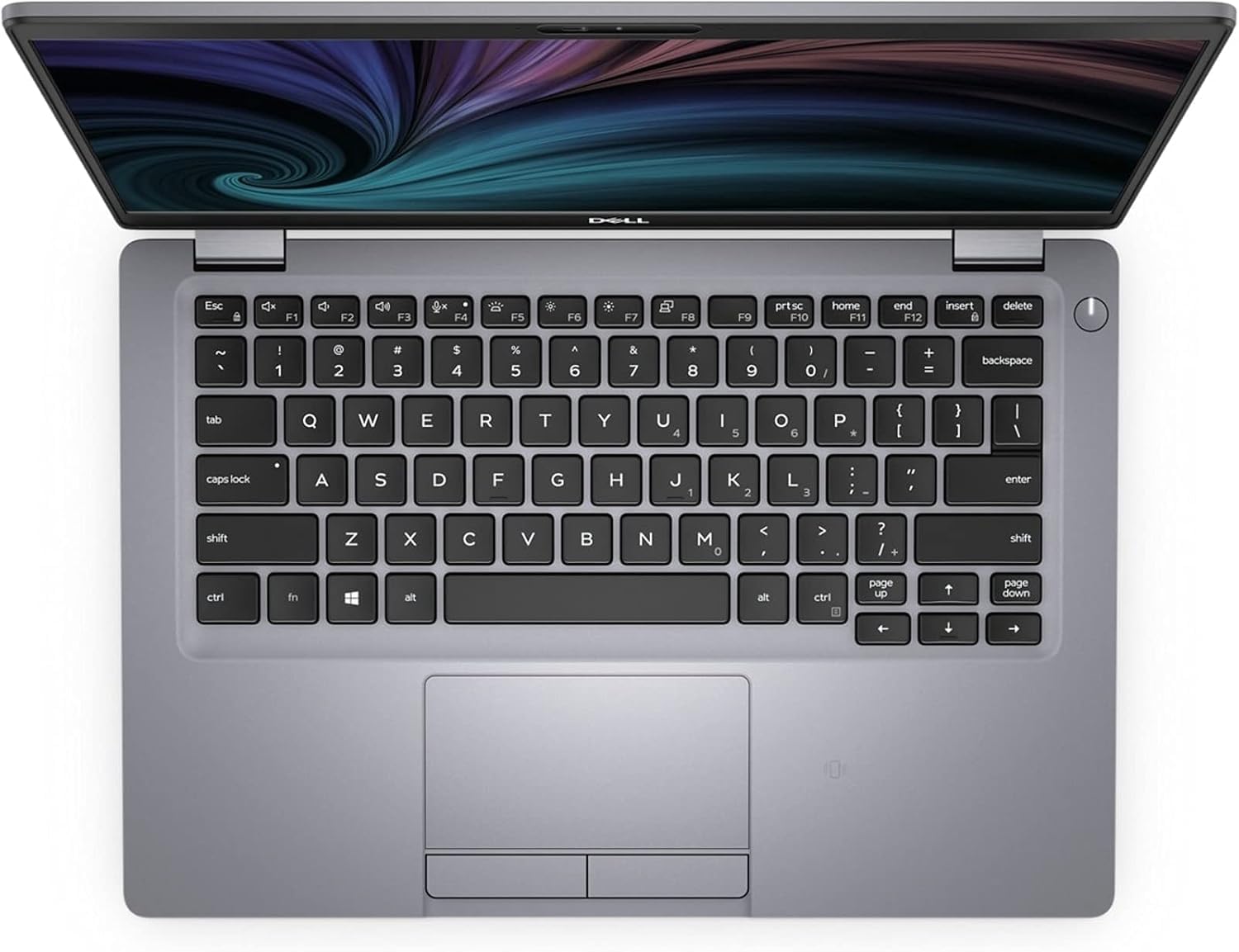
Figure 2: Keyboard and touchpad layout of the Dell Latitude 5310 Laptop.
3. Operating the Laptop
3.1 Power Management
- Power On: Press the power button.
- Sleep Mode: Close the lid or select 'Sleep' from the Windows Start menu.
- Shut Down: Select 'Shut down' from the Windows Start menu.
- Restart: Select 'Restart' from the Windows Start menu.
3.2 Keyboard and Touchpad
The laptop features a full-sized keyboard and a precision touchpad. The keyboard includes function keys (F1-F12) that can be used in combination with the Fn key for various shortcuts (e.g., volume control, screen brightness). The touchpad supports multi-touch gestures for navigation.
3.3 Connecting to Networks
- Wi-Fi: Click the network icon in the taskbar, select your desired Wi-Fi network, and enter the password if prompted.
- Bluetooth: Enable Bluetooth in Windows settings to pair with compatible devices such as headphones or mice.
- Ethernet: Connect an Ethernet cable to the RJ-45 port for a wired network connection.
3.4 External Ports and Connectors
The Dell Latitude 5310 is equipped with various ports for connecting external devices. Refer to the diagram below for port identification.

Figure 3: Side view with port identification.
- USB 3.2 Gen 1 Port: Connect USB devices.
- SD Card Reader: Insert SD cards for data transfer.
- Ethernet Port (RJ-45): Connect to a wired network.
- USB 3.2 Gen 1 Port with PowerShare: Connect USB devices and charge compatible devices even when the laptop is off.
- Wedge-shaped lock slot: For security cables.
- Power Adapter Port: Connect the AC power adapter.
- USB-C 3.2 Gen 2 Port with DisplayPort: Connect USB-C devices, external displays, or power delivery.
- HDMI 1.4b Port: Connect to an external display or TV.
- USB 3.2 Gen 1 Port: Connect USB devices.
- Headset Port: Connect headphones or a headset.
3.5 Using the Webcam
The integrated webcam is located at the top center of the display. It can be used for video conferencing, online meetings, and capturing photos or videos. Ensure appropriate privacy settings are configured in Windows.
4. Maintenance
4.1 Cleaning the Laptop
- Screen: Use a soft, lint-free cloth lightly dampened with water or a screen cleaner. Do not spray liquid directly onto the screen.
- Keyboard and Chassis: Use a soft, dry cloth. For stubborn dirt, a slightly damp cloth can be used. Avoid harsh chemicals.
- Vents: Periodically clean the ventilation openings with compressed air to prevent dust buildup, which can affect cooling.
4.2 Battery Care
To prolong battery life:
- Avoid extreme temperatures.
- Do not leave the laptop plugged in at 100% charge for extended periods if not in use.
- Calibrate the battery occasionally by fully discharging and recharging it.
4.3 Software Updates and Security
Regularly update your Windows operating system and drivers to ensure optimal performance and security. Install antivirus software and keep it updated to protect against malware.
4.4 Data Backup
Regularly back up important data to an external drive or cloud storage to prevent data loss.
5. Troubleshooting
This section addresses common issues you might encounter with your Dell Latitude 5310 Laptop.
5.1 No Power or Laptop Not Turning On
- Ensure the AC adapter is securely connected to both the laptop and a working electrical outlet.
- Check the power indicator light on the laptop. If it's off, try a different outlet or power adapter if available.
- If the battery is completely drained, it may take a few minutes of charging before the laptop can power on.
5.2 Display Issues
- Blank Screen: Press the Fn + F2 (or the key with a display icon) to toggle the display output.
- External Monitor Not Detected: Ensure the external monitor is powered on and the cable is securely connected. Press Fn + F8 (or the key with a monitor icon) to cycle through display modes.
5.3 Network Connectivity Problems
- Wi-Fi: Verify that Wi-Fi is enabled in Windows settings. Restart your router and modem.
- Wired Ethernet: Check the Ethernet cable connection. Ensure network drivers are installed and updated.
5.4 System Unresponsive
If the laptop becomes unresponsive, press and hold the power button for approximately 10-15 seconds to force a shutdown. Wait a few seconds, then press the power button again to restart.
6. Specifications
The following table outlines the key technical specifications for the Dell Latitude 5310 Laptop:
| Feature | Specification |
|---|---|
| Model | Dell Latitude 5310 |
| Display Size | 13.3 Inches |
| Screen Resolution | 1920 x 1080 pixels (FHD) |
| Processor | Intel Core i7-10610U (4 cores @ 4.9 GHz max turbo) |
| RAM | 32 GB DDR4 |
| Storage | 512 GB SSD |
| Graphics Coprocessor | Integrated Intel Graphics |
| Operating System | Windows 10 Pro |
| Wireless Connectivity | Wi-Fi, Bluetooth |
| Ports | USB 3.2, USB-C (DisplayPort/Power Delivery), HDMI, Ethernet (RJ-45), SD Card Reader, Headset Jack |
| Special Features | Backlit Keyboard, Integrated Webcam |
| Weight | 2.73 pounds |
| Dimensions (LxWxH) | 8.17 x 12.04 x 0.69 inches |
7. Warranty and Support
7.1 Warranty Information
Your Dell Latitude 5310 Laptop is covered by a limited warranty. The specific terms and duration of the warranty may vary based on your region and point of purchase. Please refer to the warranty documentation included with your product or visit the official Dell support website for detailed information.
7.2 Technical Support
For technical assistance, driver downloads, or further troubleshooting, please visit the official Dell Support website. You will typically need your laptop's service tag or express service code to access personalized support resources.
Dell Support Website: www.dell.com/support