
1. Product Overview
The Sophos XGS 136 is a Next-Gen Firewall designed to provide advanced network security for small to medium businesses and branch offices. It integrates Sophos's Xstream Protection, offering comprehensive threat prevention, high-performance TLS inspection, and robust network control. This device is built with a dual-processor architecture, combining a high-performance, multi-core CPU with a dedicated Xstream Flow Processor for accelerated threat processing.

Figure 1: Sophos XGS 136 Next-Gen Firewall, front view. This image displays the compact design of the firewall unit.

Figure 2: Sophos XGS Xstream Protection overview. This banner highlights the core security capabilities of the XGS series.
2. Setup Instructions
2.1 Package Contents
Before beginning installation, verify that all components are present in the package:
- Sophos XGS 136 Firewall appliance
- Power cord (US Power Cord)
- Ethernet cable
- Quick Start Guide (if applicable)
2.2 Physical Installation
Ensure the device is placed on a stable, flat surface with adequate ventilation. Avoid placing it near heat sources or in direct sunlight.
Front Panel Overview
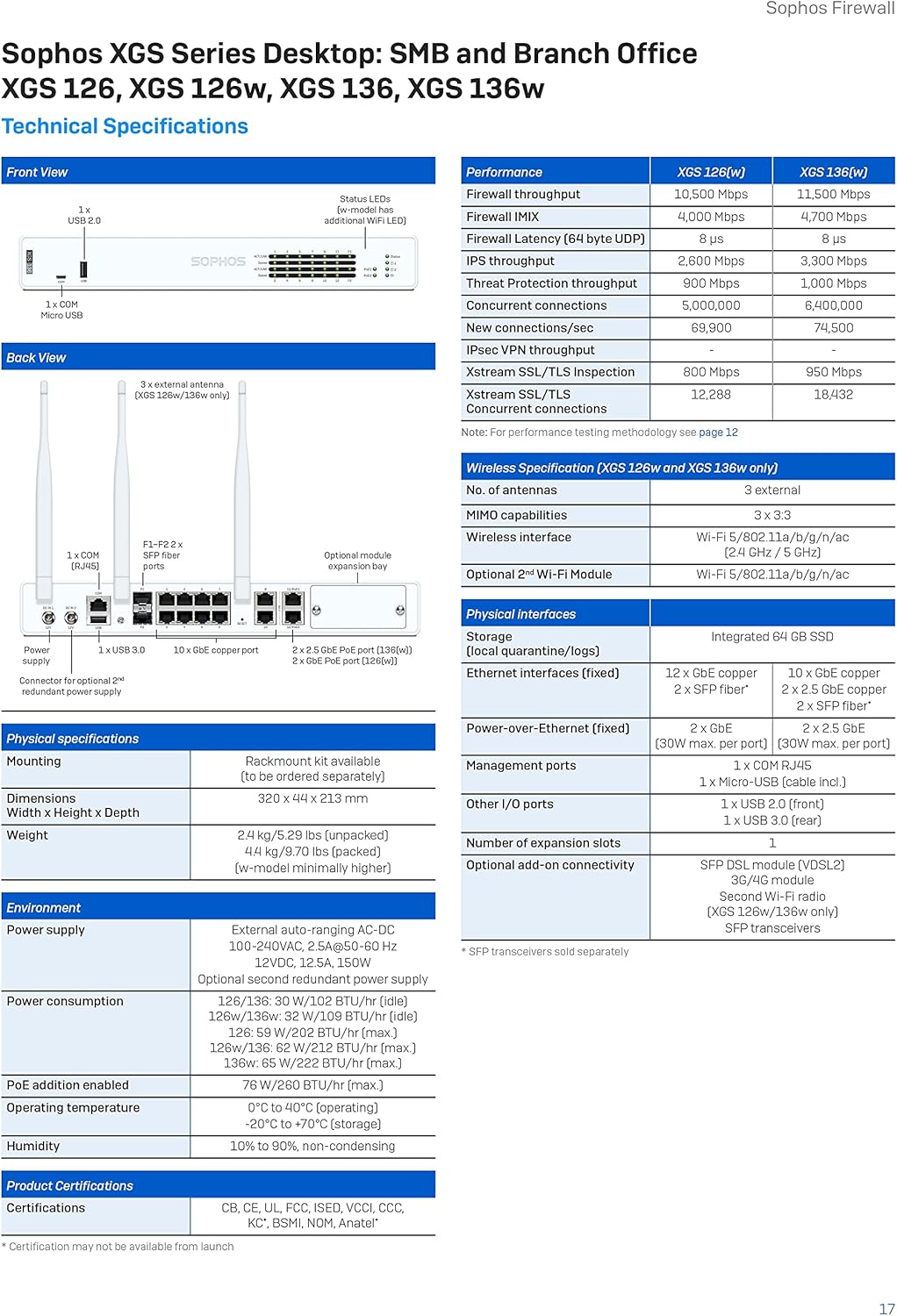
Figure 3: Front panel of the Sophos XGS 136. This view shows the status LEDs and USB ports for management and connectivity.
The front panel features status indicator LEDs for power, system status, and network activity, along with USB ports for management or external storage.
Rear Panel Overview

Figure 4: Rear panel of the Sophos XGS 136. This image displays the various network ports, console port, and power input.
The rear panel includes:
- Power Input: Connect the provided power cord.
- Console Port (COM): For direct console access using a serial cable.
- USB Ports: Additional USB ports for peripherals.
- Ethernet Ports (LAN): Multiple Gigabit Ethernet ports for network connections.
- SFP Ports: For fiber optic or high-speed copper connections (optional modules may be required).
- Reset Button: For factory reset (use with caution).
2.3 Connecting the Device
- Connect one end of an Ethernet cable to the WAN port (typically Port 1 or labeled WAN) on the firewall and the other end to your internet modem or upstream router.
- Connect your local network devices (computers, switches) to the LAN ports (e.g., Ports 2-8) on the firewall using Ethernet cables.
- Connect the power cord to the power input on the rear panel and then to an electrical outlet.
- Press the power button (if present) or wait for the device to power on automatically. Observe the front panel LEDs for power and system status.
2.4 Initial Configuration
Once powered on, the firewall will boot up. Access the Sophos Firewall OS web interface from a connected computer by navigating to the default IP address (refer to the Quick Start Guide or Sophos documentation for the specific default IP). Follow the on-screen prompts to complete the initial setup, including setting up network zones, basic security policies, and administrative credentials.
3. Operating the Firewall
The Sophos XGS 136 operates on Sophos Firewall OS, providing a robust platform for managing network security. Key operational aspects include:
3.1 Key Protection Features (Xstream Protection)
The XGS 136 comes with Xstream Protection, a comprehensive suite of security features:
- Base Firewall: Essential networking, SD-WAN, application awareness, traffic shaping, and site-to-site VPN capabilities.
- Network Protection: Advanced threat protection, IPS, ATP, and synchronized security heartbeat.
- Web Protection: Web control, application control, and deep-packet inspection for web traffic.
- Zero-Day Protection: Cloud sandboxing, machine learning, and real-time threat intelligence to block unknown threats.

Blocks Unknown Threats: The firewall actively identifies and prevents new and emerging cyber threats.
Exposes Hidden Risks: Provides visibility into network traffic to uncover potential vulnerabilities and threats.
Automatically Responds to Incidents: The system can automatically take action against detected threats.
3.2 Sophos Central Management
The XGS 136 can be managed through Sophos Central, a unified cloud management platform. This allows for centralized control over multiple Sophos products, group firewall management, backup and firmware updates, and reporting.
4. Maintenance
Regular maintenance ensures optimal performance and security of your Sophos XGS 136 firewall.
- Firmware Updates: Regularly check for and apply the latest firmware updates from Sophos to ensure you have the most current security features and bug fixes.
- Configuration Backups: Periodically back up your firewall configuration to prevent data loss in case of an unforeseen issue.
- Monitoring: Monitor system logs and alerts within Sophos Firewall OS or Sophos Central for any unusual activity or performance issues.
- Physical Cleaning: Keep the device free from dust and ensure ventilation openings are not obstructed to prevent overheating.
5. Troubleshooting
If you encounter issues with your Sophos XGS 136, consider the following basic troubleshooting steps:
- No Power: Ensure the power cord is securely connected to both the device and a working electrical outlet. Check the power LED on the front panel.
- No Network Connectivity: Verify that all Ethernet cables are properly connected to the correct ports. Check the link/activity LEDs on the front panel and on the connected devices.
- Cannot Access Web Interface: Confirm your computer is on the same network segment as the firewall and that you are using the correct IP address. Try clearing your browser's cache or using a different browser.
- Slow Performance: Check network utilization and resource usage within the Sophos Firewall OS interface. Review security policies for any misconfigurations that might be impacting performance.
- System Status LED: Refer to the device's documentation for specific meanings of different LED states (e.g., solid green, blinking amber, red) to diagnose issues.
6. Technical Specifications
The Sophos XGS 136 offers robust hardware and performance capabilities:

Figure 5: Detailed technical specifications for Sophos XGS 126, XGS 136, and XGS 136w models.
6.1 General Specifications
- Brand: Sophos
- Model: XGS 136
- Operating System: Sophos Firewall OS
- Color: White
- Item Weight: Approximately 8 pounds (3.6 kg)
- Connectivity Technology: Ethernet
- Antenna Type: Internal
- Frequency Band Class: Dual-Band
- Special Feature: WPS (Wireless Protected Setup) - Note: WPS is typically for wireless devices; its inclusion here may refer to a specific security feature within the OS.
6.2 Performance (XGS 136)
| Metric | Value |
|---|---|
| Firewall Throughput | 10,500 Mbps |
| IPS Throughput | 2,500 Mbps |
| Threat Protection Throughput | 900 Mbps |
| Concurrent Connections | 5,000,000 |
| New Connections/Sec | 69,000 |
| IPsec VPN Throughput | 800 Mbps |
| Xstream SSL/TLS Inspection | 800 Mbps |
Note: Performance values are based on Sophos's testing methodology. Actual performance may vary depending on network conditions and activated services.
6.3 Physical Interfaces
- Ethernet Ports: 8 x 2.5 GE ports
- SFP Ports: 2 x SFP ports
- USB Ports: 2 x USB 2.0
- Console Port: 1 x Micro-USB
6.4 Environmental and Power
- Power Supply: External auto-ranging AC-DC 100-240VAC, 2.5A, 50-60 Hz
- Power Consumption: 12V, 12.5A, 150W (max)
- Operating Temperature: 0°C to 40°C (32°F to 104°F)
- Humidity: 10% to 90% non-condensing
7. Warranty and Support
The Sophos XGS 136 Next-Gen Firewall includes a 1-year Xstream Protection license, which provides access to the full suite of security features and updates for the specified period.
7.1 Protection Plans
Additional protection plans are available to extend coverage and services:
- 4-Year Protection Plan: Extends the protection and support for an additional four years.
- Complete Protect: A monthly subscription plan that covers eligible past and future purchases.
For detailed information on protection plan terms and conditions, please refer to the official Sophos website or contact your Sophos reseller.
7.2 Technical Support
For technical assistance, product inquiries, or to report issues, please visit the official Sophos support portal or contact Sophos customer service. Ensure you have your product serial number and relevant purchase details ready when seeking support.


