
1. Introduction
This manual provides detailed instructions for the Superbcco BTH001 Wireless Bluetooth Keyboard. This keyboard features a retro typewriter style with 100 keys and round keycaps, designed for universal compatibility across multiple Bluetooth-enabled devices. It supports connection to up to three devices simultaneously, allowing for easy switching between them. Please read this manual thoroughly to ensure proper setup and operation.

Image 1.1: The Superbcco BTH001 Wireless Bluetooth Keyboard, showcasing its retro design and round keycaps.
2. Package Contents
Verify that all items are present in your package:
- 1 x Superbcco BTH001 Wireless Bluetooth Keyboard
- 1 x User Manual (this document)
- 2 x AAA Batteries
- 1 x Cleaning Brush (may vary by package)
3. Setup
3.1. Battery Installation
- Locate the battery compartment on the underside of the keyboard.
- Open the battery compartment cover.
- Insert two AAA batteries, ensuring correct polarity (+/-).
- Close the battery compartment cover securely.
Video 3.1: Demonstration of battery installation and general keyboard overview.
3.2. Power Management
The keyboard features an automatic power management system to conserve battery life. It will enter sleep mode after 10 minutes of inactivity. To wake the keyboard, press any key.

Image 3.2: The keyboard's auto-sleep mode for energy saving, indicating up to 3 months of battery life.
4. Operating Instructions
4.1. Bluetooth Pairing and Multi-Device Switching
The Superbcco BTH001 keyboard can connect to up to three Bluetooth-enabled devices simultaneously and allows for easy switching between them.
- Select a Channel: Identify the desired Bluetooth channel (BT1, BT2, or BT3) on the keyboard.
- Enter Pairing Mode: Press and hold the FN + BT1 (for Channel 1), FN + BT2 (for Channel 2), or FN + BT3 (for Channel 3) keys for 3-5 seconds. The corresponding indicator light on the keyboard will flash blue quickly, indicating it is in pairing mode.
- Enable Bluetooth on Your Device: On your computer, tablet, or smartphone, navigate to the Bluetooth settings.
- Search for Devices: Select "Add Bluetooth or other device" and choose "Bluetooth".
- Connect: Locate and select "Superbcco Keyboard" (or similar name) from the list of available devices. Follow any on-screen prompts to complete the pairing process. The indicator light on the keyboard will stop flashing once connected.
- Switching Devices: To switch between paired devices, simply press the BT1, BT2, or BT3 key for 1 second. The indicator light will flash blue slowly, confirming the channel switch.

Image 4.1: Instructions for pairing and switching between three Bluetooth devices.
4.2. Universal Compatibility
The keyboard is compatible with a wide range of Bluetooth-enabled operating systems and devices, including:
- Windows 8.0 and above
- Mac OS 10 and above
- Android 4.3 and above
- Chrome OS
- iOS (iPhone, iPad)
- Smart TVs
- Laptops and computers with Bluetooth capability
If your PC lacks built-in Bluetooth, a USB Bluetooth adapter can be used (not included).
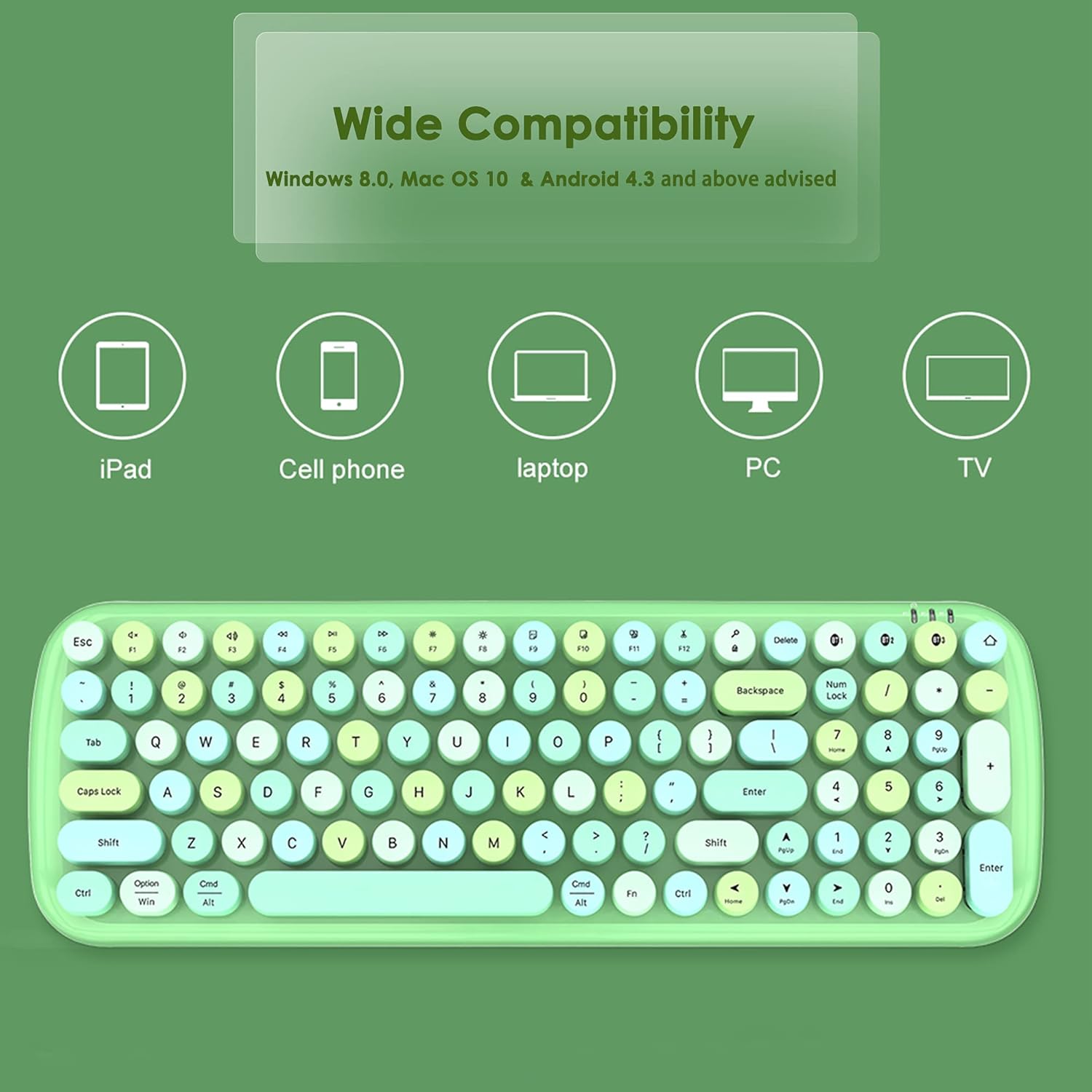
Image 4.2: Visual representation of the keyboard's wide compatibility with various devices.
4.3. Multimedia Hot Keys
The keyboard includes dedicated multimedia and function keys for enhanced productivity. These keys are typically accessed by pressing the FN key in combination with the corresponding function key.
| Key Combination | Function |
|---|---|
| FN + F1 | Homepage |
| FN + F2 | Previous Track |
| FN + F3 | Next Track |
| FN + F4 | Play/Pause |
| FN + F5 | Mute |
| FN + F6 | Volume - |
| FN + F7 | Volume + |
| FN + F8 | Computer Brightness - |
| FN + F9 | Computer Brightness + |
| FN + F10 | Choose (e.g., select all) |
| FN + F11 | Cut |
| FN + F12 | Paste |

Image 4.3: Overview of the multimedia hot keys and their functions.
5. Maintenance
5.1. Cleaning
To maintain optimal performance and appearance, regularly clean your keyboard. Use the provided cleaning brush (if included) or a soft, dry cloth to remove dust and debris from between the keys and on the surface. For stubborn dirt, a slightly damp cloth can be used, ensuring no liquid enters the keyboard.
5.2. Battery Replacement
The keyboard's battery LED indicators will alert you when battery replacement is needed. Replace the two AAA batteries as described in Section 3.1. Battery life is approximately 3 months under typical usage conditions.
6. Troubleshooting
6.1. Keyboard Not Connecting or Pairing
- Ensure the keyboard has fresh batteries and is powered on (wake from sleep mode by pressing any key).
- Verify Bluetooth is enabled on your device.
- Make sure the keyboard is within the 33ft (10m) connectivity range of your device.
- Repeat the pairing process as described in Section 4.1.
- If connecting to a PC without built-in Bluetooth, ensure a functional USB Bluetooth adapter is installed.
- Try restarting both the keyboard (by removing and reinserting batteries) and your device.
6.2. Keys Sticking or Unresponsive
- Clean around the affected keys using a cleaning brush or compressed air to remove any debris.
- Ensure the keycaps are properly seated.
- If the issue persists, contact customer support.
6.3. Function Keys (F1-F12) Not Working as Expected (e.g., on Mac)
- Some operating systems (like macOS) may have default function key behaviors that override the keyboard's intended multimedia functions. Check your device's system settings for keyboard or function key preferences and adjust them as needed.
- Ensure you are pressing the FN key in combination with the desired function key for multimedia controls.
7. Specifications
| Feature | Detail |
|---|---|
| Model Number | BTH001 |
| Brand | Superbcco |
| Connectivity Technology | Bluetooth 5.1 |
| Keyboard Description | Membrane, 100-Key |
| Keycap Style | Retro Round Keycaps |
| Multi-Device Support | Up to 3 devices simultaneously |
| Wireless Range | Up to 33 feet (10 meters) |
| Power Source | 2 x AAA Batteries |
| Battery Life (Approx.) | 3 months |
| Product Dimensions | 15.39" L x 5.31" W x 1.54" H (39.1 x 13.5 x 3.9 cm) |
| Item Weight | 1.19 pounds (0.54 kg) |
| Material | Plastic |
| Color | Pink |
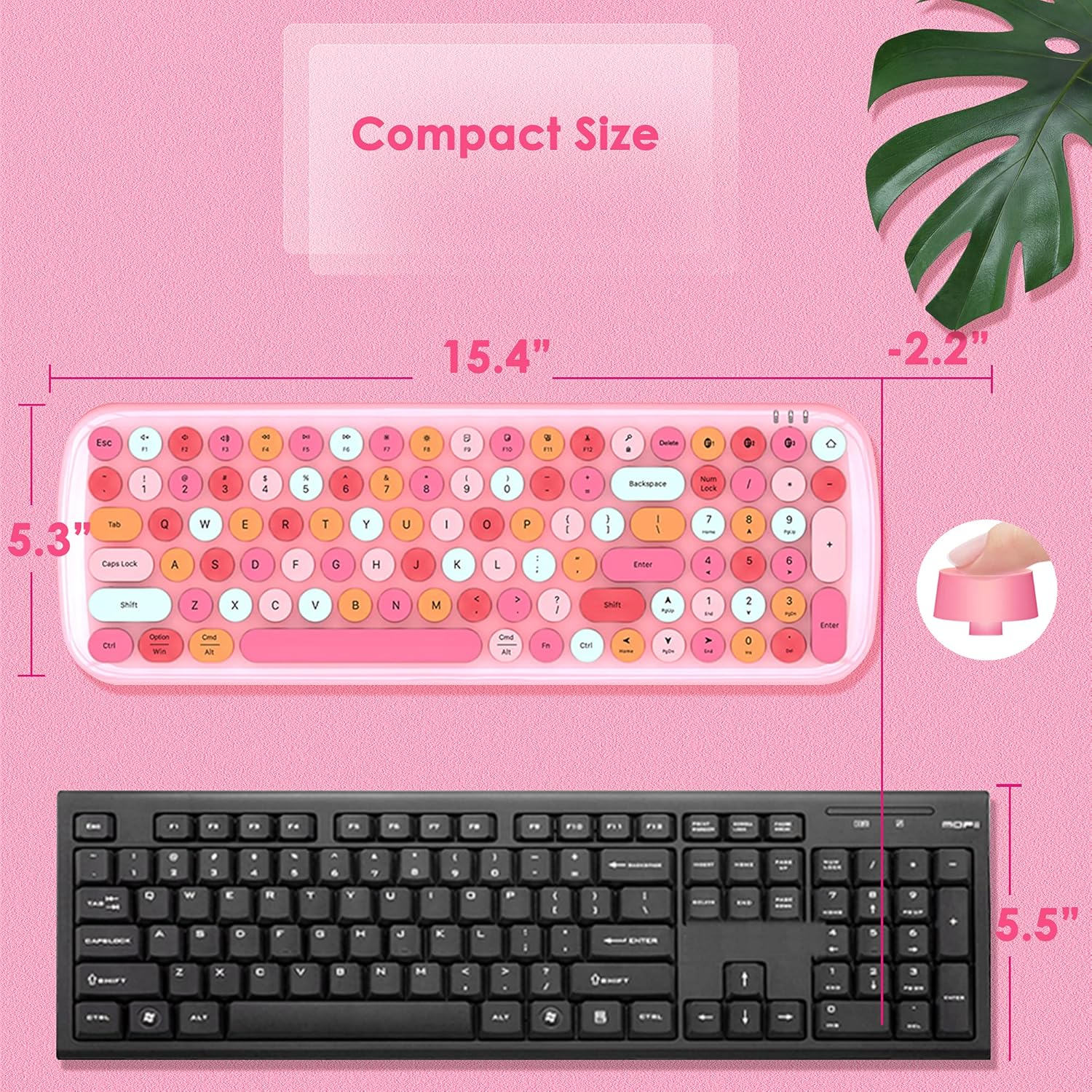
Image 7.1: Dimensions of the Superbcco BTH001 keyboard compared to a standard keyboard.
8. Warranty and Customer Support
The Superbcco BTH001 Wireless Bluetooth Keyboard comes with a 24-month warranty from the date of purchase. This warranty covers manufacturing defects and ensures your product is free from material and workmanship flaws under normal use.
For any questions, issues, or warranty claims, please do not hesitate to contact our customer service team. We aim to provide a quick response within 12 hours.
Contact Information: Please refer to the contact details provided on the product packaging or the seller's information on the purchase platform.

