
LIANGSTAR F5-RGB002
LIANGSTAR Laptop Cooling Pad User Manual
Model: F5-RGB002
Introduction
The LIANGSTAR Laptop Cooling Pad (Model F5-RGB002) is designed to provide efficient cooling for laptops ranging from 12 to 17.3 inches. Featuring 6 ultra-quiet fans, 10 RGB lighting modes, 7 adjustable height settings, and dual USB ports, this cooling pad enhances laptop performance and user comfort. Its robust metal mesh construction ensures durability and optimal heat dissipation.
Package Contents
- LIANGSTAR Laptop Cooling Pad (Model F5-RGB002) x 1
- USB Cable x 1
- User Manual x 1
Product Overview

Figure 1: LIANGSTAR Laptop Cooling Pad with RGB lighting and integrated phone holder.

Figure 2: Key components of the cooling pad, including the metal grid, non-slip foot pads, hollow design for heat dissipation, mobile phone holder, and hidden anti-skid plate.
Setup Instructions
- Unpack: Carefully remove the cooling pad and all accessories from the packaging.
- Connect Power: Connect one end of the provided USB cable to the USB port on the cooling pad and the other end to an available USB port on your laptop or a compatible USB power adapter. The cooling pad's fans and RGB lights will activate.
- Adjust Height: Utilize the 7-level adjustable stand at the rear of the cooling pad to set your preferred viewing and typing angle. Lift the cooling pad and engage the support bar into the desired notch. This helps improve ergonomics and airflow.
- Position Laptop: Place your laptop securely on the cooling pad. Ensure the laptop's feet align with the anti-skid plate to prevent slipping.

Figure 3: Adjusting the cooling pad to one of its 7 height settings for ergonomic comfort and improved airflow.
Operating Instructions
Fan Speed Control
The cooling pad features two independent speed control dials, each controlling three of the six fans. This allows for customized airflow based on your laptop's cooling needs.
- Dial 1: Controls the speed of the first set of 3 fans.
- Dial 2: Controls the speed of the second set of 3 fans.
- Rotate the dials clockwise to increase fan speed and counter-clockwise to decrease speed. You can turn off a set of fans by rotating the dial fully counter-clockwise.

Figure 4: Independent fan speed control dials for customized cooling.
RGB Lighting Modes
The cooling pad is equipped with RGB light bars on both sides, offering 10 different lighting modes. A dedicated button allows you to cycle through these modes.
- Press the RGB lighting button (usually located near the USB ports or fan controls) to switch between the 10 available lighting effects.
- To turn off the RGB lighting, cycle through all modes until the lights turn off, or disconnect the power.
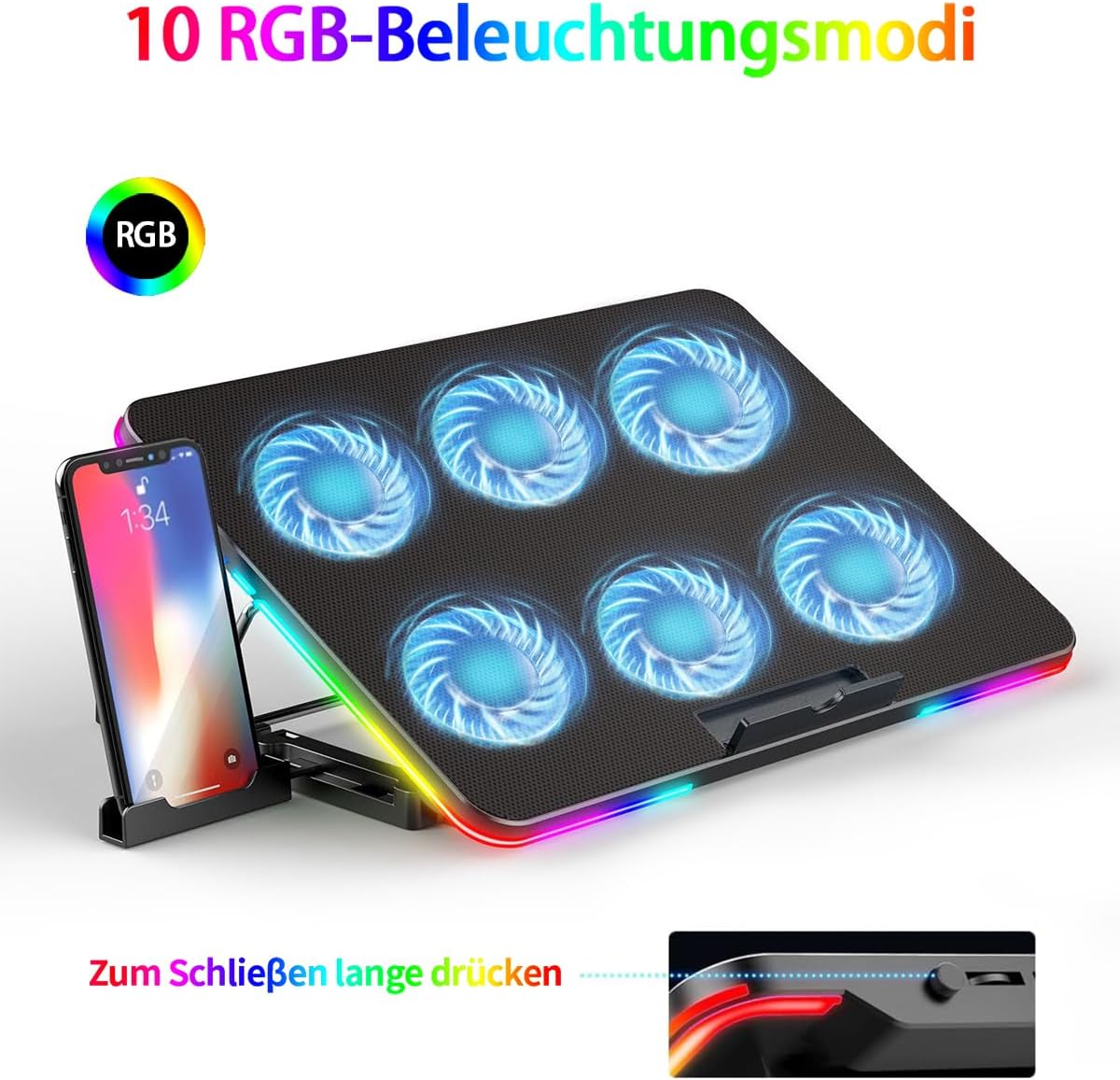
Figure 5: The cooling pad showcasing its vibrant RGB lighting modes.
Using the Mobile Phone Holder
A unique mobile phone holder is integrated into the side of the cooling pad's base. This allows you to conveniently place your smartphone or small tablet for easy viewing while working or gaming.
- Locate the phone holder slot on the left side of the cooling pad.
- Slide out the phone holder.
- Place your device into the holder.
USB Ports
The cooling pad includes two built-in USB ports. One port is used to power the cooling pad, leaving the second port free for connecting another USB device, such as a mouse, keyboard, or USB drive.
- Connect the cooling pad's USB cable to one of your laptop's USB ports.
- Use the remaining free USB port on the cooling pad to connect other peripherals.
Maintenance
- Cleaning: Regularly clean the metal mesh surface and fan blades to prevent dust buildup, which can hinder airflow and cooling efficiency. Use a soft, dry cloth or a can of compressed air. Do not use liquid cleaners directly on the electronic components.
- Storage: When not in use for extended periods, store the cooling pad in a cool, dry place, away from direct sunlight and extreme temperatures.
- Handling: Avoid dropping the cooling pad or subjecting it to strong impacts, as this may damage internal components or the fan mechanisms.
Troubleshooting
| Problem | Possible Cause | Solution |
|---|---|---|
| Fans are not spinning / Lights are off | No power connection or insufficient power. | Ensure the USB cable is securely connected to both the cooling pad and a working USB port on your laptop or power adapter. Try a different USB port. |
| Fans are spinning but cooling is ineffective | Dust buildup on fans/mesh; incorrect fan speed setting; laptop vents blocked. | Clean the cooling pad's mesh and fans. Increase fan speed using the control dials. Ensure your laptop's vents are not obstructed. |
| RGB lights are not working or stuck on one mode | Power issue; RGB control button malfunction. | Check power connection. Press the RGB button multiple times to cycle through modes. If the issue persists, contact customer support. |
| Cooling pad is unstable | Incorrect height adjustment; uneven surface. | Ensure the height adjustment stand is properly locked into a notch. Place the cooling pad on a flat, stable surface. |
Specifications
| Feature | Detail |
|---|---|
| Model Number | F5-RGB002 |
| Material | Metal Mesh |
| Product Dimensions | 360 x 250 x 25 mm |
| Product Weight | 830 g |
| Fan Size | 60 mm diameter |
| Number of Fans | 6 |
| Rated Voltage | DC 5V |
| USB Ports | 2 |
| RGB Lighting Modes | 10 |
| Height Adjustment | 7 levels |
| Compatible Laptop Size | 12 - 17.3 inches |
| UPC | 768112991905 |
Warranty and Support
LIANGSTAR provides a one-year warranty for this product, demonstrating confidence in its quality and durability. If you encounter any issues or have questions regarding your LIANGSTAR Laptop Cooling Pad, please do not hesitate to contact our customer support team.
For support, please refer to the contact information provided on the product packaging or the official LIANGSTAR website.
Ask a question about this manual
Ask about setup, troubleshooting, compatibility, parts, safety, or missing instructions. Manuals+ will review the question and use this page’s manual context to help answer it.