
1. Introduction
The KIWIHOME Smart Aurora Projector is a versatile device designed to create a soothing and immersive environment with dynamic aurora light effects, a starry sky projection, integrated white noise sounds, and a Bluetooth speaker. It offers multiple control methods including a remote control, a dedicated mobile application, and voice commands via Alexa or Google Assistant.
2. Safety Instructions
- Do not look directly into the light source to avoid eye strain.
- Keep the device away from water or other liquids to prevent electric shock.
- Do not disassemble or attempt to repair the device yourself. Contact customer support for assistance.
- Use only the provided power adapter or a certified equivalent.
- Ensure the device is placed on a stable, flat surface.
- Keep out of reach of children and pets.
3. Package Contents
- KIWIHOME Smart Aurora Projector
- Remote Control (2*AAA batteries not included)
- USB Cable
- User Manual

Image: The KIWIHOME Smart Aurora Projector, its remote control, and the included USB power cable.
4. Product Overview and Controls
The projector features various buttons and ports for operation. The primary controls are located on the device itself, with additional functionality available via the remote control, mobile application, and voice commands.
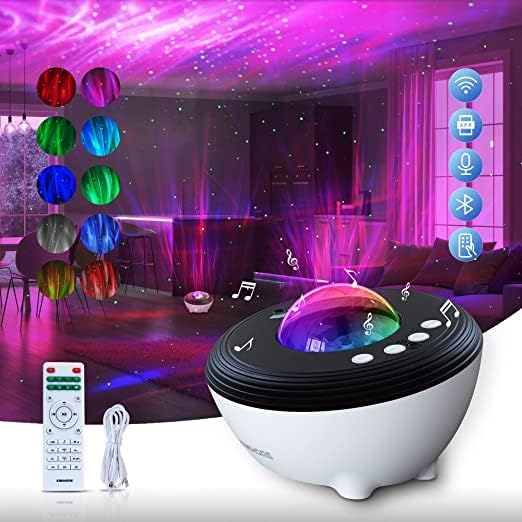
Image: Overview of control methods including smart voice control (Alexa & Google Assistant), Wi-Fi APP control (Smart Life & Tuya Smart), remote control, and built-in soothing sounds with a paddle switch.
Device Controls:
- Power Button: Turns the projector on or off.
- Light Mode Button: Cycles through different light effects.
- Brightness Adjustment: Adjusts the intensity of the aurora lights.
- Speed Adjustment: Controls the movement speed of the aurora effects.
- Music Playback Controls: Play/Pause, Next/Previous track (for Bluetooth audio).
- Volume Controls: Adjusts the audio output volume.
- White Noise Switch: Activates or deactivates built-in white noise sounds.
5. Setup
5.1 Power Connection
- Connect the provided USB cable to the projector's power input port.
- Plug the other end of the USB cable into a compatible USB power adapter (5V/2A recommended, not included) and then into a power outlet.
- The projector will power on automatically or can be turned on using the power button.
5.2 Remote Control Battery Installation
- Open the battery compartment on the back of the remote control.
- Insert two AAA batteries (not included), ensuring correct polarity (+/-).
- Close the battery compartment securely.
5.3 APP Installation and Wi-Fi Connection
- Download the 'Smart Life' or 'Tuya Smart' application from your mobile device's app store (iOS or Android).
- Register or log in to your account.
- Ensure your mobile device is connected to a 2.4GHz Wi-Fi network. The projector only supports 2.4GHz Wi-Fi.
- In the app, tap '+' to add a device. Select 'Lighting' or 'Light Source (Wi-Fi)'.
- Follow the on-screen instructions to put the projector into pairing mode (usually by pressing and holding a specific button on the device until an indicator light flashes).
- Confirm the Wi-Fi network and enter the password in the app.
- Wait for the device to connect. Once connected, you can control the projector via the app.
5.4 Voice Assistant Pairing (Alexa/Google Assistant)
- Ensure your projector is successfully connected to the 'Smart Life' or 'Tuya Smart' app.
- Open the Alexa or Google Home app on your mobile device.
- Navigate to 'Skills & Games' (Alexa) or 'Works with Google' (Google Home).
- Search for 'Smart Life' or 'Tuya Smart' and enable the skill/service.
- Link your Smart Life/Tuya Smart account with your voice assistant account.
- Discover devices. Your projector should now be controllable via voice commands.
6. Operating Instructions
6.1 Basic Operation
- Power On/Off: Press the power button on the device or remote.
- Aurora Light Effects: The projector offers 15 aurora colors (4 basic colors: green, red, white, blue, plus bi-color, tri-color, and four-color combinations) and green stars.
- Brightness & Speed: Adjust the 3-level brightness and 4-level speed of the aurora effects using the device buttons or remote.

Image: The projector creating various Northern Aurora effects and star patterns on the ceiling and walls of a room, showcasing its dynamic light capabilities.
6.2 Remote Control Functions
The remote control provides convenient access to all major functions:
- Power: On/Off.
- Light Mode: Cycle through aurora color combinations.
- Star Button: Turn green stars on/off.
- Brightness +/-: Adjust light intensity.
- Speed +/-: Adjust aurora movement speed.
- Music Play/Pause: Control Bluetooth audio.
- Previous/Next Track: Navigate Bluetooth audio.
- Volume +/-: Adjust audio volume.
- White Noise Selection: Cycle through built-in white noise sounds.
- Timer: Set 1H or 2H auto-off timer.
6.3 APP Control Functions
Using the 'Smart Life' or 'Tuya Smart' app, you can access advanced features:
- 16 Million Vision Effects: Customize colors and patterns beyond remote limitations.
- Stars Breathing Mode: Control the pulsating effect of the stars.
- 48 Scenario Modes: Choose from various preset lighting scenes.
- DIY Scene Modes: Create and save your own custom light effects.
- Advanced Timer: Set custom schedules and a 4-hour auto-off timer.
6.4 Voice Control (Alexa/Google Assistant)
Once paired, use voice commands to control the projector. Examples:
- "Alexa, turn on [Projector Name]."
- "Hey Google, set [Projector Name] to blue."
- "Alexa, dim [Projector Name]."
- "Hey Google, turn off [Projector Name]."
6.5 Bluetooth Speaker Usage
- Power on the projector.
- Enable Bluetooth on your mobile device.
- Search for "SKE-JBP-J01" (or similar name) in your device's Bluetooth settings and pair.
- Once connected, you can play music from your device through the projector's speaker.
- The projector also features a sound-activated function, allowing lights to dance to the rhythm of the music.
6.6 White Noise Function
The projector includes 5 white noises and 3 lullabies to aid relaxation and sleep. Activate and cycle through these sounds using the dedicated button on the device or remote control.
6.7 Timer Function
Set an automatic shut-off timer to conserve energy or for convenience:
- Remote Control: Use the 1H/2H buttons to set the projector to turn off after 1 or 2 hours.
- APP Control: The app allows for more flexible timer settings, including a built-in 4-hour auto-off timer and custom schedules.
7. Maintenance
- Cleaning: Wipe the projector's surface with a soft, dry cloth. Do not use abrasive cleaners or solvents.
- Storage: When not in use for extended periods, store the device in a cool, dry place, away from direct sunlight and extreme temperatures.
8. Troubleshooting
| Problem | Possible Cause | Solution |
|---|---|---|
| Projector does not turn on. | No power connection or faulty adapter. | Ensure USB cable is securely connected and power adapter is working. Try a different USB port or adapter. |
| Remote control not working. | Batteries are dead or incorrectly inserted. Obstruction between remote and projector. | Replace AAA batteries, check polarity. Ensure no objects block the signal path. |
| Cannot connect to Wi-Fi/APP. | Incorrect Wi-Fi band (not 2.4GHz). Incorrect password. Projector not in pairing mode. | Ensure your router is broadcasting a 2.4GHz network. Double-check Wi-Fi password. Follow APP instructions to put projector into pairing mode. |
| Bluetooth speaker not pairing. | Bluetooth not enabled on device. Projector not in pairing mode. | Ensure Bluetooth is active on your phone/tablet. Search for the projector's Bluetooth name in your device's settings. |
| Lights are dim or not moving. | Brightness/speed settings are low. | Adjust brightness and speed settings using the device, remote, or app. |
9. Specifications
- Model Number: SKE-JBP-J01
- Brand: KIWIHOME
- Light Source Type: LED
- Number of Light Sources: 15 (Aurora colors)
- Colors: Blue, Green, White, Red (and combinations)
- Material: Acrylonitrile Butadiene Styrene (ABS)
- Control Methods: App (Smart Life/Tuya Smart), Remote Control, Voice (Amazon Alexa, Google Assistant)
- Connectivity: 2.4GHz Wi-Fi, Bluetooth
- Special Features: Color Changing, White Noise, Bluetooth Speaker, Timer Function
- Mounting Type: Ceiling Mount (intended for projection onto ceiling/walls)
- Room Type: Bedroom
10. Warranty and Support
KIWIHOME products come with a standard manufacturer's warranty. For detailed warranty information, technical support, or customer service inquiries, please refer to the contact information provided on the product packaging or the official KIWIHOME website. Please have your model number (SKE-JBP-J01) and purchase details ready when contacting support.