1. Introduction
Thank you for choosing the PROXTEND X502 Full HD Webcam. This manual provides detailed instructions to help you set up, operate, and maintain your webcam for optimal performance. The X502 is designed to deliver clear 1080p video at 30 frames per second, featuring an omni-directional microphone and automatic low light correction for various lighting conditions.
2. Package Contents
Please verify that all items are present in your package:
- PROXTEND X502 Full HD Webcam (PX-CAM007)
- Integrated Universal Mounting Clip
- User Manual (this document)
3. Setup
Follow these steps to set up your PROXTEND X502 Webcam:
- Mounting the Webcam:
The webcam features an integrated universal mounting clip. You can place the webcam on top of your computer monitor, laptop screen, or a flat surface. Adjust the clip to securely hold the webcam in position. The webcam also supports mini tripod mounting (tripod not included).
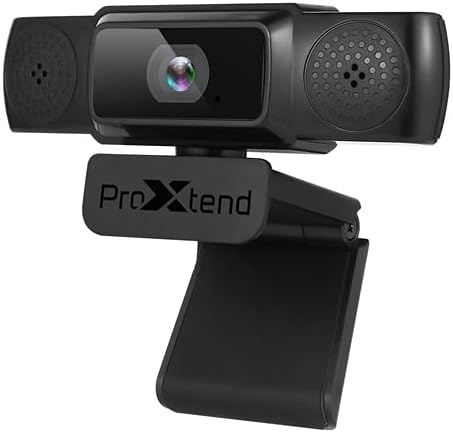
Image: The PROXTEND X502 Full HD Webcam shown with its universal mounting clip, suitable for monitors or flat surfaces.
- Connecting to Your Computer:
Plug the USB cable from the webcam into an available USB port on your computer. The webcam is plug-and-play, meaning your operating system should automatically detect and install the necessary drivers. No additional software installation is typically required.
- Driver Installation Verification:
After connecting, allow a few moments for your computer to recognize the device. You can verify successful installation in your operating system's Device Manager (Windows) or System Information (macOS) under 'Cameras' or 'Imaging Devices'.
4. Operating Instructions
Once the webcam is set up, you can begin using it with various applications:
- Selecting the Webcam:
Open your preferred video conferencing, streaming, or recording application (e.g., Zoom, Microsoft Teams, Skype, OBS Studio). Navigate to the application's video and audio settings. Select "PROXTEND X502" as your camera and microphone input device.

Image: Front view of the PROXTEND X502 Full HD Webcam, highlighting the lens and integrated microphones.
- Video Quality:
The webcam automatically adjusts for optimal image quality, including auto-focus and auto low light correction. Ensure adequate lighting for the best video performance. The 1920x1080p resolution at 30fps provides clear and smooth video.
- Audio Quality:
The integrated omni-directional microphone captures sound from all directions. Position yourself appropriately to ensure your voice is clearly picked up. Most applications allow you to adjust microphone input levels in their audio settings.
5. Features
Key features of the PROXTEND X502 Full HD Webcam include:
- 1/2.7” CMOS image sensor
- 2 Megapixels
- Resolution: 1920x1080 at 30 frames per second
- Omni-directional microphone
- Universal Mounting Clip
- Mini Tripod Support
- Automatic low light correction
6. Specifications
Detailed technical specifications for the PROXTEND X502 Full HD Webcam:

Image: A visual representation of the PROXTEND X502 Full HD Webcam's key features and technical specifications.
| Feature | Specification |
|---|---|
| Image Sensor | 1/2.7" CMOS Image Sensor |
| Megapixels | 2 MP |
| Max Resolution | 1920x1080 |
| Video Resolution | 1920x1080 |
| Max FPS | 30 fps |
| Video Decoding Format | H.264/MJPG |
| Exposure Mode | Auto |
| White Balance | Auto |
| Gain | Auto |
| Low Light Compensation | Auto |
| Viewing Angle | 77° |
| Focal Distance | 10 cm to infinity |
| Focus Type | Auto |
| Microphone | Omni-directional |
| Audio Sampling Rate | 1 Channel 16bit 16K 32K 44.1K 48K |
| Audio Format | PCM, compatible UAC 1.0 |
| Interface | USB 2.0 |
| Cable Length | 1.5 m |
| Compatible OS | Windows XP, Windows 7 (32bit/64bit), Windows 8, Windows 10, Android V5.0 or higher OS, MAC OS 10.6 or higher |
| Product Dimensions | 12.7 x 7.62 x 5.08 cm |
| Product Weight | 453.59 g |
7. Troubleshooting
If you encounter issues with your PROXTEND X502 Webcam, try the following solutions:
- No Image/Video:
- Ensure the USB cable is securely connected to both the webcam and your computer.
- Try a different USB port on your computer.
- Restart your computer.
- Check your application's settings to ensure the PROXTEND X502 is selected as the video input.
- Verify that no other application is currently using the webcam.
- No Audio/Microphone Not Working:
- Ensure the PROXTEND X502 is selected as the microphone input in your application's audio settings.
- Check your computer's sound settings to ensure the microphone is enabled and not muted.
- Adjust the microphone input level in your system or application settings.
- Poor Video Quality:
- Ensure sufficient lighting in your environment.
- Clean the webcam lens gently with a soft, lint-free cloth.
- Check your internet connection speed if streaming, as bandwidth can affect video quality.
8. Maintenance
To ensure the longevity and optimal performance of your webcam:
- Cleaning: Gently wipe the webcam lens with a soft, dry, lint-free cloth. Avoid using harsh chemicals or abrasive materials.
- Storage: When not in use, store the webcam in a clean, dry place away from extreme temperatures and direct sunlight.
- Handling: Avoid dropping the webcam or subjecting it to strong impacts.
9. Warranty and Support
The PROXTEND X502 Full HD Webcam comes with a 7-year warranty, ensuring peace of mind regarding your purchase. For warranty claims, technical support, or any inquiries not covered in this manual, please refer to the contact information provided with your product packaging or visit the official PROXTEND website.
10. Compliance Information
This device complies with relevant regulatory standards for electronic equipment. For detailed compliance information, please refer to the product packaging or the official PROXTEND website.


