
1. Introduction
Thank you for purchasing the Soundsation MIOMIX 404FXM 6-Channel Mixer. This versatile mixer is designed for a wide range of audio applications, including home recording, live performances, and podcasting. It combines professional audio quality with portability, featuring low-noise preamplifiers, digital effects, a USB media player/recorder, and Bluetooth connectivity. This manual provides essential information for safe operation, setup, and optimal use of your MIOMIX 404FXM mixer.
2. Safety Instructions
WARNING: To reduce the risk of fire or electric shock, do not expose this equipment to rain or moisture.
- Read these instructions carefully before operating the unit.
- Keep this manual for future reference.
- Heed all warnings and follow all instructions.
- Do not use this apparatus near water.
- Clean only with a dry cloth.
- Do not block any ventilation openings. Install in accordance with the manufacturer's instructions.
- Do not install near any heat sources such as radiators, heat registers, stoves, or other apparatus (including amplifiers) that produce heat.
- Do not defeat the safety purpose of the polarized or grounding-type plug. A polarized plug has two blades with one wider than the other. A grounding-type plug has two blades and a third grounding prong. The wide blade or the third prong are provided for your safety. If the provided plug does not fit into your outlet, consult an electrician for replacement of the obsolete outlet.
- Protect the power cord from being walked on or pinched, particularly at plugs, convenience receptacles, and the point where they exit from the apparatus.
- Only use attachments/accessories specified by the manufacturer.
- Unplug this apparatus during lightning storms or when unused for long periods of time.
- Refer all servicing to qualified service personnel. Servicing is required when the apparatus has been damaged in any way, such as power-supply cord or plug is damaged, liquid has been spilled or objects have fallen into the apparatus, the apparatus has been exposed to rain or moisture, does not operate normally, or has been dropped.
3. Package Contents
Please check that all items listed below are included in the package:
- Soundsation MIOMIX 404FXM Mixer
- Power Adapter
- User Manual
4. Product Features
- 6-channel mixer with digital multi-effect processor.
- Integrated USB player/recorder supporting WAV, MP3, WMA, and FLAC formats.
- Wireless Bluetooth audio streaming.
- 4 Mic/Line channels with low-noise preamps and Combo connectors.
- Selectable Hi-Z inputs for guitars and other high-impedance instruments.
- +48V Phantom Power for condenser microphones.
- Peak indicators on input channels.
- 1 stereo line channel with 6.3mm jacks and +4/-10 dB pad adapter.
- 2-band EQ on channels 1-4.
- 24-bit/48 kHz digital effects processor with 16 presets (Reverb, Delay, Echo, Chorus, etc.) and TAP-Tempo function.
- USB player level control.
- Headphone output with level control.
- XLR main outputs with volume control.
- Stereo VU Meter with 2 x 6 LED bars.
5. Controls and Functions
5.1 Front Panel Overview

Image: Front panel of the Soundsation MIOMIX 404FXM mixer, showing all input channels, EQ controls, effect section, USB/Bluetooth media player, and main output controls.
Input Channels (MIC/INST 1-4)
- MIC/INST Input (Combo Jack): Connect XLR microphones or 1/4" instrument/line cables.
- +48V Phantom Power: Activates phantom power for condenser microphones. Use with caution.
- Hi-Z Switch: Engages high impedance input for direct connection of guitars or basses.
- GAIN Knob: Adjusts the input sensitivity for the connected microphone or instrument.
- HIGH Knob: Adjusts the high-frequency equalization (treble).
- LOW Knob: Adjusts the low-frequency equalization (bass).
- FX Knob: Controls the amount of signal sent to the internal digital effects processor.
- PAN Knob: Adjusts the stereo position (left/right) of the channel.
- VOL Knob: Adjusts the output volume of the individual channel.
- PK (Peak) LED: Illuminates when the input signal is too high, indicating potential clipping.
Stereo Line Input (CH 5-6)
- L/Mono, R Inputs (1/4" Jacks): Connect stereo line-level devices (keyboards, CD players, DJ consoles, etc.). The L/Mono input can be used alone for a mono signal.
- +4/-10dB Switch: Adjusts input sensitivity for different line-level devices.
- PAN Knob: Adjusts the stereo position of the channel.
- VOL Knob: Adjusts the output volume of the stereo channel.
- PK (Peak) LED: Illuminates when the input signal is too high.
USB & Bluetooth Media Player
- USB Port: Connect a USB drive for playing audio files or recording.
- Display Screen: Shows current mode, track information, and settings.
- Up/Rewind Button: Navigates up in menus or rewinds current track.
- Down/Forward Button: Navigates down in menus or fast-forwards current track.
- Play/Pause/Enter Button: Plays/pauses audio or confirms menu selections.
- MENU Button: Accesses media player menu options (BT streaming, music player, audio recorder, selection).
- MP3 PLAYER LVL Knob: Controls the output level of the USB/Bluetooth media player.
Digital Effects Processor (24-bit/48 kHz)
- Effect Display: Shows the selected effect number and parameter values.
- PROGRAM Knob: Rotates to select one of the 16 built-in digital effects. Press to confirm selection.
- TAP TEMPO Button: Tap multiple times to set the tempo for time-based effects (e.g., Delay).
- LEVEL Knob: Adjusts the overall wet/dry mix of the effects.
Output & Monitoring Section
- PHONES Jack (1/4"): Connect headphones for monitoring.
- PHONES LVL Knob: Adjusts the volume of the headphone output.
- MAIN OUT L/R (XLR): Balanced XLR outputs for connecting to powered speakers, amplifiers, or recording devices.
- MAIN OUT Knob: Controls the overall output volume of the main mix.
- VU Meter (LED): Displays the stereo output level of the main mix.
5.2 Rear Panel Overview
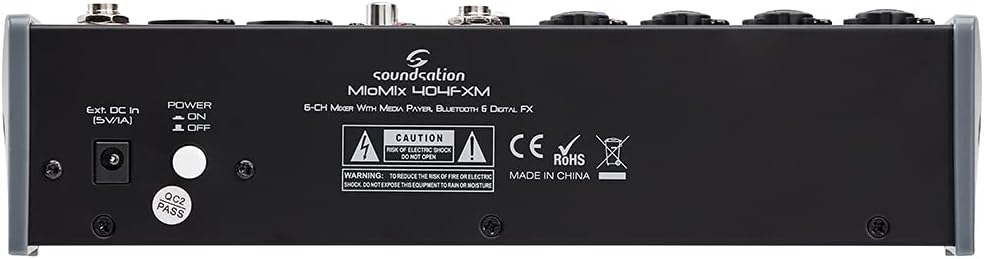
Image: Rear panel of the Soundsation MIOMIX 404FXM mixer, showing the power input, power switch, and main output connections.
- Ext. DC In (5V/1A): Power input for connecting the provided external power adapter.
- POWER ON/OFF Switch: Turns the mixer's power on or off.
- REC OUT L/R (RCA): Unbalanced RCA outputs for connecting to recording devices.
6. Setup
- Unpack the Mixer: Carefully remove the MIOMIX 404FXM from its packaging.
- Placement: Place the mixer on a stable, flat surface, ensuring adequate ventilation around the unit.
- Power Connection: Ensure the mixer's POWER switch is in the OFF position. Connect the provided power adapter to the "Ext. DC In (5V/1A)" port on the rear panel, then plug the adapter into a suitable power outlet.
- Initial Power On: Flip the POWER switch to the ON position. The mixer's indicators should light up, and the display should activate.
- Connect Outputs: Connect the MAIN OUT XLR outputs to your powered speakers, amplifier, or audio interface. Connect headphones to the PHONES jack for monitoring.
- Connect Inputs: Connect your microphones, instruments, and line-level devices to the appropriate input channels.
7. Operating Instructions
7.1 Connecting Audio Sources
- Microphones: Connect dynamic microphones via XLR cables to the MIC/INST Combo jacks. For condenser microphones, connect via XLR and activate the +48V Phantom Power switch for the respective channel.
- Instruments (Guitars/Basses): Connect directly using a 1/4" TS cable to the MIC/INST Combo jack and engage the Hi-Z switch for that channel.
- Line-Level Devices (Keyboards, CD Players): Connect using 1/4" TS cables to the MIC/INST Combo jacks (for mono) or to the CH 5-6 L/Mono and R inputs (for stereo). Adjust the +4/-10dB switch on CH 5-6 as needed.
7.2 Adjusting Channel Levels and EQ
- Set all GAIN, VOL, and MAIN OUT knobs to their minimum positions before starting.
- Speak into the microphone or play your instrument. Slowly increase the GAIN knob for the respective channel until the PK LED flashes only occasionally during the loudest parts.
- Adjust the HIGH and LOW EQ knobs to shape the tone of your sound.
- Use the PAN knob to position the sound in the stereo field.
- Slowly increase the channel's VOL knob to blend it into the overall mix.
7.3 Using the USB Media Player/Recorder
- Playback: Insert a USB drive containing WAV, MP3, WMA, or FLAC files into the USB port. The display will show the file list. Use the Up/Down buttons to navigate and Play/Pause/Enter to select and play. Adjust the MP3 PLAYER LVL knob to control its volume in the mix.
- Recording: In the media player menu (accessed via MENU button), select the 'Audio Recorder' function. Ensure your USB drive has enough free space. Press Play/Pause/Enter to start and stop recording. The mixer records the main stereo mix.
7.4 Bluetooth Connectivity
- Press the MENU button on the media player and select 'BT Streaming'. The display will show 'Bluetooth' and indicate it's searching.
- On your smartphone or Bluetooth device, search for available devices and select 'MIOMIX 404FXM'.
- Once paired, you can stream audio from your device to the mixer. Control the volume using your device and the MP3 PLAYER LVL knob on the mixer.
7.5 Applying Digital Effects
- Turn the FX knob on the desired input channel to send signal to the effects processor.
- Rotate the PROGRAM knob to browse through the 16 available effects. Press the PROGRAM knob to select an effect.
- Adjust the LEVEL knob in the FX section to control the overall amount of effect applied to the mix.
- For time-based effects, use the TAP TEMPO button to synchronize the effect to your music.
7.6 Monitoring and Main Output
- Headphones: Connect headphones to the PHONES jack and adjust the PHONES LVL knob for comfortable monitoring.
- Main Output: Slowly increase the MAIN OUT knob to send the mixed audio to your connected speakers or amplifier. Monitor the VU Meter to ensure levels are not clipping (avoiding red LEDs).
8. Maintenance
- Cleaning: Use a soft, dry cloth to clean the mixer's surface. Do not use liquid cleaners or solvents.
- Storage: When not in use for extended periods, store the mixer in a cool, dry place, away from direct sunlight and extreme temperatures.
- Ventilation: Ensure that the ventilation openings are not blocked to prevent overheating.
9. Troubleshooting
- No Sound Output:
- Check all power connections and ensure the mixer is turned ON.
- Verify that all channel VOL knobs, MAIN OUT knob, and PHONES LVL knob are turned up.
- Ensure your speakers/amplifier are powered on and connected correctly.
- Check input source connections and ensure GAIN knobs are set appropriately.
- Distorted Sound:
- Reduce the GAIN knob for the input channel.
- Check if the PK LED is constantly lit; if so, reduce the input level.
- Lower the MAIN OUT volume if the VU Meter is consistently in the red.
- Phantom Power Not Working:
- Ensure the +48V switch is engaged for the specific channel.
- Verify that you are using an XLR cable, as phantom power is only supplied via XLR.
- Bluetooth Not Connecting:
- Ensure the mixer's media player is in 'BT Streaming' mode.
- Make sure your device's Bluetooth is enabled and it's searching for devices.
- Try unpairing and re-pairing the device.
- USB Playback/Recording Issues:
- Ensure the USB drive is formatted correctly (FAT32 is generally recommended).
- Check that the audio files are in a supported format (WAV, MP3, WMA, FLAC).
- For recording, ensure the USB drive has sufficient free space.
10. Specifications
| Feature | Specification |
|---|---|
| Manufacturer | Soundsation |
| Model Number | E923E |
| Number of Channels | 6 |
| Item Weight | 1900 Grams |
| Connectivity Technology | USB, Bluetooth |
| Power Source | Electric Cable |
| Output Connector Type | XLR |
| Audio Input | XLR, 1/4" Jack |
| Voltage | 48 Volts (Phantom Power) |
| Digital Effects | 16 Presets, 24-bit/48 kHz |
| Supported USB Audio Formats | WAV, MP3, WMA, FLAC |
11. Warranty and Support
Soundsation products are designed and manufactured to the highest quality standards. For information regarding warranty coverage, service, or technical support, please refer to the warranty card included with your product or visit the official Soundsation website. Keep your purchase receipt as proof of purchase for any warranty claims.

