
1. Introduction
Thank you for choosing the Heayzoki PCI to 4-Port SATA Expansion Card. This card is designed to add four internal SATA 1.0 ports to your computer system via an available PCI slot, enabling connectivity for multiple SATA devices such as hard drives, CD-ROMs, and DVD-ROMs. Featuring the reliable Sil3114 chipset, it supports various RAID configurations (RAID 0, RAID 1, RAID 5, RAID 0+1, JBOD) and offers a data transfer rate of up to 1.5 Gbps. This manual provides essential information for proper installation, operation, and troubleshooting.
2. Safety Information
- Always disconnect power from your computer before installing or removing any internal components.
- Handle the expansion card by its edges to avoid touching sensitive electronic components. Static electricity can damage the card.
- Ensure the card is correctly seated in the PCI slot to prevent damage to both the card and the motherboard.
- Do not expose the card to moisture or extreme temperatures.
- If you are unsure about any installation steps, consult a qualified technician.
3. Package Contents
Please verify that all items are present in your package:
- 1 x Heayzoki PCI to 4-Port SATA Expansion Card
- 1 x Driver CD

Image: Driver CD included with the expansion card, essential for installing necessary drivers.
4. Product Overview
4.1. Features
- Supports four internal SATA devices.
- Compatible with hard drives exceeding 137 GB capacity (LBA 48-bit).
- Supports RAID 0, RAID 1, RAID 5, RAID 0+1, and JBOD modes.
- Four internal SATA 1.0 interfaces with a transmission rate of up to 1.5 Gbps.
- Utilizes a 32-bit PCI bus with 33 MHz / 66 MHz bus speed, compliant with PCI 2.3 standard.
- PCI "Plug and Play" compatibility for easy integration.
- Equipped with a 256-byte FIFO port for efficient read/write operations.
- Supports various operating systems including Windows 98SE / Me / 2000 / XP / NT 4.0 / XP 64-bit / Vista / Linux and Netware OS.
4.2. Card Layout
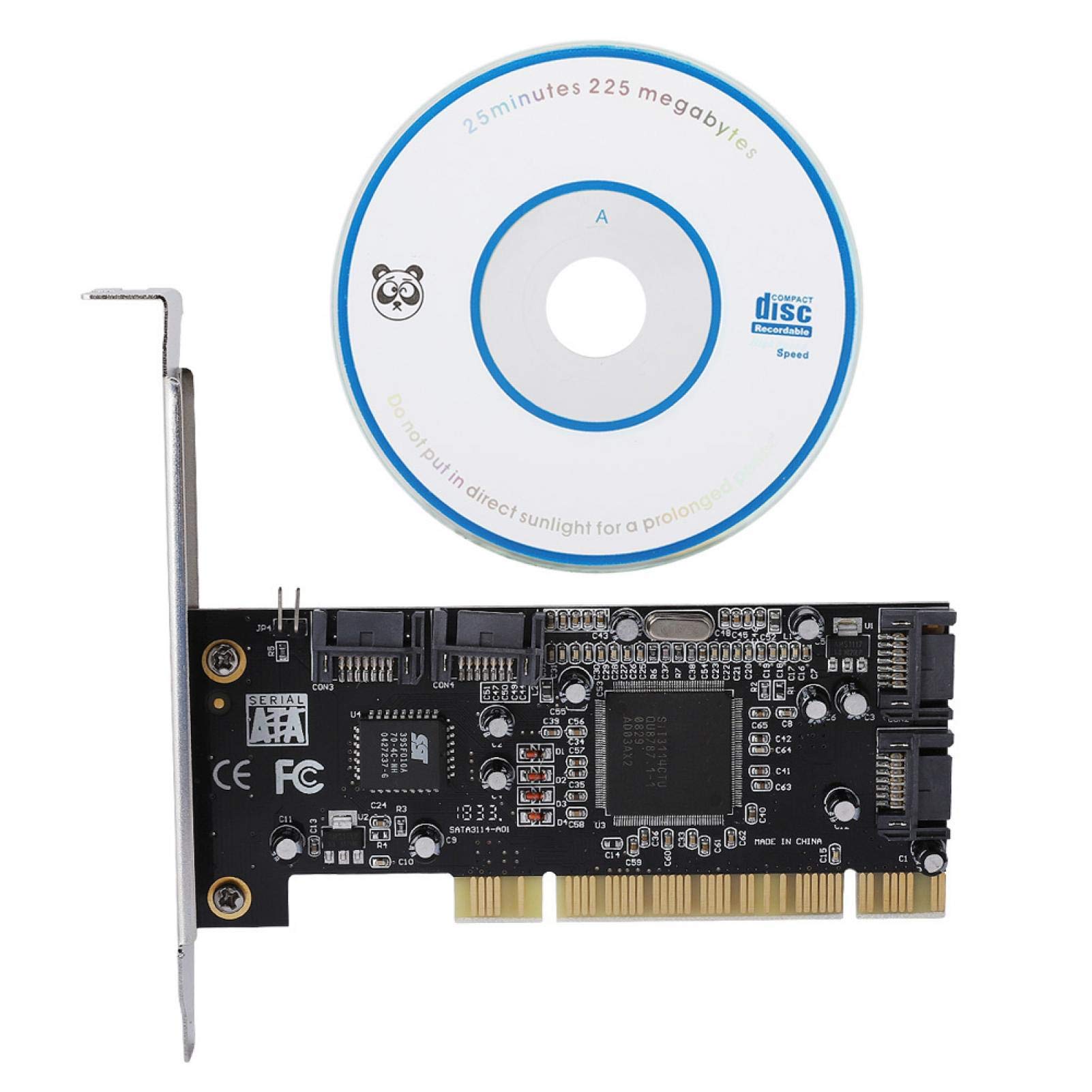
Image: Front view of the Heayzoki PCI to 4-Port SATA Expansion Card, showing the PCI connector and SATA ports.

Image: Top-down view of the expansion card, highlighting the four internal SATA ports (CON1, CON2, CON3, CON4) and the PCI interface.

Image: Close-up view of the Silicon Image Sil3114 chipset, the main controller for the SATA ports.
5. Setup and Installation
5.1. Hardware Installation
- Power Off: Completely shut down your computer and disconnect the power cable from the wall outlet.
- Open Case: Open your computer case. Refer to your computer's manual for instructions on how to safely open it.
- Locate PCI Slot: Identify an available 32-bit PCI expansion slot on your motherboard.
- Remove Slot Cover: Carefully remove the metal slot cover corresponding to the chosen PCI slot.
- Insert Card: Align the Heayzoki PCI to 4-Port SATA Expansion Card with the PCI slot. Apply even, firm pressure to both ends of the card until it is fully seated in the slot. Ensure the metal bracket is flush with the back of the computer case.
- Secure Card: Secure the card with a screw to the computer case, if applicable.
- Connect SATA Devices: Connect your SATA hard drives, SSDs, CD-ROMs, or DVD-ROMs to the SATA ports on the expansion card using standard SATA data cables. Ensure a secure connection.
- Close Case: Close your computer case and reconnect the power cable.

Image: The PCI to SATA expansion card, showing its bracket for secure installation in a computer case.
5.2. Driver Installation
- Power On: Power on your computer.
- Insert Driver CD: Insert the included driver CD into your computer's optical drive.
- Install Drivers: Follow the on-screen instructions to install the necessary drivers for the Sil3114 chipset. If an auto-run feature does not start, navigate to the CD drive in "My Computer" or "This PC" and run the setup executable (e.g., setup.exe or install.exe).
- Restart Computer: After the driver installation is complete, restart your computer to ensure the changes take effect.
- Verify Installation: Once restarted, open Device Manager (Windows) to verify that the "SCSI and RAID controllers" or "Storage controllers" section lists the Silicon Image Sil3114 controller without any error symbols. Your connected SATA devices should now be detected.
Note: For operating systems not explicitly supported by the included CD, or for the latest drivers, please visit the chipset manufacturer's website (Silicon Image) or the Heayzoki support page.
6. Operating Instructions
6.1. Connecting SATA Devices
After installing the card and drivers, connect your SATA devices (hard drives, SSDs, optical drives) to the available SATA ports on the expansion card. Ensure that each device has a power connection from your power supply unit (PSU).
6.2. RAID Configuration (Optional)
This card supports various RAID levels (RAID 0, RAID 1, RAID 5, RAID 0+1, JBOD) for data redundancy or performance enhancement. RAID configuration is typically performed through a utility accessible during the computer's boot process (often by pressing a specific key like F4 or Ctrl+S when prompted by the card's BIOS) or through a software utility installed with the drivers in your operating system.
- RAID 0 (Striping): Combines two or more drives into a single logical unit for increased performance. No data redundancy.
- RAID 1 (Mirroring): Duplicates data across two drives for data redundancy. If one drive fails, data is preserved on the other.
- RAID 5 (Striping with Parity): Combines three or more drives, distributing data and parity information across them for both performance and redundancy.
- RAID 0+1 (Striping and Mirroring): Requires at least four drives. Combines the performance of RAID 0 with the redundancy of RAID 1.
- JBOD (Just a Bunch Of Disks): Treats multiple drives as individual, independent drives without combining them into a single volume or providing redundancy.
Refer to the Sil3114 chipset documentation or the driver utility's help section for detailed instructions on creating and managing RAID arrays.
7. Maintenance
The Heayzoki PCI to 4-Port SATA Expansion Card is a low-maintenance component. Follow these general guidelines:
- Keep Clean: Periodically clean the interior of your computer case to prevent dust buildup on the card, which can affect cooling and performance. Use compressed air for this purpose.
- Firm Connections: Ensure all SATA data and power cables remain securely connected to the card and devices.
- Driver Updates: Check the manufacturer's website periodically for updated drivers, which may offer improved performance or compatibility.
8. Troubleshooting
If you encounter issues with your Heayzoki PCI to 4-Port SATA Expansion Card, refer to the following troubleshooting steps:
- Card Not Detected:
- Ensure the card is fully seated in the PCI slot.
- Try installing the card in a different PCI slot.
- Verify that your motherboard's BIOS settings are configured to enable PCI slots.
- SATA Devices Not Recognized:
- Confirm that the SATA data cables are securely connected to both the card and the devices.
- Ensure that the SATA devices have adequate power connected from the PSU.
- Check Device Manager to see if the Sil3114 controller is installed correctly without errors. Reinstall drivers if necessary.
- Test the SATA devices by connecting them directly to the motherboard's SATA ports (if available) to rule out device failure.
- RAID Configuration Issues:
- Ensure all drives intended for the RAID array are connected to the expansion card.
- Access the RAID BIOS utility during boot-up (check screen prompts for key combination) to configure the array.
- Verify that all drives are healthy and compatible with the chosen RAID level.
- System Instability:
- Ensure your power supply unit (PSU) has sufficient wattage to support all connected components, including the new card and SATA devices.
- Check for driver conflicts with other installed hardware.
9. Specifications
| Chipset | Silicon Image Sil3114 |
| Interface | PCI 32-bit |
| Bus Speed | 33 MHz / 66 MHz |
| SATA Ports | 4 x Internal SATA 1.0 |
| Data Transfer Rate | Up to 1.5 Gbps (150 MB/s theoretical) |
| RAID Support | RAID 0, RAID 1, RAID 5, RAID 0+1, JBOD |
| FIFO Port | 256-byte |
| Supported Devices | Hard Drives, SSDs, CD-ROM, DVD-ROM, CD-R, CD-RW, DVD-R, DVD-RW |
| OS Compatibility | Windows 98SE / Me / 2000 / XP / NT 4.0 / XP 64-bit / Vista / Linux / Netware OS |
| Model Number | Heayzoki3db0rtgcsz3031 |
10. Warranty and Support
Heayzoki products are designed for reliability and performance. For warranty information, technical support, or further assistance, please refer to the documentation included with your purchase or visit the official Heayzoki website. Please have your product model number (Heayzoki3db0rtgcsz3031) and purchase details ready when contacting support.