
Introduction
This manual provides detailed instructions for the XINMENG T60-01 60% Mechanical Gaming Keyboard. Please read this guide thoroughly to ensure proper setup, operation, and maintenance of your device. This keyboard features a compact 62-key layout, RGB backlighting, and durable blue mechanical switches, designed for an optimal gaming and typing experience.

Image: The XINMENG T60-01 60% Mechanical Gaming Keyboard, demonstrating its ultra-compact design.
Package Contents
Verify that all items are present in the package:
- XINMENG T60-01 Mechanical Gaming Keyboard
- USB Type-C Cable
- English User Manual
- Keycap Puller
- Gaming Mouse Pad
Setup Instructions
Follow these steps to set up your XINMENG T60-01 keyboard:
- Unpack the Keyboard: Carefully remove the keyboard and all accessories from the packaging.
- Connect the USB Cable: Insert the Type-C end of the provided USB cable into the port on the keyboard. Connect the standard USB-A end to an available USB port on your computer (PC or Mac).
- System Recognition: Your operating system (Windows 7/8/10/Vista/XP or macOS) should automatically detect and install the necessary drivers. No additional software installation is typically required.
- Placement: Position the keyboard comfortably on your desk. The compact 60% design provides ample space for mouse movement.
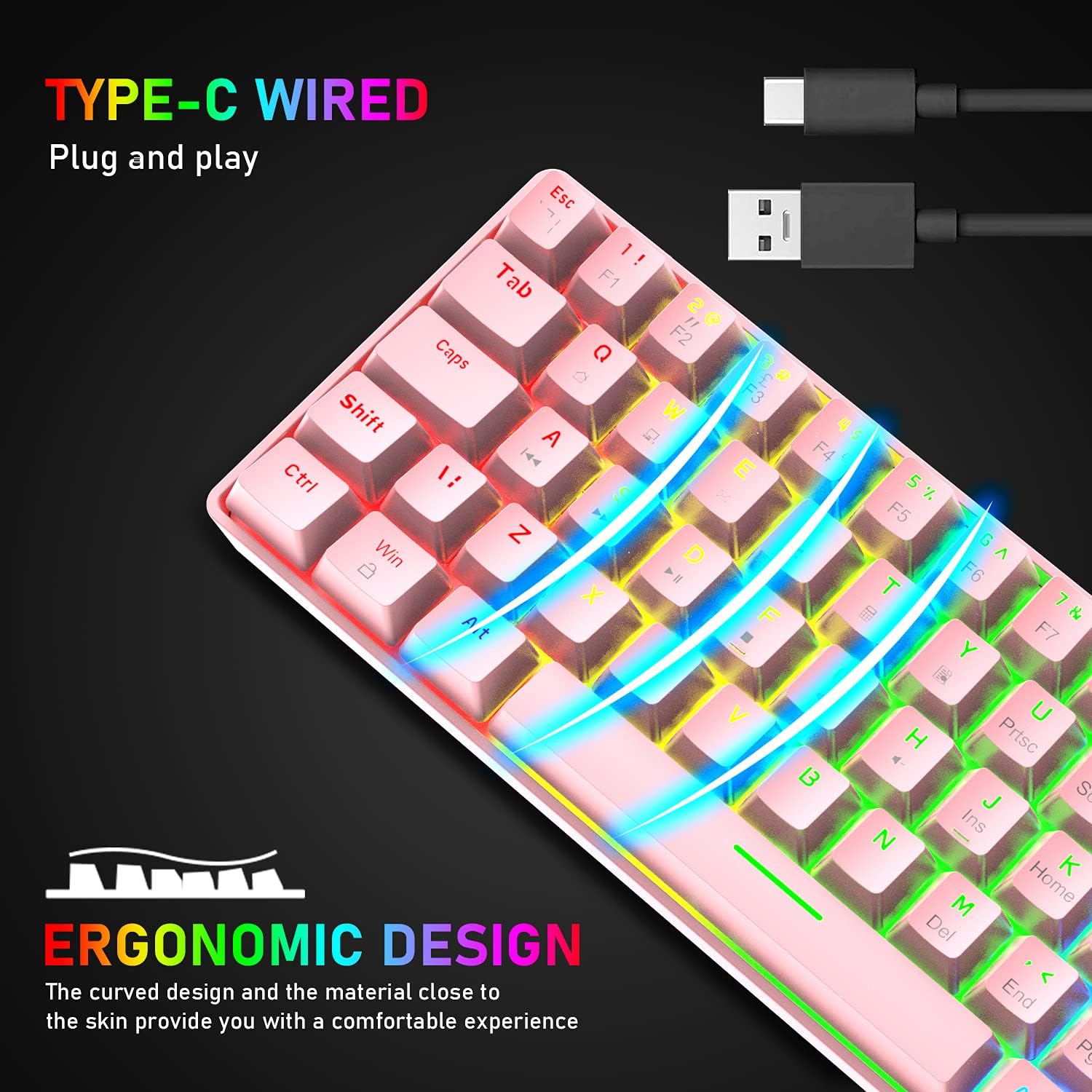
Image: The Type-C wired connection for the XINMENG T60-01 keyboard, illustrating its plug-and-play functionality.
Operating Instructions
Basic Operation
The XINMENG T60-01 is a plug-and-play device. Once connected, it is ready for use. The keyboard features 62 keys with full-key anti-ghosting, ensuring all key presses are registered accurately, even during rapid, simultaneous inputs.
RGB Backlight Control
The keyboard offers 20 distinct RGB backlight effects. Use the Function (Fn) key in combination with other keys to control the lighting:
- Fn + { / [: Increase backlight brightness (5 levels).
- Fn + } / ]: Decrease backlight brightness (5 levels).
- Fn + ; / :: Increase backlight speed.
- Fn + ' / ": Decrease backlight speed.
- Fn + \ |: Cycle through 20 different backlight modes.

Image: The XINMENG T60-01 keyboard showcasing its 20 rainbow backlight effects and the key combinations for adjusting brightness and speed.

Image: The XINMENG T60-01 keyboard illuminated with RGB backlighting, highlighting its visual appeal.
Multimedia Shortcut Keys
Access various multimedia functions by pressing the Fn key in combination with the designated keys:
| Key Combination | Function |
|---|---|
| Fn + A | Silent |
| Fn + S | Previous Song |
| Fn + D | Next Song |
| Fn + F | Play/Pause |
| Fn + G | Stop |
| Fn + H | Volume - |
| Fn + J | Volume + |
| Fn + K | Home |
| Fn + L | My Computer |
| Fn + Q | Multimedia Player |
| Fn + W | |
| Fn + E | Search |
| Fn + R | Calculator |

Image: Visual guide to the multimedia shortcut keys accessible via the Fn key on the XINMENG T60-01 keyboard.
Blue Mechanical Switches
The XINMENG T60-01 is equipped with classical Blue Switches. These switches provide a distinct tactile bump and an audible "click" sound with each keypress, offering clear feedback ideal for both typing and gaming. They are designed for durability and responsive performance.
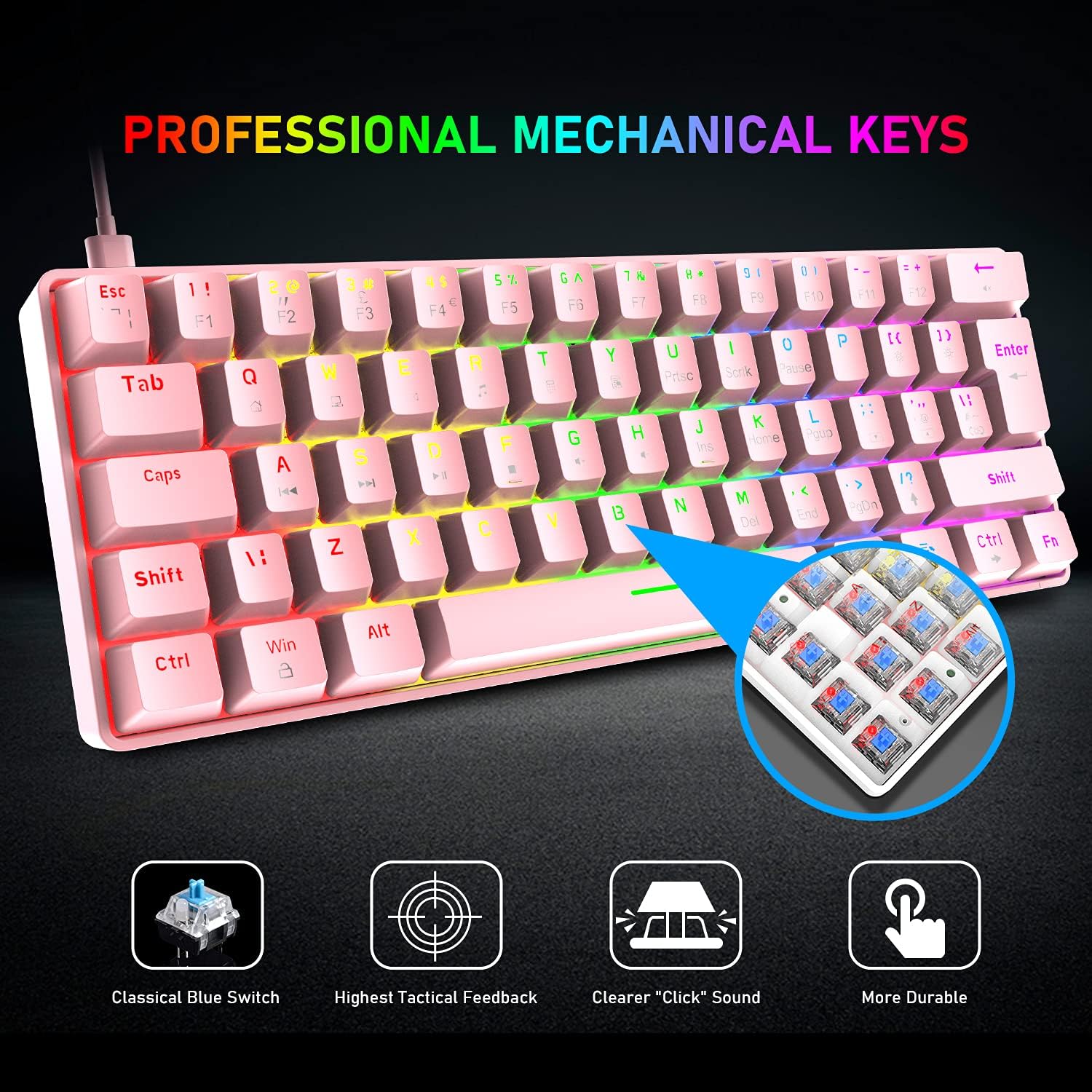
Image: A detailed view of the professional mechanical keys, specifically the blue switches, used in the XINMENG T60-01 keyboard.

Image: An illustration detailing the characteristics of the blue mechanical switch, emphasizing its tactile feedback and audible click.
Maintenance
To ensure the longevity and optimal performance of your keyboard, follow these maintenance guidelines:
- Cleaning: Regularly clean the keyboard with a soft, dry cloth. For deeper cleaning, use the provided keycap puller to remove keycaps and clean dust or debris from underneath. A can of compressed air can also be used.
- Spill Resistance: The keyboard features a spill-resistant design, offering protection against accidental liquid spills. In case of a spill, immediately disconnect the keyboard from your computer, wipe off any liquid, and allow it to dry completely before reconnecting. Note: Spill-resistant does not mean waterproof; avoid submerging the keyboard in liquid.
- Storage: When not in use, store the keyboard in a clean, dry environment away from extreme temperatures and direct sunlight.

Image: The XINMENG T60-01 keyboard highlighting its spill-resistant design, showing water droplets on the keys.
Troubleshooting
If you encounter issues with your XINMENG T60-01 keyboard, refer to the following common problems and solutions:
- Keyboard Not Responding:
- Ensure the USB Type-C cable is securely connected to both the keyboard and your computer.
- Try connecting the keyboard to a different USB port on your computer.
- Test the keyboard on another computer to determine if the issue is with the keyboard or the computer's USB port/drivers.
- Backlight Not Working or Incorrect:
- Check if the backlight brightness is set to the lowest level (Fn + } / ]). Increase brightness using Fn + { / [.
- Cycle through backlight modes using Fn + \ | to see if the desired effect appears.
- Ensure the keyboard is properly powered via the USB connection.
- Keys Not Registering:
- Clean around and under the affected keycaps using the keycap puller and compressed air to remove any debris.
- Ensure the keyboard is connected directly to the computer and not through a faulty USB hub.
If these steps do not resolve the issue, please contact XINMENG customer support for further assistance.
Specifications
Detailed technical specifications for the XINMENG T60-01 Mechanical Gaming Keyboard:
| Feature | Detail |
|---|---|
| Model Number | T60-01 |
| Keys Quantity | 62 Keys |
| Switch Type | Blue Mechanical Switches |
| Connectivity | Wired, USB Type-C |
| Backlight | RGB (20 effects, 5 brightness levels, 5 speed levels) |
| Anti-Ghosting | Full-key Anti-Ghosting |
| Keycaps | ABS Double Injection |
| Special Features | Spill-Resistant Design, Gaming IC Chip |
| Keyboard Dimensions | 11.5 x 5 x 1.5 inches (29.2 x 12.7 x 3.8 cm) / 12.2"L x 3.98"W x 1.46"H (30.9 x 10.1 x 3.7 cm) |
| Keyboard Weight | 1.36 pounds (0.62 kg) |
| Mouse Pad Dimensions | 12.6 x 9.4 inches (32 x 23.9 cm) |
| Compatible Devices | PC, Laptop |
| System Requirements | Windows 7/8/10/Vista/XP, macOS (with USB port) |

Image: A visual representation of the keyboard and mouse pad dimensions, including cable length.
Warranty and Support
XINMENG products are manufactured to high-quality standards. For information regarding warranty coverage, please refer to the warranty card included with your purchase or contact XINMENG customer support.
If you require technical assistance or have questions not covered in this manual, please reach out to our customer support team. Contact details can typically be found on the XINMENG official website or on the product packaging.