
Introduction
This MHCOZY Wireless Relay Module is designed to convert traditional switches into smart switches, enabling remote control via the Tuya Smart Life app, voice control with Alexa and Google Home, and two-way control functionality. Its compact size allows for easy integration into existing electrical boxes.

Image: MHCOZY Wireless Relay Module showcasing compatibility with Tuya, SmartLife, WiFi, Alexa, and Google Assistant.
Setup
1. Wiring Instructions
Before beginning any wiring, ensure the main power supply is turned off to prevent electrical shock. The module supports both AC 100-250V and DC 15-250V inputs.
- AC Wiring: Connect the Live (L) and Neutral (N) wires from your power source to the 'Lin' and 'Nin' terminals respectively. Connect the load (e.g., light) to the 'Lout' and 'Nout' terminals.
- DC Wiring: Connect the positive (+) and negative (-) wires from your DC power source to the '+' and '-' terminals respectively. Connect the DC load to the corresponding output terminals.
- Switch Connection (S1/S2): The S1 and S2 terminals are for connecting an external rocker light switch. These terminals can be connected to a traditional switch or left unconnected if only app control is desired. Ensure correct neutral and live wire connections.

Image: Detailed wiring diagrams for both AC and DC power sources, illustrating connections for single-gang and two-way switches.

Image: Example installations showing the module connected to an AC wall switch and a DC water pump.
2. App Installation
Download the 'Tuya Smart' or 'Smart Life' application from your smartphone's app store (available for iOS and Android).
3. Device Pairing
- Ensure your Wi-Fi network is 2.4 GHz. The module does not support 5 GHz Wi-Fi.
- Open the Tuya Smart or Smart Life app and follow the in-app instructions to add a new device.
- Select the appropriate device type (e.g., 'Switch' or 'Electrical Switch').
- Follow the pairing mode instructions, which typically involve pressing and holding a button on the module until an indicator light flashes.
- Once connected to Wi-Fi, the Bluetooth remote control feature will automatically activate when the Wi-Fi connection is disconnected.
Operating Instructions
1. Tuya/Smart Life App Control
Control your connected appliances from anywhere using the Tuya Smart or Smart Life app on your iOS or Android smartphone. You can turn devices on/off, check their real-time status, and manage settings.
2. Voice Control
The module is compatible with Amazon Alexa and Google Home Assistant. After linking your Tuya/Smart Life account to Alexa or Google Home, you can use voice commands to control your devices. For example, "Alexa, turn on the living room light" or "Hey Google, turn off the fan."
3. Two-Way Control
The module supports two-way control, allowing you to connect two traditional rocker switches in parallel to control the same light or appliance. This is useful for staircases or large rooms where multiple control points are desired.

Image: Wiring diagram for implementing two-way control with the MHCOZY module and two traditional switches.
4. Timing Function
Utilize the timing features within the app to automate your devices:
- Countdown: Set a timer for the device to turn on or off after a specified duration.
- Schedule: Create daily or weekly schedules for devices to operate automatically.
- Circulate: Set devices to cycle on and off at regular intervals.
- Random: Randomize on/off times within a set period for security purposes.
- Inching: Set the device to turn on for a brief, specific duration before automatically turning off.

Image: Visual examples of setting up timing functions for various household appliances.
5. Sharing Function
Share control of your smart devices with family members. Through the app, you can grant access to other users, allowing them to control the module from their own smartphones.

Image: App interface demonstrating the sharing function to add family members for device control.
6. Group Control
Group multiple MHCOZY modules or other Tuya-compatible devices together in the app to control them simultaneously with a single command. This is useful for controlling all lights in a room or an entire floor.
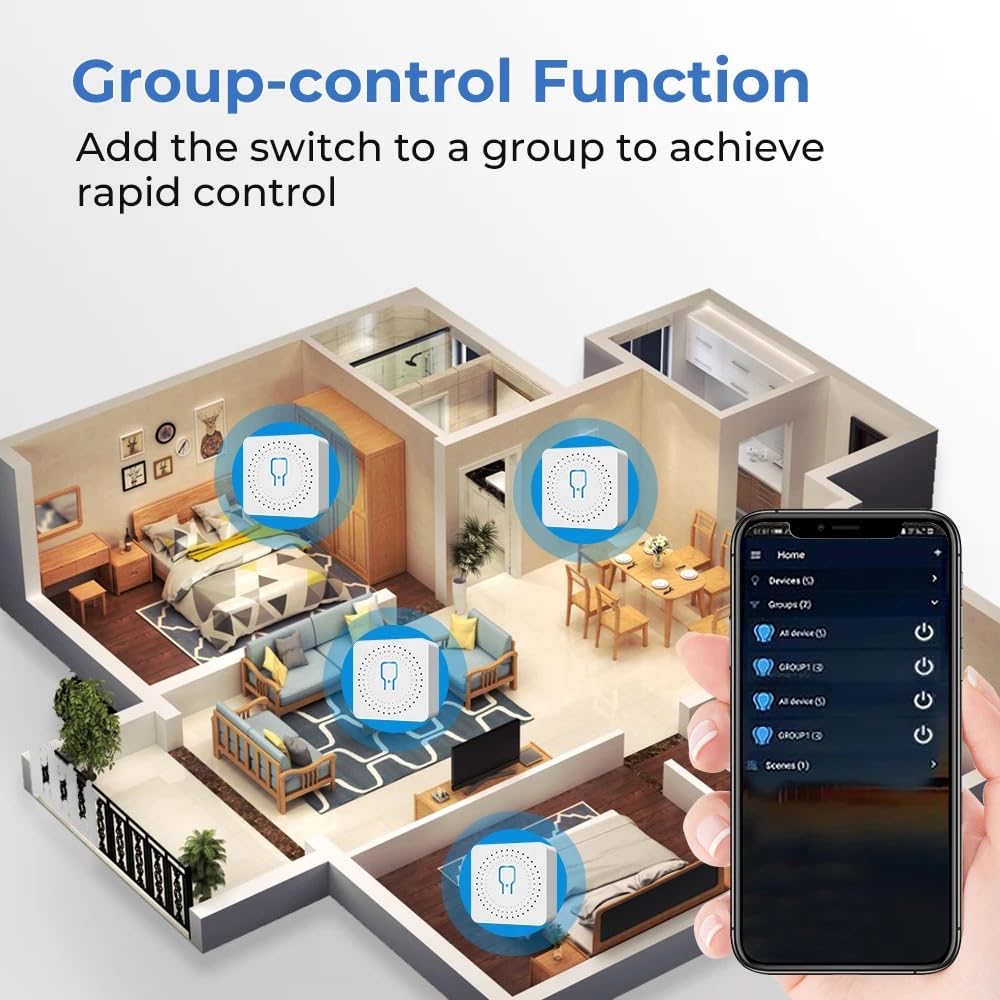
Image: Illustration of group control functionality, showing multiple modules in different rooms controlled from one app interface.
7. Bluetooth Remote Control
After initial setup and Wi-Fi connection via the Tuya app, if the Wi-Fi connection to the smart switch is lost or intentionally disconnected, the Bluetooth remote control feature will automatically activate, allowing local control via Bluetooth.
Maintenance
- Keep the device dry and away from moisture.
- Clean the device with a soft, dry cloth. Do not use harsh chemicals or abrasive cleaners.
- Ensure proper ventilation if installed in an enclosed space.
Troubleshooting
- Device not connecting to Wi-Fi: Ensure your router is broadcasting a 2.4 GHz Wi-Fi signal. Check that the Wi-Fi password is correct. Try resetting the module by powering it off and on, then re-attempt pairing.
- Voice control not working: Verify that your Tuya/Smart Life account is correctly linked to your Amazon Alexa or Google Home account. Check your internet connection.
- Switch not responding: Check all wiring connections to ensure they are secure and correct. Confirm that the module is receiving power.
- Bluetooth remote control not active: Ensure the initial Wi-Fi setup has been completed successfully. Bluetooth control activates when the Wi-Fi connection is not present.
- Intermittent connection: Ensure the module is within range of your Wi-Fi router. Obstructions like thick walls can interfere with the signal.
Specifications
| Feature | Specification |
|---|---|
| Model | CRMINIR2 |
| Input Voltage | 85-250 V AC, 50/60 Hz |
| Max Load Current | 16 A |
| Max Power | 4000 Watts |
| WiFi Standard | 2.4 GHz 802.11 b/g/n |
| App Name | Tuya Smart / Smart Life |
| Dimensions (L x W x H) | 40 x 40 x 22 mm |
| Material | Metal |
| Operating Mode | ON-OFF |
| Switch Type | Rocker, 2-way |
Warranty and Support
For warranty information or technical support, please refer to the product packaging or contact your retailer. You may also visit the MHCOZY official website for further assistance.