
1. Introduction
The Dual Electronics DCPA701 is a 7-inch single-DIN digital media receiver designed for in-dash installation in vehicles. This unit provides a comprehensive car audio and infotainment experience, integrating modern connectivity and media playback options. It features a full-color capacitive touchscreen and supports both Apple CarPlay and Android Auto for seamless smartphone integration.
Key Features:
- 7-inch Full-Color Capacitive Touchscreen display.
- Built-in Bluetooth for hands-free calling, music streaming, and phonebook access (HFP, A2DP, AVRCP, PBAP).
- AM/FM tuner with 30 station presets (18 FM / 12 AM).
- Rear USB input with 1.5 Amp fast charging capability.
- Compatibility with Apple CarPlay and Android Auto for smartphone mirroring and app control.
- Support for various audio file formats including FLAC, MP3, WMA, AAC, and HE-AAC via USB.
- Rear RCA A/V input and backup camera input.
- Three pairs of 4-volt RCA preamp outputs (Front/Rear/Subwoofer).
- 10-band equalizer with 7 preset EQ curves for audio customization.
- Digital media unit design, meaning no CD/DVD mechanism.
2. Safety Information
Please read all instructions carefully before installation and operation. Failure to follow these guidelines may result in injury or damage to the unit or vehicle. Keep this manual for future reference.
- Professional Installation Recommended: Due to the complexity of car audio systems, professional installation is highly recommended. Incorrect wiring can cause severe damage to the vehicle's electrical system or the unit.
- Power Source: Connect the unit only to a 12V DC power supply with a negative ground.
- Wiring: Ensure all wiring is correctly connected according to the wiring diagram. Insulate all exposed wires to prevent short circuits.
- Driving Safety: Do not operate the unit's complex functions or watch videos while driving. Distracted driving can lead to accidents.
- Volume Control: Keep the volume at a level where you can still hear outside traffic sounds. Prolonged exposure to high volume levels can cause hearing damage.
- Temperature: Avoid exposing the unit to extreme temperatures or direct sunlight for extended periods.
- Cleaning: Use a soft, dry cloth for cleaning the screen and unit. Do not use abrasive cleaners or solvents.
3. Setup and Installation
This section provides general guidance for installing your DCPA701 receiver. For detailed vehicle-specific instructions, consult your vehicle's service manual or a qualified installer.
3.1 Unpacking and Inspection
Carefully remove the unit from its packaging. Inspect for any signs of damage. Ensure all components listed in the packing list are present. The package typically includes the DCPA701 receiver, wiring harness, and mounting hardware.
3.2 Mounting the Unit
The DCPA701 is a single-DIN unit. It can be mounted using the provided mounting sleeve or custom brackets depending on your vehicle's dashboard configuration. Ensure the unit is securely fastened to prevent movement during driving.

Image: Angled view of the DCPA701 receiver, illustrating its physical dimensions and the attached wiring harness, ready for installation.

Image: Side view of the DCPA701 chassis, showing the standard single-DIN mounting points for secure installation.
3.3 Wiring Connections
Refer to the wiring diagram provided with your unit for specific connections. Below are general guidelines:
- Power: Connect the yellow wire to a constant 12V power source, the red wire to an accessory (switched 12V) power source, and the black wire to a chassis ground.
- Speakers: Connect the speaker wires to your vehicle's speakers, ensuring correct polarity.
- Antenna: Connect the vehicle's AM/FM antenna to the unit's antenna input.
- USB: Connect the rear USB extension cable to the unit and route it to an accessible location for media playback and smartphone connection.
- RCA Outputs: Use the three pairs of 4-volt RCA preamp outputs (Front, Rear, Subwoofer) to connect to external amplifiers if desired.
- Rear Camera Input: Connect a compatible rear-view camera (sold separately) to the RCA video input labeled "CAMERA IN". Ensure the reverse trigger wire is connected to the vehicle's reverse light circuit.
- Steering Wheel Control (Optional): If your vehicle has steering wheel controls, an adapter (e.g., PAC ControlPRO or Axxess ASWC-1) is required and sold separately. Connect it according to the adapter's instructions.
- Microphone: Connect the external microphone to the dedicated microphone input for hands-free calling.

Image: Rear panel of the DCPA701, detailing the connectivity options for power, speakers, USB, RCA, and antenna.
3.4 Initial Power On
After all connections are made, turn on your vehicle's ignition. The unit should power on. Follow any on-screen prompts for initial setup, such as language selection or time setting.
4. Operating Instructions
This section covers the basic operation of your DCPA701 digital media receiver.
4.1 Basic Controls and Main Menu
The unit is primarily controlled via its 7-inch capacitive touchscreen. The main menu provides access to various sources and settings.

Image: The main 'SOURCES' menu on the DCPA701 touchscreen, allowing selection of different audio and input modes.
- Power On/Off: Press the power button (usually on the bottom left of the unit) to turn the unit on or off.
- Volume Control: Use the volume up/down buttons or the on-screen controls to adjust the audio level.
- Source Selection: From the main menu, tap the desired source icon (e.g., BT Audio, CarPlay, AV In, Radio) to switch modes.
- Settings: Tap the 'Settings' icon to access system, audio, display, and other configuration options.
4.2 Radio Operation (AM/FM)
- Select Radio Source: From the main menu, tap the 'Radio' or 'FM/AM' icon.
- Tuning: Use the on-screen arrows to manually tune or seek for stations.
- Presets: Save your favorite stations by pressing and holding a preset number on the screen. The unit supports 18 FM and 12 AM presets.
4.3 Bluetooth Operation
The DCPA701 features built-in Bluetooth for wireless audio streaming and hands-free calling.
- Pairing a Device:
- Ensure Bluetooth is enabled on your mobile device.
- On the DCPA701, go to the Bluetooth settings menu.
- Search for available devices on your mobile phone. The unit will appear as "DCPA701" or similar.
- Select the unit on your phone and confirm the pairing code if prompted.
- Hands-Free Calling: Once paired, you can make and receive calls directly through the unit. Use the external microphone for clear communication.
- Audio Streaming (A2DP): Stream music from your paired device to the DCPA701. Control playback (play/pause, skip tracks) from the unit's touchscreen or your phone.
4.4 USB Media Playback
Connect a USB flash drive to the rear USB input (via the extension cable) to play compatible audio files.
- Supported Formats: FLAC, MP3, WMA, AAC, HE-AAC.
- Navigation: Use the on-screen interface to browse folders and select tracks.
4.5 Apple CarPlay and Android Auto
Connect your compatible iPhone or Android smartphone via USB to access Apple CarPlay or Android Auto. This allows you to use select phone apps (navigation, music, messaging) directly on the unit's screen.
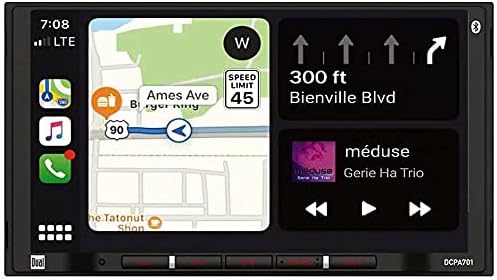
Image: The DCPA701 display showing the integrated Apple CarPlay or Android Auto interface, featuring navigation and media controls.
- Connection: Connect your smartphone to the unit's USB port using a high-quality USB cable.
- Activation: The unit should automatically detect and launch CarPlay or Android Auto. Follow any on-screen prompts on both the unit and your phone.
- Voice Control: Use Siri (CarPlay) or Google Assistant (Android Auto) for voice commands by pressing the voice button on the unit or steering wheel controls (if connected).
4.6 Audio Settings
Access the audio settings menu to customize your sound experience.
- Equalizer: Adjust the 10-band graphic equalizer to fine-tune frequency response.
- EQ Presets: Select from 7 pre-defined EQ curves (e.g., Pop, Rock, Jazz) for quick sound adjustments.
- Fader/Balance: Adjust the audio distribution between front/rear and left/right speakers.
- Subwoofer Control: If a subwoofer is connected via the preamp outputs, you can adjust its level and crossover frequency.
4.7 Remote Control
The DCPA701 may come with a remote control for convenient operation of basic functions.

Image: The remote control for the DCPA701, providing access to common functions without touching the screen.
- Power: Turn the unit on or off.
- Volume: Adjust the master volume level.
- Source: Switch between different audio/video sources.
- Track/Tune: Skip tracks or tune radio stations.
- Mute: Temporarily silence the audio.
5. Maintenance
Proper maintenance ensures the longevity and optimal performance of your DCPA701 receiver.
- Cleaning the Screen: Use a soft, lint-free cloth to gently wipe the touchscreen. For stubborn smudges, slightly dampen the cloth with water. Do not use harsh chemicals, abrasive cleaners, or alcohol-based solutions as they can damage the screen coating.
- General Cleaning: Wipe the unit's exterior with a soft, dry cloth to remove dust.
- Avoid Liquids: Prevent liquids from entering the unit, as this can cause electrical shorts and damage.
- Temperature: Do not expose the unit to extreme temperatures. High heat can affect electronic components and the display.
6. Troubleshooting
If you encounter issues with your DCPA701, refer to the following common problems and solutions before contacting support.
| Problem | Possible Cause | Solution |
|---|---|---|
| No Power | Blown fuse; incorrect wiring; vehicle ignition off. | Check the unit's fuse and vehicle's fuse box. Verify power and ground connections. Ensure vehicle ignition is on. |
| No Sound | Volume too low; mute activated; incorrect speaker wiring; amplifier issues (if external). | Increase volume. Check if mute is active. Verify speaker connections. Check external amplifier status. |
| Bluetooth Not Connecting | Bluetooth not enabled on phone; unit not in pairing mode; interference. | Ensure phone's Bluetooth is on and discoverable. Put unit in pairing mode. Delete previous pairings and try again. Move closer to the unit. |
| Apple CarPlay / Android Auto Not Launching | Faulty USB cable; phone not compatible; phone software outdated; app permissions. | Use a high-quality, certified USB cable. Ensure your phone's OS is up to date. Check app permissions on your phone. Restart both phone and unit. |
| Poor Radio Reception | Antenna not connected; damaged antenna; weak signal area. | Check antenna connection. Inspect antenna for damage. Try a different location. |
| Touchscreen Unresponsive | Temporary software glitch; screen calibration issue. | Perform a soft reset (refer to manual for reset button location, usually a small pinhole). If issue persists, contact support. |
7. Specifications
Technical specifications for the Dual Electronics DCPA701 digital media receiver.
- Display: 7-inch Full-Color Capacitive Touchscreen, Digital LED Backlit TFT Display
- Screen Resolution: 800 x 480 pixels
- Power Output: Peak: 60 Watts x 4 channels (240 Watts total)
- Tuner: AM/FM with 18 FM / 12 AM presets
- Bluetooth: Built-in (HFP, A2DP, AVRCP, PBAP profiles supported)
- USB Input: Rear USB with 1.5 Amp charging, supports FLAC/MP3/WMA/AAC/HE-AAC playback
- Smartphone Integration: Apple CarPlay, Android Auto
- Audio Processing: 10-band EQ, 7 EQ Presets
- Preamp Outputs: Three pairs of 4-volt RCA (Front, Rear, Subwoofer)
- Inputs: Rear RCA A/V input, Rear Camera input (RCA)
- Steering Wheel Control: Ready (adapter sold separately)
- Dimensions (Package): Approximately 9 x 8 x 7 inches
- Weight (Item): Approximately 10 pounds
- Model Number: DCPA701
- Manufacturer: DUAL ELECTRONICS AUDIO
8. Warranty Information
Dual Electronics products are designed and manufactured to high quality standards. This product is covered by a limited warranty provided by the manufacturer. Please refer to the warranty card included with your product or visit the official Dual Electronics website for detailed terms and conditions, including warranty period, coverage, and claim procedures. Keep your purchase receipt as proof of purchase.
9. Customer Support
If you require further assistance or have questions not covered in this manual, please contact Dual Electronics customer support.
- Online Support: Visit the official Dual Electronics website for FAQs, product registration, and support resources.
- Contact Information: Refer to the contact section on the Dual Electronics website for phone numbers or email support.
- Before Contacting: Please have your product model number (DCPA701) and purchase information ready.


