
1. Setup and Installation
This section provides guidance for the initial setup and physical installation of your DCPA901 digital media receiver. Due to the complexity of vehicle electrical systems, professional installation is recommended for optimal performance and safety.
1.1 Physical Installation and Screen Adjustments
The DCPA901 features a single-DIN chassis with a large 9-inch adjustable touchscreen. Proper adjustment ensures optimal viewing and accessibility within your vehicle's dashboard.

This diagram shows the various physical adjustments available for the DCPA901's 9-inch screen. It details how the screen angle can pivot side to side, its depth can be adjusted from 0 to 1 inch forward, its height can adjust up to 1.5 inches down, and it can tilt forward and back by 25 degrees. These adjustments allow for optimal viewing in different vehicle dashboards.
- Screen Pivot: The screen can pivot side to side to accommodate driver or passenger viewing angles.
- Screen Depth: The screen depth can be adjusted from 0 to 1 inch forward from the mounting position.
- Screen Height: The screen height can be adjusted up to 1.5 inches down relative to the mounting point.
- Screen Tilt: The screen can tilt forward and backward by 25 degrees for glare reduction and ergonomic viewing.
1.2 Wiring Connections
Ensure all wiring connections are secure and correctly matched to your vehicle's electrical system. Incorrect wiring can cause damage to the unit or vehicle.
- Power (Yellow): Connect to a constant 12V power source.
- Accessory (Red): Connect to a switched 12V accessory power source.
- Ground (Black): Connect to a clean chassis ground point.
- Speaker Outputs: Connect to your vehicle's speakers, ensuring correct polarity.
- Parking Brake (Light Green): Connect to the parking brake circuit for safety features.
- Reverse Gear (Brown): Connect to the reverse light circuit for automatic backup camera activation.
- Backup Camera Input (RCA): Connect the video output from your backup camera.
- USB Input: Connect USB devices for media playback or phone charging.
- RCA A/V Input: Connect external audio/video sources.
- RCA Preamp Outputs (F/R/S): Connect to external amplifiers for front, rear, and subwoofer channels.
1.3 Initial Power On
After installation, turn on your vehicle's ignition. The unit should power on. Follow any on-screen prompts for initial setup, such as language selection or time zone settings.
2. Operating Instructions
This section details the various functions and operations of your DCPA901 digital media receiver.
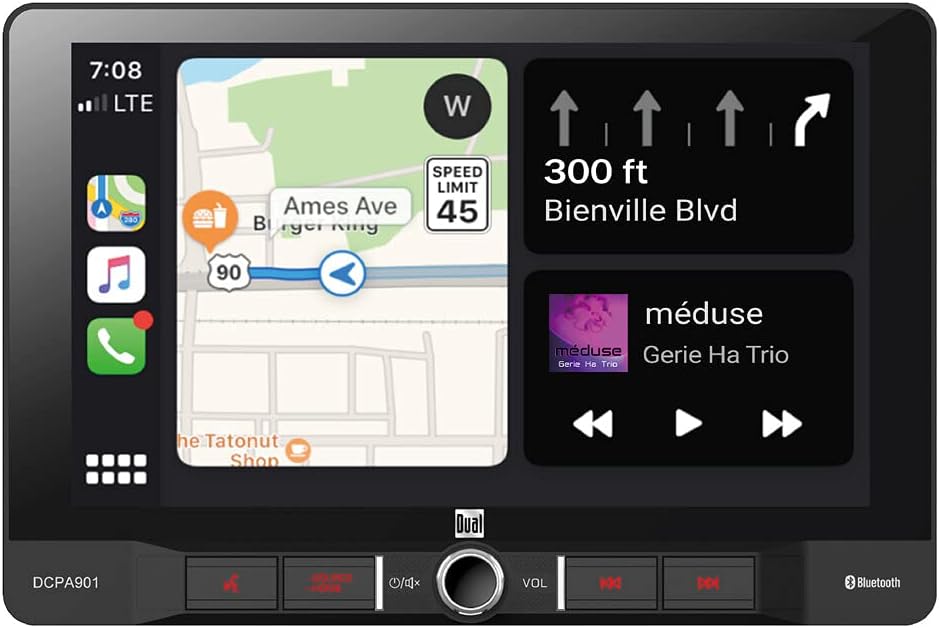
This image illustrates the main display interface of the DCPA901 receiver, featuring a split screen with navigation on the left and music playback controls on the right. It demonstrates the unit's capability to run applications like Android Auto or Apple CarPlay for integrated smartphone functions.
2.1 Basic Controls
- Power Button: Press to turn the unit on or off. Hold to enter standby mode.
- Volume Knob: Rotate clockwise to increase volume, counter-clockwise to decrease. Press to mute/unmute audio.
- Home Button: Returns to the main menu or home screen.
- Touchscreen Interface: Navigate menus and control functions by touching the screen icons.
2.2 Bluetooth Operation
The DCPA901 features built-in Bluetooth for hands-free calling and audio streaming.
- Pairing: Enable Bluetooth on your mobile device and search for available devices. Select 'DCPA901' from the list. Confirm the pairing code if prompted.
- Hands-Free Calling: Once paired, you can make and receive calls directly through the receiver. Use the external microphone for clear communication.
- Audio Streaming: Stream music from your paired device. The unit supports ID3 tags for displaying song information.
2.3 Android Auto
Connect your Android smartphone via USB to access Android Auto features directly on the receiver's screen.
- Connection: Connect your Android phone to the unit's USB port using a high-quality USB cable.
- Functionality: Access navigation (Google Maps, Waze), make calls, send messages, and play music using the Android Auto interface. Voice commands are supported.
2.4 Wired Mirror Phone
The unit supports wired phone mirroring, allowing you to display your smartphone's screen on the receiver.
- Connection: Connect your smartphone to the unit's USB port.
- Activation: Select the 'Mirror Link' or 'Phone Mirror' option on the receiver's menu. Follow on-screen instructions for your specific phone model.
2.5 AM/FM Radio Tuner
Access the built-in AM/FM tuner for radio broadcasts.
- Station Presets: The unit allows for 30 station presets (18 FM / 12 AM) for quick access to your favorite stations.
- Seeking: Use the seek function to automatically find strong radio signals.
2.6 USB Media Playback
Play audio and video files from a USB storage device.
- Connection: Insert your USB device into the rear USB input.
- Supported Formats: The unit supports FLAC, MP3, and Xvid file formats.
- USB Charging: The USB input provides 1.5 Amp fast charging for compatible devices.
2.7 Backup Camera Input
When a backup camera is connected and the vehicle is in reverse gear, the unit will automatically display the camera feed.
2.8 RCA A/V Input
Connect external audio/video sources to the rear RCA A/V input.
2.9 Audio Settings
Access the audio settings menu to adjust sound characteristics.
- Equalizer: Adjust frequency bands to customize the sound profile.
- Fader/Balance: Adjust sound distribution between front/rear and left/right speakers.
- Subwoofer Control: Adjust subwoofer output level and crossover frequency if an external subwoofer amplifier is connected to the preamp outputs.
3. Maintenance
Proper care and maintenance will ensure the longevity and optimal performance of your DCPA901 receiver.
3.1 Screen Cleaning
- Use a soft, dry, lint-free cloth to gently wipe the touchscreen.
- For stubborn smudges, slightly dampen the cloth with water. Avoid using harsh chemical cleaners, abrasives, or solvents, as these can damage the screen surface.
3.2 General Care
- Keep the unit dry and avoid exposure to excessive moisture.
- Avoid exposing the unit to extreme temperatures, direct sunlight for prolonged periods, or excessive dust.
- Ensure proper ventilation around the unit to prevent overheating.
4. Troubleshooting
This section addresses common issues you might encounter with your DCPA901 receiver. If problems persist, contact customer support.
| Problem | Possible Cause | Solution |
|---|---|---|
| No power to the unit. | Incorrect wiring; Blown fuse; Vehicle ignition off. | Check power and ground connections. Inspect vehicle fuses. Ensure ignition is on. |
| No sound from speakers. | Speaker wires disconnected; Volume too low; Unit muted; Incorrect audio source. | Verify speaker connections. Increase volume. Check mute status. Select correct audio source. |
| Bluetooth connection issues. | Device not paired; Bluetooth off on phone/unit; Interference. | Ensure Bluetooth is enabled on both devices. Re-pair the device. Move closer to the unit. |
| Touchscreen unresponsive. | Software glitch; Unit frozen. | Perform a soft reset (refer to manual for reset button location, usually a small pinhole). If no reset button, disconnect vehicle battery for a few minutes. |
| Android Auto not launching. | Incorrect USB cable; Phone not compatible; Android Auto app not updated. | Use a high-quality USB data cable. Ensure your phone and Android Auto app are updated. Check phone settings for USB connection mode. |
| Backup camera not displaying. | Camera not connected; Reverse trigger wire not connected; Faulty camera. | Check camera video input and reverse trigger wire connection. Test camera functionality. |
5. Specifications
Key technical specifications for the Dual Electronics DCPA901 digital media receiver.
- Display: 9-inch Extra-large LED backlit touchscreen LCD (1024p x 600p)
- Chassis Type: Single-DIN
- Bluetooth: Built-in with hands-free calling, music streaming (ID3 tags), phonebook support (HFP, A2DP, AVRCP, PBAP). External microphone included.
- Smartphone Integration: Android Auto, Wired Mirror Phone
- Tuner: AM/FM with 30 station presets (18 FM / 12 AM)
- USB Input: Rear USB input with 1.5 Amp fast charging. Supports FLAC/MP3/Xvid file formats.
- Auxiliary Inputs: Rear RCA A/V input, Backup camera input (RCA)
- Audio Outputs: 3 Pairs of RCA preamp outputs (Front/Rear/Subwoofer)
- Power Output: 240 Watts (Peak)
- Media Playback: Digital media unit (does not play CDs/DVDs)
- Control Method: Touch
- Color: Black
- Item Weight: Approximately 10 pounds
- Package Dimensions: 9 x 8 x 7 inches
6. Warranty and Support
For warranty information, technical support, or service inquiries regarding your Dual Electronics DCPA901 receiver, please refer to the documentation included with your purchase or visit the official Dual Electronics website. Contact their customer service for assistance with any issues not covered in this manual.


