
1. Introduction
The SUIRUI HD-19B Webcam is designed to provide high-definition video and clear audio for various applications, including video conferencing, online streaming, video calls, and gaming. It features 1080p resolution at 30 frames per second, a 90-degree wide-angle lens, and a built-in noise-reducing microphone. This device offers a plug-and-play experience, requiring no additional drivers for most operating systems.
2. What's in the Box
- SUIRUI HD-19B Webcam
- USB Cable (integrated)
- User Manual
3. Setup and Installation
The SUIRUI HD-19B Webcam is designed for easy plug-and-play installation. Follow these steps to set up your webcam:
- Mounting the Webcam: Place the webcam securely on top of your computer monitor, laptop screen, or a flat surface. The adjustable clip allows for a firm and stable mounting.
- Connecting to Your Computer: Plug the integrated USB cable from the webcam into an available USB port on your computer.
- Automatic Driver Installation: Your computer should automatically detect the webcam and install the necessary drivers. This process typically takes a few moments. No manual driver installation is usually required.
- Verify Installation: Open a video conferencing application (e.g., Zoom, Skype) or your computer's camera application to confirm the webcam is recognized and functioning correctly. You may need to select the SUIRUI HD-19B as your preferred camera and microphone in the application's settings.

Image: The SUIRUI HD-19B Webcam connected to a laptop, illustrating the simple plug-and-play setup.
Video: An official product video demonstrating the unboxing, features, and mounting of the SUIRUI HD-19B Webcam.
4. Operating Instructions
4.1 Video Quality and Angle
The webcam delivers Full HD 1080p video at 30 frames per second, ensuring clear and smooth visuals. Its 90-degree wide-angle lens captures a broad field of view, suitable for individual use or small group settings without distortion.

Image: A person engaged in a 1080p HD video call using the SUIRUI HD-19B webcam, highlighting clear image quality.
4.2 Automatic Low-Light Correction
The webcam features automatic low-light correction, which intelligently adjusts the image to ensure you are clearly visible even in dim lighting conditions or backlit environments. This feature optimizes brightness and contrast for the best possible video output.

Image: The SUIRUI HD-19B Webcam mounted on a monitor, demonstrating its low-light correction capabilities in a dimly lit room.
4.3 Built-in Noise-Reducing Microphone
Equipped with a built-in noise-reducing microphone, the webcam captures your voice clearly while minimizing ambient background noise. This ensures that your audio is crisp and understandable during conversations, streaming, or recordings.
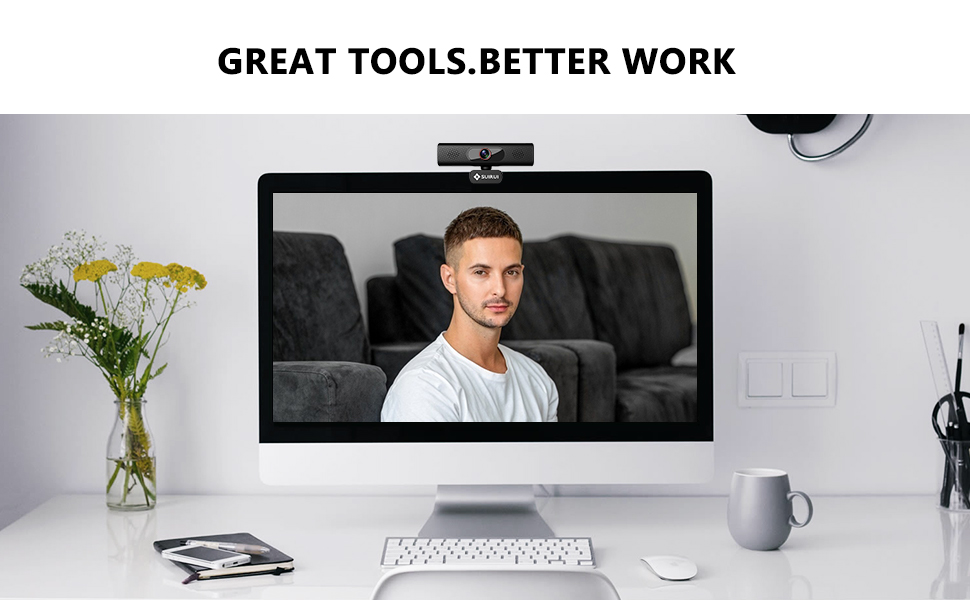
Image: A close-up view of the SUIRUI HD-19B webcam, with graphics illustrating how its built-in microphone provides excellent sound by reducing environmental noise.
4.4 Adjustable Mounting and Rotation
The webcam features a versatile mounting clip that allows for secure placement on various screens. The base bracket offers 180-degree adjustment, and the camera itself can rotate 360 degrees, enabling you to find the optimal angle for your video feed.

Image: A hand adjusting the SUIRUI HD-19B webcam on a laptop screen, showcasing its firm mounting option and 360-degree rotation capability.
5. Compatibility
The SUIRUI HD-19B Webcam is broadly compatible with various operating systems and popular video communication platforms:
5.1 Operating Systems
- Windows® 7/8.1/10 or higher
- Mac OS® 10.10 or higher
- Linux (requires UVC support)
- Google™ Chromebook™ Version 29.0.1547.70 or higher
5.2 Supported Applications
- Zoom
- Microsoft Teams
- Skype for Business
- Google Hangouts
- YouTube
- Facebook Live

Image: The SUIRUI HD-19B Webcam displayed alongside logos of various operating systems and communication platforms it is compatible with.
6. Troubleshooting
If you encounter issues with your SUIRUI HD-19B Webcam, please refer to the following common solutions:
- Webcam Not Detected:
- Ensure the USB cable is securely plugged into both the webcam and your computer.
- Try plugging the webcam into a different USB port.
- Restart your computer.
- Check your operating system's device manager (Windows) or system information (Mac) to see if the webcam is listed.
- No Video/Black Screen:
- Verify that the webcam is selected as the active video device in your application's settings.
- Close any other applications that might be using the webcam.
- Ensure there is adequate lighting in your environment.
- No Audio/Poor Audio Quality:
- Confirm that the SUIRUI HD-19B microphone is selected as the input device in your application's audio settings.
- Check your computer's sound settings to ensure the microphone is not muted and its volume is appropriately set.
- Speak clearly and ensure you are within a reasonable distance from the webcam.
- Image Quality Issues (Blurry, Grainy):
- Ensure the webcam lens is clean and free from dust or smudges.
- Check your application's video settings to ensure the resolution is set to 1080p (if available).
- Ensure sufficient lighting.
7. Specifications
| Feature | Detail |
|---|---|
| Model Name | HD-19B |
| Product Dimensions | 5.26 x 2.13 x 2.31 inches |
| Item Weight | 7 ounces |
| Connectivity Technology | USB |
| Video Capture Resolution | 1080p |
| Photo Sensor Technology | CMOS |
| Camcorder Type | Video Camera |
| Supported Audio Format | AAC, MP3, or PCM |
| Screen Size (for reference) | 2.7 Inches |
| Date First Available | June 21, 2021 |
8. Warranty and Support
For warranty information and technical support, please refer to the documentation included with your product or visit the official SUIRUI website. Keep your purchase receipt for warranty claims.


