
Xgody S20 Lite
Xgody S20 Lite Smartphone User Manual
Model: S20 Lite
1. Product Overview
The Xgody S20 Lite is an unlocked smartphone designed for essential communication and multimedia use. It features a 5.5-inch HD display, dual cameras, and runs on Android 10. This manual provides detailed instructions for setting up, operating, and maintaining your device.

Image: Front and back view of the Xgody S20 Lite smartphone, showcasing its sleek design and camera placement.

Image: Xgody S20 Lite smartphones in black, pink, and blue, highlighting features like Android 10, MTK6580M Quad Core processor, 5.5" HD+2.5D Curved Screen, 1GB RAM, 8GB ROM, 3-Card Slot Design, 2800mAh Battery, 5MP Rear Camera, and 3G GSM&WCDMA Network.
2. What's in the Box
Upon opening your Xgody S20 Lite package, please verify that all the following items are included:
- Xgody S20 Lite Smartphone
- SIM Tray Ejector Tool
- USB Cable
- User Manual (this document)
- Phone Case
- Tempered Film
- HD Film

Image: The retail box contents for the Xgody S20 Lite, including the phone, clear case, screen protectors, USB cable, and user manual.
3. Setup
3.1. Inserting SIM Cards and TF Card
The Xgody S20 Lite supports dual SIM cards (one Nano SIM and one Micro SIM) and one TF (MicroSD) card for expandable storage up to 128GB. Ensure the phone is powered off before inserting or removing cards.
- Locate the SIM tray on the side of the phone.
- Insert the SIM tray ejector tool into the small hole next to the tray and press firmly until the tray pops out.
- Carefully pull out the SIM tray.
- Place your Nano SIM card, Micro SIM card, and TF card into their respective slots on the tray, ensuring the gold contacts face downwards. Refer to the diagram on the tray for correct orientation.
- Gently push the tray back into the phone until it is flush with the device body.

Image: A graphic illustrating the dual SIM card and TF card slots, indicating support for two SIM cards for dual standby functionality.
3.2. Initial Power On and Setup Wizard
After inserting the cards, press and hold the Power button until the Xgody logo appears. The phone will guide you through the initial setup process:
- Language Selection: Choose your preferred language.
- Connect to Wi-Fi: Select a Wi-Fi network and enter the password to connect to the internet. This is recommended for software updates and Google account setup.
- Copy Apps & Data: You can transfer data from an old device or set up as new.
- Google Account: Sign in with your Google account or create a new one. This is essential for accessing the Google Play Store, Gmail, and other Google services.
- Date & Time: Set your date and time preferences.
- Screen Lock: Set up a PIN, pattern, or password for screen security.
- Google Services: Review and accept Google services terms.
4. Operating Your Smartphone
4.1. Basic Navigation
The Xgody S20 Lite runs on Android 10, offering an intuitive user experience. Navigation is primarily done through touch gestures and the on-screen navigation bar.
- Home Button: Returns to the home screen.
- Back Button: Returns to the previous screen.
- Recent Apps Button: Displays recently used applications.
- Swipe Down: Access quick settings and notifications from the top of the screen.

Image: A visual representation of the Android 10 operating system interface on the Xgody S20 Lite, showing various app icons and settings menus.
4.2. Camera Usage
The Xgody S20 Lite is equipped with a 5MP front camera and a 5MP dual rear camera system, designed to capture clear photos and videos.
- Open the Camera application from your home screen or app drawer.
- Switch between front and rear cameras using the camera switch icon.
- Tap the screen to focus on a specific object.
- Press the Shutter button to take a photo.
- Select video mode to record videos.

Image: Demonstrations of the 5MP Front Camera and 5MP Rear Camera capabilities, showing example photos with enhanced beauty and clarity.
4.3. Battery Management
The Xgody S20 Lite features a 2800mAh battery, providing extended usage time. To optimize battery life:
- Reduce screen brightness.
- Turn off Wi-Fi, Bluetooth, and GPS when not in use.
- Close background applications.
- Enable Battery Saver mode in Settings.
- Charge the phone using the provided USB cable and a compatible power adapter.

Image: A graphic emphasizing the 2800mAh battery capacity, indicating long-lasting power for the device.
5. Maintenance
Proper maintenance ensures the longevity and optimal performance of your Xgody S20 Lite smartphone.
- Cleaning: Use a soft, lint-free cloth to clean the screen and body. Avoid abrasive materials or harsh chemicals.
- Software Updates: Regularly check for and install system updates to ensure your device has the latest features and security patches. Go to Settings > System > System update.
- Storage Management: Periodically clear cache, delete unnecessary files, and uninstall unused apps to free up storage space.
- Environmental Conditions: Avoid exposing the phone to extreme temperatures, direct sunlight, or excessive moisture.
6. Troubleshooting
This section addresses common issues you might encounter with your Xgody S20 Lite.
| Problem | Possible Cause | Solution |
|---|---|---|
| Phone does not turn on | Low battery; software crash | Charge the phone for at least 30 minutes. Press and hold the Power button for 10-15 seconds to force restart. |
| Cannot connect to network | Incorrect SIM insertion; network not supported; no signal | Ensure SIM cards are correctly inserted. Verify network compatibility (Note: Does NOT work with 4G Carriers or CDMA bands such as Verizon, Sprint, Boost, Virgin mobile). Move to an area with better signal. |
| Apps crashing or freezing | Insufficient RAM; app conflict; outdated app | Close background apps. Clear app cache (Settings > Apps & notifications > App info > [App Name] > Storage & cache > Clear cache). Update the app from Google Play Store. |
| Slow performance | Too many apps; low storage; outdated software | Uninstall unused apps. Clear storage. Check for system updates. Restart the phone. |
If the issue persists, please contact Xgody customer support for further assistance.
7. Specifications
Detailed technical specifications for the Xgody S20 Lite smartphone:
| Feature | Detail |
|---|---|
| Model Name | S20 Lite |
| Operating System | Android 10 |
| Display | 5.5 Inches IPS qHD, 16:9 Fullview Display, 480 x 960 Resolution |
| Processor | MTK6580M Quad Core |
| RAM | 1 GB |
| Internal Storage (ROM) | 8 GB |
| Expandable Storage | Up to 128GB with TF card |
| Rear Camera | 5MP Dual Camera with Flash |
| Front Camera | 5MP |
| Battery Capacity | 2800 mAh Lithium Ion |
| SIM Card Support | Dual SIM (1 Nano SIM + 1 Micro SIM) + 1 TF Card slot |
| Network Compatibility | 3G GSM WCDMA (Bands: GSM 850/900/1800/1900MHz, WCDMA 850/1900/2100MHz). Does NOT work with 4G Carriers or CDMA bands (e.g., Verizon, Sprint, Boost, Virgin mobile). |
| Connectivity | Wi-Fi, Cellular |
| Color | Purple |
| Dimensions | 5.71 x 5.39 x 1.46 inches |
| Item Weight | 14.9 ounces |

Image: A detailed diagram illustrating the physical dimensions of the Xgody S20 Lite (6.4 inches height, 3.0 inches width, 0.37 inches thickness) and the location of its USB interface, headphone jack, speaker, and microphone.
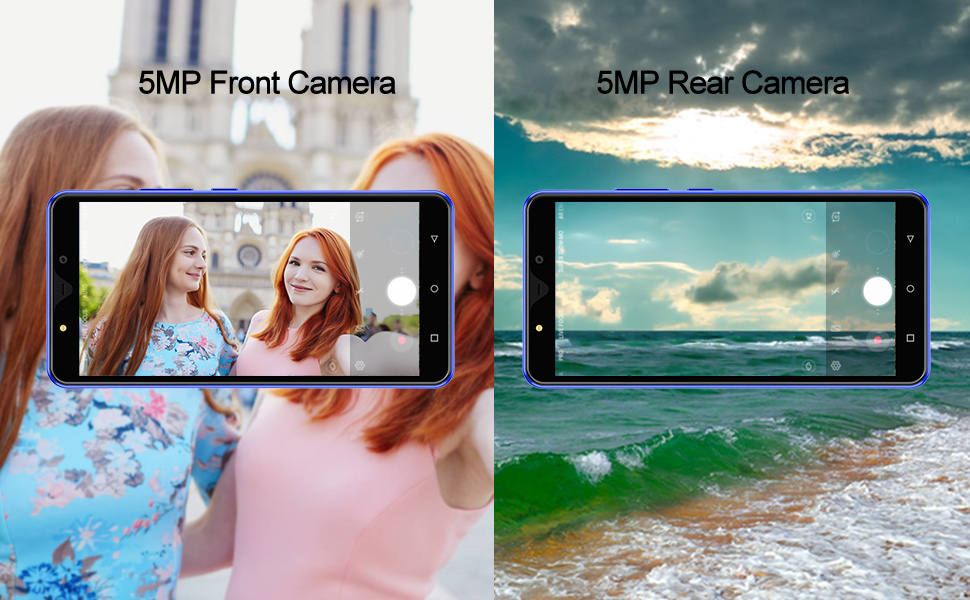
Image: A table detailing the network compatibility of the Xgody S20 Lite with various carriers like AT&T and T-Mobile for 2G and 3G, and explicitly stating incompatibility with Verizon and Sprint CDMA networks.
8. Warranty and Support
Xgody products are designed for reliability and performance. For warranty information and customer support, please refer to the official Xgody website or the warranty card included in your product packaging.
For technical assistance or inquiries, you may visit the official Xgody store on Amazon: Xgody Store.
Please have your product model (S20 Lite) and purchase details ready when contacting support.
Ask a question about this manual
Ask about setup, troubleshooting, compatibility, parts, safety, or missing instructions. Manuals+ will review the question and use this page’s manual context to help answer it.