
Introduction
Thank you for purchasing the Midwest Trading Itek HDTV Wireless Headphone Kit, Model 429249. This manual provides essential information for the proper setup, operation, and maintenance of your new wireless headphones. Please read this manual thoroughly before using the product to ensure optimal performance and longevity.
These wireless headphones are designed for comfortable audio listening, featuring Bluetooth connectivity and a built-in microphone for hands-free communication.
Package Contents
- Itek HDTV Wireless Headphones (Model 429249)
- USB Charging Cable
- User Manual
Product Overview
Familiarize yourself with the components and controls of your Itek Wireless Headphones.

Figure 1: Front view of the Itek HDTV Wireless Headphones. This image shows the black over-ear headphones with the "itek" logo on the right ear cup, highlighting their sleek design and comfortable ear cushions.
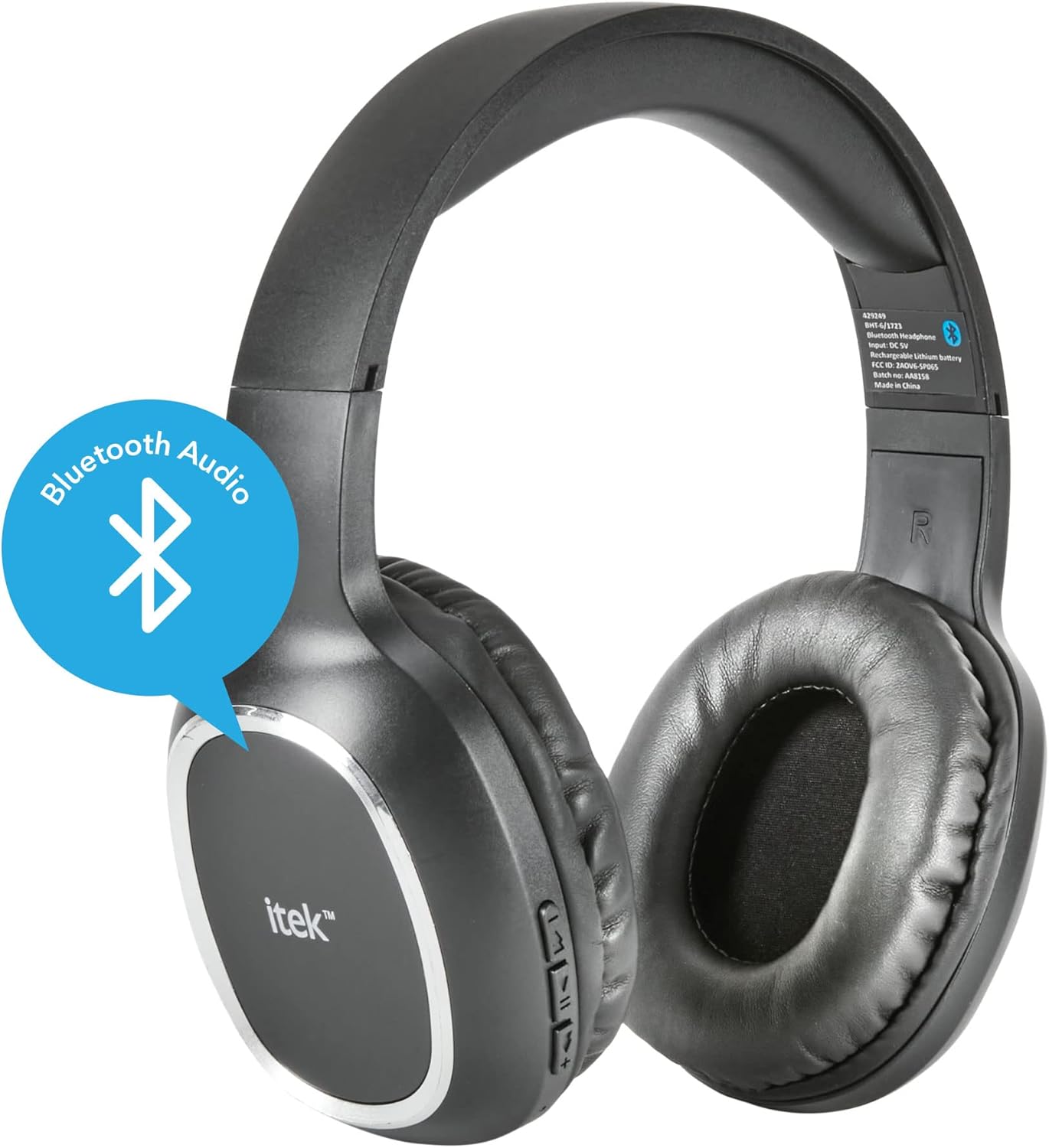
Figure 2: Rear view of the Itek HDTV Wireless Headphones. A blue speech bubble with a Bluetooth logo indicates the wireless audio capability of the headphones. The model information and regulatory markings are visible on the inner band.
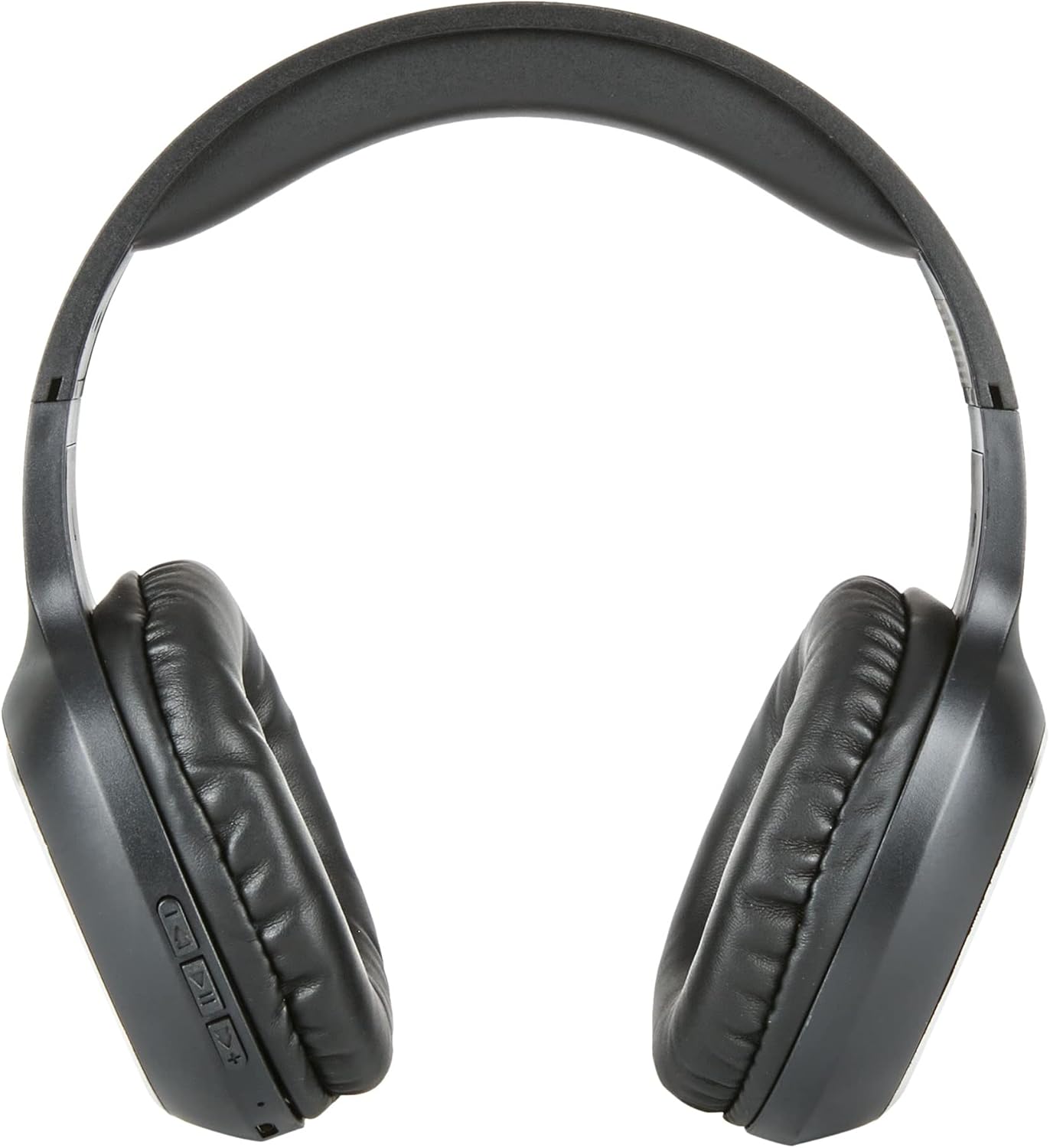
Figure 3: Top view of the Itek HDTV Wireless Headphones. This perspective shows the adjustable headband and the soft earcups, emphasizing the ergonomic design for extended wear.
Controls and Ports (Typical Layout)
- Power Button: Usually located on one of the earcups, used to turn the headphones on/off and initiate pairing mode.
- Volume Buttons (+/-): Adjust audio volume.
- Multi-function Button: For play/pause, answer/end calls, and voice assistant activation.
- Microphone: Built-in for hands-free calls.
- USB Charging Port: For connecting the USB charging cable.
- LED Indicator: Displays power status, charging status, and pairing mode.
Setup
1. Charging the Headphones
- Connect the small end of the USB charging cable to the USB charging port on the headphones.
- Connect the larger end of the USB charging cable to a USB power source (e.g., computer USB port, USB wall adapter).
- The LED indicator will typically glow red or amber during charging and turn off or change to blue/green when fully charged.
- Allow approximately 2-3 hours for a full charge before first use.
2. Powering On/Off
- To Power On: Press and hold the Power button for approximately 3-5 seconds until the LED indicator flashes. You may hear an audible "Power On" prompt.
- To Power Off: Press and hold the Power button for approximately 3-5 seconds until the LED indicator turns off. You may hear an audible "Power Off" prompt.
3. Bluetooth Pairing
- Ensure the headphones are fully charged and powered off.
- Press and hold the Power button for about 5-7 seconds until the LED indicator flashes red and blue alternately. This indicates the headphones are in pairing mode.
- On your audio device (smartphone, tablet, computer, or Bluetooth-enabled HDTV), go to the Bluetooth settings menu.
- Enable Bluetooth and scan for available devices.
- Select "Itek 429249" or a similar name from the list of found devices.
- Once paired, the LED indicator on the headphones will typically flash blue slowly or remain solid blue, and you may hear a "Connected" prompt.
- If prompted for a password, enter "0000" (four zeros).
Note: The headphones will attempt to reconnect to the last paired device automatically when powered on, if the device's Bluetooth is active and within range.
Operating Instructions
Audio Playback
- Play/Pause: Press the Multi-function button once.
- Next Track: Press and hold the Volume Up (+) button.
- Previous Track: Press and hold the Volume Down (-) button.
- Volume Up: Short press the Volume Up (+) button.
- Volume Down: Short press the Volume Down (-) button.
Call Management
- Answer/End Call: Press the Multi-function button once during an incoming call or an active call.
- Reject Call: Press and hold the Multi-function button for approximately 2 seconds during an incoming call.
- Redial Last Number: Double-press the Multi-function button when not on a call.
Using with an HDTV
To use the Itek Wireless Headphones with your HDTV, ensure your television has built-in Bluetooth audio transmission capabilities. If your HDTV does not have Bluetooth, a separate Bluetooth audio transmitter (not included) may be required.
- Put the headphones into Bluetooth pairing mode as described in the "Bluetooth Pairing" section.
- Access your HDTV's audio settings or Bluetooth settings menu.
- Scan for Bluetooth devices and select "Itek 429249" to connect.
- Adjust the volume using the headphone controls or your TV's remote if supported.

Figure 4: A person wearing the Itek Wireless Headphones while watching television. This image illustrates the wireless connectivity between the headphones and a TV, with sound waves indicating the audio transmission.
Maintenance
- Cleaning: Wipe the headphones with a soft, dry cloth. Do not use abrasive cleaners or solvents.
- Storage: Store the headphones in a cool, dry place away from direct sunlight and extreme temperatures.
- Battery Care: To preserve battery life, fully charge the headphones at least once every three months if not used regularly. Avoid fully discharging the battery frequently.
- Water Exposure: These headphones are not waterproof. Avoid exposure to water or excessive moisture.
Troubleshooting
| Problem | Possible Cause | Solution |
|---|---|---|
| Headphones do not power on. | Low battery. | Charge the headphones fully. |
| Cannot pair with device. | Headphones not in pairing mode; device Bluetooth off; too far from device. | Ensure headphones are in pairing mode (flashing red/blue LED). Turn on Bluetooth on your device. Move headphones closer to the device (within 10 meters). Clear previous Bluetooth connections on your device. |
| No sound after pairing. | Volume too low; incorrect audio output selected on device. | Increase volume on both headphones and connected device. Ensure the headphones are selected as the audio output device in your device's sound settings. |
| Poor audio quality or disconnections. | Interference; device too far; low battery. | Move closer to the connected device. Avoid obstacles between headphones and device. Charge headphones. Avoid areas with strong Wi-Fi or other wireless signals. |
Specifications
| Model Number | 429249 |
| Connectivity | Wireless (Bluetooth) |
| Microphone | Built-In |
| Form Factor | On-Ear |
| Material | Plastic |
| Dimensions (L x W x H) | 17.78 x 12.7 x 17.78 cm |
| Weight | 349 g |
| Power Source | USB (Internal Rechargeable Battery) |
Warranty and Support
Midwest Trading products are manufactured to high-quality standards. For information regarding warranty coverage, please refer to the warranty card included with your purchase or contact Midwest Trading customer support directly.
For technical assistance or further inquiries, please visit the official Midwest Trading website or contact their customer service department. Keep your purchase receipt as proof of purchase for any warranty claims.