
Introduction
Thank you for choosing the MAWODE T10 Pro RGB Mini Bluetooth Speaker. This manual provides essential information for setting up, operating, and maintaining your speaker to ensure optimal performance and longevity. Please read this manual thoroughly before using the product.
Product Overview
Key Features
- Durable Iron Mesh Design: Sturdy exterior with a trendy industrial style, built to withstand everyday bumps and scratches.
- 5 Stunning Lighting Modes: Steady light, rhythm mode, yellow light, blue light, and red light. Lights can sync with music beat for visual and auditory enjoyment.
- IPX6 Waterproof: Protected against powerful water jets, ideal for outdoor camping, poolside gatherings, or unexpected rain. Note: Not fully waterproof or submersible.
- Lightweight and Portable: Designed for easy portability without compromising sound quality.
- Powerful 90dB Sound: Delivers clear audio with strong bass and treble, loud enough to fill any space despite its compact size.
- 24H Playtime: Built with a high-capacity 2600mAh battery for extended usage on a single charge.
- True Wireless Stereo (TWS) Pairing: Connect two T10 Pro speakers for an immersive stereo experience.
Package Contents
- MAWODE T10 Pro RGB Mini Bluetooth Speaker
- Power Cable (USB-A to USB-C)
- Aux Cable (3.5mm)
- Lanyard
Setup
Charging the Speaker
Before first use, fully charge your MAWODE T10 Pro RGB speaker. Connect the provided USB-A to USB-C power cable to the speaker's USB-C charging port and a compatible USB power adapter (not included). The battery indicator lights on the speaker will show charging progress. Once fully charged, the charging indicator lights will turn off.
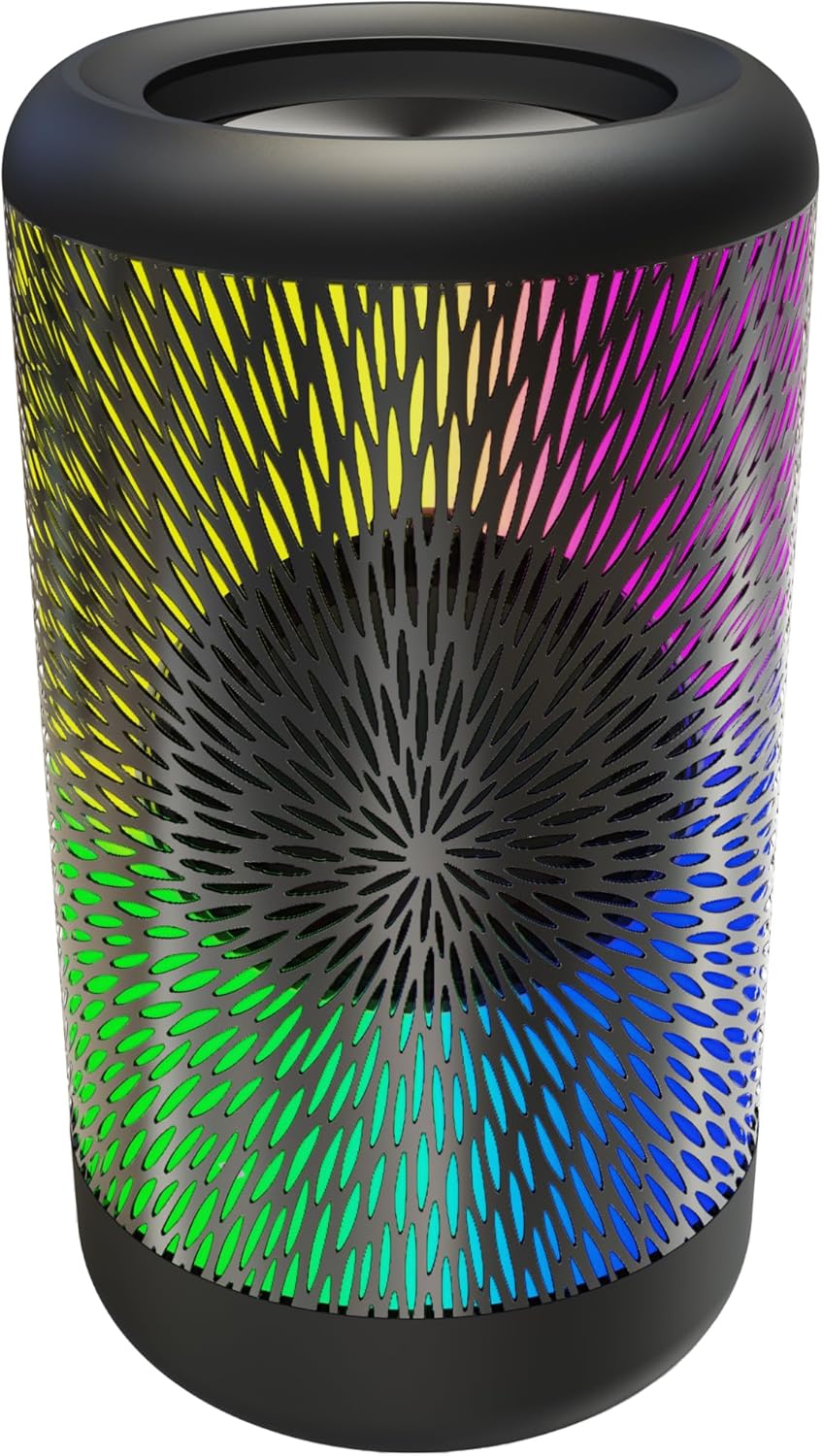
Image: Close-up of the speaker's charging port and battery indicator lights, showing the USB-C port and the row of LED lights indicating charge status.
Controls and Ports Overview
Familiarize yourself with the speaker's controls and ports:
- Power/Play/Pause Button: Press and hold to power on/off. Single press to play/pause music. Double press to switch between audio input modes (Bluetooth, USB, TF Card, Aux).
- Volume Up / Next Track Button (+): Long press to increase volume. Short press to skip to the next track.
- Volume Down / Previous Track Button (-): Long press to decrease volume. Short press to go to the previous track.
- USB-C Port: For charging the speaker.
- USB-A Port: For playing music from a USB drive or using the speaker as a power bank.
- TF Card Slot: For playing music from a TF (Micro SD) card.
- Aux-in Port (3.5mm): For connecting external audio devices via the Aux cable.

Image: Detailed view of the speaker's side panel revealing the AUX, TF Card, and USB ports, protected by a silicone flap.
Operating Instructions
Bluetooth Pairing
- Power on the speaker by pressing and holding the Power button for 2-3 seconds. You will hear an audible prompt "Power on, Bluetooth mode" and the LED lights will illuminate.
- The speaker will automatically enter Bluetooth pairing mode, indicated by a blinking blue light.
- On your mobile device (smartphone, tablet, etc.), enable Bluetooth and search for available devices.
- Select "T10 Pro" from the list of devices. Once connected, you will hear a confirmation tone and the blue light will become solid.
- If the speaker does not automatically enter Bluetooth mode, double-press the Power button to cycle through modes until "Bluetooth mode" is announced.
True Wireless Stereo (TWS) Pairing
To achieve an immersive stereo sound experience, you can pair two MAWODE T10 Pro RGB speakers together:
- Ensure both T10 Pro speakers are powered on and not connected to any other Bluetooth device.
- On one speaker (this will be your primary speaker), double-press the '+' button. You will hear a pairing tone.
- The two speakers will automatically search for and connect to each other. Once successfully paired, you will hear a confirmation sound.
- Now, connect your primary speaker to your mobile device via Bluetooth as described in the "Bluetooth Pairing" section.

Image: Two MAWODE T10 Pro RGB speakers shown together, illustrating the True Wireless Stereo (TWS) pairing feature for enhanced sound.
Playing Music from Other Sources
- USB Drive: Insert a USB flash drive containing MP3 files into the USB-A port. The speaker will automatically switch to USB mode and begin playing.
- TF Card: Insert a TF (Micro SD) card containing MP3 files into the TF card slot. The speaker will automatically switch to TF Card mode and begin playing.
- Aux-in: Connect an external audio device (e.g., MP3 player, computer) to the Aux-in port using the provided 3.5mm Aux cable. The speaker will automatically switch to Aux mode.
- To manually switch between modes (Bluetooth, USB, TF Card, Aux), double-press the Power button.
Controlling Lighting Modes
The speaker features 5 distinct lighting modes:
- Rhythm Mode: Lights sync with the music beat.
- Steady Light: A continuous, non-flashing light.
- Yellow Light: Solid yellow illumination.
- Blue Light: Solid blue illumination.
- Red Light: Solid red illumination.
To cycle through these lighting modes, double-press the '-' (Volume Down) button.

Image: The speaker displaying various RGB light modes, highlighting its visual features.
Maintenance
To ensure the longevity and optimal performance of your MAWODE T10 Pro RGB speaker, follow these maintenance guidelines:
- Cleaning: Wipe the speaker with a soft, damp cloth. Do not use harsh chemicals or abrasive cleaners.
- Water Resistance: While IPX6 waterproof, avoid submerging the speaker in water. Ensure the silicone flap covering the ports is securely closed when exposed to water or dust.
- Storage: Store the speaker in a cool, dry place away from direct sunlight and extreme temperatures.
- Battery Care: To preserve battery life, avoid fully discharging the speaker frequently. Recharge it regularly, even if not in use for extended periods.
- Handling: Handle the speaker with care. Avoid dropping it or subjecting it to strong impacts, despite its durable design.

Image: The speaker being sprayed with water, illustrating its IPX6 water resistance for outdoor use.
Troubleshooting
| Problem | Possible Cause | Solution |
|---|---|---|
| Speaker won't turn on. | Low battery. | Charge the speaker fully. |
| Cannot pair via Bluetooth. | Speaker not in pairing mode; device Bluetooth off; too many paired devices. | Ensure speaker is in Bluetooth pairing mode (blinking blue light). Turn off and on your device's Bluetooth. Forget previous connections on your device. |
| No sound or low volume. | Volume too low on speaker or device; incorrect input mode. | Increase volume on both speaker and connected device. Double-press Power button to cycle through input modes. |
| TWS pairing failed. | Speakers too far apart; one speaker already paired. | Ensure speakers are within 10 meters of each other. Disconnect any existing Bluetooth connections from both speakers before attempting TWS pairing. |
Specifications
| Feature | Detail |
|---|---|
| Model Name | T10 Pro RGB |
| Dimensions | 3"D x 3"W x 5.7"H |
| Item Weight | 170 Grams (6 ounces) |
| Material | Metal, Acrylonitrile Butadiene Styrene (ABS) |
| Connectivity Technology | Bluetooth, Auxiliary, USB |
| Bluetooth Range | 15 Meters |
| Water Resistance Level | IPX6 Waterproof |
| Battery Capacity | 2600mAh |
| Playtime | Up to 24 hours |
| Speaker Maximum Output Power | 10 Watts |
| Signal-to-Noise Ratio | 90 dB |
| Input Voltage | 5 Volts (DC) |

Image: The speaker shown with its compact dimensions (2.6 inches diameter, 5 inches height) and weight (11.4 oz).
Warranty and Support
The MAWODE T10 Pro RGB Mini Bluetooth Speaker comes with a Limited Warranty. Please refer to the warranty card included in your package for detailed terms and conditions.
For technical support, troubleshooting assistance, or warranty claims, please contact MAWODE customer service through the official website or your point of purchase.