
1. Introduction
The Guffercty kred SK61 is a compact 60% mechanical keyboard designed for gaming and everyday use. It features hot-swappable Gateron optical switches, customizable RGB backlighting, and N-key rollover for a responsive and personalized typing experience. This manual provides essential information for setting up, operating, maintaining, and troubleshooting your keyboard.

Image 1.1: The Guffercty kred SK61 60% Mechanical Keyboard, featuring Gateron Optical Yellow switches and a vibrant Joker keycap set. The compact design is visible, along with the connected USB-C cable.
2. What's in the Box
Please ensure all items are present upon unboxing:
- Guffercty kred SK61 60% Mechanical Keyboard
- Keycap Puller
- USB Type-C Cable
3. Key Features
- Gateron Optical Switches & Hot-Swappable Design: The keyboard is equipped with Gateron optical switches, which are hot-swappable. This allows users to change switches without soldering, offering flexibility for customization. Note that only optical switches are compatible with the hot-swap sockets.
- Customizable RGB Backlighting: Experience approximately 16.8 million color RGB effects. The lighting can be configured with massive lighting effects using the dedicated driver software.
- N-Key Rollover (NKRO): The keyboard supports full N-Key Rollover, ensuring that every keystroke is registered accurately, even during rapid and simultaneous key presses.
- Strong Compatibility & Type-C Connection: The keyboard connects via a detachable USB Type-C cable and is compatible with PC and PS4 systems.
- Macro Recording & Customizable Functions: Record macros through the software and customize advanced features and function keys to enhance your workflow or gaming experience.
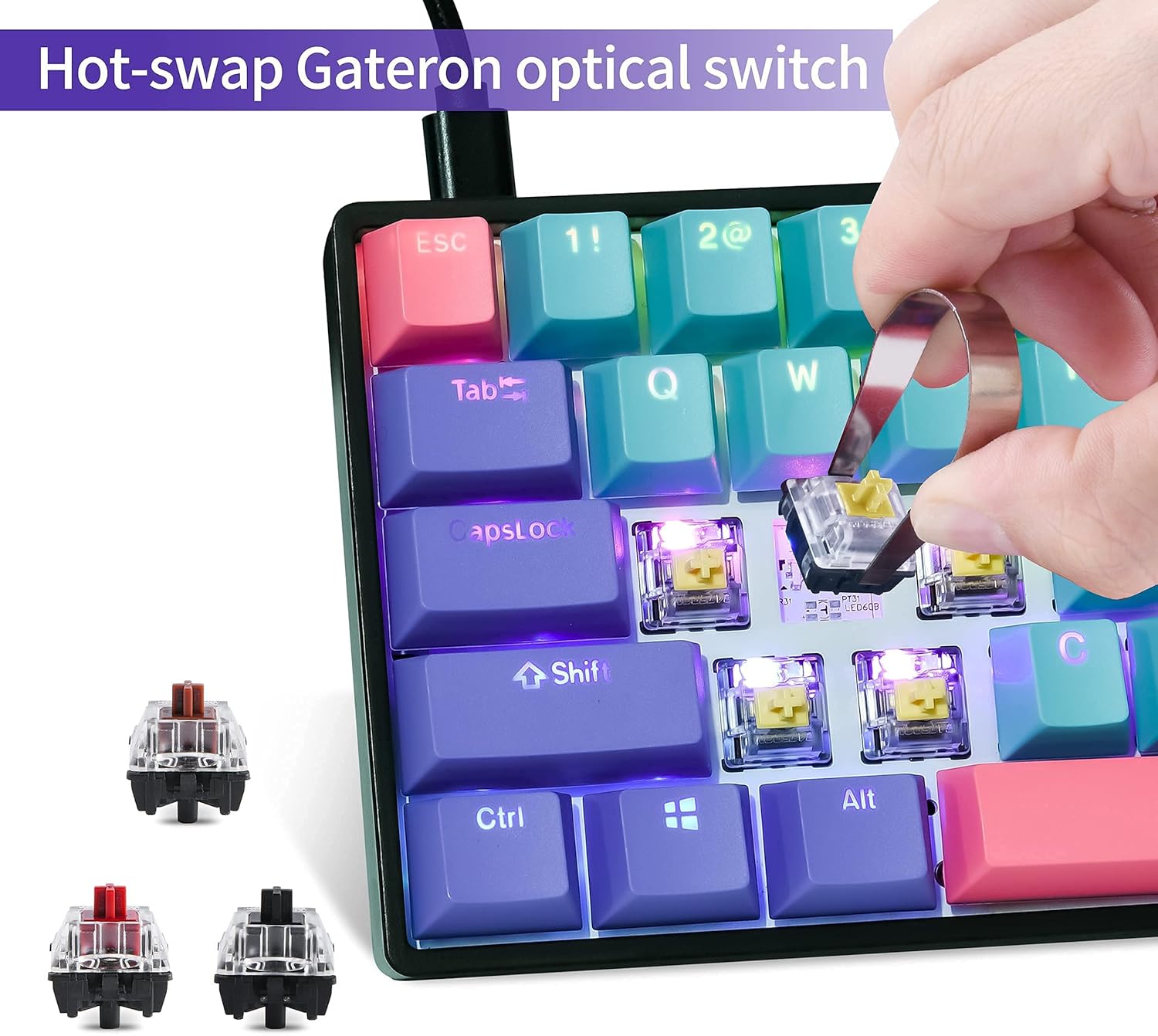
Image 3.1: Demonstration of the hot-swappable Gateron optical switch feature on the SK61 keyboard. A keycap puller is used to remove a switch, highlighting the ease of customization.

Image 3.2: An illustration detailing various Gateron optical switch types available, including Red, Black, Brown, and Yellow, along with their characteristics (linear, tactile, clicky) and actuation forces. The image also highlights N-key rollover (NKRO).
4. Setup
4.1 Connecting the Keyboard
- Locate the USB Type-C port on the back of the keyboard.
- Connect one end of the provided USB Type-C cable to the keyboard's port.
- Connect the other end of the USB cable to an available USB port on your computer or PS4 console.
- The keyboard will automatically be recognized by your system.

Image 4.1: A detailed view of the USB Type-C connection on the SK61 keyboard, showing the cable being plugged in. This illustrates the wired connectivity of the device.
4.2 Driver Software Installation (Optional)
For advanced customization of RGB lighting effects, macro recording, and function key remapping, it is recommended to install the dedicated driver software. Please refer to the manufacturer's website for the latest software download and installation instructions.
5. Operating Instructions
5.1 Basic Operation
The SK61 functions as a standard 60% keyboard. Most keys operate as labeled. For secondary functions printed on keycaps, typically use the Fn key in combination with the desired key.
5.2 RGB Lighting Control
The keyboard features dynamic RGB backlighting. Various lighting modes and colors can be cycled through using specific key combinations (often involving the Fn key and other keys like \ | or [{). For detailed control and to configure the full 16.8 million color effects, utilize the driver software mentioned in Section 4.2.
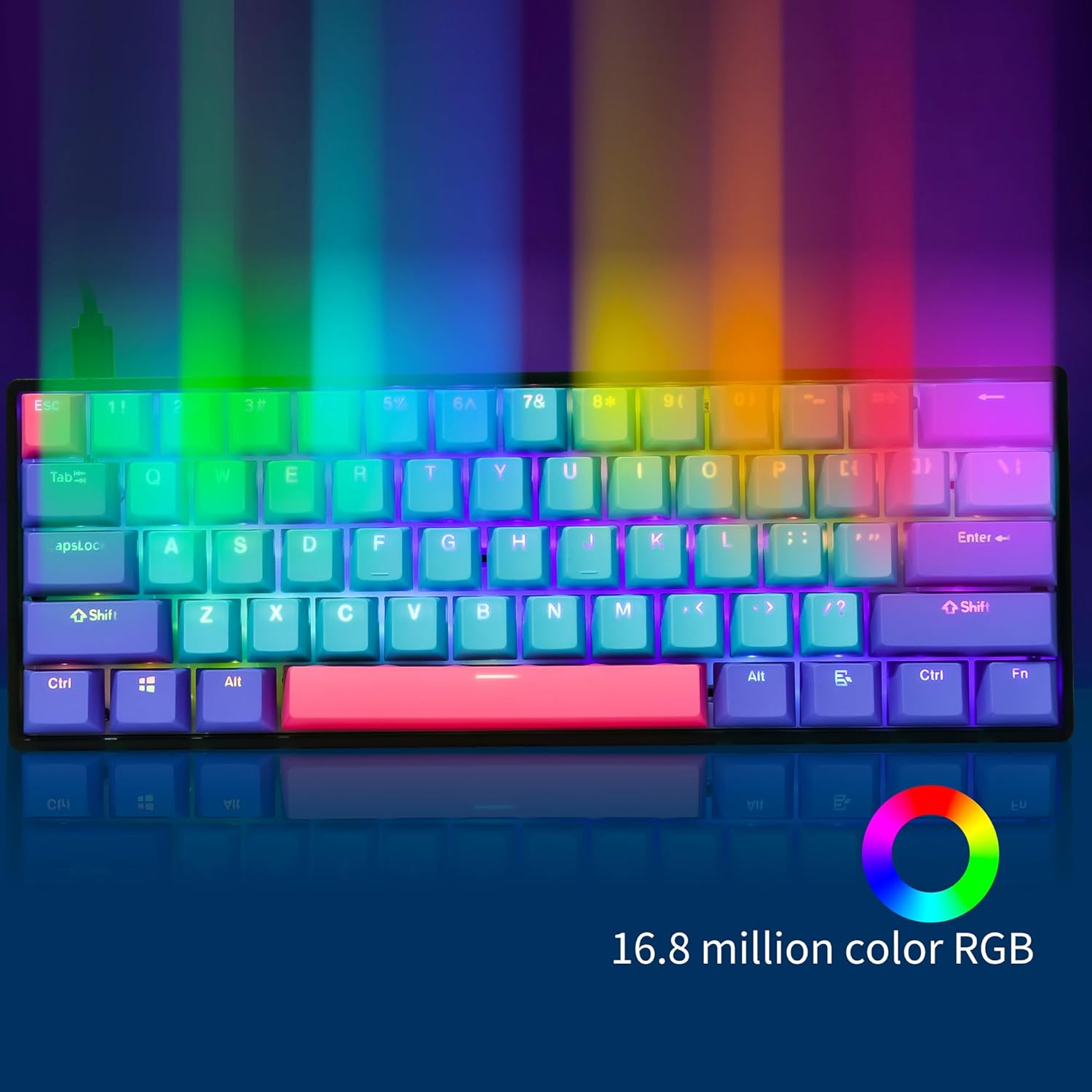
Image 5.1: The SK61 keyboard showcasing its 16.8 million color RGB backlighting capabilities, with various colors illuminating the keycaps.
5.3 Custom Mode and Standard Mode
If you encounter a situation where some keys are unresponsive, and one of the W, E, or R keys is lit, you may have inadvertently entered a custom mode. To return to the standard operating mode, press Fn + Q simultaneously.
5.4 Macro Recording
Macro recording and advanced function key customization are managed through the dedicated driver software. Install the software (Section 4.2) to access these features and personalize your keyboard's functionality.
5.5 Hot-Swapping Switches
The SK61 supports hot-swapping Gateron optical switches. To replace a switch:
- Carefully remove the keycap using the provided keycap puller.
- Use a switch puller (not included, but often comes with replacement switches) to gently pull the optical switch straight up from its socket.
- Align the pins of the new Gateron optical switch with the holes on the PCB and press it firmly into place until it clicks.
- Reattach the keycap.
Important: Only Gateron optical switches are compatible with the hot-swap sockets on this keyboard. Using mechanical switches or optical switches from other brands may damage the PCB.
5.6 Official Product Videos
Video 5.6.1: An overview of the SK61 Gaming Keyboard, showcasing its design, RGB lighting, and compact form factor. This video highlights the keyboard's aesthetic and general features.
Video 5.6.2: A demonstration of the Gateron Optical GK61 60% Mechanical Keyboard, focusing on its key features and functionality. This video provides a closer look at the keyboard's performance.
Video 5.6.3: This video highlights the Gateron Optical Switch in the 60% Mechanical Keyboard, demonstrating its responsiveness and the hot-swappable nature of the switches. It shows the process of removing and inserting switches.
Video 5.6.4: A general presentation of the GTSP SK61 60% Mechanical Gaming Keyboard, emphasizing its suitability for gaming and its compact design. It showcases various angles and features of the keyboard.
6. Maintenance
- Cleaning Keycaps: Use the provided keycap puller to remove keycaps. Clean them with a soft cloth dampened with water or a mild cleaning solution. Ensure keycaps are completely dry before reattaching.
- Cleaning the Keyboard Base: Use a can of compressed air to remove dust and debris from between the switches. A soft brush can also be used for stubborn particles.
- Cable Care: Avoid sharp bends or excessive pulling on the USB Type-C cable to prevent damage.
- Spill Prevention: The keyboard features a mainboard waterproof design, but it is not fully submersible. Avoid spilling liquids directly onto the keyboard. In case of a spill, immediately disconnect the keyboard and allow it to dry completely before reconnecting.
7. Troubleshooting
- Keyboard Not Responding:
- Ensure the USB Type-C cable is securely connected to both the keyboard and the computer/console.
- Try connecting the keyboard to a different USB port.
- Test the keyboard on another computer to rule out system-specific issues.
- Some Keys Not Working / W/E/R Keys Lit:
- This indicates the keyboard might be in a custom mode. Press Fn + Q to return to standard mode.
- If a specific key is not working, ensure the optical switch for that key is properly seated. If necessary, remove the keycap and switch, then reinsert the switch firmly.
- RGB Lighting Not Functioning Correctly:
- Check the keyboard's lighting modes using the Fn key combinations.
- Ensure the driver software is installed and up-to-date, and check its settings for lighting configurations.
- Macros Not Activating:
- Verify that macros have been correctly recorded and assigned using the driver software.
- Ensure the keyboard is in the correct profile or mode where the macros are active.
8. Specifications
| Model | SK61 |
| Brand | Guffercty kred (Manufacturer: GTSP) |
| Keyboard Type | 60% Mechanical Keyboard |
| Switch Type | Gateron Optical (Hot-Swappable) |
| Backlighting | RGB (16.8 million colors) |
| Connectivity | USB Type-C (Wired) |
| Compatibility | PC, PS4 |
| N-Key Rollover | Full Anti-Ghosting (NKRO) |
| Product Dimensions | 11.42"L x 4.33"W x 1.57"H (29 x 11 x 4 cm) |
| Item Weight | 1.3 pounds (0.59 kg) |
9. Warranty and Support
For warranty information and technical support, please refer to the documentation included with your product or visit the official Guffercty kred website. If you require further assistance, please contact the seller or manufacturer directly.
Manufacturer: GTSP