
Introduction
This manual provides comprehensive instructions for the Connectize G6 AC2100 Dual Band Gigabit WiFi Router. It covers essential steps for setup, operation, maintenance, and troubleshooting to ensure optimal performance and a stable wireless network experience. Please read this manual carefully before using your router.
1. Setup Guide
Follow these steps to set up your Connectize G6 router:
- Turn off your modem: Disconnect the power from your existing modem.
- Connect the modem to the router: Use an Ethernet cable to connect your modem's LAN port to the WAN port (usually blue) on the Connectize G6 router.
- Connect devices (optional): For wired connections, use Ethernet cables to connect your devices to the LAN ports (LAN 1-4) on the router.
- Power on the modem: Reconnect the power to your modem and wait for it to fully boot up.
- Power on the router: Connect the power adapter to the router and press the power button. Wait approximately 30 seconds for the router to start. The indicator lights on the router will illuminate.
- Connect to the router via WiFi: On your computer or smart device, enable WLAN (WiFi) and connect to the default WiFi network (SSID) of the Connectize G6 router. The default SSID and password can typically be found on a label on the bottom of the router.
- Access the Web Management Page: Open a web browser and enter
192.168.5.1orconnectizewifi.comin the address bar. - Login and Configure: Enter the default login password (usually 'admin'). The router will automatically detect your WAN connection type. If automatic detection fails, select it manually. Set a strong, unique WiFi password and a separate login password for the router's management page for enhanced security.
For a visual walkthrough, please refer to the setup video below:
Video Description: An official video guide demonstrating the quick setup process for the Connectize G6 WiFi router, including connecting cables, powering on, and initial configuration via the web interface.
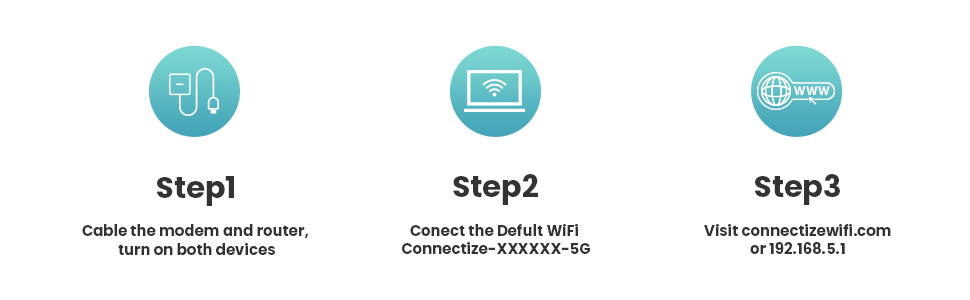
Image Description: A three-step visual guide for setting up the router: Step 1 shows cabling the modem and router, Step 2 shows connecting to the default WiFi, and Step 3 shows accessing the web management page.
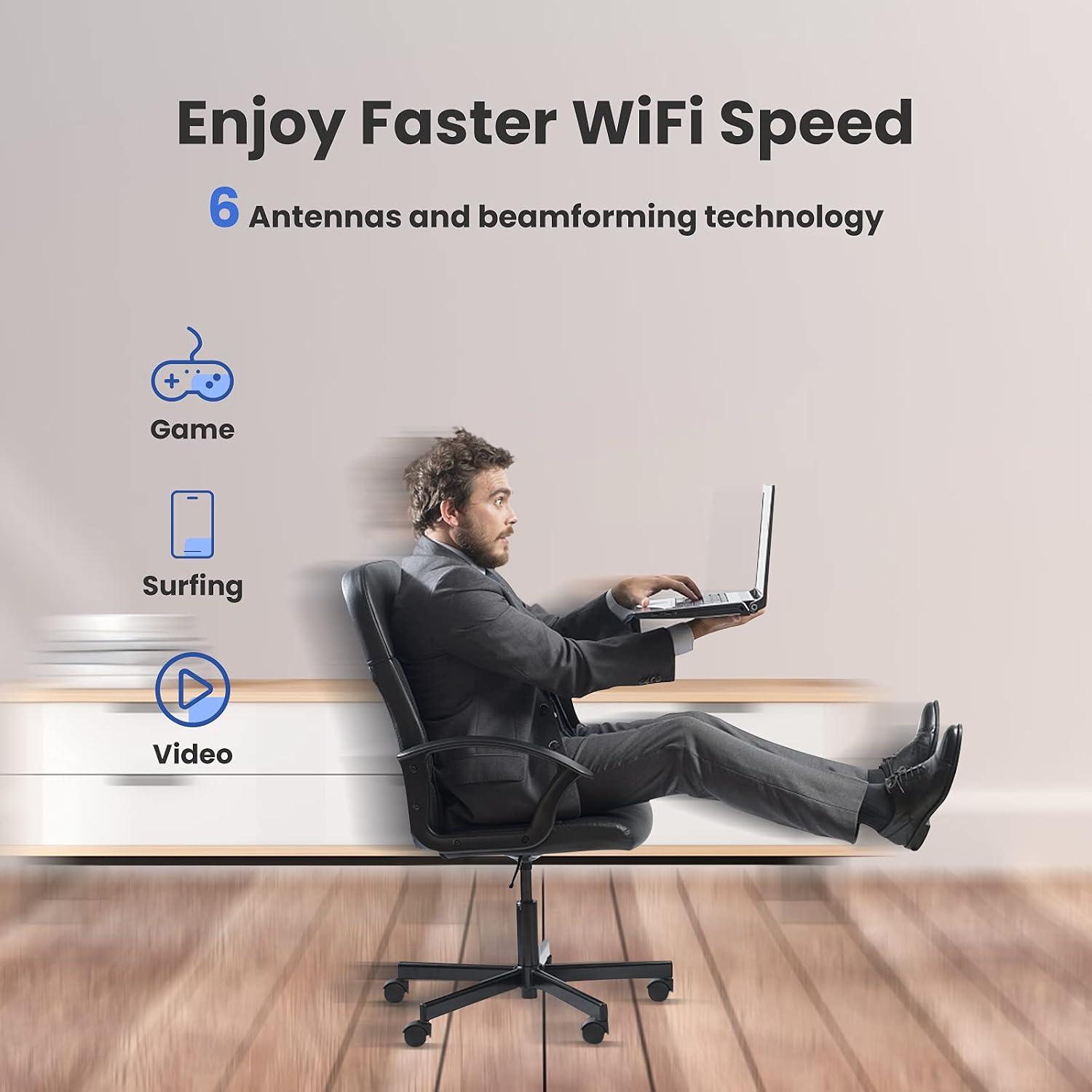
Image Description: A top-down view of the Connectize G6 router, showcasing its sleek design and six adjustable external antennas for enhanced signal coverage.
2. Operating Instructions
The Connectize G6 router is designed for high-performance networking. Here are key operational aspects:
- Dual-Band WiFi: The router operates on both 2.4GHz and 5GHz frequencies. The 2.4GHz band provides wider coverage, while the 5GHz band offers faster speeds for demanding tasks like 4K streaming and online gaming. The router intelligently connects devices to the optimal band.
- Extensive WiFi Coverage: Equipped with six high-power antennas and Beamforming technology, the G6 router focuses signal strength towards your connected devices, ensuring broad and reliable WiFi coverage throughout your home or office.
- MU-MIMO Technology: Multi-User, Multiple-Input, Multiple-Output (MU-MIMO) technology allows the router to communicate with multiple devices simultaneously, improving network efficiency and reducing buffering, especially in multi-device environments.
- Gigabit Ethernet Ports: The router features five Gigabit Ethernet ports (1 WAN, 4 LAN) for high-speed wired connections to devices such as desktop computers, gaming consoles, and smart TVs.
- USB Port: A USB port is available for connecting external storage devices, enabling easy file sharing within your network or setting up local network storage.
- Advanced Features:
- Parental Control: Manage and restrict internet access for specific devices or users.
- Guest Network: Create a separate WiFi network for guests, keeping your main network secure and private.
- AP and Repeater Mode: Expand your existing WiFi network coverage by configuring the router in Access Point (AP) or Repeater mode.
Video Description: A short video highlighting the performance benefits of the Connectize G6 router's six antennas, showcasing faster wireless speeds and improved coverage for various activities like 4K streaming and working from home.

Image Description: The Connectize G6 router positioned in a living room, illustrating its extensive WiFi coverage reaching various areas of the home.

Image Description: The Connectize G6 router surrounded by icons representing various connected devices such as computers, phones, and smart home gadgets, highlighting its multi-device capability.

Image Description: An illustration showing people using laptops and smartphones, demonstrating the router's Smart Dual Band WiFi automatically connecting devices to the fastest available network.

Image Description: The Connectize G6 router with a shield icon and text indicating its security features: Firewall, Parental Control, and Guest WiFi, ensuring a safe online environment.
3. Maintenance
Regular maintenance helps ensure the longevity and optimal performance of your router:
- Firmware Updates: Periodically check the Connectize website for firmware updates. Keeping your router's firmware up-to-date ensures you have the latest security patches and performance enhancements.
- Regular Reboot: Rebooting your router every few weeks can resolve minor network issues and improve performance by clearing its memory. Simply unplug the power adapter for 10-15 seconds, then plug it back in.
- Optimal Placement: Place the router in a central location in your home, away from obstructions like thick walls, large metal objects, and other electronic devices that may cause interference. Elevating the router can also improve signal distribution.
- Cleanliness: Keep the router free from dust and debris. Ensure ventilation openings are not blocked to prevent overheating.
- Secure Passwords: Regularly change your WiFi password and the router's administration password to prevent unauthorized access.
4. Troubleshooting
If you encounter issues with your Connectize G6 router, try the following solutions:
- No Internet Connection:
- Check all cable connections between the modem, router, and your devices. Ensure they are securely plugged in.
- Reboot your modem and router. Power off both devices, wait 30 seconds, then power on the modem first, followed by the router.
- Verify your internet service is active by connecting a computer directly to the modem (bypassing the router).
- Slow WiFi Speed:
- Ensure your devices are connected to the 5GHz band if they support it, as it offers faster speeds.
- Move closer to the router to improve signal strength.
- Reduce interference by moving the router away from other electronics.
- Check for bandwidth-intensive applications or devices on your network.
- Dropped WiFi Connections:
- Update your device's wireless drivers.
- Adjust the router's channel settings in the web management interface to avoid crowded channels.
- Ensure the router's firmware is up-to-date.
- Cannot Access Router's Web Management Page:
- Ensure your device is connected to the router's WiFi or via an Ethernet cable to a LAN port.
- Verify you are entering the correct IP address (
192.168.5.1) or domain (connectizewifi.com). - Clear your browser's cache or try a different browser.
- If you forgot the login password, you may need to perform a factory reset (refer to the manual for specific instructions, usually involving pressing a reset button for several seconds).
5. Specifications
| Brand | Connectize |
| Model Name | G6 |
| Wireless Type | 802.11ac |
| Frequency Band Class | Dual-Band |
| Connectivity Technology | Ethernet, USB |
| Number of Antennas | 6 |
| Special Feature | WPS |
| Operating System | Linux |
| Item Weight | 1.76 pounds |
| Package Dimensions | 11.5 x 11.42 x 2.05 inches |
| Color | Black |
| Included Components | Adapter |
6. Warranty Information
The Connectize G6 AC2100 Gigabit WiFi Router comes with a standard manufacturer's warranty. Please refer to the warranty card included in your product packaging or visit the official Connectize website for detailed terms and conditions, including warranty period and coverage.
7. Customer Support
For further assistance, technical support, or inquiries regarding your Connectize G6 router, please visit the official Connectize support website or contact their customer service team. Contact details can typically be found on the Connectize website or in your product documentation.