1. Introduction
The Beok TR9HB-WIFI-EP is a smart thermostat designed for electric underfloor heating systems. It features Wi-Fi connectivity, allowing control via the Tuya Smart app, and is compatible with voice assistants like Amazon Alexa and Google Home. This manual provides detailed instructions for installation, operation, and maintenance to ensure optimal performance and energy efficiency.

Figure 1: Front view of the Beok TR9HB-WIFI-EP Thermostat, displaying current room temperature and set temperature.
2. Package Contents
Please verify that all items are present in the package:
- Beok TR9HB-WIFI-EP Thermostat (1 unit)
- User Manual (1 unit)
- Mounting Screws (2 units)
- External Floor Temperature Sensor (1 unit, for EP type)

Figure 2: Illustration of the package contents, including the thermostat, manual, screws, and external sensor.
3. Installation
3.1 Wiring Diagram
Proper wiring is crucial for safe and correct operation. Always consult a qualified electrician for installation if you are unsure. Ensure power is disconnected before beginning any wiring.
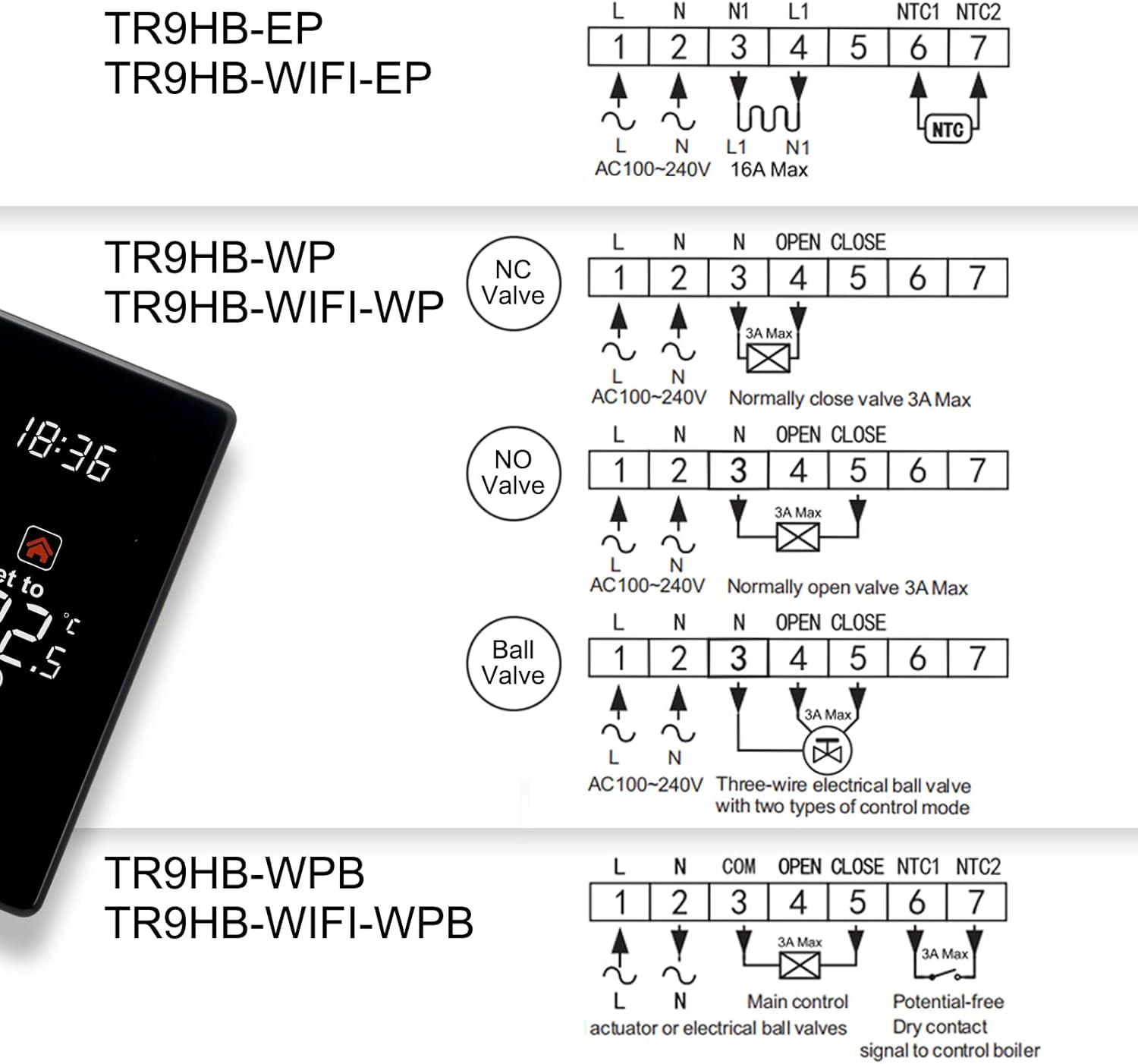
Figure 3: Detailed wiring diagram for TR9HB-WIFI-EP (EP type) showing connections for Live (L), Neutral (N), Load (L1, N1), and NTC external sensor (NTC1, NTC2). The EP type is designed for electric underfloor heating with a maximum load of 16A.
3.2 Mounting
- Turn off the main power supply to the heating system.
- Remove the front panel of the thermostat.
- Connect the wires according to the wiring diagram (Figure 3).
- Mount the thermostat base into a standard wall box using the provided screws.
- Reattach the front panel to the thermostat base.
- Restore power to the heating system.
4. Operating Instructions
4.1 Digital Screen Overview
The thermostat features an LCD touch screen for easy interaction. Understanding the display icons is essential for operation.

Figure 4: Digital screen showing indicators for WiFi status, room temperature, set temperature, heating status, time, program period, and ECO key.
4.2 Basic Operation
- Power On/Off: Press the power icon (U) to turn the thermostat on or off.
- Temperature Adjustment: Use the Up (^) and Down (v) arrows to adjust the set temperature. The temperature range is 5°C to 35°C.
- Mode Selection: Press the Mode (M) button to switch between manual mode and programmable mode.
- ECO Mode: Briefly tap the ECO key (leaf icon) to set the temperature directly to 18°C for energy saving.
4.3 Weekly Programming
The thermostat supports 5+1+1 (weekday + Saturday + Sunday) programmable periods, allowing you to customize heating schedules for maximum comfort and energy savings.
- In programmable mode, press and hold the Mode (M) button to enter programming settings.
- Use the Up (^) and Down (v) arrows to adjust the time and temperature for each period.
- The six periods for each day must be set in chronological order (e.g., 0:00 to 23:59). The last period must end before 23:59.
- Press the Mode (M) button again to confirm settings and move to the next period or day.

Figure 5: Example of a weekly programmable schedule, showing different temperature settings for various times of the day.
4.4 App Control (Tuya Smart)
Control your thermostat remotely using the Tuya Smart app on your smartphone.
- Download the "Tuya Smart" app from your device's app store.
- Register or log in to your account.
- Ensure your thermostat is in pairing mode (refer to the app for specific instructions, usually involves holding a button on the thermostat).
- In the app, add a new device and follow the on-screen prompts to connect your thermostat via Wi-Fi. Bluetooth can assist with quick pairing.
- Once connected, you can change the room temperature, adjust schedules, and monitor the thermostat's status from anywhere.

Figure 6: A smartphone screen showing the Tuya Smart app interface, used for remote control of the thermostat.
4.5 Voice Control (Alexa & Google Home)
Integrate your thermostat with Amazon Alexa or Google Home for convenient voice control.
- Ensure your thermostat is connected to the Tuya Smart app.
- Open the Alexa or Google Home app.
- Enable the "Tuya Smart" skill/service and link your Tuya account.
- Discover new devices. Your thermostat should appear.
- You can now use voice commands such as: "Alexa, set the living room to 20 degrees" or "Hey Google, turn on the heating."

Figure 7: Overview of key features including app control, voice control, and weekly programming.
5. Advanced Settings
Access advanced settings for calibration and specific configurations. This usually involves a combination of button presses (e.g., holding Mode and Down for 3-5 seconds when powered off, then pressing Mode to cycle through settings).
- Temperature Calibration (ADJ): If the displayed room temperature differs from an accurate thermometer, you can adjust the calibration in advanced settings.
- Hysteresis (DFI): The temperature hysteresis (or differential) determines the temperature swing before the heating turns on or off. For example, if set to 0.5°C and target is 20°C, heating may start at 19.5°C and stop at 20.5°C.
- Child Lock: Activate child lock to prevent unauthorized changes to settings.
- Frost Protection: This feature maintains a minimum temperature to prevent pipes from freezing.
- High-Temperature Protection: Prevents the floor from overheating by limiting the maximum floor temperature.

Figure 8: Diagram illustrating temperature hysteresis, where heating activates and deactivates around the set temperature with a 0.5°C differential.
6. Maintenance
The Beok TR9HB-WIFI-EP thermostat requires minimal maintenance.
- Cleaning: Wipe the screen and body with a soft, dry cloth. Do not use abrasive cleaners or solvents.
- Power Memory: The thermostat retains its settings even after a power outage.
7. Troubleshooting
- Thermostat not heating to set temperature (e.g., set to 20°C, heats to 18.5°C): Adjust the "DFI" (hysteresis) setting in advanced settings to 0.5°C. This means heating will start at 19.5°C and stop at 20.5°C for a 20°C target.
- Programming not working / Always in night mode: Ensure that all six periods for each day are set in chronological order (0:00 to 23:59). The last defined period must end before 23:59.
- Ambient temperature displayed is inaccurate: Adjust the "ADJ" (temperature calibration) setting in advanced settings to match the actual room temperature measured by another reliable thermometer.
- Wi-Fi connection issues: Ensure your Wi-Fi network is 2.4GHz. Restart your router and the thermostat. Follow the app's pairing instructions carefully.
- No display/No power: Check the circuit breaker and ensure the thermostat is correctly wired and receiving power.
8. Specifications
| Brand | BEOK CONTROLS |
| Model Number | TR9HB-WIFI-EP |
| Color | Black |
| Product Dimensions (L x W x H) | 8.6 x 4.39 x 8.6 cm |
| Item Weight | 301 grams |
| Voltage | 240 Volts |
| Controller Type | Google Assistant (also compatible with Amazon Alexa) |
| Backlight | Yes |
| Temperature Range | 5°C to 35°C |
| Temperature Resolution | 0.5°C |
| UPC | 761045181214 |
9. Warranty and Support
BEOK CONTROLS offers a 30-day money-back guarantee. If your thermostat does not meet your expectations for any reason, please contact us directly for assistance. Our goal is to provide products that simplify your life and offer excellent customer support.
For further assistance or technical support, please refer to the contact information provided with your purchase or visit the official BEOK CONTROLS website.