
1. Product Overview
The Wantek RJ9 Office Phone Headset is designed for clear communication in office environments. It features wideband sound for natural listening and a noise-cancelling microphone to reduce background distractions. An acoustic shock protection circuit is integrated to safeguard your hearing.
This headset is lightweight and includes an adjustable headband and soft leatherette ear cushions for extended comfort during all-day use. Convenient in-line controls allow for microphone mute and volume adjustment.

Image 1: Woman wearing the Wantek RJ9 Office Phone Headset, demonstrating its use in an office setting.
Compatibility Note:
This headset is specifically designed for landline phones with an RJ9 jack. It is NOT compatible with cell phones or computers. Please refer to the detailed compatibility list below and in the product description to ensure your phone model is supported. If your phone model is not listed, please contact Wantek for compatibility advice.
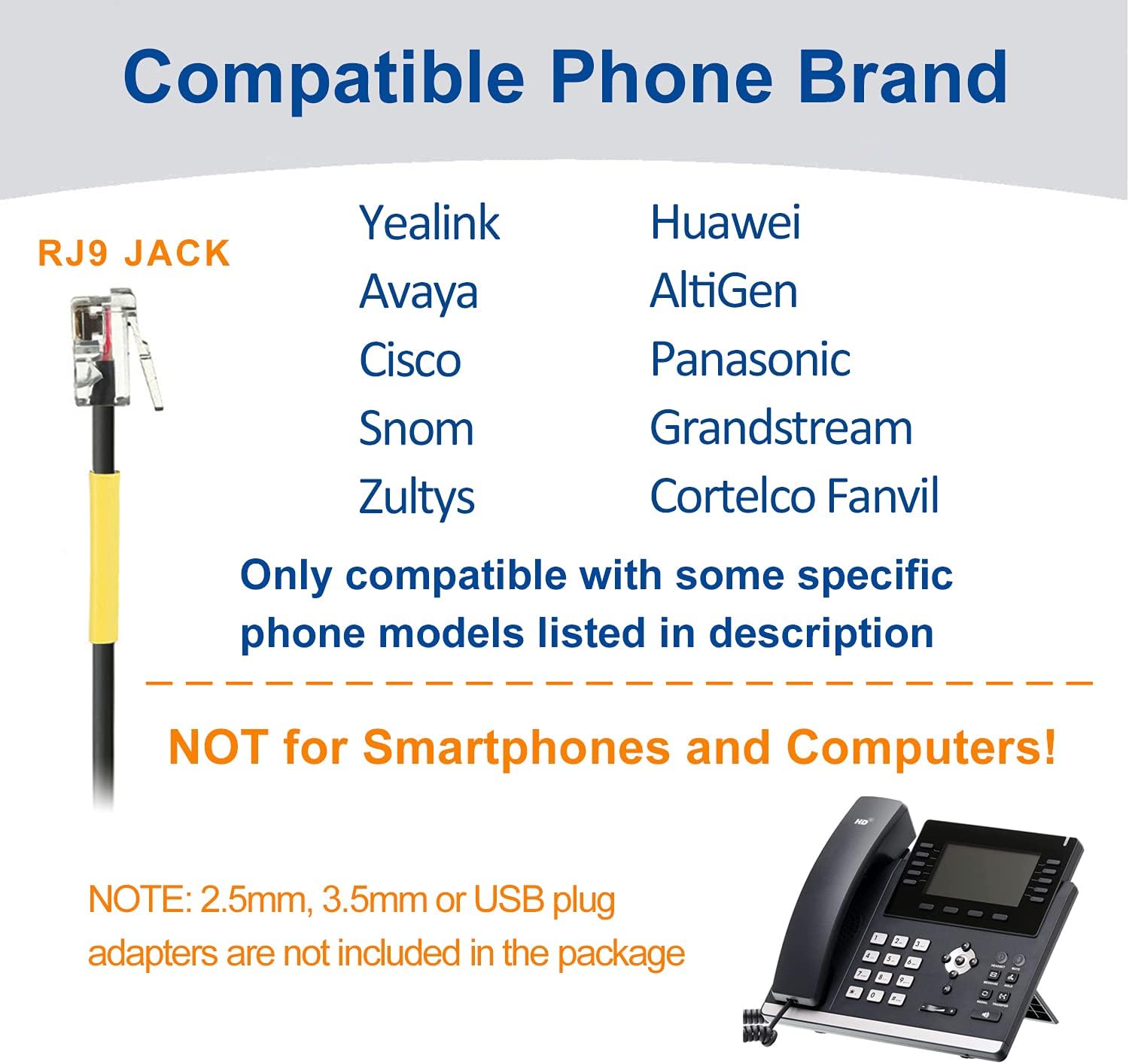
Image 2: Visual representation of compatible phone brands including Yealink, Avaya, Cisco, Snom, Zultys, Huawei, AltiGen, Panasonic, Grandstream, Cortelco Fanvil, and Aastra.
Supported Phone Models include (but are not limited to):
- Yealink: SIP-T19P, T20P, T21P, T22P, T26P, T27P, T28P, T41P, T23G, T29G, T32G, T38G, T40G, T42G, T46G, T48G, T41S, T42S, T48S
- Avaya: J139, J169, J179, 1608, 1616, 9608G, 9611G, 9620, 9621G, 9630, 9640, 9640G, 9641G, 9650, 16CC IP Phones
- Grandstream: GXP1400, GXP1405, GXP1450, GXP1610, GXP1615, GXP1620, GXP1625, GXP1628, GXP1630, GXP1200, GXP2000, GXP2100, GXP2010, GXP2110, GXP2020, GXP2120, GXP2124, GXP2130, GXP2135, GXP2140, GXP2160, GXP2170, GXP280, GXP285, GXV3005, GXV3006, GXV3240, GXV3275 IP Phones
- Panasonic: KX-T Series phones such as: KX-T2260, KX-T2310, KX-T2315, KX-T2365, KX-T2368, KX-T7220, KX-T7230, KX-T7330, KX-T7420C, KX-T7433, KX-T7665, KX-T7740, KX-HDV130, KT-HDV230, KT-HDV330, KT-HDV430
- Cisco: 7902, 7905, 7905G, 7906G, 7910, 7910+SW 7911, 7912 IP Phones
- Snom: 300, 320, 360, 370, 710, 720, 760, 820, 821, 870, D715, D725, D375, D785
- Huawei: ET325, ET523, ET525, ET685, 6805, 6810, 6830, 6850, 6870, 7810, 7820, 7830, 7850, 7870, 7910, 7950
- Wildix: WP410, WP480, WP480G, WP490, WP490G
- Zultys: ZIP 33G, 36G, 37G, 33i, 35i Cortelco Fanvil: C58, C58P, C62, C66
- Alcatel temporis: IP200, IP800 AltiGen: IP805 Obihai: OBi1062 Aastra: 6737i
2. Setup Instructions
- Identify the RJ9 Port: Locate the RJ9 headset or handset port on your compatible landline telephone. This port typically resembles a standard phone jack but is smaller.
- Connect the Headset: Plug the RJ9 connector of the Wantek headset directly into the identified port on your telephone. Ensure a secure connection.
- Use Adapters (If Necessary): The headset may come with various RJ9 adapters to ensure compatibility with different phone models. If the headset does not function immediately, try using the included adapters one by one until a working connection is established.
- Adjust for Comfort: Place the headset on your head. Adjust the headband to fit comfortably. The microphone arm is 330° rotatable, allowing you to position it on either your left or right side, and to adjust its proximity to your mouth for optimal voice pickup.
Video 1: This video demonstrates the features and usage of the Wantek RJ9 Office Telephone Headset, including its rotatable microphone, adjustable headband, soft ear cushion, and in-line controls for mute and volume. It also shows the RJ9 connection and highlights its suitability for business, call center, and home office environments.
3. Operating Instructions
Headset Adjustment:
- Headband: The headband is adjustable to fit various head sizes. Gently slide the headband to extend or retract it until a comfortable fit is achieved.
- Microphone Arm: The microphone arm can rotate 330 degrees. This allows you to wear the headset with the microphone on either your left or right side. Position the microphone approximately 1-2 cm from your mouth for optimal voice clarity.
- Ear Cushion: The soft leatherette ear cushion is designed for comfort. Ensure it sits properly over your ear.

Image 3: Detailed diagram highlighting the adjustable headband, 330° rotatable microphone, soft T-Pad, noise-cancelling microphone, and in-line mute and volume controls.
In-line Controls:
The headset features an in-line control unit on the cable for easy access to essential functions:
- Microphone Mute: Use the ON/OFF switch to mute or unmute your microphone. Slide to 'OFF' to mute, and 'ON' to unmute.
- Volume Control: A slider switch allows you to adjust the listening volume. Slide up to increase volume and down to decrease volume.
- Cable Clip: A small clip is provided on the control unit to attach the cable to your clothing, preventing it from snagging or pulling during use.

Image 4: Close-up view of the headset's key components, including the rotatable microphone arm, soft T-Pad, soft leatherette ear cushion, noise-cancelling microphone, in-line mute and volume controls, and the RJ9 jack.
4. Maintenance
- Cleaning: Use a soft, dry cloth to clean the headset. For the ear cushions, gently wipe with a slightly damp cloth if necessary, and allow to air dry completely before use. Avoid using harsh chemicals or abrasive cleaners.
- Storage: Store the headset in a clean, dry place away from extreme temperatures and direct sunlight. Avoid tangling the cable.
- Cable Care: Do not pull on the cable to disconnect the headset. Always grasp the RJ9 connector firmly.
5. Troubleshooting
- No Sound or Poor Sound Quality:
- Ensure the RJ9 connector is fully and correctly inserted into the phone's headset/handset port.
- Check the in-line volume control and adjust it to an audible level.
- Verify that the microphone mute switch is in the 'ON' (unmuted) position.
- If using an adapter, try a different adapter to ensure compatibility with your specific phone model.
- Confirm your phone model is listed as compatible. If not, contact Wantek support.
- People Cannot Hear Me Clearly (Sounding Far Away or in a Tunnel):
- Adjust the microphone arm so the microphone is close to your mouth (1-2 cm).
- Ensure the microphone mute switch is in the 'ON' position.
- Check your phone's settings for any microphone volume adjustments.
- Background Noise is Still Audible to Callers:
- While the headset features noise cancellation, it may not eliminate all background noise, especially in very loud environments. Ensure the microphone is positioned correctly to focus on your voice.
- Try to minimize ambient noise in your environment if possible.
- Headset is Uncomfortable or Feels Too Tight:
- Adjust the headband length to relieve pressure.
- Ensure the ear cushion sits properly on your ear. The headset is designed to be lightweight for comfort.
6. Specifications
| Feature | Specification |
|---|---|
| Model Name | A600Y1 |
| Connectivity Technology | Wired |
| Headphones Jack | RJ9 Jack |
| Noise Control | Passive Noise Cancellation |
| Microphone | Noise Cancelling, 330° Rotatable |
| Controls | In-line Volume, Microphone Mute |
| Material | Plastic |
| Ear Placement | On Ear |
| Impedance | 32 Ohms |
| Item Weight | 6.4 ounces |
| Product Dimensions | 6.9 x 5.6 x 2.1 inches |
| Included Components | Ear Cushions |
7. Warranty and Support
Wantek provides a 1-year warranty for this product. Additionally, a 45-day money-back guarantee is offered. For any compatibility questions, technical assistance, or warranty claims, please contact Wantek support.
- Email Support: sales@iwantek.com (Expect a reply within 24 hours)
- Technical Support: Lifetime professional technical team support is available.
Please retain your proof of purchase for warranty purposes.