
1. Introduction
The Qilmy 1080P Wireless WiFi Home Security Camera is designed to provide reliable surveillance for your home. This device combines a high-definition camera with motion detection, night vision, and remote viewing capabilities, all integrated into a standard light bulb form factor for easy installation. This manual will guide you through the installation, setup, and operation of your new security camera.
2. Key Features
- Full HD 1080P Resolution: Provides clear and detailed video footage.
- Wireless WiFi Connectivity: Easy connection to your home network for remote access.
- Motion Detection & Instant Alarm: Automatically detects movement and sends alerts to your connected device.
- Clear Night Vision: Ensures visibility in low-light conditions.
- Remote Viewing: Monitor your property from anywhere using a smartphone app.
- Integrated Flood Light: Features 3 built-in flood lights that can activate automatically upon motion detection.
- Easy Installation: Screws into a standard E27 light socket.
- Micro SD Card Slot: For local storage of recordings.

Image: Overview of the Qilmy Home Security Camera's key features, including 1080P resolution, video recording, 360 panoramic viewing, Wi-Fi connection, light function, motion detection, remote viewing, and Micro SD card slot.
3. What's in the Box
- Qilmy 1080P Wireless WiFi Home Security Camera (Bulb-shaped)
- E27 Light Socket Adapter (for mounting)
- Mounting Screws and Wall Anchors
- Quick Start Guide

Image: Contents of the Qilmy Home Security Camera package, showing the camera, an E27 socket adapter, mounting hardware, and a quick start guide.
4. Setup
4.1 Physical Installation
- Choose a Location: Select a location with a standard E27 light socket that provides the desired viewing angle and is within range of your 2.4GHz Wi-Fi network.
- Power Off: Ensure the power to the light socket is turned off at the circuit breaker before installation.
- Install Camera: Carefully screw the Qilmy security camera into the E27 light socket. If no existing socket is available, use the provided E27 adapter and mounting hardware to install it on a wall or ceiling.
- Power On: Restore power to the light socket. The camera will power on and emit a voice prompt indicating it is ready for configuration.

Image: A person's hands installing the Qilmy Home Security Camera into a ceiling light fixture, demonstrating its easy and quick installation process.
4.2 Wi-Fi Connection and App Setup
- Download App: Download the recommended mobile application (e.g., "iCSee" or similar as indicated in the Quick Start Guide) from your smartphone's app store.
- Register Account: Open the app and register a new user account if you don't already have one.
- Add Device: Follow the in-app instructions to add a new device. This typically involves scanning a QR code on the camera or selecting the device type and following prompts.
- Connect to Wi-Fi: Connect the camera to your 2.4GHz Wi-Fi network. Ensure your smartphone is also connected to the same 2.4GHz network during the setup process.
- Configuration: The camera will confirm successful connection with a voice prompt. Once connected, you can access live video and adjust settings through the app.

Image: A smartphone displaying the live feed from the Qilmy Home Security Camera, illustrating Wi-Fi connection and remote viewing capabilities from anywhere, anytime.
5. Operating Instructions
5.1 Live Viewing and Recording
- Open the mobile app to view the live feed from your camera.
- Use the app interface to manually record video or capture screenshots.
- Access recorded footage stored on the Micro SD card or cloud storage (if subscribed).
5.2 Motion Detection and Alerts
- Enable motion detection in the app settings.
- Adjust sensitivity levels to minimize false alarms.
- Receive instant push notifications on your smartphone when motion is detected.
- The camera can automatically activate its floodlights and siren alarm upon detecting motion, deterring intruders.
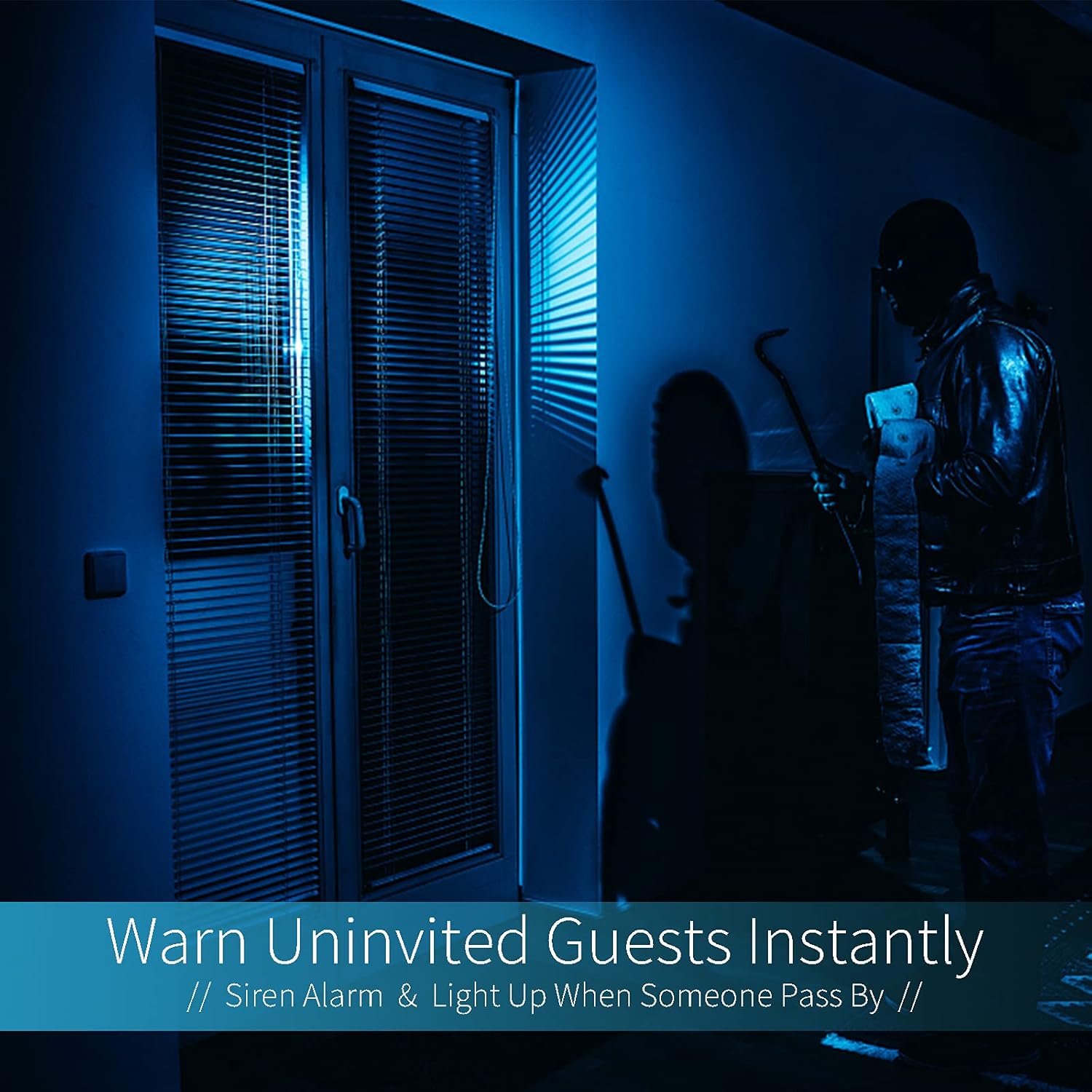
Image: A dark room with a security camera's light illuminating a figure, depicting the camera's ability to warn uninvited guests instantly with a siren alarm and light activation upon motion detection.
5.3 Light Function
- The camera features built-in floodlights.
- Control the floodlights manually through the app.
- Configure the floodlights to turn on automatically when motion is detected, especially during nighttime.

Image: A comparison of a standard light bulb and the Qilmy Home Security Camera, highlighting its dual function as both a light bulb and a security camera with 3W consumption.
6. Maintenance
- Cleaning: Gently wipe the camera lens and body with a soft, dry cloth. Do not use harsh chemicals or abrasive cleaners.
- Firmware Updates: Regularly check the mobile app for available firmware updates to ensure optimal performance and security.
- SD Card Management: If using a Micro SD card, periodically review and delete old footage to free up space, or enable loop recording if supported by the app.
- Network Stability: Ensure your Wi-Fi network is stable and strong for uninterrupted camera operation.
7. Troubleshooting
| Problem | Possible Cause | Solution |
|---|---|---|
| Camera not powering on. | No power to the light socket; camera not screwed in properly. | Check the circuit breaker. Ensure the camera is securely screwed into the E27 socket. |
| Unable to connect to Wi-Fi. | Incorrect Wi-Fi password; camera too far from router; 5GHz Wi-Fi network used. | Verify Wi-Fi password. Move camera closer to router. Ensure you are connecting to a 2.4GHz Wi-Fi network. |
| No motion detection alerts. | Motion detection disabled; sensitivity too low; app notifications blocked. | Enable motion detection in the app. Increase sensitivity. Check app notification settings on your phone. |
| Poor video quality. | Weak Wi-Fi signal; dirty lens. | Improve Wi-Fi signal strength. Clean the camera lens with a soft cloth. |
| Remote viewing not working. | Internet connection issue on camera or phone; app not updated. | Check internet connectivity for both camera and phone. Update the app to the latest version. |
8. Specifications
- Model Number: ZXL2023011
- Video Capture Resolution: 1080p Full HD
- Connectivity Technology: Wireless (Wi-Fi)
- Wireless Communication Technology: Wi-Fi (2.4GHz only)
- Power Source: AC/DC (E27 light socket)
- Wattage: 3 watts
- Special Features: Motion Sensor, Night Vision, Integrated Flood Light
- Form Factor: Dome (Bulb-shaped)
- Mounting Type: Wall Mount (via E27 adapter)
- Item Dimensions (L x W x H): 6.45 x 4.1 x 3.54 inches
- Item Weight: 7.8 ounces (222 Grams)
- International Protection Rating: IP67
- Compatible Devices: Smartphone
- UPC: 605660998393
9. Warranty and Support
Specific warranty information and detailed support contact details are typically provided with the product packaging or on the manufacturer's official website. Please refer to the documentation included with your purchase for the most accurate and up-to-date warranty terms and customer support options.