
1. Introduction
Thank you for choosing the OWGW S80 Pro Smartwatch. This device is designed to enhance your daily life with its comprehensive health monitoring features, sports tracking capabilities, and smart notifications. This manual provides detailed instructions on how to set up, operate, and maintain your smartwatch to ensure optimal performance and longevity.
The S80 Pro features a 1.7-inch full-screen display, IP68 waterproof rating, and Bluetooth 5.0 connectivity, making it a versatile companion for both men and women. It is compatible with Android 5.0+ and iOS 9.0+ systems.

Figure 1: OWGW S80 Pro Smartwatch
This image displays the OWGW S80 Pro Smartwatch in black, showcasing its rectangular screen with a digital watch face. The screen shows the time (10:09), steps (6800), battery level (78%), heart rate (70 bpm), and blood oxygen saturation (97%). The watch has a black silicone strap and a silver button on the right side.
2. What's in the Box
Upon opening the package, please verify that all the following items are included:
- 1 x OWGW S80 Pro Smartwatch
- 1 x USB Magnetic Charging Cable
- 1 x User Manual
- 1 x Packaging Box
3. Product Features
The OWGW S80 Pro Smartwatch offers a wide array of features to support your health and fitness goals:
- Body Monitoring: Includes heart rate, blood pressure, blood oxygen, sedentary reminders, drinking water reminders, sleep monitoring, menstrual reminders, breathing training, and measurable body temperature.
- Exercise Companion: Tracks steps, calories, distance, and supports 16 types of exercise modes.
- Smart Functions: Message reminder display, call reminders, photo control, wrist display activation, alarm clock, customizable watch faces, brightness level adjustment, weather display, stopwatch, countdown timer, and music control.
- Message Notifications: Receive notifications from popular social media applications such as Facebook, Twitter, Line, WeChat, and more.
- Multi-language Support: The watch interface supports Chinese, English, French, German, Italian, Japanese, Spanish, Russian, and Dutch. The accompanying app supports 20 languages.
4. Setup
4.1 Charging the Smartwatch
Before first use, fully charge your smartwatch. The S80 Pro uses a magnetic USB charging cable.
- Connect the USB end of the charging cable to a USB power adapter (5V/1A recommended) or a computer's USB port.
- Align the magnetic end of the charging cable with the charging contacts on the back of the smartwatch. The magnets will automatically snap into place.
- The watch screen will display a charging indicator. A full charge takes approximately 2.5 hours.

Figure 2: USB Magnetic Charging
This image shows the OWGW S80 Pro Smartwatch being charged via its magnetic USB cable, which is connected to a laptop. The watch screen displays the time and a charging icon, indicating power flow.
A full charge provides 9-15 days of typical use and up to 45 days of standby time.
4.2 App Installation and Pairing
To unlock the full potential of your S80 Pro Smartwatch, download and install the Runmifit application on your smartphone.
- Download the App: Search for "Runmifit" in the Apple App Store (for iOS devices) or Google Play Store (for Android devices), or scan the QR code provided in the quick start guide (if available).
- Create an Account: Open the Runmifit app and follow the on-screen instructions to create an account or log in.
- Enable Bluetooth: Ensure Bluetooth is enabled on your smartphone.
- Pair the Device: In the Runmifit app, navigate to the "Device" or "My Device" section. Tap "Add Device" or "Bind Device" and select "S80 Pro" from the list of nearby devices.
- Confirm Pairing: A pairing request may appear on your smartwatch screen. Confirm the pairing on both your watch and smartphone.
Once paired, the watch will synchronize data with the app, and you can customize settings, view detailed health data, and manage notifications.
5. Operating Instructions
5.1 Basic Navigation
The S80 Pro Smartwatch features a full touch screen for easy navigation:
- Swipe Up/Down: Scroll through menus and notifications.
- Swipe Left/Right: Access quick functions or different data screens (e.g., heart rate, steps, weather).
- Tap: Select an item or confirm an action.
- Press Side Button: Typically returns to the home screen or acts as a power button (long press).
5.2 Customizing Watch Faces
You can easily change the watch face to personalize your S80 Pro Smartwatch.
- On the Watch: Long-press the home screen to enter the watch face selection interface. Swipe left or right to browse available watch faces and tap to select.
- Via Runmifit App: Open the Runmifit app, go to "Device" or "Dial Settings" to explore more watch faces and even customize your own with personal photos.
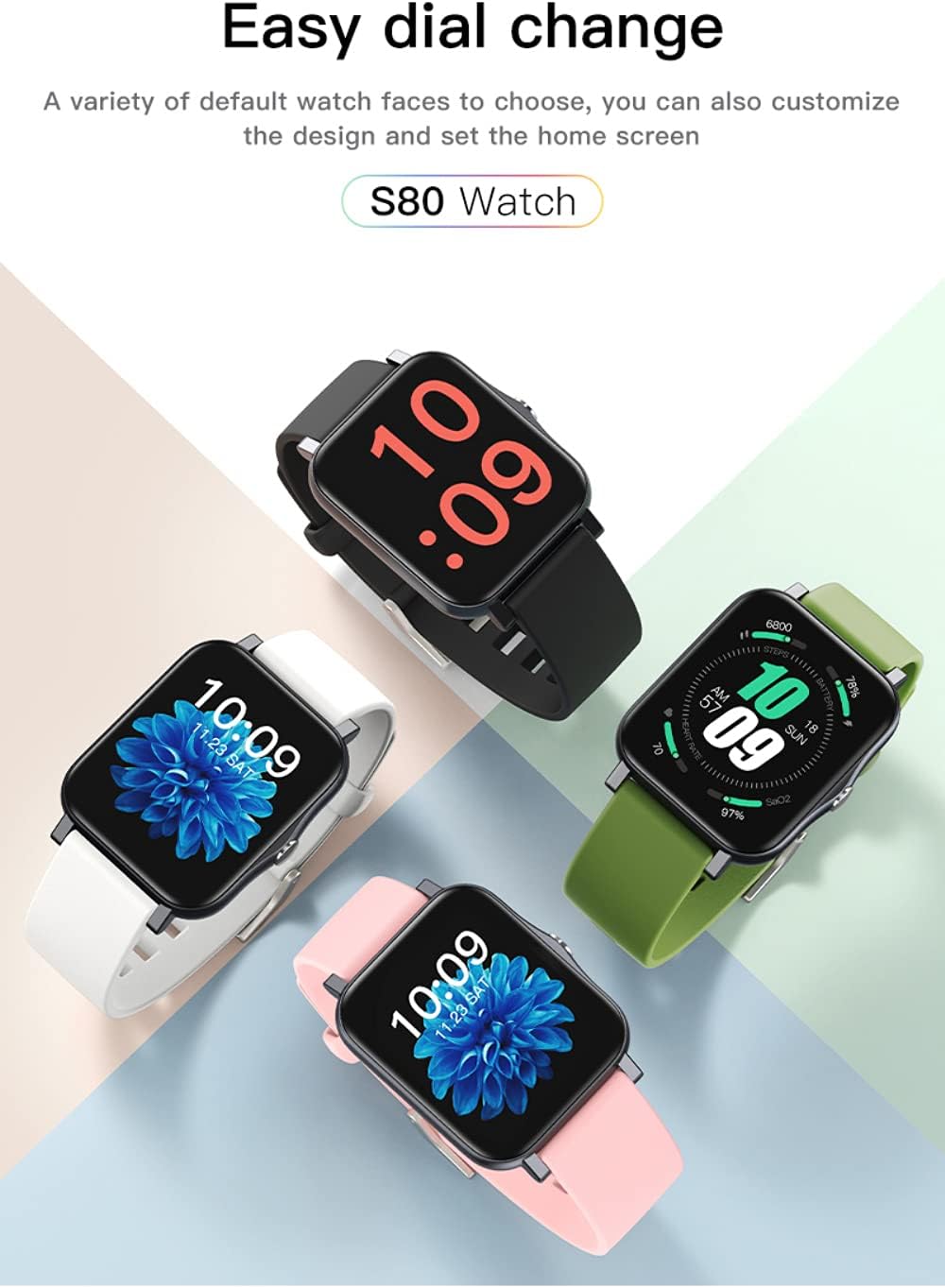
Figure 3: Easy Dial Change
This image shows four OWGW S80 Pro smartwatches in different colors (black, white, pink, green) with various watch faces, demonstrating the ease of changing dials. One watch face shows time and health metrics, while others display decorative backgrounds.
5.3 Health Monitoring
The S80 Pro provides comprehensive health data. Ensure the watch is worn snugly on your wrist for accurate readings.
- Heart Rate, Blood Pressure, Blood Oxygen: Access these measurements directly from the watch by swiping to the respective screens. For continuous monitoring and historical data, view within the Runmifit app.
- Body Temperature: The S80 Pro can measure body temperature. Swipe to the temperature screen on the watch to get a reading. Continuous monitoring and trends are available in the app.
- Sleep Monitoring: Wear the watch to bed to track your sleep patterns. Detailed sleep analysis (deep sleep, light sleep, awake time) is available in the Runmifit app.
- Sedentary & Drink Water Reminders: Enable these features in the Runmifit app to receive alerts when you've been inactive for too long or need to hydrate.

Figure 4: All-day Health Management
This image highlights the smartwatch's health management capabilities. The top panel shows a man exercising, with text indicating "Heart rate, blood pressure, blood oxygen, temperature measurement" and "Steps, distance, calories." The bottom panel shows a woman relaxing, with text describing "Message reminder, sedentary reminder, drink reminder, women's health" and "Sleep monitoring, alarm clock reminder."

Figure 5: 24-hour Body Temperature Monitoring
This image illustrates the 24-hour body temperature monitoring feature. The smartwatch screen displays a current temperature reading of 35.6°C, while a smartphone screen next to it shows a graph of temperature trends over time, indicating high-precision thermal measurement.
5.4 Sports Modes
The S80 Pro supports 16 different sports modes to accurately track your workouts.
- Access Sports Modes: Swipe on the watch screen to find the "Sports" or "Exercise" icon, then tap to enter.
- Select Activity: Choose your desired activity (e.g., running, cycling, walking, yoga, basketball, football, etc.).
- Start/End Workout: Tap to start the activity. The watch will begin tracking duration, calories burned, distance, and heart rate. Tap again to pause or end the workout.
- View Data: After completing a workout, a summary will be displayed on the watch. More detailed statistics and historical data are available in the Runmifit app.

Figure 6: 16 Sports Modes
This image illustrates the 16 available sports modes, shown as a grid of icons (e.g., Yoga, Dancing, Run, Cycling, Soccer, Basketball, Tennis, Hiking). Below the icons, four smartwatches display different workout metrics: one shows a running figure, another shows calories burned (87 kcal), a third shows heart rate (105 bpm), and the last shows a "Set off!" message, indicating the start of an activity.
5.5 Notifications and Other Functions
- Message & Call Reminders: Ensure notification permissions are granted to the Runmifit app on your smartphone. The watch will vibrate and display incoming calls and messages.
- Music Control: While music is playing on your phone, swipe on the watch to find the music control interface to play, pause, skip tracks, or adjust volume.
- Remote Camera Control: In the Runmifit app, activate the remote camera function. You can then shake your wrist or tap the watch screen to remotely trigger your phone's camera shutter.
- Alarm Clock: Set alarms via the Runmifit app. The watch will vibrate at the set time.
- Weather: Ensure the Runmifit app has location permissions to display local weather forecasts on your watch.
5.6 Language Settings
The smartwatch supports multiple languages. The app system supports language in mainstream countries around the world. According to the language of the phone setting, the language will be automatically adapted after the APP is downloaded.

Figure 7: Multi-language Support
This image features two OWGW S80 Pro smartwatches, one black and one with a blue strap, positioned next to flags representing various countries (China, UK, Germany, Italy, Japan, Spain, France). The text above states "Seven languages manual APP supports 20 languages," indicating broad language compatibility for both the device and its application.
6. Maintenance
6.1 Waterproofing (IP68)
The S80 Pro Smartwatch has an IP68 waterproof rating, which means it is protected against dust ingress and can withstand immersion in water up to 1.5 meters for 30 minutes. This is the highest international waterproof and dustproof level for electrical appliances currently.
- It is suitable for daily use, such as hand washing, rain, and shallow swimming.
- Do NOT use the watch in hot water, saunas, or steam rooms, as steam can penetrate the seals and cause damage.
- Do NOT press any buttons underwater.
- After contact with water, especially saltwater, wipe the watch dry with a soft cloth.

Figure 8: IP68 Waterproof
This image shows four OWGW S80 Pro smartwatches (black, white, green, pink) being splashed with water, illustrating their IP68 waterproof capability. The text emphasizes that this rating meets the highest international waterproof and dustproof standards for electrical appliances.
6.2 Cleaning and Care
- Regularly clean your smartwatch and strap to prevent skin irritation and maintain device hygiene.
- Wipe the screen and body with a soft, lint-free cloth. If necessary, dampen the cloth slightly with water.
- For the silicone strap, you can wash it with mild soap and water, then rinse thoroughly and dry completely before reattaching to the watch.
- Avoid using harsh chemicals, abrasive cleaners, or solvents, as these can damage the watch's finish and components.
6.3 Battery Care
- Avoid fully discharging the battery frequently. Charge the watch when the battery level is low.
- Do not expose the watch to extreme temperatures (hot or cold) for extended periods, as this can degrade battery life.
- Use only the provided charging cable.
7. Troubleshooting
If you encounter issues with your S80 Pro Smartwatch, try the following troubleshooting steps:
- Watch not turning on: Ensure the watch is fully charged. Connect it to the charger and wait a few minutes before attempting to power it on.
- Unable to pair with phone:
- Ensure Bluetooth is enabled on your phone and the watch.
- Make sure the watch is within Bluetooth range (typically 10 meters).
- Restart both your phone and the smartwatch.
- Clear Bluetooth cache on your phone (Android) or forget the device and re-pair.
- Ensure the Runmifit app is updated to the latest version.
- Inaccurate health data:
- Ensure the watch is worn snugly on your wrist, not too loose or too tight.
- Clean the sensor on the back of the watch.
- Avoid excessive movement during measurements.
- Notifications not appearing:
- Check notification permissions for the Runmifit app in your phone's settings.
- Ensure the app is running in the background and not being closed by battery optimization settings.
- Verify that notifications are enabled within the Runmifit app for specific applications.
- Screen unresponsive: Try restarting the watch by long-pressing the side button. If it doesn't respond, let the battery drain completely and then recharge it.
If the issue persists after trying these steps, please contact customer support for further assistance.
8. Specifications
Detailed technical specifications for the OWGW S80 Pro Smartwatch:

Figure 9: Product Parameters
This image presents a detailed product parameter table for the S80 Pro smartwatch, including dimensions (20mm strap width, 35mm watch width, 10.8mm thickness), and a list of specifications such as Model (S80 Pro), Strap material (Silica gel), Bluetooth (BT 5.0), Operating temperature (-5°C~45°C), Battery capacity (230 mAh), Display (1.7inch TFT color), Charging method (Magnetic charging), Waterproof rating (IP68), and supported languages.
| Feature | Specification |
|---|---|
| Model | S80 Pro |
| Product Model Number | SGWOXC003J33OZ15NNA6K4MVJ |
| Material | Plastic (Shell material: Zinc alloy plating) |
| Waterproof Rating | IP68 |
| Battery Capacity | 230 mAh (Polymer Lithium) |
| Charging Time | 2.5 hours |
| Charging Method | USB Magnetic Attraction |
| Display Pixels | 240 x 280 |
| Screen Size | 1.7 inches TFT-LCD |
| Touch Type | Full Touch Screen |
| Bluetooth Version | BT5.0 |
| Battery Life | 9-15 days (usage), 45 days (standby) |
| Compatible Systems | Android 5.0 or above, iOS 9.0 or above |
| Application | Runmifit |
| Memory | 64 Mbits |
| Weight | 41.5 g |
| Wristband Adjustable Length | 12-20 cm |
| Operating Temperature | -5°C to 45°C |
| Strap Material | Silica gel |
| Strap Colors | 8 colors (Black, Blue, Pink, Military Green, White, Orange, Light Blue, Purple) |
9. Warranty and Support
OWGW is committed to providing high-quality products and customer satisfaction. While specific warranty details are not provided in this manual, most electronic devices come with a standard manufacturer's warranty covering defects in materials and workmanship.
For warranty claims, technical support, or any questions regarding your OWGW S80 Pro Smartwatch, please contact the retailer where you purchased the product or visit the official OWGW website for support contact information.
Please retain your proof of purchase for warranty purposes.