
Introduction
The Vanguard VEO HD2 1042M is a high-performance monocular designed for clear and detailed observation. Featuring Hoya ED glass, it delivers superior clarity and contrast. This compact and lightweight monocular is ideal for wildlife observation, sightseeing, and outdoor activities. It includes a smartphone holder and a Bluetooth remote for digiscoping capabilities.
Package Contents
- Vanguard VEO HD2 1042M Monocular
- VEO PA-62 Digiscope Adaptor (Smartphone Holder)
- Bluetooth Remote Control
- Protective Eye Cover
- Objective Lens Cover
- Neck Strap
- Protective Pouch
Key Features
- Premium Optics: Equipped with Hoya Extra-low Dispersion (ED) glass for exceptional color fidelity and contrast.
- Magnification: 10x magnification with a 42mm objective lens for bright and clear images.
- Compact Design: Weighs 11.5 ounces, making it easy to carry and use for extended periods.
- Durable Construction: Waterproof and fogproof, with rubber armor for enhanced protection in various conditions.
- User-Friendly Focus: Features a single textured focus wheel for easy adjustment, even in challenging weather.
- Digiscoping Ready: Includes the VEO PA-62 smartphone adapter and a Bluetooth remote for capturing photos and videos through the monocular.
- Tripod Mountable: Integrated 1/4" thread allows for attachment to monopods or tripods for stable viewing.
- Comfortable Viewing: 18mm eye relief for comfortable use, especially for eyeglass wearers.
Setup Guide
1. Unpacking and Initial Inspection
Carefully remove all components from the packaging. Inspect the monocular, smartphone adapter, and Bluetooth remote for any signs of damage. Ensure all listed accessories are present.
2. Attaching the Neck Strap
Thread the neck strap through the designated loops on the monocular. Adjust the strap length for comfortable carrying around your neck or wrist.
3. Preparing the Monocular for Use
Remove the protective eye cover and objective lens cover. These covers are attached to prevent loss and should be re-secured when the monocular is not in use.

Image: The Vanguard VEO HD2 1042M Monocular, ready for use with lens caps removed.
4. Setting up the VEO PA-62 Smartphone Adapter
- Attach Smartphone: Place your smartphone into the VEO PA-62 adapter. The adapter is suitable for most smartphones up to 3.4 inches wide.
- Align Camera: Adjust the bracket to align your smartphone's camera lens with the adapter's eyepiece opening. Ensure the camera is centered for optimal viewing.
- Mount to Monocular: Carefully slide the adapter onto the monocular's eyepiece. Ensure a secure fit.

Image: The VEO PA-62 Smartphone Adapter, used to connect a smartphone to the monocular.
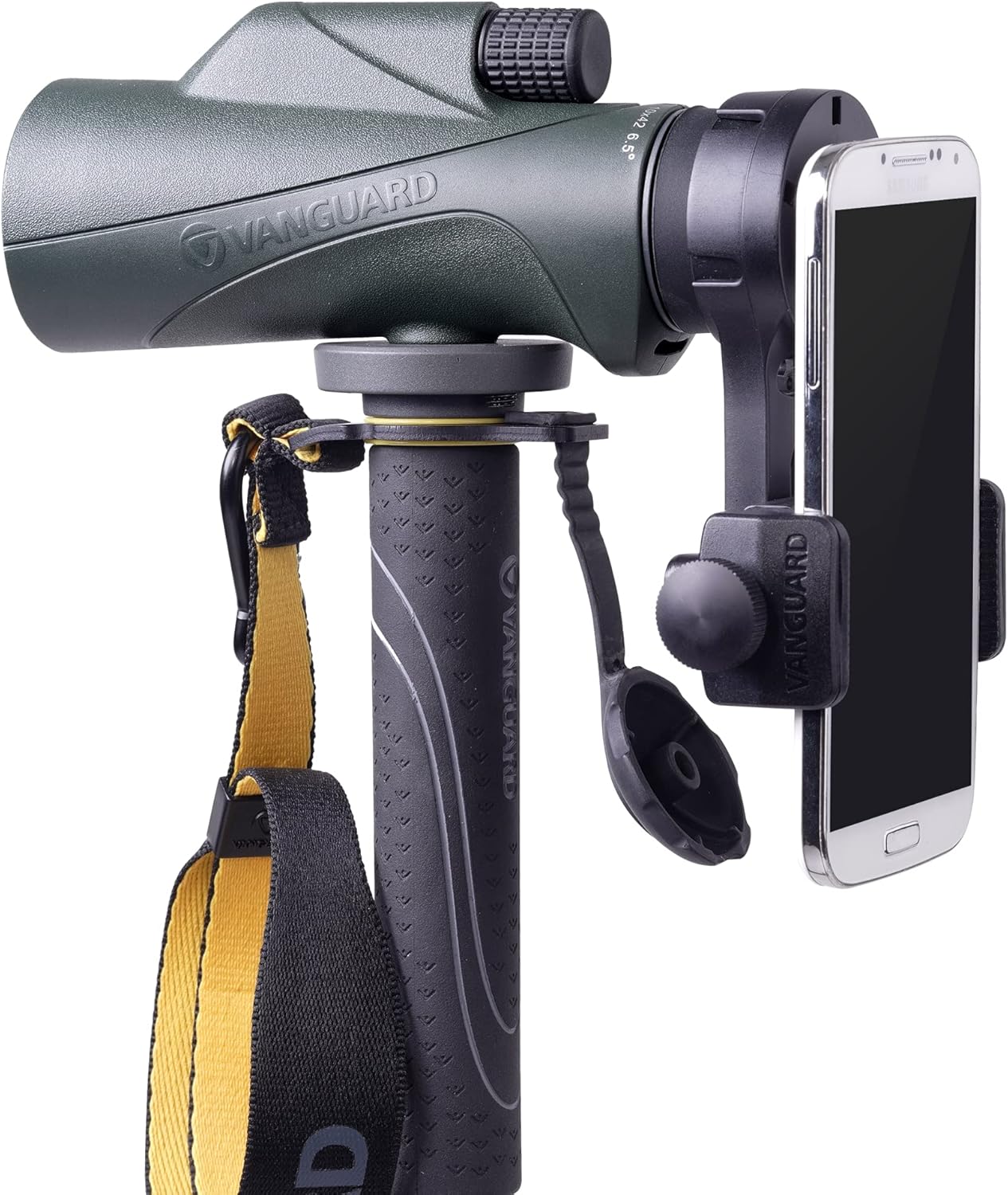
Image: The monocular with a smartphone attached via the VEO PA-62 adapter, mounted on a tripod for stable digiscoping.
5. Pairing the Bluetooth Remote Control
The Bluetooth remote control allows for hands-free photo and video capture when using the smartphone adapter.
- Power On: Turn on the Bluetooth remote control.
- Enable Bluetooth: On your smartphone, go to Bluetooth settings and enable Bluetooth.
- Pair Device: Search for available devices and select the Bluetooth remote (it may appear as "AB Shutter3" or similar). Pair the devices.
- Test: Open your smartphone's camera app and press the remote's button to test photo capture.

Image: The Bluetooth remote control, used to trigger your smartphone camera remotely.
Operating the Monocular
1. Adjusting the Eyecup
Twist the eyecup up or down to achieve the optimal viewing distance. If you wear eyeglasses, keep the eyecup fully retracted. If you do not wear eyeglasses, extend the eyecup for comfortable viewing.

Image: Close-up view of the monocular's adjustable eyecup.
2. Focusing the Monocular
- Hold the monocular to your eye.
- Point the monocular at the desired object.
- Rotate the textured focus wheel until the image appears sharp and clear.
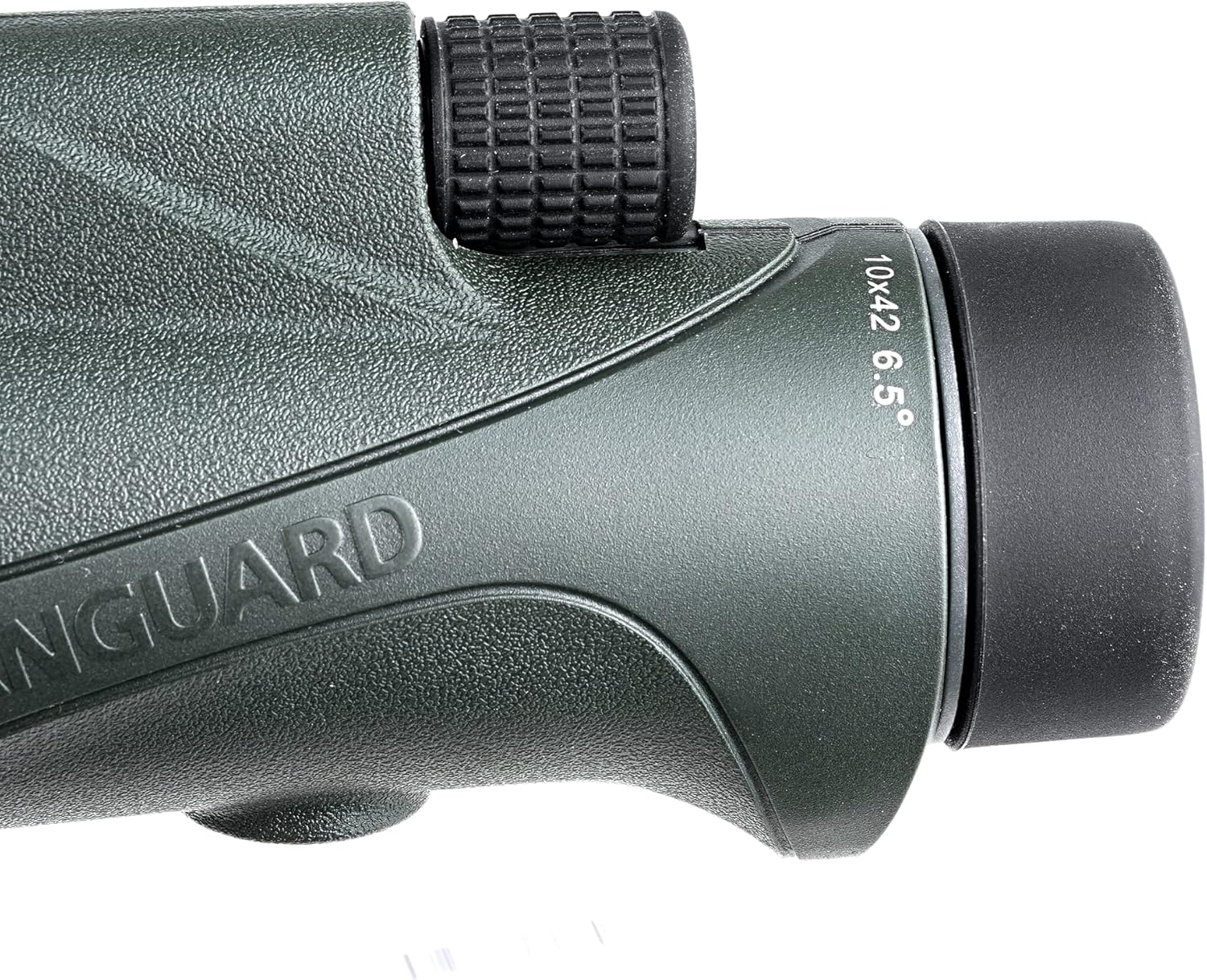
Image: The textured focus wheel on the monocular for precise image adjustment.
3. Using with a Tripod (Optional)
For extended viewing or digiscoping, attach the monocular to a tripod or monopod using the 1/4" thread located on the bottom of the unit. This provides stability and reduces hand shake.
4. Digiscoping with Smartphone
Once your smartphone is securely attached to the monocular via the VEO PA-62 adapter and the Bluetooth remote is paired:
- Open your smartphone's camera application.
- Adjust the monocular's focus until the image on your phone screen is clear.
- Use the Bluetooth remote to capture photos or start/stop video recording without touching your phone, minimizing vibrations.
Care and Maintenance
- Cleaning Lenses: Use a soft, lint-free cloth specifically designed for optical lenses. Gently wipe the lens surfaces. For stubborn smudges, use a small amount of lens cleaning fluid on the cloth, not directly on the lens.
- Cleaning Body: Wipe the monocular body with a soft, damp cloth. Avoid harsh chemicals or abrasive materials.
- Storage: When not in use, always replace the protective eye and objective lens covers. Store the monocular in its protective pouch in a cool, dry place, away from direct sunlight and extreme temperatures.
- Waterproof/Fogproof: While the monocular is waterproof and fogproof, avoid submerging it in water for extended periods or exposing it to rapid temperature changes that could compromise seals.
- Bluetooth Remote Battery: The Bluetooth remote requires 1 CR2032 battery. Replace when necessary.
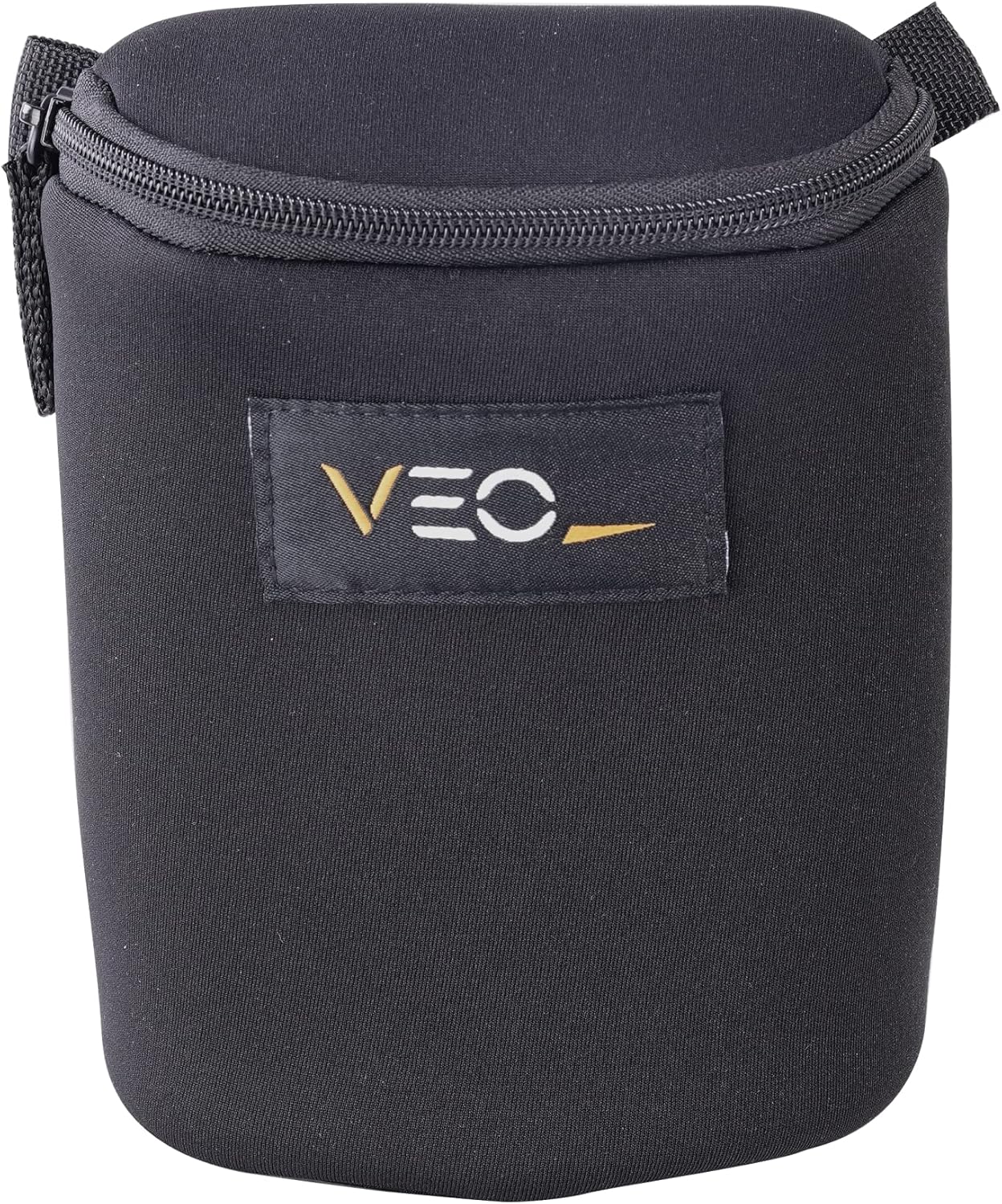
Image: The protective pouch for safe storage and transport of the monocular and accessories.
Troubleshooting
| Problem | Possible Cause | Solution |
|---|---|---|
| Blurred image | Incorrect focus adjustment. | Rotate the focus wheel until the image is sharp. |
| Dark or obstructed view | Lens caps still on; dirty lenses. | Remove lens caps. Clean lenses as per maintenance instructions. |
| Smartphone camera not aligning with monocular view | Smartphone not correctly positioned in adapter. | Adjust the smartphone within the VEO PA-62 adapter to center the camera lens over the monocular eyepiece. |
| Bluetooth remote not connecting | Remote off; low battery; not paired. | Ensure remote is powered on. Replace CR2032 battery if needed. Re-pair the remote via smartphone Bluetooth settings. |
| Fogging inside lenses | Extreme temperature changes or seal compromise. | Allow the monocular to acclimate to ambient temperature. If fogging persists, contact customer support. |
Technical Specifications
| Feature | Detail |
|---|---|
| Brand | VANGUARD |
| Model Number | VEO HD2 1042M |
| Magnification | 10x |
| Objective Lens Diameter | 42 mm |
| Glass Type | Hoya ED Glass |
| Coating | Fully Multi-Coated |
| Field of View (at 1000 yards) | 342 ft |
| Eye Relief | 18 mm |
| Near Focus | 6.5 ft |
| Waterproof | Yes |
| Fogproof | Yes |
| Item Weight | 11.5 Ounces |
| Tripod Mount | 1/4" thread |
| Compatible Devices | Cellphone (with adapter) |
| Bluetooth Remote Battery | 1 CR2032 battery |
Warranty and Customer Support
Warranty Information:
- The Vanguard VEO HD2 1042M Monocular comes with a lifetime warranty.
- The Digiscope Adaptor (VEO PA-62) has a 2-year warranty.
For detailed warranty terms and conditions, please refer to the official Vanguard website or contact customer support.
Customer Support:
If you encounter any issues or have questions regarding your Vanguard VEO HD2 1042M Monocular, please visit the official VANGUARD support page or contact their customer service department for assistance.
Official Brand Store: VANGUARD Store on Amazon
