
Tivoli Audio M1BT
Tivoli Audio Model One Bluetooth AM/FM Radio User Manual
Model: M1BT
Introduction
The Tivoli Audio Model One Bluetooth AM/FM Radio is designed to provide high-fidelity audio in a compact and aesthetically pleasing form. Featuring a handmade wood cabinet, this radio offers natural sound reproduction and intuitive controls for an enjoyable listening experience. It includes AM/FM radio tuning, Bluetooth connectivity for wireless streaming, and an auxiliary input for other audio sources.
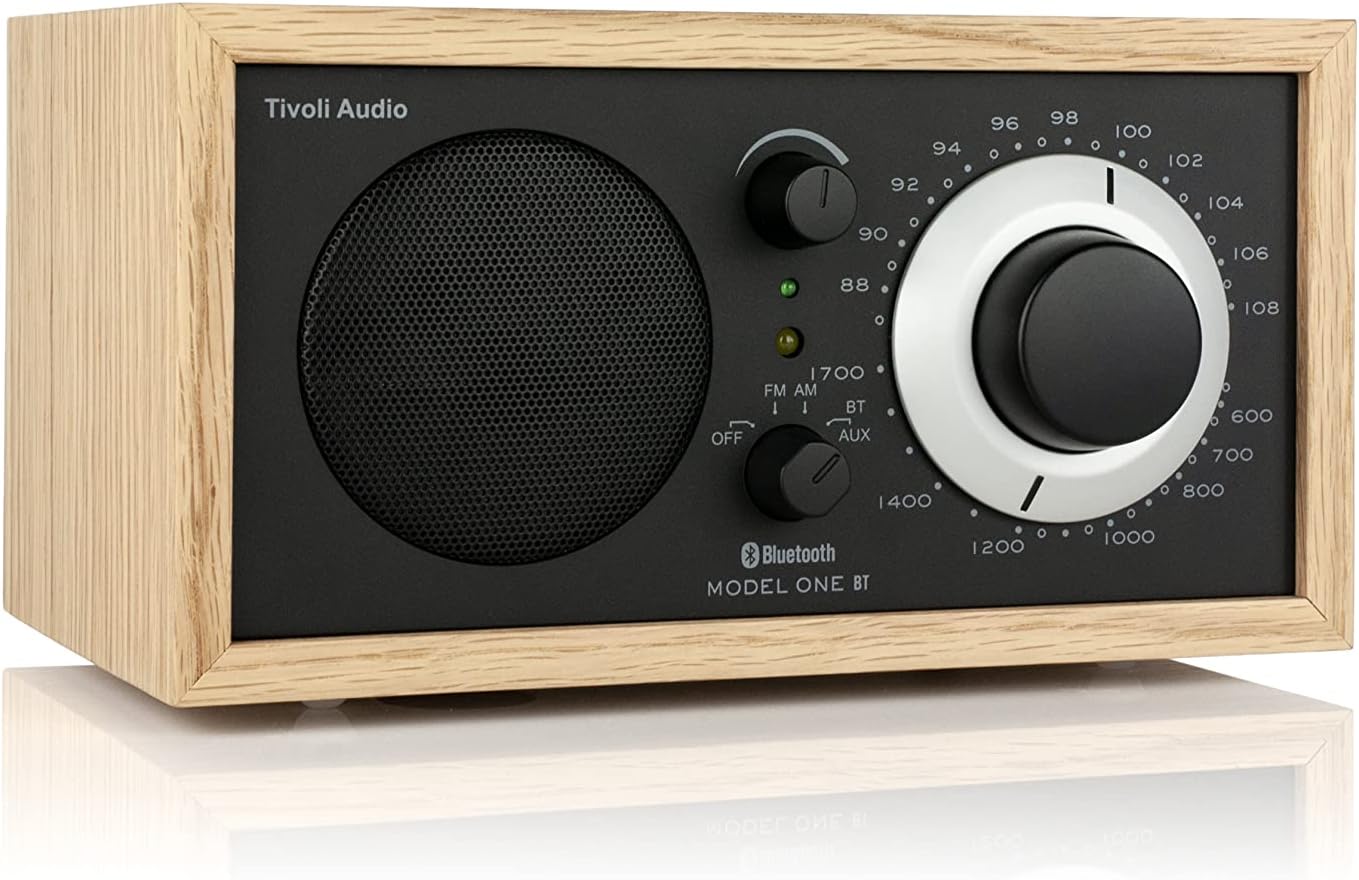
Front view of the Tivoli Audio Model One Bluetooth AM/FM Radio, showcasing its oak wood cabinet and black faceplate with white tuning dial.
What's Included
Please ensure all items are present before proceeding with setup:
- (1) Tivoli Audio Model One BT Radio
- (1) Owner's Manual
- (1) Power Supply
- (1) External FM Antenna
Setup
1. Power Connection
Connect the provided power supply to the 12VDC 800mA input on the back of the Model One BT radio. Plug the power supply into a suitable wall outlet.
2. Antenna Connection
For optimal FM reception, connect the included external FM antenna to the "EXTERNAL FM ANTENNA 75 OHM" coaxial input on the back of the radio. Ensure the FM antenna switch (INTERNAL/EXTERNAL) is set to "EXTERNAL". For AM reception, the radio has a built-in AM antenna. If needed, an external AM antenna can be connected to the "EXTERNAL AM ANTENNA" terminals.

Rear panel of the Model One BT, showing connections for power, external FM antenna, external AM antenna, Aux In, and Rec Out.
Operating Instructions
1. Powering On and Source Selection
Turn the top-left knob to select your desired audio source: OFF, FM, AM, BT (Bluetooth), or AUX (Auxiliary Input).
2. Volume Control
Adjust the top-right knob to control the volume level.
3. AM/FM Tuning
When FM or AM is selected, use the large circular tuning dial to find your desired station. The tuning indicator light will illuminate brightest when the best reception is achieved.
4. Bluetooth Pairing
To connect a Bluetooth device:
- Turn the source knob to "BT". The Bluetooth indicator light will begin to flash, indicating pairing mode.
- On your mobile device, enable Bluetooth and search for "Tivoli Audio BT".
- Select "Tivoli Audio BT" from the list of available devices to pair.
- Once successfully paired, the Bluetooth indicator light on the radio will glow solid.
- You can now stream audio wirelessly from your device to the Model One BT.

Close-up of the Model One BT's front panel, showing the source selector, volume knob, and large tuning dial.
5. Auxiliary Input
To use an external audio source (e.g., MP3 player, CD player), connect it to the "AUX IN" port on the back of the radio using a 3.5mm audio cable. Select "AUX" on the source knob.
Maintenance
To ensure the longevity and optimal performance of your Tivoli Audio Model One BT radio, follow these maintenance guidelines:
- Cleaning: Use a soft, dry cloth to clean the cabinet and controls. Avoid abrasive cleaners, waxes, or solvents.
- Placement: Place the radio on a stable, flat surface away from direct sunlight, heat sources, and excessive moisture.
- Ventilation: Ensure adequate ventilation around the unit to prevent overheating. Do not block ventilation openings.
- Power: Disconnect the power supply from the wall outlet during lightning storms or when left unused for long periods.
Troubleshooting
If you encounter issues with your Model One BT radio, please refer to the following common solutions:
- No Power:
- Ensure the power supply is securely connected to both the radio and a working wall outlet.
- Check if the power outlet is functional by plugging in another device.
- Poor Radio Reception (AM/FM):
- For FM, ensure the external FM antenna is properly connected and the internal/external switch is set to "EXTERNAL". Try repositioning the antenna for better signal.
- For AM, try rotating the radio itself, as the internal AM antenna is directional.
- Move the radio away from other electronic devices that may cause interference.
- Bluetooth Pairing Issues:
- Ensure the radio's source knob is set to "BT" and the indicator light is flashing.
- Make sure Bluetooth is enabled on your mobile device and it is within range (typically 30 feet or 10 meters).
- Try forgetting "Tivoli Audio BT" from your device's Bluetooth settings and re-pairing.
- Restart both the radio and your mobile device.
- No Sound from Aux Input:
- Verify the source knob is set to "AUX".
- Ensure the audio cable is securely connected to both the radio's "AUX IN" port and your external audio device.
- Check the volume level on both the radio and the external audio device.
Specifications
| Feature | Detail |
|---|---|
| Brand | Tivoli Audio |
| Model Number | M1BT |
| Product Dimensions | 8.38 x 5.25 x 4.5 inches |
| Item Weight | 4.14 pounds |
| Color | Oak / Black / Black |
| Connectivity Technology | Bluetooth |
| Radio Bands Supported | AM/FM |
| Power Source | Corded Electric |
| Included Components | (1) Model One BT, Owner's Manual, (1) Power Supply, (1) External FM Antenna |

Diagram showing the dimensions of the Tivoli Audio Model One BT radio.
Warranty and Support
Tivoli Audio products are designed for reliability and performance. For specific warranty information, please refer to the warranty card included with your product or visit the official Tivoli Audio website. For technical support, product inquiries, or service, please contact Tivoli Audio customer service:
- Website: www.tivoliaudio.com
- Contact Information: Refer to the owner's manual or website for the most current contact details.
Always ensure you are purchasing from authorized retailers to guarantee valid warranty coverage.
Ask a question about this manual
Ask about setup, troubleshooting, compatibility, parts, safety, or missing instructions. Manuals+ will review the question and use this page’s manual context to help answer it.