
1. Introduction
This manual provides essential instructions for the safe and effective use of your Angelet XTS-982M Multimedia Professional Keyboard. Please read this manual thoroughly before operating the instrument and retain it for future reference.
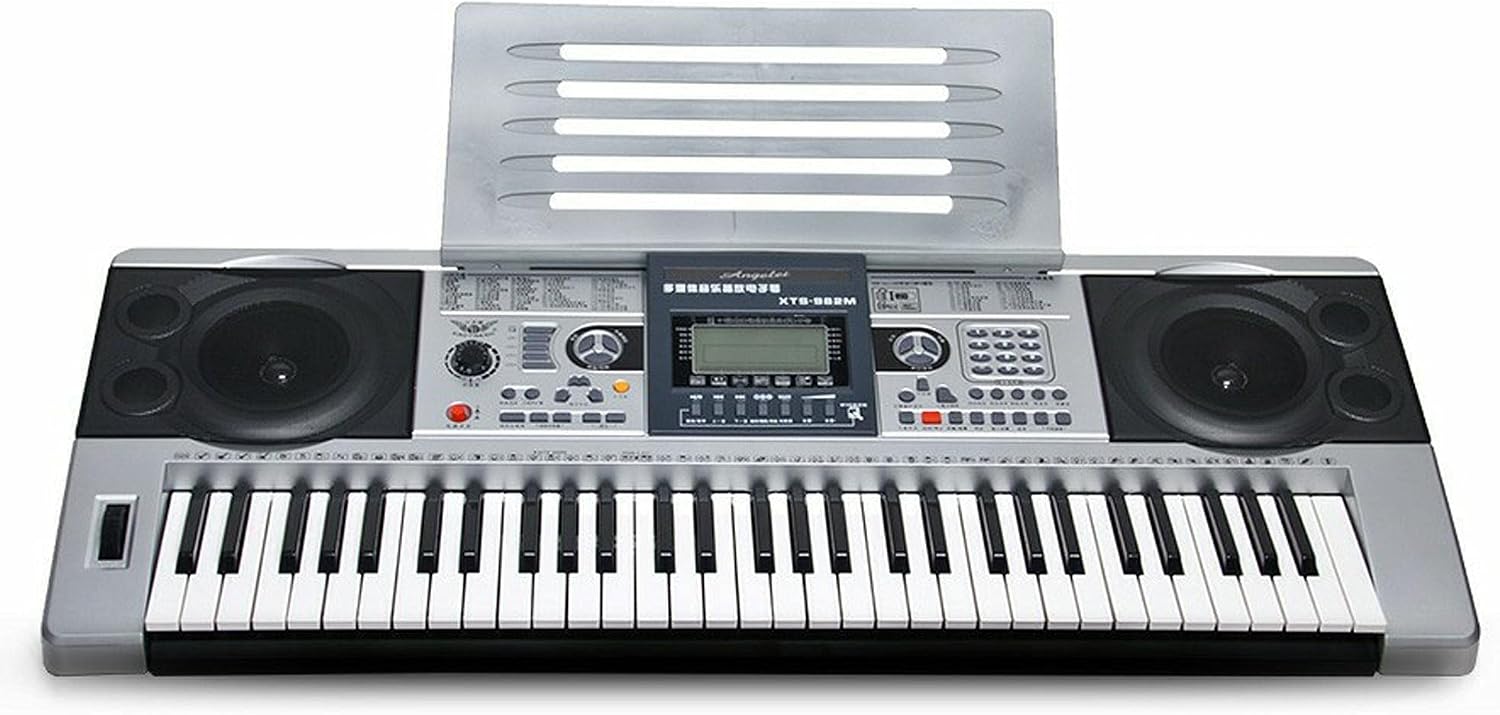
Image 1.1: Front view of the Angelet XTS-982M Multimedia Professional Keyboard with music stand.
2. Safety Instructions
To prevent electric shock, short circuit, damage, fire, or other hazards, always observe the following basic precautions:
- Do not expose the instrument to rain, use it near water, or in damp or wet conditions.
- Do not place containers with liquid on the instrument.
- Only use the specified power adapter. Ensure the voltage is correct for your region.
- Do not open the instrument or attempt to disassemble the internal parts.
- Avoid placing the instrument in locations with excessive dust, vibrations, extreme cold or heat.
- Keep the instrument away from sources of electrical interference.
3. Package Contents
Verify that your package contains the following items:
- Angelet XTS-982M Multimedia Professional Keyboard
- Power Adapter
- Music Stand
- User Manual (this document)
4. Component Identification
Familiarize yourself with the various parts of your keyboard:

Image 4.1: Close-up view of the central control panel, display, and function buttons.
4.1 Control Panel
- LCD Display: Shows current voice, rhythm, tempo, and other settings.
- Volume Control: Adjusts the overall output volume.
- Voice Selection Buttons: Choose from various instrument sounds (e.g., Piano, Organ, Strings).
- Rhythm Selection Buttons: Select different accompaniment styles.
- Tempo Control: Adjusts the speed of rhythms and metronome.
- MP3/USB Controls: Play, pause, skip tracks, and adjust volume for USB media.
- MIDI Port: For connecting to external MIDI devices.
4.2 Rear/Side Panel
- Power Input: Connects to the provided power adapter.
- USB Port: For connecting USB flash drives for MP3 playback or MIDI data transfer.
- Headphone Jack: For private practice.
- Audio Output: For connecting to external amplifiers or speakers.

Image 4.2: Side view of the keyboard, highlighting the power input and the included power adapter.
5. Setup
5.1 Power Connection
- Ensure the keyboard is turned off.
- Connect the power adapter to the DC IN jack on the rear/side panel of the keyboard.
- Plug the power adapter into a suitable electrical outlet.
5.2 Music Stand Assembly
Insert the included music stand into the designated slots on the top panel of the keyboard. Ensure it is securely seated.

Image 5.1: Angled view of the keyboard with the music stand properly installed.
5.3 Connecting External Devices
- USB Flash Drive: Insert a USB flash drive into the USB port for MP3 playback.
- MIDI Devices: Use a MIDI cable to connect the keyboard to a computer or other MIDI instruments for advanced music production or learning.
- Headphones: Plug standard stereo headphones into the headphone jack for silent practice.
6. Operating Instructions
6.1 Powering On/Off
Press the POWER button located on the control panel to turn the keyboard on or off. The LCD display will illuminate upon power-on.
6.2 Basic Playback
- Select a Voice: Use the 'Voice' selection buttons to choose an instrument sound. The selected voice will be displayed on the LCD.
- Adjust Volume: Rotate the 'Volume' knob to set your desired listening level.
- Play: Begin playing the keys.
6.3 Rhythm Accompaniment
- Select a Rhythm: Press a 'Rhythm' button to choose an accompaniment style.
- Start/Stop: Press the 'Start/Stop' button to begin or end the rhythm.
- Adjust Tempo: Use the 'Tempo' buttons to increase or decrease the rhythm speed.
6.4 MP3 Playback (USB)
- Insert a USB flash drive containing MP3 files into the USB port.
- Use the 'MP3' control buttons (Play/Pause, Next, Previous) to navigate and play your audio files.
6.5 MIDI Functionality
The keyboard supports MIDI connectivity, allowing it to send and receive MIDI data. Connect the keyboard to a computer or other MIDI device using a USB-MIDI cable (not included) or the dedicated MIDI port if available. Refer to your software's documentation for specific MIDI setup instructions.
7. Maintenance
7.1 Cleaning
Wipe the instrument with a soft, dry cloth. Do not use paint thinners, solvents, cleaning fluids, or chemical-impregnated wiping cloths. This could cause discoloration or damage to the finish.
7.2 Storage
When not in use for extended periods, disconnect the power adapter and store the keyboard in a clean, dry place away from direct sunlight and extreme temperatures.
8. Troubleshooting
- No Power: Ensure the power adapter is securely connected to both the keyboard and a working electrical outlet.
- No Sound: Check the volume level. Ensure headphones are not plugged in if you expect sound from the speakers. Verify external speakers/amplifiers are connected and powered on if used.
- MP3 Playback Issues: Ensure the USB flash drive is properly inserted and contains compatible MP3 files. Try reformatting the USB drive if issues persist.
- Keys Not Responding: Power off and then on the keyboard. If the issue persists, contact customer support.
9. Specifications
| Feature | Specification |
|---|---|
| Model Number | XTS-982M |
| Manufacturer | Angelet |
| Instrument Type | Multimedia Professional Keyboard |
| Connectivity | USB (for MP3/MIDI), MIDI |
| Package Dimensions | 100 x 18 x 10 cm |
| Item Weight | 5.2 kg |
10. Warranty and Support
This product is covered by a limited warranty from the manufacturer. Please refer to the warranty card included with your purchase for specific terms and conditions. For technical support or service inquiries, please contact Angelet customer service or visit their official website.
Note: Warranty terms may vary by region and retailer. Please retain your proof of purchase.


