
mixfeer Y23
Y23 USB2.0 U Disk User Manual
Model: Y23 | Brand: mixfeer
1. Product Overview
The mixfeer Y23 USB2.0 U Disk is a versatile four-in-one high-speed OTG flash drive designed for seamless data transfer and storage across various devices. Featuring USB, Micro USB, Type-C, and Lightning connectors, it offers broad compatibility with phones, PCs, and laptops. Its compact, full-metal design ensures durability and portability, making it an ideal solution for managing your digital content.

Figure 1: The mixfeer Y23 USB Disk, showcasing its four integrated connectors (USB, Micro USB, Type-C, and Lightning) for universal compatibility.
2. Key Features
- Four-in-One Connectivity: Equipped with USB, Micro USB, Type-C, and Lightning interfaces for wide compatibility with smartphones, tablets, PCs, and other devices.
- High-Speed Data Transfer: Utilizes USB 2.0 technology for efficient reading and writing speeds, ensuring quick file transfers. Typical speeds are 20MB/s for reading and 10MB/s for writing.
- OTG Functionality: Supports On-The-Go (OTG) for direct connection to mobile devices without requiring a computer.
- Broad Compatibility: Compatible with Android, iOS (version 8.0 or above), Windows, and macOS operating systems.
- Durable Design: Features a full metal shell for enhanced durability and a compact, portable form factor.
- Secure Encryption (iOS only): Supports file encryption via the "Y-Disk" app for iOS devices, allowing fingerprint or password protection.
- TF Card Reader: Includes a slot for TF (MicroSD) cards, expanding storage capabilities. (TF card not included)
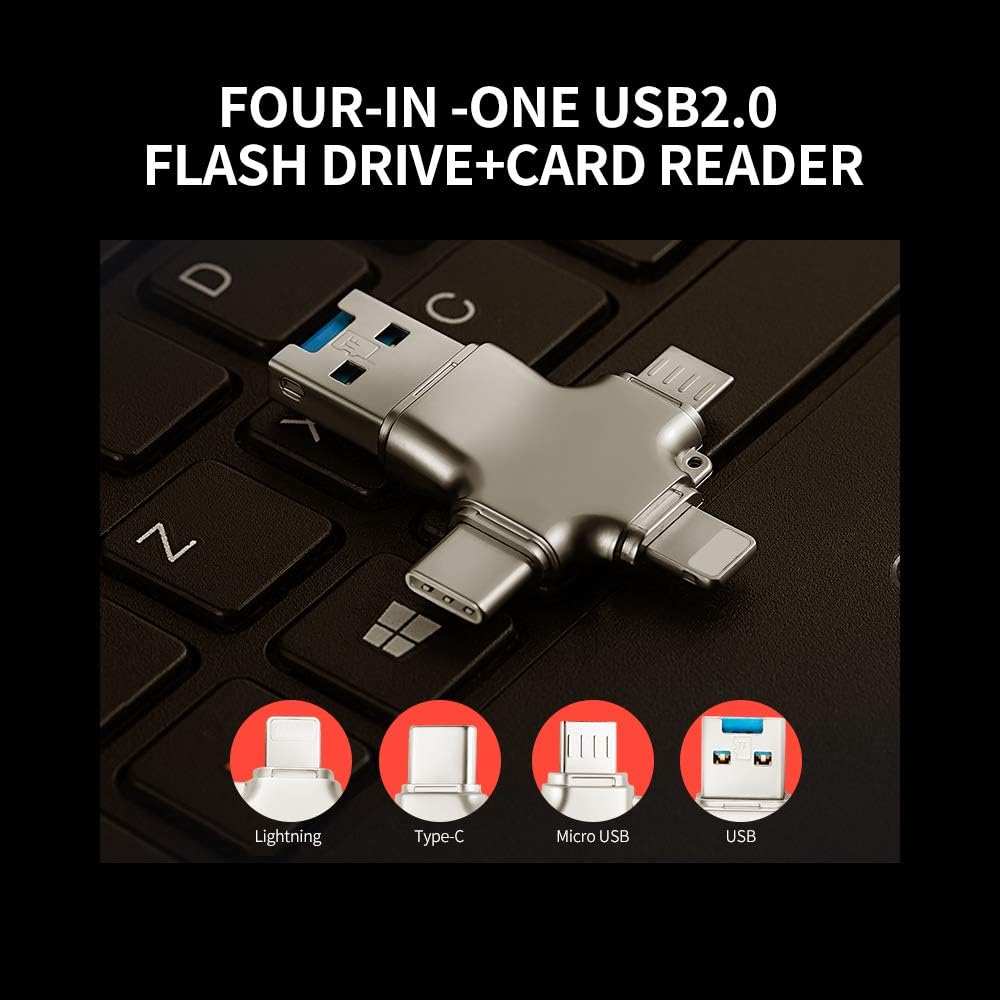
Figure 2: Illustration of the four-in-one design, highlighting the different connector types available on the device.

Figure 3: Data transfer speeds of the Y23 USB Disk, indicating typical read and write performance.
3. Setup and Connection
The mixfeer Y23 USB Disk is designed for plug-and-play functionality, requiring no drivers for basic operation on most compatible devices.
3.1. Connecting to a Computer (PC/Laptop)
- Identify the standard USB-A port on the Y23 disk.
- Insert the USB-A connector into an available USB port on your computer.
- The computer should automatically detect the device. You can access its contents via "My Computer" or "This PC" (Windows) or Finder (macOS).
3.2. Connecting to Mobile Devices (Phone/Tablet)
Choose the appropriate connector for your device:
- For Android devices with Micro USB: Use the Micro USB connector.
- For Android devices with Type-C: Use the Type-C connector.
- For iOS devices (iPhone/iPad) with Lightning: Use the Lightning connector.
- Insert the relevant connector into your mobile device's port.
- For iOS devices, you will be prompted to download the "Y-Disk" app upon first connection. This app is essential for managing files and utilizing encryption features.
- For Android devices, the device should be recognized as external storage. You can manage files using your device's file manager app.
3.3. Inserting a TF (MicroSD) Card
- Locate the TF card slot on the side of the Y23 disk.
- Gently insert a TF card into the slot until it clicks into place. Ensure the card is oriented correctly.
- To remove, push the card slightly inward until it springs out.

Figure 4: The Y23 USB Disk demonstrating its wide range of compatibility with different devices and showing the TF card slot.
4. Operating Instructions
4.1. File Transfer
- From Device to Y23 Disk:
- On a computer, drag and drop files to the Y23 disk's drive icon.
- On Android, use your device's file manager to copy/move files to the Y23 disk.
- On iOS, use the "Y-Disk" app to select and transfer files from your device to the disk.
- From Y23 Disk to Device:
- On a computer, drag and drop files from the Y23 disk to your desired location.
- On Android, use your device's file manager to copy/move files from the Y23 disk.
- On iOS, use the "Y-Disk" app to select and transfer files from the disk to your device.
4.2. Using the "Y-Disk" App (iOS Only)
The "Y-Disk" app provides enhanced functionality for iOS users, including file management, data backup, and security features.
- App Download: When you first connect the Y23 disk to an iPhone or iPad, a prompt will appear to download the "Y-Disk" app from the App Store. Follow the instructions to install it.
- File Management: Within the app, you can browse, open, copy, move, and delete files stored on the Y23 disk.
- Data Backup: The app allows you to back up photos, videos, and contacts from your iOS device to the Y23 disk.
- File Encryption: For sensitive data, the "Y-Disk" app supports encryption using fingerprint (Touch ID/Face ID) or a password. This feature helps protect your privacy.

Figure 5: Overview of the "Y-Disk" app functionalities for iOS devices, including file management and security options.
5. Maintenance and Care
- Safe Removal: Always safely eject the Y23 disk from your computer or mobile device before physically disconnecting it to prevent data corruption.
- Cleaning: Use a soft, dry, lint-free cloth to clean the exterior of the disk. Avoid liquid cleaners or abrasive materials.
- Storage: Store the disk in a cool, dry place away from direct sunlight, extreme temperatures, and strong magnetic fields.
- Physical Protection: While the metal shell offers durability, avoid dropping the disk or subjecting it to strong impacts. Keep the connector caps on when not in use to protect the ports.
6. Troubleshooting
- Disk not recognized by computer/device:
- Ensure the disk is fully inserted into the port.
- Try a different USB port on your computer or a different mobile device.
- Restart your computer or mobile device.
- For iOS, ensure the "Y-Disk" app is installed and running.
- Slow data transfer speeds:
- Ensure you are using a USB 2.0 compatible port for optimal speeds.
- Close other applications that might be using system resources.
- Check if the disk is nearly full, which can sometimes affect performance.
- Cannot transfer files to/from iOS device:
- Verify that the "Y-Disk" app is installed and updated.
- Ensure your iOS version is 8.0 or above.
- Check if the disk has sufficient free space.
- Grant necessary permissions to the "Y-Disk" app in your device settings.
- TF card not detected:
- Ensure the TF card is inserted correctly and fully into the slot.
- Try a different TF card to rule out card issues.
- Check if the TF card is formatted correctly (e.g., FAT32 or exFAT).
7. Specifications
| Feature | Detail |
|---|---|
| Model | Y23 |
| Capacity | 64GB (as per product title) |
| Interface | USB 2.0 (Type-A), Micro USB, Type-C, Lightning |
| Read Speed | Up to 20 MB/s |
| Write Speed | Up to 10 MB/s |
| Compatibility | Windows, macOS, Android, iOS 8.0 and above |
| Material | Full Metal Design |
| Additional Features | OTG support, TF Card Reader, iOS App (Y-Disk) for encryption |
8. Warranty and Support
For warranty information and technical support, please refer to the official mixfeer website or contact your retailer. Keep your purchase receipt as proof of purchase for any warranty claims.
For further assistance, please visit: www.mixfeer.com (Note: This is a placeholder URL as no official support link was provided in the product data. Please replace with the actual support URL if available.)
Ask a question about this manual
Ask about setup, troubleshooting, compatibility, parts, safety, or missing instructions. Manuals+ will review the question and use this page’s manual context to help answer it.