
Product Overview
The GPD WIN 3 is a compact, high-performance handheld gaming PC designed for on-the-go entertainment and productivity. It features a 5.5-inch touch screen, integrated game controls, and a sliding keyboard, running on Windows 10 Home. This device is powered by an 11th Gen Intel Core i7-1195G7 processor with Intel Iris Xe Graphics, 16GB of LPDDR4x RAM, and a 1TB NVMe SSD, providing a robust platform for a wide range of applications and games.

Figure 1: The GPD Win 3 handheld gaming PC, highlighting its 1TB storage and Intel Core i7-1195G7 processor.

Figure 2: User holding the GPD Win 3, demonstrating the sliding screen mechanism that reveals the integrated keyboard.
Initial Setup
Follow these steps to set up your GPD WIN 3 for the first time:
- Unboxing: Carefully remove all components from the packaging box, including the GPD WIN 3 device, charger, and USB-C cable.
- Charging: Connect the provided charger to the USB-C port on the device and plug it into a power outlet. Allow the device to charge fully before initial use.
- Power On: Press and hold the power button located on the top edge of the device until the screen illuminates.
- Windows Setup: Follow the on-screen prompts to complete the Windows 10 Home setup process. This includes selecting your language, region, and setting up user accounts.
Video 1: This video provides a detailed overview of the GPD Win 3, including its physical features, ports, sliding keyboard mechanism, and initial Windows setup process. It demonstrates the device's compact size and various functionalities.
Operating Your GPD WIN 3
Controls
The GPD WIN 3 features integrated game controls on both sides of the screen, including clickable thumbsticks, a D-pad, and action buttons (A, B, X, Y). These controls are designed for precise input during gaming sessions.
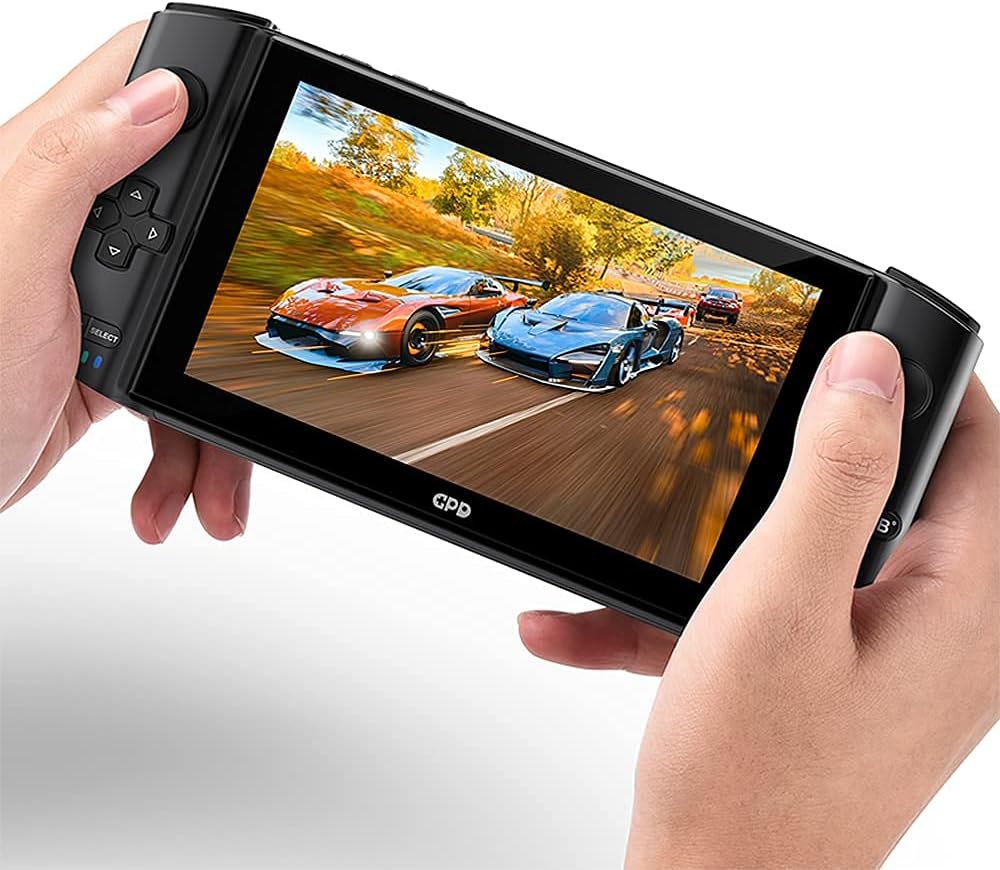
Figure 3: The GPD Win 3 being used to play a racing game, showcasing the ergonomic design and integrated game controls.
Keyboard and Touchscreen
The 5.5-inch display is a multi-touch screen, allowing for intuitive navigation within the Windows operating system. The screen slides up to reveal a backlit mini keyboard, providing a compact solution for typing and text input.

Figure 4: A user interacting with the GPD Win 3's mini keyboard, which is accessible by sliding the screen upwards.

Figure 5: The GPD Win 3 displaying the familiar Windows 10 desktop, indicating its full PC functionality.

Figure 6: A side profile view of the GPD Win 3 with its screen in the open, slid-up position, revealing the keyboard beneath.
Care and Maintenance
- Cleaning: Use a soft, lint-free cloth to clean the screen and exterior of the device. For stubborn smudges, a slightly dampened cloth with water or a screen-safe cleaner can be used. Avoid abrasive materials or harsh chemicals.
- Storage: Store the GPD WIN 3 in a cool, dry place away from direct sunlight and extreme temperatures. When not in use, it is recommended to keep the screen closed to protect it.
- Battery Care: To prolong battery life, avoid fully discharging the device frequently. Charge the battery regularly, even if the device is not in active use for extended periods.
- Ventilation: Ensure the ventilation grilles on the device are not obstructed during use to prevent overheating.
Troubleshooting Common Issues
- Device Not Turning On: Ensure the device is sufficiently charged. If the battery is completely drained, it may take a few minutes of charging before it can power on. Try holding the power button for 10-15 seconds for a hard reset.
- Screen Freezing or Unresponsive: If the screen freezes, press and hold the power button for approximately 10 seconds to force a shutdown. Restart the device. If the issue persists, consider updating display drivers.
- Fan Noise/Overheating: High fan noise or excessive heat can occur during intensive tasks. Ensure the device's vents are clear and not obstructed. Consider reducing graphics settings in games or applications if heat is a persistent concern.
- Sleep Mode Issues: Some users may experience issues with the device not waking from sleep mode. As a temporary workaround, consider shutting down the device manually when not in use for extended periods, rather than relying solely on sleep mode. Ensure Windows updates are installed, as these often contain bug fixes.
- Controller/Button Malfunction: If specific buttons or joystick inputs are not registering, ensure no software conflicts are present. Check for driver updates for the integrated controllers. If the issue is hardware-related, contact customer support.
Technical Specifications
| Feature | Specification |
|---|---|
| Processor | 11th Core Tiger Lake i7-1195G7 (4 Cores/8 Threads, up to 5 GHz) |
| Graphics | Intel Iris Xe Graphics eligible 96 EUs |
| RAM | 16GB LPDDR4x 4266 |
| Storage | 1TB NVMe 3.0/4.0 M.2 2280 SSD |
| Display | 5.5-inch Sunny Screen, 1280x720, 400nit, 268ppi, Corning Gorilla Glass |
| Operating System | Windows 10 Home |
| Connectivity | Wi-Fi 6 (802.11ax), Bluetooth, 1x USB 4, 1x USB Type-A, 1x MicroSD Card (A2) Slot, 1x 3.5mm Headset & Microphones |
| Battery Capacity | 45.62Wh, 11.55V==3950mAh×3 Series |
| Dimensions | 198×92×27mm (7.83 x 3.66 x 1.06 inches) |
| Weight | 550g (1.21 lbs) |
Warranty and Support
LANRUO, as an official distributor of GPD products, provides a two-year warranty service for all GPD WIN 3 devices purchased through them. This includes comprehensive software support. For any inquiries, technical assistance, or warranty claims, please visit the official LANRUO Store on Amazon or contact their customer service directly.