
XINMENG STK61
XINMENG RGB 61-Key Gaming Keyboard User Manual
Model: STK61
Brand: XINMENG
1. Introduction
Thank you for choosing the XINMENG RGB 61-Key Gaming Keyboard. This compact mechanical keyboard offers a versatile dual-mode connection (wired and Bluetooth 5.0), vibrant RGB backlighting, and a comfortable typing experience. Designed for both gaming and daily use, this manual provides detailed instructions to help you set up, operate, maintain, and troubleshoot your new keyboard.

Image: The XINMENG RGB 61-Key Gaming Keyboard, showcasing its compact design and colorful RGB backlighting.
2. Product Features
- Dual Connection Mode: Supports both wired (Type-C USB) and wireless (Bluetooth 5.0) connections for versatile use.
- Compact 61-Key Layout: A space-saving design that retains essential keys without a separate number pad, ideal for gaming and portability.
- Mechanical Red Switches: Equipped with responsive and durable red mechanical switches, providing a smooth and quiet typing experience suitable for both gaming and general use.
- Vibrant RGB Backlighting: Features 12 different rainbow backlight effects with adjustable brightness and breathing speed.
- Programmable Keys: Customize key functions and lighting effects using dedicated software (Windows OS only).
- 1000mAh Built-in Battery: Provides extended usage in wireless mode, with a low battery indicator.
- Full Key Anti-Ghosting: Ensures accurate input even during rapid key presses in wired mode, with 6-key anti-ghosting in wireless mode.
- Multi-Device Support: Connects to up to three Bluetooth devices simultaneously, allowing for easy switching between them.
- Durable Construction: Features luminous keycaps that resist abrasion, an anti-slip foot mat, ergonomic design, and a metal plate for enhanced stability.

Image: Close-up of the keyboard highlighting the Red Mechanical Switches, known for their smooth and responsive feel.

Image: Visual representation of key features including anti-slip foot mats, ergonomic design, rechargeable battery, metal plate, and waterproof capabilities.
3. Setup
3.1 Wired Connection
- Locate the Type-C USB cable provided with your keyboard.
- Connect one end of the Type-C cable to the keyboard's Type-C port.
- Connect the other end of the USB cable to an available USB port on your computer or device.
- The keyboard will be automatically recognized and ready for use.
3.2 Wireless (Bluetooth) Connection
- Ensure the keyboard is powered on.
- Press and hold the FN + TAB keys simultaneously to switch to Bluetooth mode. The Q, W, or E keys will flash, indicating Bluetooth pairing mode.
- On your device (computer, laptop, tablet, smartphone), enable Bluetooth and search for new devices.
- Select the XINMENG keyboard from the list of available devices to pair.
- Once successfully connected, the flashing Q/W/E key will stop flashing.
- To connect to multiple devices (up to 3), press FN + Q, FN + W, or FN + E to assign the keyboard to a specific Bluetooth profile. You can then switch between these devices by pressing the corresponding FN + Q/W/E combination.

Image: Diagram illustrating the dual wired (Type-C) and wireless (Bluetooth 5.0) connection options for the keyboard.

Image: The keyboard connected to a laptop, tablet, and smartphone, demonstrating its ability to support up to three Bluetooth devices simultaneously.
4. Operating Instructions
4.1 Backlight Adjustment
- Press FN + \| to cycle through 12 different backlight effects.
- Press FN + X to turn the backlight on or off.
- Press FN + {[ to decrease backlight brightness.
- Press FN + }] to increase backlight brightness.
- Press FN + ; to slow down the breathing speed of the backlight.
- Press FN + ' to speed up the breathing speed of the backlight.
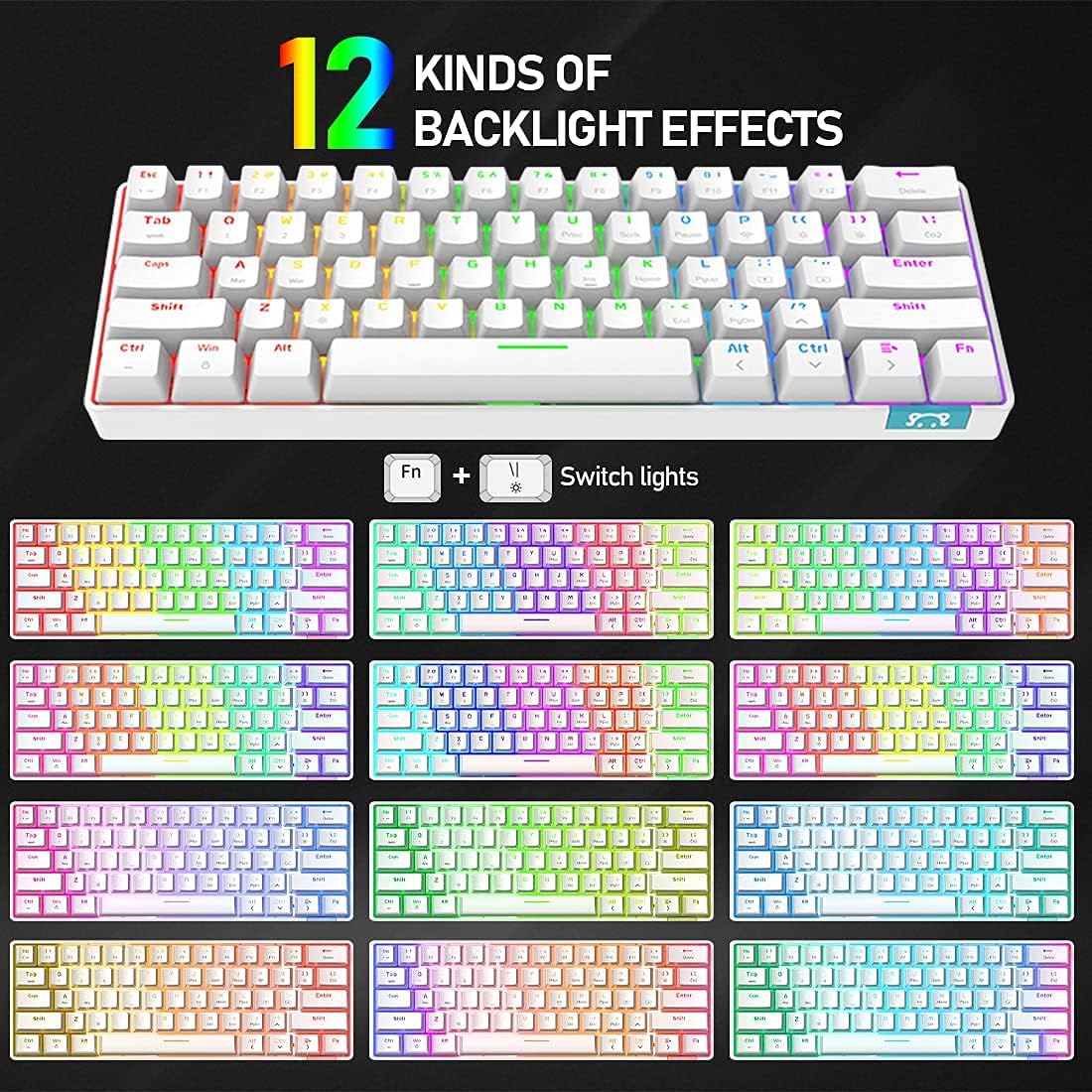
Image: A visual guide showcasing the 12 distinct backlight effects available on the keyboard, controlled by FN key combinations.
4.2 FN Key Functions
The keyboard features multifunctional FN shortcut key combinations to access various functions:
| Key Combination | Function |
|---|---|
| FN + TAB | Switch between Wired and Bluetooth modes |
| FN + Q/W/E | Switch between paired Bluetooth devices (up to 3) |
| FN + \| | Cycle backlight effects |
| FN + X | Turn backlight On/Off |
| FN + {[ / }] | Adjust backlight brightness |
| FN + ; / ' | Adjust backlight breathing speed |
| FN + Win | Lock/Unlock Windows key |
| FN + A/S/D/F/G/H/J/K/L (and others) | Multimedia functions (e.g., Play/Pause, Volume Up/Down, Mute, Previous/Next Track) - Specific mappings may vary, refer to keycap legends. |
4.3 Programmable Features
The keyboard supports programmable functions, allowing you to customize key assignments and lighting effects. This feature is supported only on Windows operating systems. Please visit the manufacturer's website for the latest software download.

Image: Screenshot of the programmable keyboard software interface, showing options for key remapping and lighting customization.
5. Maintenance
- Charging: The keyboard can be charged using the attached Type-C USB cable or a DC 5V charger. Do not use fast chargers or chargers exceeding 5V to prevent damage to the battery.
- Power Saving: In Bluetooth mode, the keyboard will automatically turn off its backlight after 1 minute of inactivity. Press any key to wake it up. It will enter a deep sleep mode after 10 minutes of inactivity to conserve power.
- Low Battery Indicator: When the battery is low, the space bar backlight will flash continuously to remind you to charge the keyboard.
- Cleaning: Use a soft, dry cloth to wipe the keyboard surface. For deeper cleaning, you may use a can of compressed air to remove dust and debris from between the keycaps. Avoid using harsh chemicals or abrasive materials.
6. Troubleshooting
- Keyboard not connecting via Bluetooth:
- Ensure the keyboard is powered on.
- Press FN + TAB to ensure the keyboard is in Bluetooth mode (Q/W/E keys should flash).
- Make sure Bluetooth is enabled on your device and it is discoverable.
- Try unpairing and re-pairing the keyboard from your device's Bluetooth settings.
- Ensure the keyboard battery is not critically low.
- Keys not responding or input lag:
- If in wireless mode, check battery level and charge if necessary.
- Try switching to wired mode to see if the issue persists.
- Ensure the keyboard is within the effective range of your Bluetooth device (typically up to 10 meters).
- Restart your computer/device and the keyboard.
- Backlight not working or stuck:
- Press FN + X to toggle the backlight on/off.
- Adjust brightness using FN + {[ / }].
- Ensure the keyboard is not in deep sleep mode.
- Programmable software not working:
- The software is only compatible with Windows operating systems.
- Ensure you have downloaded the correct and latest version of the software from the official source.
- Run the software as an administrator.
7. Specifications
| Feature | Detail |
|---|---|
| Model | STK61 |
| Mechanical Switch | Red Switch |
| Keyboard Layout | 61 keys |
| Connection Method | Wired (Type-C USB), Wireless (Bluetooth 5.0) |
| Interface Type | Type-C |
| USB Cable Length | 1.6m / 62.9in |
| Built-in Battery Capacity | 1000mAh |
| Anti-Ghosting | Full Key (Wired Mode), Any 6 key (Wireless Mode) |
| Compatible Systems | Windows 2000/XP/VISTA/7/8/10, Linux, MAC, devices supporting Bluetooth 5.0 |
| Dimensions (Package) | 32.79 x 15.4 x 4.7 cm |
| Item Weight | 760 g |
| Material | Plastic |
8. Warranty and Support
XINMENG is committed to providing high-quality products and excellent customer service. If you encounter any issues with your keyboard, please refer to the troubleshooting section first.
For further assistance, product support, or warranty inquiries, please contact XINMENG customer service through your purchase platform or visit the official website:
We are here to help resolve any problems you may experience with your product.
Related Documents - STK61
 |
Xinmeng XM-RF87 Wireless Bluetooth Mechanical Keyboard User Manual User manual for the Xinmeng XM-RF87 wireless Bluetooth mechanical keyboard, detailing its features, connection methods (Bluetooth, 2.4G wireless, wired), FN key functions, and important usage notes. |
 |
Xinmeng X75 Mechanical Keyboard - High Transparency PC Design Discover the Xinmeng X75, a premium mechanical keyboard featuring a high-transparency PC case, low-profile switches, and customizable RGB lighting. Engineered for performance and aesthetics, it offers a superior typing experience for gamers and professionals. |
 |
XinMeng Montessori Kindergarten: Wandering in the Woods Architectural Design Explore the architectural design of XinMeng Montessori Kindergarten, a project transforming a former liner-like structure into a vibrant, light-filled educational space inspired by nature and Montessori principles. Details on design, layout, and materials. |
 |
Ajazz STK61 Keyboard User Manual and FCC Statement This document provides the user manual and FCC statement for the Ajazz STK61 keyboard, detailing its features, operation, and compliance with FCC regulations. |
 |
Attack Shark M71 Wireless Keyboard User Manual Comprehensive user manual for the Attack Shark M71 wireless keyboard, detailing specifications, operation, connectivity, and troubleshooting for 2.4G, Bluetooth, and wired modes. Includes information on RGB lighting and hot-swappable switches. |