
Introduction
This manual provides detailed instructions for the NJSJ M500 USB Gaming Microphone. It covers setup, operation, maintenance, and troubleshooting to ensure optimal performance. The NJSJ M500 is a condenser microphone designed for gaming, streaming, podcasting, and recording, featuring RGB LED lighting, mute control, and a cardioid pickup pattern.

Figure 1: NJSJ M500 USB Gaming Microphone
What's in the Box
Carefully unpack the box and ensure all the following items are present:
- NJSJ M500 USB Gaming Microphone
- Detachable USB-C to USB-A Cable
- Microphone Stand
- User Manual
- Warranty Card

Figure 2: Package Contents
Setup Instructions
The NJSJ M500 microphone is designed for plug-and-play functionality, requiring no additional drivers for most operating systems.
1. Connecting the Microphone
- Connect the detachable USB-C end of the provided cable to the USB-C port on the microphone.
- Connect the USB-A end of the cable to an available USB port on your computer (PC, Mac) or gaming console (PS4).
- The microphone will be automatically recognized by your system.

Figure 3: Plug and Play USB Connection
2. Positioning the Microphone
Place the microphone on a stable surface using the included stand. For optimal sound quality, position the microphone approximately 6-12 inches (15-30 cm) from your mouth.

Figure 4: Microphone Dimensions
3. System Audio Settings
After connecting, verify that the NJSJ M500 is selected as the default input device in your operating system's sound settings and any applications you intend to use (e.g., gaming software, streaming platforms, communication apps).
Video 1: NJSJ M500 Gaming Microphone Overview and Setup
Operating Instructions
1. Mute Control
The microphone features a touch-sensitive mute button located on the front. Tap the button once to mute the microphone. The LED lights will turn off to indicate that the microphone is muted. Tap again to unmute, and the LED lights will resume.
2. RGB LED Lighting Modes
The microphone offers 7 different RGB LED lighting modes. To change the lighting mode, touch and hold the mute button for 3 seconds. Each long press will cycle through the available modes:
- Colorful RGB (dynamic)
- RGB Changing (gradual transitions)
- RGB Flowing (wave effect)
- RGB Breath (pulsing effect)
- Red (static)
- Green (static)
- Blue (static)
- OFF (lights off)
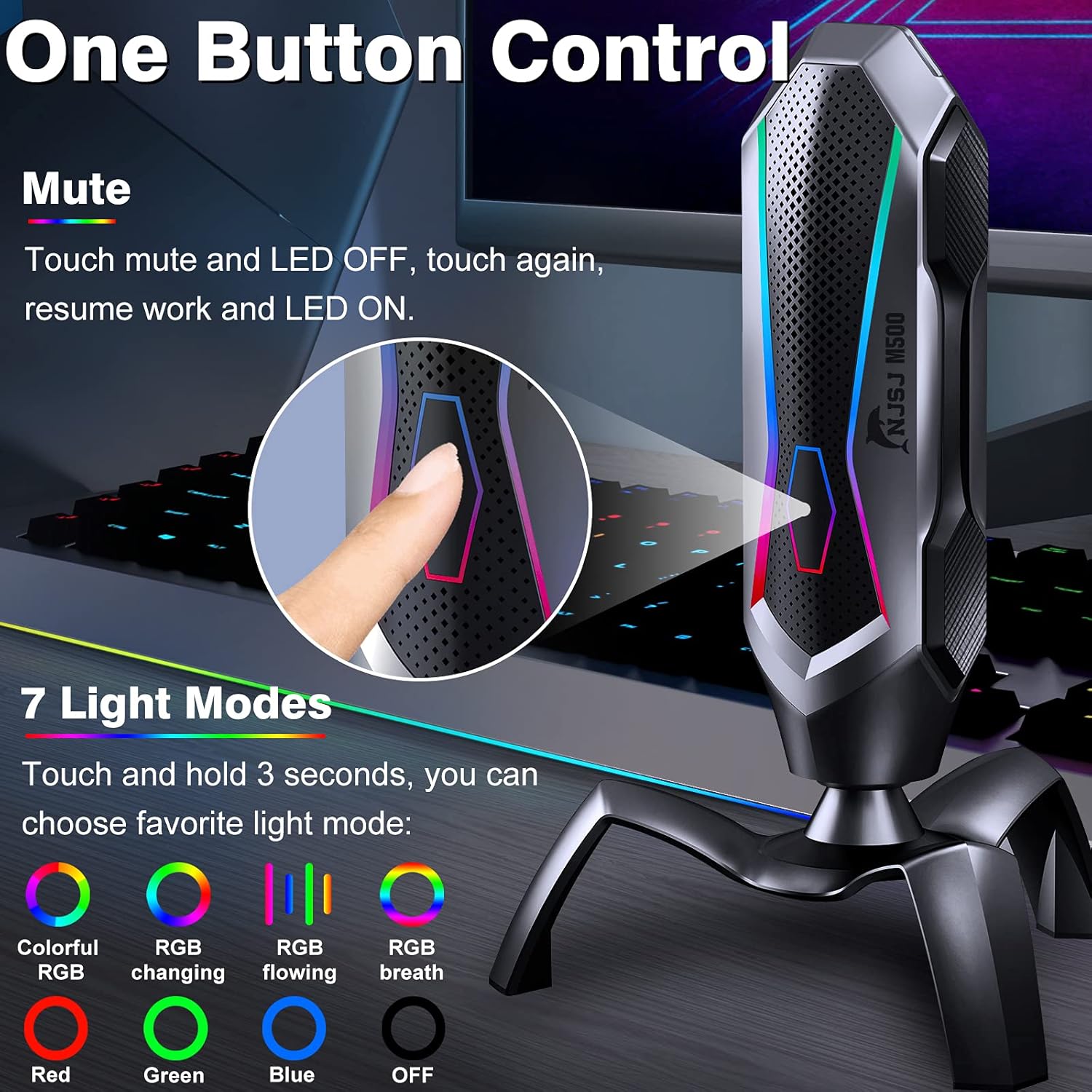
Figure 5: Mute and RGB Light Control
3. Cardioid Pickup Pattern
The NJSJ M500 features a cardioid pickup pattern, which primarily captures sound from the front of the microphone while minimizing sound from the sides and rear. This helps to reduce background noise and focus on your voice, providing clear and crisp audio for recordings and communication.

Figure 6: Cardioid Pickup Pattern
4. Adjustable Direction
The microphone can be rotated 360 degrees on its stand, allowing you to adjust the angle for optimal sound capture and comfort during use.

Figure 7: 360-Degree Adjustment
Video 2: Real User Test Video demonstrating RGB lighting and microphone use
Maintenance
To ensure the longevity and optimal performance of your NJSJ M500 microphone, follow these maintenance guidelines:
- Cleaning: Use a soft, dry cloth to wipe the microphone's exterior. Avoid using liquid cleaners or abrasive materials, as they may damage the finish or internal components.
- Storage: When not in use, store the microphone in a clean, dry place away from extreme temperatures, humidity, and direct sunlight.
- Handling: Handle the microphone with care. Avoid dropping it or subjecting it to strong impacts, which can affect its performance.
Troubleshooting
If you encounter issues with your NJSJ M500 microphone, refer to the following common problems and solutions:
- No Sound Output:
- Ensure the USB cable is securely connected to both the microphone and your device.
- Check your computer's or console's sound settings to confirm the NJSJ M500 is selected as the input device.
- Verify that the microphone is not muted (LED lights should be on).
- Try connecting the microphone to a different USB port or another device to rule out port or device-specific issues.
- Distorted or Low Sound Quality:
- Adjust the microphone's input level in your system's sound settings.
- Ensure the microphone is positioned correctly, not too far or too close to the sound source.
- Minimize background noise in your environment.
- Check for any software conflicts or audio enhancements that might be affecting sound quality.
- RGB Lights Not Working:
- Ensure the microphone is properly connected and receiving power.
- If the microphone is muted, the lights will be off. Unmute the microphone.
- Cycle through the RGB lighting modes by touching and holding the mute button for 3 seconds.
Specifications
| Feature | Specification |
|---|---|
| Brand | NJSJ |
| Model Number | M500 |
| Connectivity Technology | USB |
| Connector Type | USB |
| Polar Pattern | Unidirectional (Cardioid) |
| Microphone Form Factor | Table Array |
| Recommended Uses | Gaming, Singing, Streaming |
| Compatible Devices | Personal Computer (PC, Mac, PS4) |
| Special Feature | Stand, RGB LED Effect Lights, Mute Control |
| Audio Sensitivity | 45 Decibels |
| Audible Noise | 95 Decibels |
| Item Dimensions (L x W x H) | 6.06 x 5.47 x 9.02 inches (approx. 15.4 x 13.9 x 22.9 cm) |
| Enclosure Material | Metal |
Warranty Information
The NJSJ M500 USB Gaming Microphone comes with a warranty. Please refer to the included warranty card in your product packaging for specific terms, conditions, and duration of the warranty. Keep your proof of purchase for any warranty claims.
Customer Support
If you require further assistance, have questions not covered in this manual, or experience issues with your NJSJ M500 microphone, please contact NJSJ customer support. Contact details can typically be found on the official NJSJ website or on the warranty card provided with your product.