
ninetom e4071252-3d4e-4e31-84d5-bcbde88ace4d
ninetom Wireless CarPlay Retrofit Kit Decoder Instruction Manual
For BMW X1/X3/X4/X5/X6 with NBT/ID4 System (2013-2016)
1. Product Overview
The ninetom Wireless CarPlay Retrofit Kit Decoder integrates Apple CarPlay and Android Auto functionalities into your compatible BMW vehicle's existing NBT/ID4 infotainment system. This system allows for seamless use of smartphone features such as navigation, music, calls, and messages directly on your car's display, utilizing original vehicle controls.
The kit is designed for non-destructive installation, preserving all original vehicle functions and interior aesthetics. It supports both wireless CarPlay and wired Android Auto, along with mirror link capabilities and integration with existing or aftermarket camera systems.

Image 1.1: ninetom Wireless CarPlay Retrofit Kit Decoder and integrated display in a BMW interior.
2. Compatibility
This Wireless CarPlay Retrofit Kit Decoder is compatible with specific BMW models and years equipped with the NBT/ID4 infotainment system. It is not compatible with CIC or EVO systems.
Compatible BMW Models and Years (NBT System):
- BMW 1/2/3/4/5/6/7 Series: F01, F02, F3, F06, F07, F10, F11, F12, F13, F15, F16, F18, F20, F21, F22, F25, F26, F30, F32, F33, F34, F36, F48, F80, F85, F86 (2012-2016)
- BMW X1, X3, X4, X5, X6 Series (2013-2016)
To confirm your car's system, please refer to the images below. If you are unsure, consult a professional or contact customer support with pictures of your car's infotainment system.
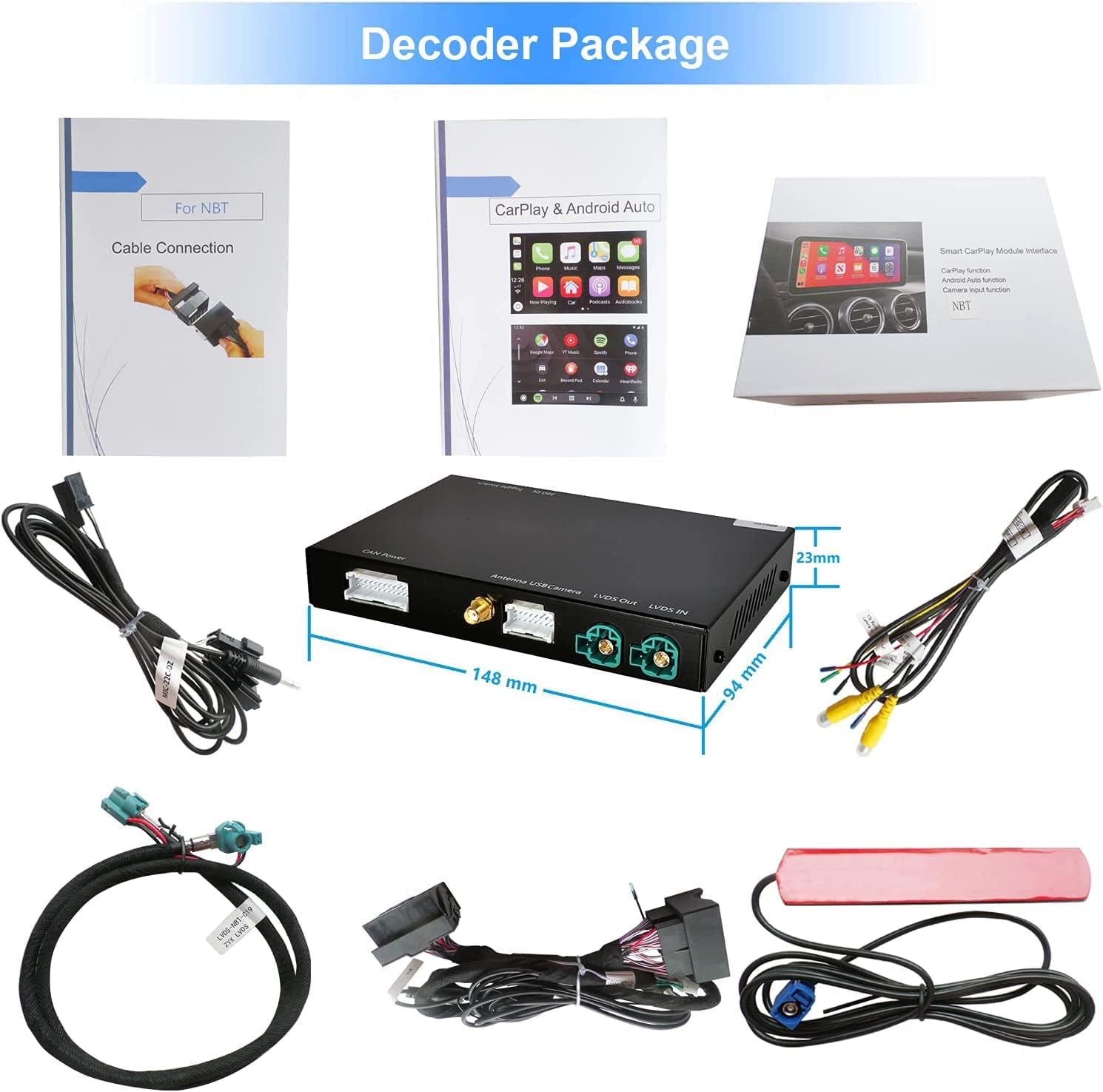
Image 2.1: Compatibility chart for BMW models and years with NBT system.

Image 2.2: Visual guide for identifying BMW CIC, NBT, and EVO systems.
3. What's in the Box
The ninetom Wireless CarPlay Retrofit Kit Decoder package includes the following components:
- Decoder box
- Power cable
- LVDS cable
- RCA cable
- WIFI antenna
Image 3.1: All components included in the decoder package.
4. Installation
The installation process is designed to be non-destructive, utilizing original car wiring and connections. No cutting or breaking of wires is required. It is recommended to watch the provided installation video before beginning.
4.1 Disassembly Process
The following video demonstrates the initial steps of disassembling the car's dashboard components to access the head unit. This typically involves carefully prying off trim pieces and unscrewing the main head unit.
Video 4.1: Detailed steps for disassembling the car's dashboard to prepare for the CarPlay retrofit kit installation.
Key Disassembly Steps:
- Carefully use a plastic pry tool to remove the trim surrounding the air vents and infotainment screen.
- Unscrew and remove the air vent assembly.
- Unscrew and gently pull out the climate control panel. Disconnect its wiring harness.
- Unscrew and carefully slide out the main head unit (CD player/radio unit). Disconnect all existing wiring harnesses from the rear of the head unit.
Important Note: When installing the new MMI unit, it is often easier to place it behind the dash screen rather than attempting to fit it behind the original head unit, as there is typically more space available there. Ensure all fiber optic cables are transferred correctly if present in your original setup.
5. Setup and Connection
After physical installation, connect your smartphone to the retrofit kit for wireless CarPlay or wired Android Auto functionality.
5.1 Wireless CarPlay Connection
To establish a wireless CarPlay connection, follow these steps:
- Ensure your iPhone's Wi-Fi and Bluetooth are enabled.
- On your iPhone, go to Bluetooth settings and search for available devices.
- Select the device named "AutoKit_XXXX" (where XXXX is a unique identifier) and pair with it. Confirm the pairing code if prompted.
- Once paired via Bluetooth, your iPhone will prompt you to use CarPlay with "AutoKit". Select "Use CarPlay".
- The CarPlay interface should now appear on your car's screen.
Video 5.1: Demonstration of connecting an iPhone to the Wireless CarPlay Retrofit Kit Decoder via Bluetooth and Wi-Fi.
5.2 Wired Android Auto Connection
For Android Auto, connect your Android smartphone to the kit's USB port using a high-quality USB cable. Ensure the Android Auto app is installed on your phone.

Image 5.2: Apple CarPlay and Android Auto interfaces.
6. Operating Instructions
The retrofit kit allows you to control CarPlay and Android Auto using your vehicle's original controls, including the iDrive controller, steering wheel buttons, and voice commands.
6.1 Core Functions
- Navigation: Use Apple Maps, Google Maps, or other compatible navigation apps for turn-by-turn directions.
- Music & Media: Play music from your phone's library or streaming services.
- Phone Calls: Make and receive calls hands-free.
- Messages: Send and receive messages using voice commands.
- Voice Control: Activate Siri (for CarPlay) or Google Assistant (for Android Auto) for voice-activated commands. Note: When using Siri, it is recommended to turn off the car's Bluetooth to avoid conflicts.
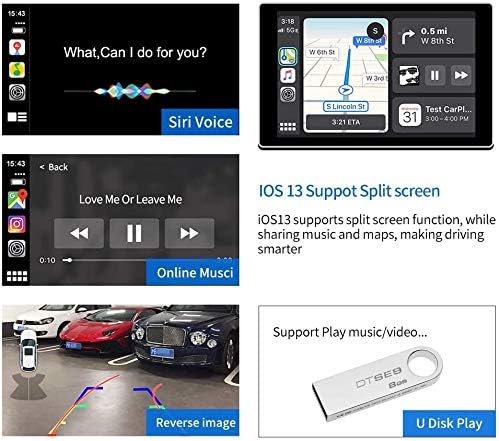
Image 6.1: Examples of CarPlay functions: Siri voice control, navigation, music playback, and reverse camera view.
6.2 Control Methods
The system supports control via:
- Steering Wheel Buttons: Use existing steering wheel controls for audio, calls, and voice commands.
- iDrive Controller: Navigate menus and select options using the original iDrive knob.
- Voice Operation: Utilize Siri or Google Assistant for hands-free control.

Image 6.2: Various control methods for the CarPlay/Android Auto system.
6.3 Mirror Link Function
The kit supports screen mirroring (AirPlay for iPhone, AutoLink for Android) to display your phone's screen content directly on the car's display. This allows for viewing videos, photos, and other applications not natively supported by CarPlay/Android Auto.
6.4 USB Media Playback
Connect a USB flash drive to the kit's USB port to play music and videos directly through the system.

Image 6.3: Mirror Link and USB media playback features.
6.5 Camera Integration
The system supports integration with:
- Original reversing camera and parking radar.
- Aftermarket reversing cameras.
- Front camera DVR (CVBS input).
When the vehicle is in reverse, the camera view will automatically display on the screen.

Image 6.4: CarPlay main interface with various application icons.
7. Troubleshooting
This section addresses common issues and provides solutions.
7.1 Connectivity Issues
- Wireless CarPlay/Android Auto not connecting:
- Ensure your phone's Bluetooth and Wi-Fi are enabled.
- Verify that the correct "AutoKit_XXXX" device is paired in your phone's Bluetooth settings.
- Try restarting both your phone and the car's infotainment system.
- Disconnect your phone from the BMW factory Bluetooth to prevent conflicts. - Intermittent Bluetooth disconnection during calls:
- This can sometimes be resolved by restarting the system or ensuring no other Bluetooth devices are interfering.
7.2 Display and Audio Problems
- No display or incorrect display:
- Double-check all cable connections, especially the LVDS cable, to ensure they are securely seated.
- Confirm that your vehicle's infotainment system is set to the correct input source for the retrofit kit. - Loss of original car functions (e.g., Head-Up Display, trip info):
- This often indicates that a fiber optic cable was not correctly transferred or reconnected during installation. Carefully review the installation steps and ensure all original connections are restored. - Poor audio quality:
- Ensure the audio output settings on your phone and the car's system are correctly configured.
7.3 General Issues
- System slow to boot up:
- This can occasionally occur. Ensure your phone's operating system and the kit's firmware (if applicable) are up to date. - Difficulty with physical installation:
- If you are not confident with the installation process, it is recommended to seek assistance from a qualified auto repair shop.
8. Specifications
| Feature | Specification |
|---|---|
| Item Weight | 2.82 pounds |
| Package Dimensions | 8.98 x 6.89 x 4.33 inches |
| Model Number | e4071252-3d4e-4e31-84d5-bcbde88ace4d |
| Connectivity Technology | Bluetooth, Wi-Fi |
| Controller Type | Android (compatible with iOS via CarPlay) |
| Special Feature | Built-In Bluetooth |
| Compatible Devices | Smartphone, iPhone |
| Connector Type | USB |
| Audio Output Mode | Stereo |
| Surround Sound Channel Configuration | 4.0 |
| Video Encoding | H.264, H.265/HEVC, MPEG-4 |
9. Warranty and Support
The ninetom Wireless CarPlay Retrofit Kit Decoder comes with a one-year free warranty.
For installation assistance, troubleshooting, or any other inquiries, please contact customer support. You may also receive a link to an installation video after purchase. If professional installation is preferred, consult a qualified auto repair shop.
Related documentse4071252-3d4e-4e31-84d5-bcbde88ace4d


Ask a question about this manual
Ask about setup, troubleshooting, compatibility, parts, safety, or missing instructions. Manuals+ will review the question and use this page’s manual context to help answer it.