
1. Introduction
Thank you for purchasing the T-Wolf V1 USB RGB Mouse. This wired ergonomic mouse is designed for comfortable and precise control, suitable for various computing environments. It features a 1200 DPI optical sensor, durable switches, and a classic design with RGB lighting effects to enhance your desktop experience.
2. Package Contents
Please check the package contents carefully. If any items are missing or damaged, contact your retailer.
- 1 x T-Wolf V1 USB RGB Mouse
- 1 x User Manual (this document)
3. Setup
Setting up your T-Wolf V1 mouse is straightforward. Follow these steps to connect it to your computer:
- Locate an available USB port on your desktop computer or laptop.
- Insert the USB connector of the T-Wolf V1 mouse firmly into the USB port.
- Your operating system should automatically detect and install the necessary drivers. This process may take a few moments.
- Once the installation is complete, the mouse will be ready for use, and its RGB lighting will illuminate.

Figure 3.1: T-Wolf V1 USB RGB Mouse with its packaging, illustrating the product's appearance and connection type.
4. Operating Instructions
The T-Wolf V1 mouse is designed for intuitive use. Here are the basic operating functions:
- Left Click: Use the left button for selecting items, opening files, and interacting with on-screen elements.
- Right Click: Use the right button to open context menus, providing additional options for selected items.
- Scroll Wheel: Roll the scroll wheel up or down to navigate through documents and web pages. Pressing the scroll wheel typically acts as a middle click, which can open links in new tabs or enable auto-scrolling depending on the application.
- Movement: Move the mouse across a flat surface to control the cursor on your screen. The 1200 DPI sensor provides accurate tracking.
- RGB Lighting: The mouse features integrated RGB lighting that cycles through various colors, providing an aesthetic enhancement to your setup. This lighting is automatic and does not require additional configuration.
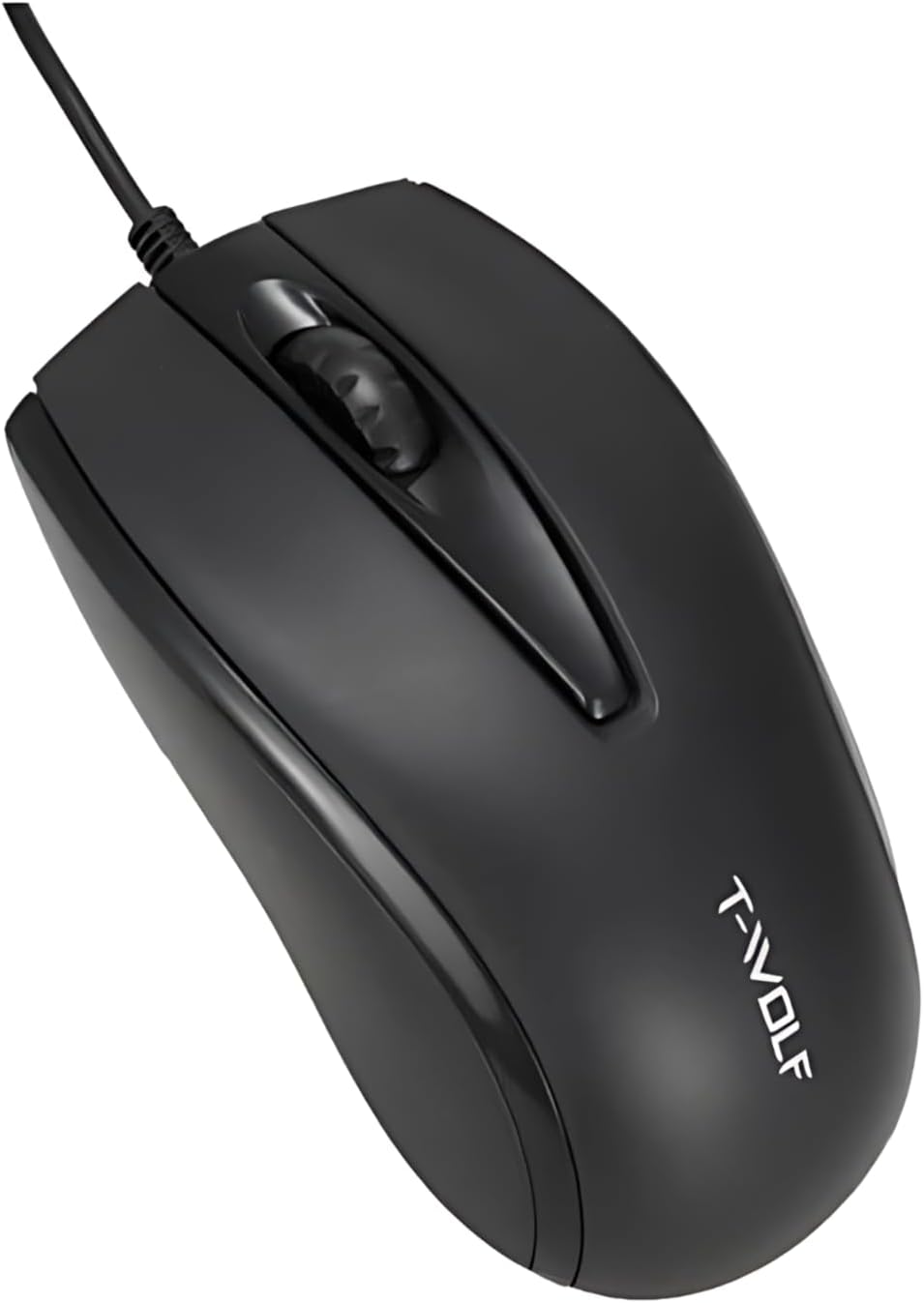
Figure 4.1: Top view of the T-Wolf V1 mouse, highlighting the left, right, and scroll wheel buttons.
5. Maintenance
Proper maintenance will ensure the longevity and optimal performance of your T-Wolf V1 mouse.
- Cleaning: Use a soft, dry, lint-free cloth to wipe the surface of the mouse. For stubborn dirt, slightly dampen the cloth with water or a mild cleaning solution. Avoid using harsh chemicals, abrasive cleaners, or spraying liquids directly onto the mouse.
- Sensor Cleaning: Occasionally, dust or debris may accumulate around the optical sensor on the bottom of the mouse. Use a cotton swab or compressed air to gently clean the sensor area.
- Storage: When not in use for extended periods, store the mouse in a clean, dry environment away from direct sunlight and extreme temperatures.
- Cable Care: Avoid bending or twisting the USB cable excessively, as this can damage the internal wires.
6. Troubleshooting
If you encounter any issues with your T-Wolf V1 mouse, please refer to the following common problems and solutions:
- Mouse not responding:
- Ensure the USB cable is securely plugged into a working USB port on your computer.
- Try plugging the mouse into a different USB port.
- Restart your computer.
- Test the mouse on another computer to determine if the issue is with the mouse or your computer's USB ports.
- Cursor erratic or not moving smoothly:
- Clean the optical sensor on the bottom of the mouse (refer to Section 5: Maintenance).
- Ensure you are using the mouse on a clean, non-reflective, and uniform surface (e.g., a mouse pad). Avoid glass or highly reflective surfaces.
- Check for any physical obstructions around the sensor.
- Buttons not clicking or scroll wheel not working:
- Ensure no debris is lodged under the buttons or around the scroll wheel.
- If the issue persists after cleaning and restarting the computer, the mouse may require service.
- RGB lighting not working:
- Ensure the mouse is properly connected to your computer.
- The RGB lighting is automatic and does not have user-configurable settings. If it's not lighting up, it might indicate a power issue or a fault with the mouse.
7. Specifications
The following are the technical specifications for the T-Wolf V1 USB RGB Mouse:
| Brand | Generic |
| Model Number | V1 |
| Connectivity Technology | Wired, USB |
| DPI Resolution | 1200 DPI |
| Number of Buttons | 3 |
| Hand Orientation | Ambidextrous |
| Material | Plastic |
| Color | Black |
| Item Weight | 2.89 ounces (approx. 82 grams) |
| Package Dimensions | 7.28 x 3.23 x 1.57 inches |
8. Warranty and Support
No specific warranty information is provided for the T-Wolf V1 USB RGB Mouse in the product details. For any support inquiries, technical assistance, or warranty claims (if applicable), please contact the retailer or point of purchase where you acquired this product. They will be able to provide the most accurate and up-to-date information regarding product support and return policies.