
1. Introduction
This manual provides detailed instructions for the installation, operation, and maintenance of your JeaTone Wireless Wired Video Doorbell Intercom System. This system is designed to enhance your home security and communication by allowing you to see, hear, and speak with visitors at your door, as well as remotely unlock your door via a mobile application. Please read this manual thoroughly before installation and use to ensure proper functionality and safety.

Image 1.1: JeaTone Video Doorbell Intercom System Components
2. Product Overview and Features
The JeaTone Video Doorbell Intercom System combines a 7-inch indoor monitor with an AHD outdoor camera, offering comprehensive surveillance and communication capabilities. Key features include:
- 7-inch TFT Display Monitor: High-resolution screen for clear viewing.
- 720P AHD Outdoor Camera: Provides clear video with a 110° wide viewing angle.
- Night Vision: Equipped with 24 IR LEDs for clear images up to 65ft in low light conditions.
- IP65 Weatherproof Doorbell: Designed to withstand various weather conditions (dust-proof, anti-vandal).
- Two-Way Communication: Speak with visitors at the door and communicate between indoor monitors.
- Tuya Smart APP Integration: Receive notifications, view live feed, communicate, and remotely unlock doors from your smartphone.
- Motion Detection: Automatically captures snapshots or records video when motion is detected.
- Recording and Snapshot: Supports Micro SD card (up to 32GB) for storing video recordings and snapshots.
- Multi-Device Support: Connects up to 2 call panels, 6 indoor monitors, and 2 additional cameras or PIR detectors.

Image 2.1: System Features and Basic Connectivity
3. Setup
3.1 Package Contents
Verify that all components are present in your package:
- 7-inch Indoor Monitor
- Outdoor Doorbell Camera
- Mounting Brackets and Screws
- Power Adapter (DC12V)
- Wiring Cables
- User Manual
3.2 Wiring Diagram
The system uses a 4-wire connection between the outdoor doorbell and the indoor monitor for stable power and video transmission. The indoor monitor connects to your home Wi-Fi network for smartphone integration.

Image 3.1: Multi-Device Wiring Configuration
3.3 Installation Steps
- Mount the Outdoor Doorbell: Choose a suitable location near your door, ensuring it is at an appropriate height for visitors and protected from direct heavy rain if possible (though it is IP65 weatherproof). Use the provided mounting bracket and screws to secure the doorbell.
- Connect Wiring: Run the 4-wire cable from the outdoor doorbell to the desired location of the indoor monitor. Connect the wires according to the diagram provided in the full product packaging. Ensure all connections are secure.
- Mount the Indoor Monitor: Install the indoor monitor at a convenient location inside your home. Connect the 4-wire cable from the doorbell to the monitor.
- Power On: Connect the DC12V power adapter to the indoor monitor and plug it into a power outlet. The system will power on.
3.4 Wi-Fi and Tuya App Connection
- Download Tuya Smart App: Search for "Tuya Smart" in your smartphone's app store (iOS or Android) and download the application.
- Register/Log In: Open the Tuya Smart app and create a new account or log in with an existing one.
- Add Device: Follow the in-app instructions to add a new device. Select "Video Surveillance" > "Smart Doorbell" or similar category.
- Connect Monitor to Wi-Fi: On the indoor monitor, navigate to the Wi-Fi settings. Select your home Wi-Fi network and enter the password. Ensure the monitor is connected to a 2.4GHz Wi-Fi network.
- Pair with App: The app will guide you through the pairing process, which may involve scanning a QR code displayed on the monitor or using an AP mode connection.
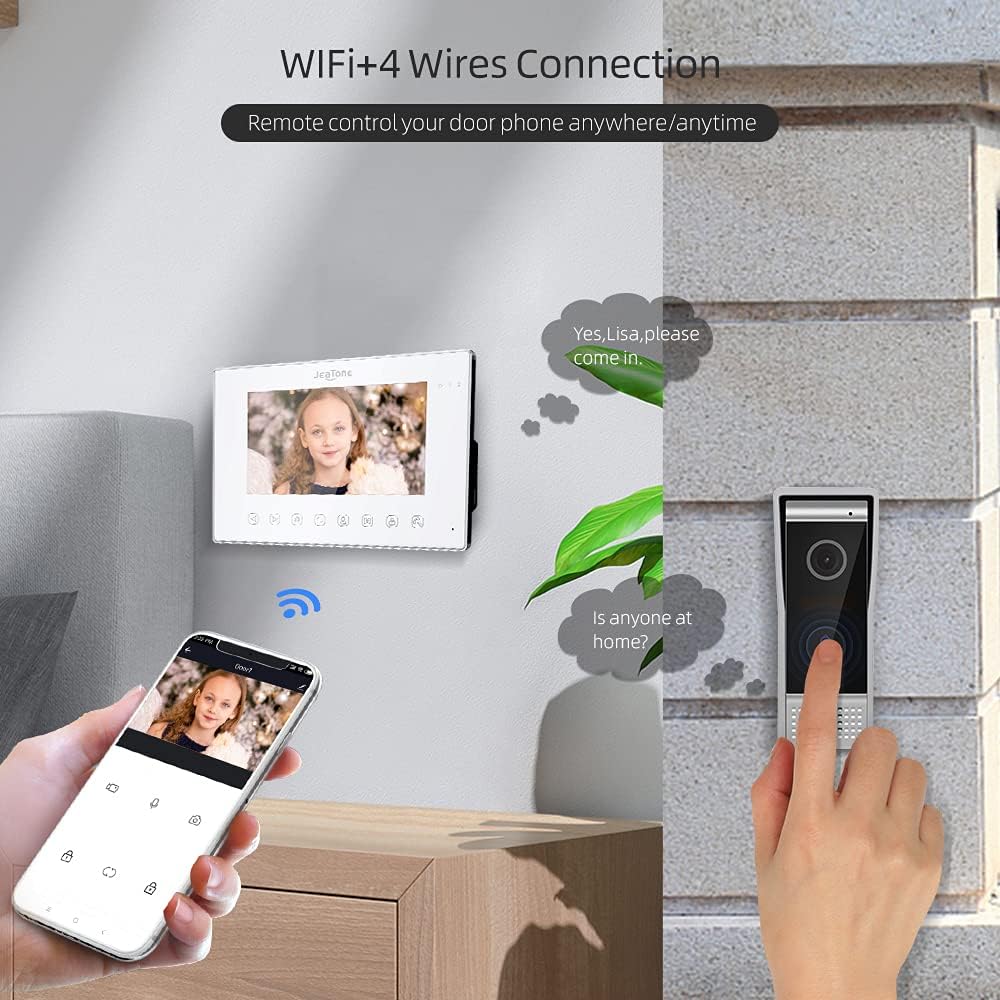
Image 3.2: Remote Control via Tuya App
4. Operating Instructions
4.1 Answering Calls
When a visitor presses the doorbell button:
- The indoor monitor will ring and display the visitor's image.
- Your smartphone, if connected via the Tuya app, will receive a notification and allow you to answer the call remotely.
- Press the "Answer" button on the monitor or in the app to establish two-way communication.
4.2 Two-Way Communication
After answering a call, you can speak with the visitor through the monitor's microphone and speaker, or directly through your smartphone app.
4.3 Door Release
If an electronic lock is connected to the system, you can unlock the door:
- From the indoor monitor: Press the "Unlock" button during a call or while monitoring.
- From the Tuya app: Tap the "Unlock" icon in the live view interface.
4.4 Monitoring
You can view the live feed from the outdoor camera at any time:
- On the indoor monitor: Press the "Monitor" button to view the outdoor camera feed.
- On the Tuya app: Open the app and select your doorbell device to access the live view.

Image 4.1: Outdoor Camera Day and Night Vision
4.5 Motion Detection
The outdoor camera features motion detection. When motion is detected:
- The system will automatically take a snapshot or record a short video.
- These recordings are saved to the Micro SD card inserted in the indoor monitor.
- You can review these events via the indoor monitor or through the Tuya app.
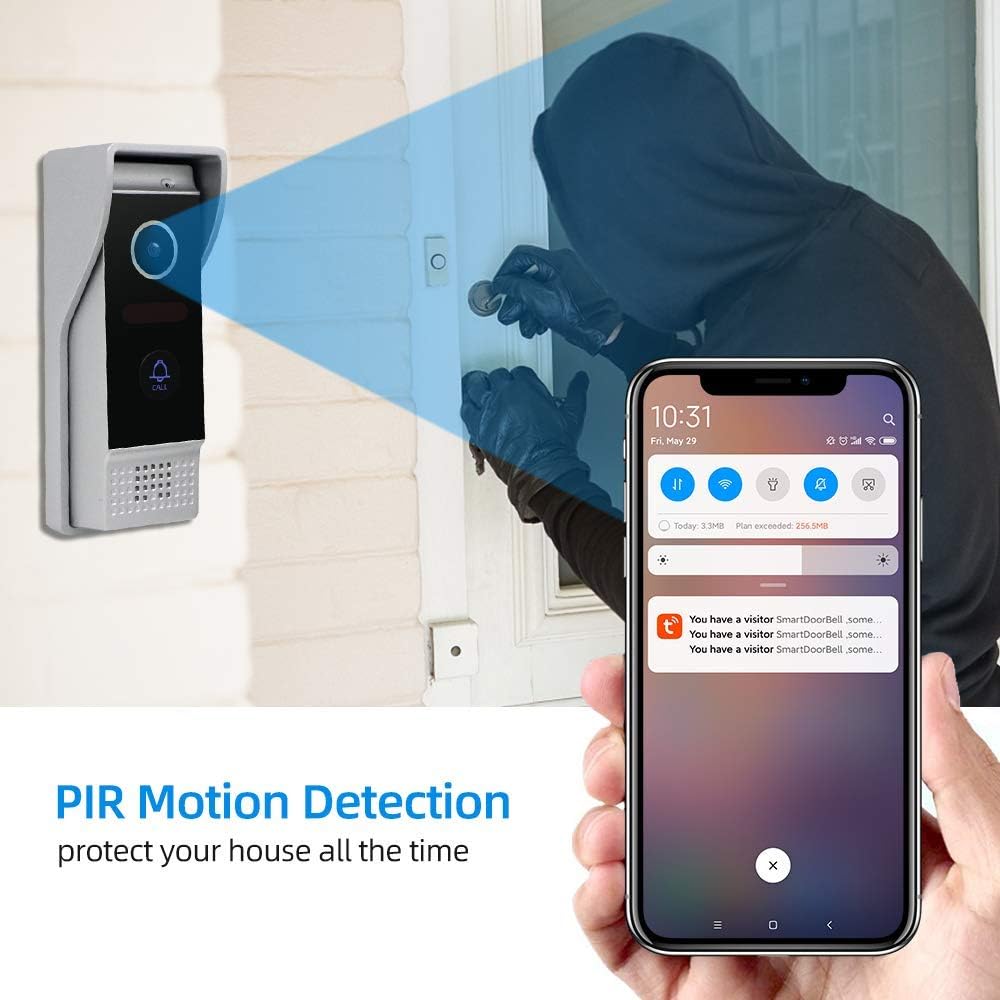
Image 4.2: PIR Motion Detection Notification
4.6 Inter-Monitor Communication (Call Transfer)
If you have multiple indoor monitors connected, you can transfer calls between them:
- During an active call with a visitor, select the "Transfer" option on the monitor.
- Choose the target indoor monitor to transfer the call.

Image 4.3: Call Transfer Functionality Across Multiple Monitors
5. Maintenance
- Cleaning: Use a soft, dry cloth to clean the indoor monitor and outdoor camera. Avoid abrasive cleaners or solvents.
- SD Card Management: Periodically check the Micro SD card for storage space. Format the card or delete old recordings as needed to ensure continuous recording.
- Firmware Updates: Check the Tuya Smart app or JeaTone's official website for any available firmware updates to ensure optimal performance and security.

Image 5.1: IP65 Weatherproof Outdoor Unit
6. Troubleshooting
| Problem | Possible Cause | Solution |
|---|---|---|
| No image on monitor | Loose wiring connection; Power issue; Camera malfunction. | Check all 4-wire connections between doorbell and monitor. Ensure monitor is powered on. Contact support if issue persists. |
| No sound during communication | Microphone/speaker muted; Volume too low; Wiring issue. | Check volume settings on monitor/app. Ensure microphone is not muted. Verify wiring. |
| Cannot connect to Wi-Fi | Incorrect Wi-Fi password; Router too far; 5GHz network selected. | Double-check Wi-Fi password. Ensure monitor is within Wi-Fi range. Confirm router is 2.4GHz compatible. |
| Tuya app not receiving notifications | App permissions denied; Phone's notification settings; App not running in background. | Enable notifications for Tuya Smart app in phone settings. Ensure app has necessary permissions. Check internet connection. |
| Door unlock not working | Electronic lock not connected correctly; Lock malfunction. | Verify wiring to the electronic lock. Test the electronic lock independently. |
7. Specifications
| Feature | Detail |
|---|---|
| Model Number | US-86M714WP203B1 |
| Indoor Monitor Size | 7 inches TFT Display |
| Outdoor Camera Resolution | 720p AHD |
| Viewing Angle | 110° |
| Night Vision | 24 IR LEDs, 65ft range |
| Weatherproof Rating | IP65 |
| Connectivity | 4-wire (doorbell to monitor), Wi-Fi (monitor to network) |
| App Support | Tuya Smart (iOS/Android) |
| Storage | Micro SD card (up to 32GB) |
| Power Source | DC12V Corded Electric |
| Mounting Type | Surface Mount |
| Product Dimensions | 23.8 x 14.4 x 1.8 cm (Monitor) |
8. Warranty and Support
JeaTone products are designed for reliability and performance. For warranty information, please refer to the documentation included with your purchase or visit the official JeaTone website. For technical support, troubleshooting assistance, or inquiries, please contact JeaTone customer service through the contact information provided on their official website or through your retailer.


