
FLEXISPOT MAH0002191
FLEXISPOT Pro Corner Electric Standing Desk Instruction Manual
Model: MAH0002191
Introduction
This manual provides detailed instructions for the assembly, operation, and maintenance of your FLEXISPOT Pro Corner Electric Standing Desk. Please read this manual thoroughly before assembly and use to ensure safe and correct operation. Keep this manual for future reference.
Safety Information
- Ensure all components are present and undamaged before assembly. Do not use if any parts are missing or broken.
- Assembly requires at least two people due to the weight and size of the components.
- Keep children and pets away from the desk during operation.
- Ensure there are no obstructions in the desk's path during height adjustment.
- Do not sit or stand on the desk. The maximum weight capacity is 220 lbs.
- Only use the provided power adapter.
- Disconnect power before cleaning or maintenance.
Package Contents
Your FLEXISPOT Pro Corner Electric Standing Desk arrives in two separate packages. Please verify all parts are included before beginning assembly.
- L-shaped Desktop (Splice Board)
- Desk Frame (Dual Motor Lift System)
- Control Pad with USB Charger
- Assembly Tools
- Power Adapter and Cables
- Instruction Manual

Image: All components of the FLEXISPOT Pro Corner Electric Standing Desk laid out, including the L-shaped desktop, dual motor frame, and control panel.
Assembly Instructions
Follow these steps carefully for proper assembly. It is recommended to have two people for certain steps, especially when handling the desktop and flipping the assembled desk.
Step 1: Unpack and Identify Parts
Carefully unpack all contents from both boxes. Refer to the package contents list to ensure all parts are present. Lay out all components on a clean, soft surface to prevent scratches.

Image: Illustration showing the desk components arriving in two separate packages.
Step 2: Assemble the Desk Frame
Connect the various parts of the steel frame according to the diagrams provided in the included paper manual. Ensure all screws are tightened securely. The dual motor system should be integrated into the frame structure.
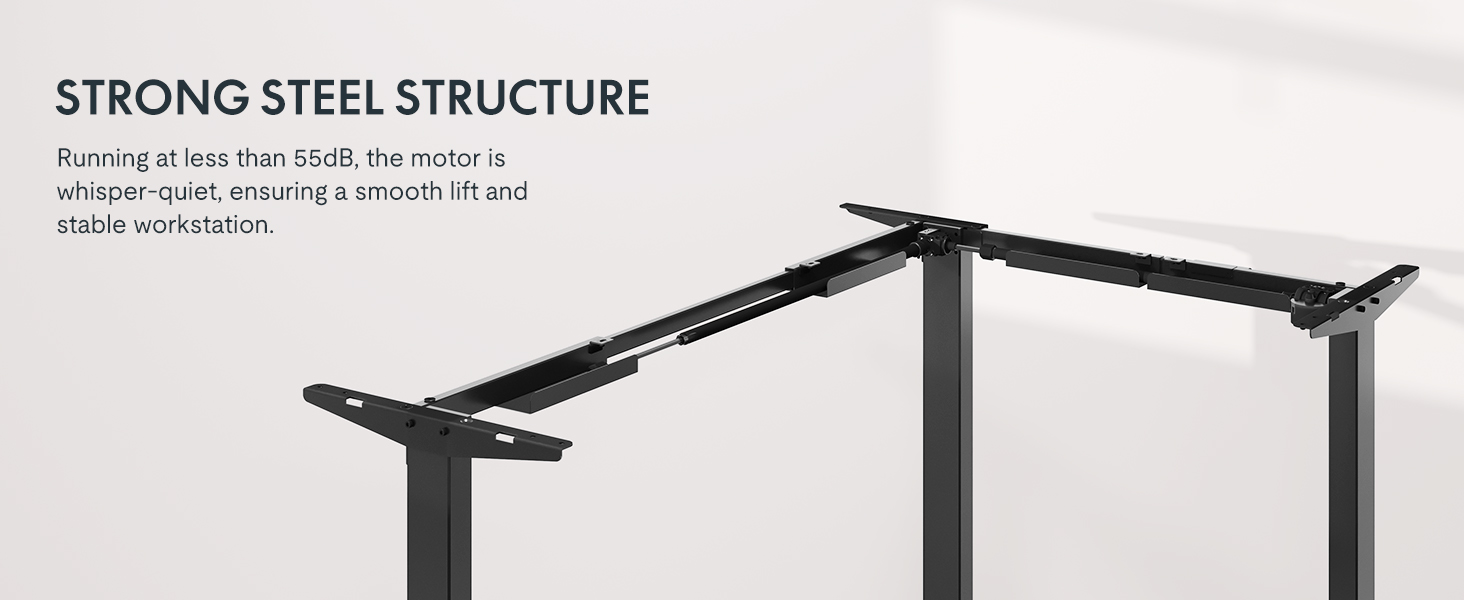
Image: Diagram illustrating the strong steel structure and dual motor system of the desk frame.
Step 3: Attach the Desktop
Place the L-shaped desktop upside down on a soft, protected surface. Position the assembled frame onto the desktop, aligning the pre-drilled holes. Secure the frame to the desktop using the provided screws. Note that the L-shape is reversible, allowing for left-hand or right-hand configuration. Choose your desired orientation before securing the desktop.

Image: The L-shaped desk shown with both left and right configurations, highlighting its reversible design.
Step 4: Install the Control Panel
Mount the control panel to the underside of the desktop in a convenient location. Connect the control panel cable to the motor control box as indicated in the wiring diagram. Ensure all connections are secure.

Image: Close-up of the advanced LED control panel with up/down movement buttons, height memory presets, sit/stand reminder, and a USB charger port.
Step 5: Connect Power and Position the Desk
With assistance, carefully flip the assembled desk upright and move it to its desired location. Connect the power adapter to the control box and then plug it into a wall outlet. Ensure cables are managed to prevent snagging during height adjustments.
Operating Instructions
Height Adjustment
- Use the ▲ and ▼ arrows on the control panel to adjust the desk height. The desk will move smoothly between 28.9 inches and 48.2 inches.
- The current height is displayed on the LED screen.

Image: The desk shown at its minimum (28 inches) and maximum (47.2 inches) adjustable heights, demonstrating its versatility for sitting and standing positions.
Memory Presets
- The control panel features three memory settings (1, 2, 3) to store your preferred sitting and standing heights.
- To save a height: Adjust the desk to your desired height, then press the 'M' button followed by the desired number button (1, 2, or 3). The display will show "S-" and then the number, indicating the height is saved.
- To recall a saved height: Press the corresponding number button (1, 2, or 3). The desk will automatically move to the saved position.
Sit/Stand Reminder
- The control panel includes a sit/stand reminder function. Press the 'A' button to activate or deactivate this feature. Refer to the detailed instructions in the included paper manual for setting reminder intervals.
USB Charging Port
- A USB charging port is integrated into the control panel for convenient charging of small electronic devices.
Anti-Collision Feature
- The desk is equipped with an anti-collision system. If the desk encounters an obstruction during height adjustment, it will automatically stop and reverse slightly to prevent damage.
Image: Illustration showing the anti-collision feature, where the desk stops and rebounds upon encountering an obstacle.
Maintenance
- Regularly wipe the desktop and frame with a soft, damp cloth. Avoid abrasive cleaners or solvents.
- Check all screws and connections periodically to ensure they remain tight.
- Keep the area around the desk legs clear of dust and debris to ensure smooth operation of the lifting mechanism.
- Do not attempt to lubricate the motor or internal components.
Troubleshooting
| Problem | Possible Cause | Solution |
|---|---|---|
| Desk does not move. | Power cable disconnected, motor overload, or control panel error. | Check power connections. Unplug and replug the desk after 30 seconds. Reduce weight on the desk if overloaded. Consult the full manual for specific error codes. |
| Desk moves unevenly or makes unusual noises. | Loose connections, uneven weight distribution, or obstruction. | Ensure all screws are tight. Redistribute weight evenly on the desktop. Check for any obstructions under or around the desk. |
| Memory presets not working. | Incorrect saving procedure. | Refer to the "Memory Presets" section in Operating Instructions to correctly save heights. |
Specifications
| Feature | Detail |
|---|---|
| Model Number | MAH0002191 |
| Product Dimensions | 63"D x 39.4"W x 28.9"H |
| Height Adjustment Range | 28.9" to 48.2" (including 1" desktop thickness) |
| Maximum Weight Capacity | 220 lbs |
| Motor Type | Dual Motor |
| Noise Level | Under 50 dB |
| Desktop Material | Wood (Splice Board) |
| Frame Material | Industrial-grade Steel |
| Control Panel Features | LED display, 3 memory presets, Sit/Stand reminder, USB charging port |
| Assembly Required | Yes (Recommended 2 people) |
Warranty and Support
FLEXISPOT provides the following warranty coverage for your product:
- 5-Year Coverage: Desk frame and motor.
- 2-Year Coverage: Control panel and electronics.
For customer support, please contact FLEXISPOT directly or refer to the contact information provided with your purchase documentation. You can also visit the official FLEXISPOT store for more information and assistance.
Seller: FlexiSpot
Ask a question about this manual
Ask about setup, troubleshooting, compatibility, parts, safety, or missing instructions. Manuals+ will review the question and use this page’s manual context to help answer it.