
MSI B560M PRO-VDH WIFI
MSI B560M PRO-VDH WiFi Motherboard User Manual
Model: B560M PRO-VDH WIFI | Brand: MSI
1. Introduction
This manual provides comprehensive instructions for the installation, operation, maintenance, and troubleshooting of your MSI B560M PRO-VDH WiFi motherboard. The PRO series motherboards are designed to deliver an efficient and productive experience with stable functionality and high-quality assembly, optimizing professional workflows and ensuring longevity.

Image: The MSI B560M PRO-VDH WiFi motherboard alongside its retail packaging, showcasing the product's design and branding.
2. Setup and Installation
Before beginning the installation process, ensure you have all necessary components and tools. It is recommended to work on a clean, static-free surface. Always handle the motherboard by its edges to prevent damage from static electricity.
2.1 Pre-Installation Checklist
- Compatible CPU (11th or 10th Gen Intel Core/Pentium/Celeron for LGA 1200 Socket)
- DDR4 RAM modules
- Storage devices (SATA SSD/HDD, M.2 SSD)
- Power Supply Unit (PSU)
- Computer Case
- Screwdriver, anti-static wrist strap (recommended)
2.2 Motherboard Layout
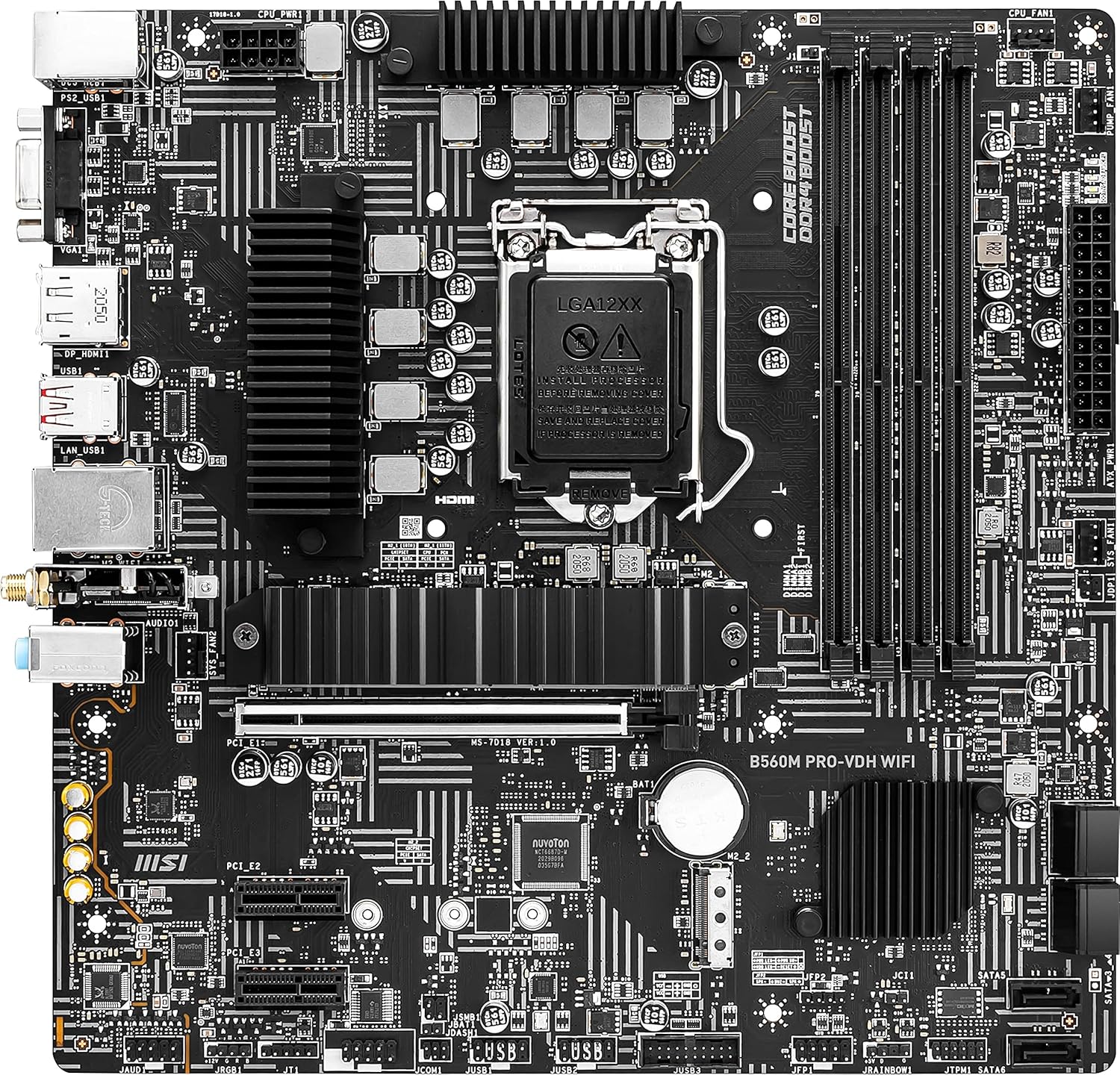
Image: A top-down view of the MSI B560M PRO-VDH WiFi motherboard, highlighting the various components and connectors such as the CPU socket, RAM slots, PCIe slots, and M.2 slots.
2.3 CPU Installation
Carefully open the CPU socket lever. Align the triangular mark on the CPU with the mark on the socket. Gently place the CPU into the socket without forcing it. Close the lever to secure the CPU.

Image: Close-up of the motherboard's CPU socket area, indicating compatibility with Intel Core processors and the B560 chipset.
2.4 Memory (RAM) Installation
Open the clips on both ends of the DDR4 memory slots. Align the notch on the memory module with the key in the slot. Press down firmly on both ends of the memory module until the clips snap into place.

Image: The motherboard with highlighted areas for Core Boost and DDR4 Boost, indicating optimized power delivery and memory performance.
2.5 Storage Installation (M.2 SSD)
Locate the M.2 slot(s) on the motherboard. Remove the M.2 Shield Frozr heatsink if present. Insert the M.2 SSD into the slot at an angle, then gently push it down and secure it with the provided screw or M.2 clip. Reattach the M.2 Shield Frozr for optimal thermal performance.

Image: A graph illustrating the performance difference of an M.2 SSD with and without the MSI M.2 Shield Frozr, demonstrating its effectiveness in preventing thermal throttling.
2.6 Expansion Card Installation (PCIe)
Insert your graphics card or other PCIe expansion cards into the appropriate PCIe slots. Ensure the card is fully seated and secured with the case's retention mechanism.
2.7 Connecting Peripherals and Power
Connect the 24-pin ATX power connector and the 8-pin CPU power connector from your PSU to the motherboard. Connect front panel headers (power button, reset, USB, audio) according to the motherboard manual. Connect your display, keyboard, mouse, and other peripherals to the rear I/O panel.

Image: A detailed view of the motherboard's rear input/output (I/O) panel, showing various ports including USB, Ethernet, DisplayPort, HDMI, and audio jacks.
3. Operating Instructions
Once all components are installed and connected, you can power on your system. The motherboard's BIOS/UEFI firmware allows for system configuration, and proper drivers are essential for optimal performance.
3.1 Initial Boot and BIOS Access
Upon first boot, the system may enter the BIOS automatically. To manually enter the BIOS, press the Delete key repeatedly during startup. The BIOS interface allows you to configure boot order, system time, fan speeds, and memory profiles (XMP).
3.2 Driver Installation
After installing your operating system, install the necessary drivers for the motherboard's components. These typically include chipset drivers, LAN drivers, audio drivers, and any specific drivers for integrated graphics or Wi-Fi. Drivers can be found on the MSI support website for your specific motherboard model.
3.3 Software Utilities
MSI provides various software utilities to enhance your system's performance and user experience. These may include MSI Center for system monitoring and control, Dragon Center (legacy), and other tools for managing RGB lighting or audio settings. Download these from the official MSI website.
4. Maintenance
Regular maintenance helps ensure the longevity and stable operation of your motherboard and overall system.
4.1 Cleaning Procedures
Periodically clean dust from inside your computer case, especially around the motherboard's heatsinks and fan areas. Use compressed air to gently blow away dust. Ensure the system is powered off and unplugged before cleaning.
4.2 Firmware (BIOS/UEFI) and Driver Updates
Keep your motherboard's BIOS/UEFI firmware and drivers updated to the latest versions. Updates often include performance improvements, bug fixes, and compatibility enhancements. Refer to the MSI support website for update instructions and files. Exercise caution when updating BIOS/UEFI, as improper procedures can lead to system instability.
5. Troubleshooting
This section provides solutions for common issues you might encounter with your MSI B560M PRO-VDH WiFi motherboard.
5.1 EZ Debug LED Indicators
The MSI B560M PRO-VDH WiFi motherboard features EZ Debug LEDs to help diagnose boot issues. These LEDs light up to indicate the status of key components during the boot process:
- CPU LED: Indicates CPU is not detected or failed.
- DRAM LED: Indicates DRAM is not detected or failed.
- VGA LED: Indicates graphics card is not detected or failed.
- BOOT LED: Indicates boot device is not detected or failed.
If an LED remains lit, it points to the component causing the boot failure.
5.2 Common Issues and Solutions
| Issue | Possible Cause | Solution |
|---|---|---|
| No Power / No Boot | Loose power cables, faulty PSU, incorrect front panel connections. | Check all power connections (24-pin, 8-pin CPU). Verify front panel header connections. Test PSU. |
| No Display | Graphics card not seated, monitor cable loose, incorrect display output. | Reseat graphics card. Ensure display cable is connected to the graphics card (not motherboard if discrete GPU is used). Try different display output. |
| System Instability / Crashes | Overheating, faulty RAM, outdated drivers, unstable overclock. | Check CPU/GPU temperatures. Test RAM modules. Update drivers. Reset BIOS to default settings. |
| Network Connectivity Issues | Missing LAN/Wi-Fi drivers, faulty cable, incorrect network settings. | Install/update LAN/Wi-Fi drivers. Check Ethernet cable. Verify Wi-Fi antenna connection. Reset network adapter. |
6. Specifications
Key technical specifications for the MSI B560M PRO-VDH WiFi Motherboard:
| Feature | Detail |
|---|---|
| CPU Socket | LGA 1200 |
| Compatible Processors | 11th and 10th Gen Intel Core/Pentium/Celeron |
| Chipset | Intel B560 |
| Memory Type | DDR4 |
| Max Memory Speed | Up to 5066(OC) MHz |
| PCIe Slots | PCIe 4.0 support |
| M.2 Slots | Lightning Gen4 x4 M.2 with M.2 Shield Frozr |
| LAN | 2.5G LAN |
| Wireless Connectivity | Wi-Fi 6 |
| USB Ports | USB 3.2 Gen1, USB 2.0 (specific counts vary by header/rear I/O) |
| Video Outputs | DisplayPort, HDMI (requires integrated graphics CPU) |
| Form Factor | mATX |
| Dimensions | 9.6 x 9.6 x 2.5 inches |
7. Warranty and Support
For detailed warranty information, please refer to the warranty card included with your product or visit the official MSI website. Warranty terms and conditions may vary by region.
For technical support, driver downloads, BIOS updates, and additional resources, please visit the official MSI support page:
- MSI Support Website: https://www.msi.com/support
- User Guide (PDF): Download User Guide
- User Manual (PDF): Download User Manual