
1. Introduction
Thank you for choosing the PROXE PTZ 1080P Outdoor Wi-Fi Camera. This manual provides essential information for the proper installation, operation, and maintenance of your device. Please read it thoroughly before use and retain it for future reference.
This camera is designed for both indoor and outdoor security monitoring, offering 1080P HD resolution, pan-tilt-zoom (PTZ) functionality, and Wi-Fi connectivity for remote control via the TUYA application.
2. Package Contents
Verify that all items listed below are present in your package:
- PROXE PTZ 1080P Outdoor Wi-Fi Camera
- Micro USB Power Cable
- Power Supply Adapter
- Mounting Screws and Wall Plugs
- User Manual (this document)

Image: Contents of the PROXE PTZ 1080P Outdoor Wi-Fi Camera package, including the camera, power adapter, micro USB cable, mounting hardware, and user manual.
3. Product Overview
The PROXE PTZ 1080P Outdoor Wi-Fi Camera is a versatile security solution with advanced features:
- 1080P HD Resolution: Provides clear and detailed video footage.
- PTZ Functionality: Motorized pan (320°) and tilt (90°) for wide area coverage.
- Wi-Fi Connectivity: Wireless connection for flexible placement and remote access.
- TUYA App Control: Remote control and monitoring via the TUYA application on your smartphone.
- Motion Detection & Alarm: Alerts you to detected movement.
- AI Tracking: Automatically follows detected subjects.
- Privacy Protection Mode: Allows for temporary disabling of recording/monitoring.
- Automatic Exposure/Gain & White Balance: Ensures optimal image quality in varying light conditions.
- Indoor/Outdoor Use: Durable design suitable for various environments.
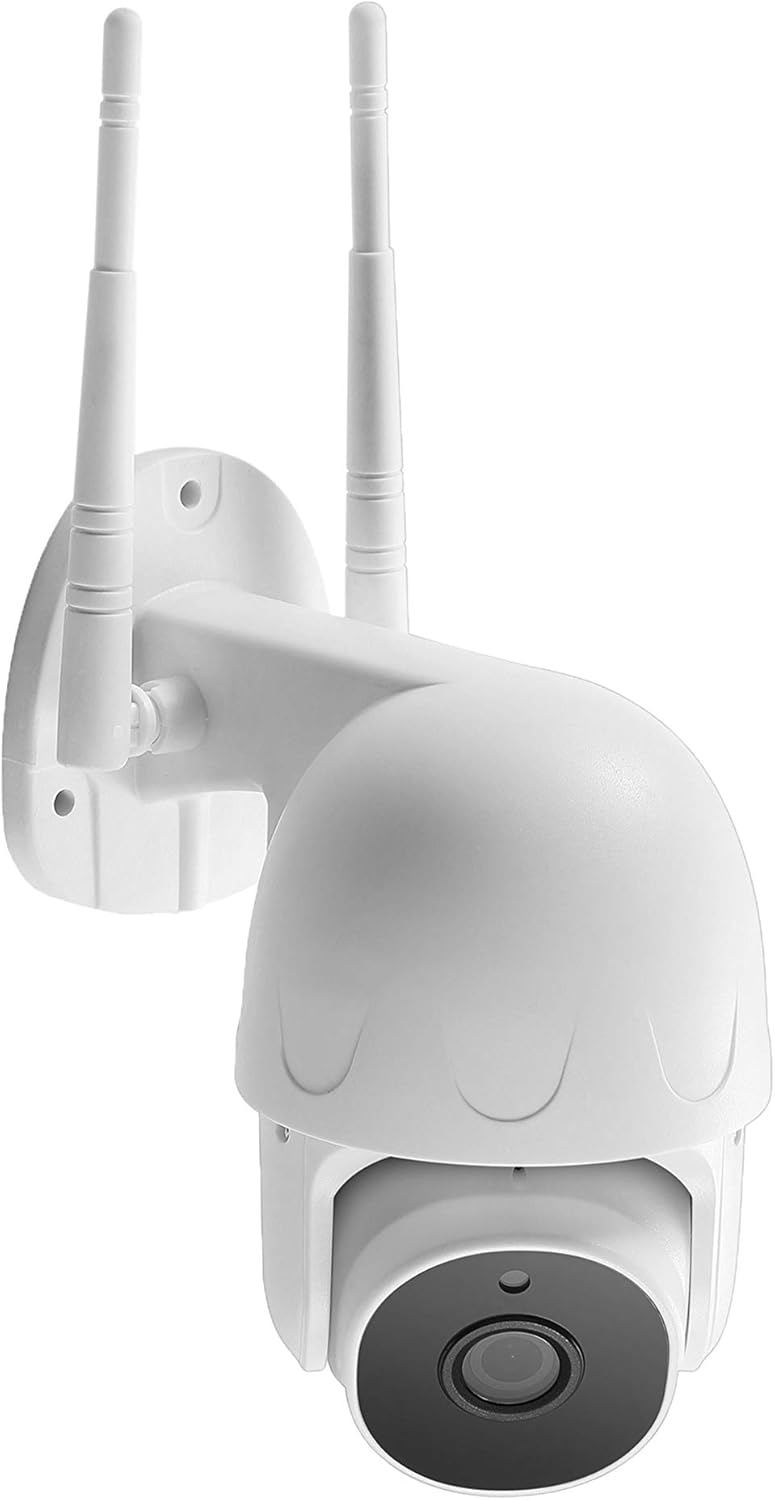
Image: Front view of the PROXE PTZ 1080P Outdoor Wi-Fi Camera, showing the lens and dual antennas.

Image: Diagram illustrating key features of the PROXE PTZ 1080P Outdoor Wi-Fi Camera, including outdoor use, 1080p HD, day & night vision, motion detection, and two-way audio.
4. Setup Guide
4.1. Choosing a Location
Select a location that provides the desired viewing angle and is within range of your Wi-Fi network. Ensure the power cable can reach a power outlet. For outdoor installation, choose a sheltered spot to protect the camera from direct harsh weather conditions, although it is rated for outdoor use.
4.2. Mounting the Camera
- Mark the drilling points on the wall using the camera's base as a template.
- Drill holes at the marked positions.
- Insert the wall plugs into the drilled holes.
- Align the camera base with the holes and secure it using the provided screws.
4.3. Powering On
Connect the micro USB power cable to the camera and the power adapter. Plug the adapter into a standard electrical outlet. The camera will power on and initiate its self-test sequence.
4.4. App Installation and Pairing
- Download the "TUYA Smart" or "Smart Life" application from the App Store (iOS) or Google Play Store (Android).
- Register for a new account or log in if you already have one.
- Tap the "+" icon to add a new device.
- Select "Security & Video Surveillance" and then "Smart Camera (Wi-Fi)".
- Follow the on-screen instructions to connect the camera to your Wi-Fi network. This typically involves scanning a QR code generated by the app with the camera's lens.
- Once connected, you can name your camera and begin monitoring.

Image: Screenshot of the TUYA Smart app interface, showing options for photography, speaking, recording, photo album, cloud storage, and playback, along with links to download the app.
5. Operating Instructions
5.1. Live View and PTZ Control
Open the TUYA app and select your camera. You will see the live video feed. Use the on-screen controls to pan (horizontal movement) and tilt (vertical movement) the camera lens to adjust the viewing angle. The camera offers a 320° pan and 90° tilt range.
5.2. Two-Way Audio
Tap the microphone icon in the app to enable two-way audio. You can speak through your phone, and your voice will be projected through the camera's speaker. Similarly, you can hear audio from the camera's surroundings.
5.3. Recording and Playback
The camera supports continuous recording or event-triggered recording (e.g., motion detection). Recordings are typically stored on a microSD card (not included) or in cloud storage (subscription may be required). Access recorded footage through the "Playback" or "Cloud Storage" section in the app.
5.4. Motion Detection and Alerts
Configure motion detection sensitivity and alert settings within the app. When motion is detected, the camera can send push notifications to your smartphone and initiate recording.
5.5. AI Tracking
Enable AI Tracking in the app settings. When a person or object is detected, the camera will automatically adjust its pan and tilt to keep the subject within the frame.
5.6. Privacy Mode
Activate Privacy Mode via the app to temporarily disable video recording and live viewing, ensuring your privacy when needed.
6. Maintenance
- Cleaning: Gently wipe the camera lens and body with a soft, dry cloth. Do not use harsh chemicals or abrasive cleaners.
- Firmware Updates: Regularly check the TUYA app for available firmware updates to ensure optimal performance and security.
- Power Supply: Ensure the power adapter and cable are free from damage. Replace immediately if any damage is observed.
- Environmental Protection: While designed for outdoor use, extreme weather conditions (e.g., heavy snow, prolonged direct sunlight) may affect performance. Consider additional shielding if necessary.
7. Troubleshooting
| Problem | Possible Cause | Solution |
|---|---|---|
| Camera not powering on | No power supply; faulty cable/adapter | Check power connections; try a different outlet; inspect cable/adapter for damage. |
| Unable to connect to Wi-Fi | Incorrect Wi-Fi password; camera too far from router; 5GHz Wi-Fi network | Ensure correct 2.4GHz Wi-Fi password; move camera closer to router; reset camera and try pairing again. |
| No live video feed | Network issue; camera offline; app glitch | Check internet connection; restart camera and app; ensure camera is online in the app. |
| Motion detection not working | Settings incorrect; sensitivity too low | Verify motion detection is enabled in app settings; adjust sensitivity levels. |
8. Technical Specifications
| Feature | Detail |
|---|---|
| Model Number | 161042 |
| Resolution | 1080P HD |
| Pan Angle | 320° |
| Tilt Angle | 90° |
| Connectivity | Wi-Fi (2.4GHz only) |
| App Control | TUYA Smart / Smart Life |
| Power Source | Electric Cable |
| Dimensions (W x H x D) | 80 x 128 x 175 mm |
| Weight | 500 g |
| Recommended Use | Outdoor Security |
| Special Features | HD Resolution, PTZ, Motion Detection, AI Tracking, Privacy Mode, Two-Way Audio |
9. Warranty and Support
PROXE products are designed for reliability and performance. For warranty information, please refer to the documentation provided at the time of purchase or contact your retailer. For technical support, please visit the official PROXE website or contact their customer service department. Keep your purchase receipt as proof of purchase for warranty claims.