
Introduction
This manual provides detailed instructions for the operation and maintenance of your mooas MC-M3 Digital Mirror LED Alarm Clock. This device features a large LED display, dual alarm functionality, adjustable brightness, temperature and humidity display, and a convenient USB charging port.

Image: Overview of the mooas MC-M3 Digital Mirror LED Alarm Clock, showcasing its design and available colors (Mint, Dark Gray, White).
Package Contents
- mooas MC-M3 Digital Mirror LED Alarm Clock
- USB Cable (1.2A)
- User Manual
Setup
Powering the Device
The mooas MC-M3 clock can be powered via a USB cable or AAA batteries. For continuous display of the LED, the clock must be connected to a USB power source.
- USB Power: Connect the provided USB cable to the DC 5V power terminal on the back of the clock and plug the other end into a USB power adapter (not included) or a powered USB port.
- Battery Power: Insert 3 AAA batteries (not included) into the battery compartment on the back of the clock. When operating on battery power, the LED display will only light up for 10 seconds after a button press to conserve energy.
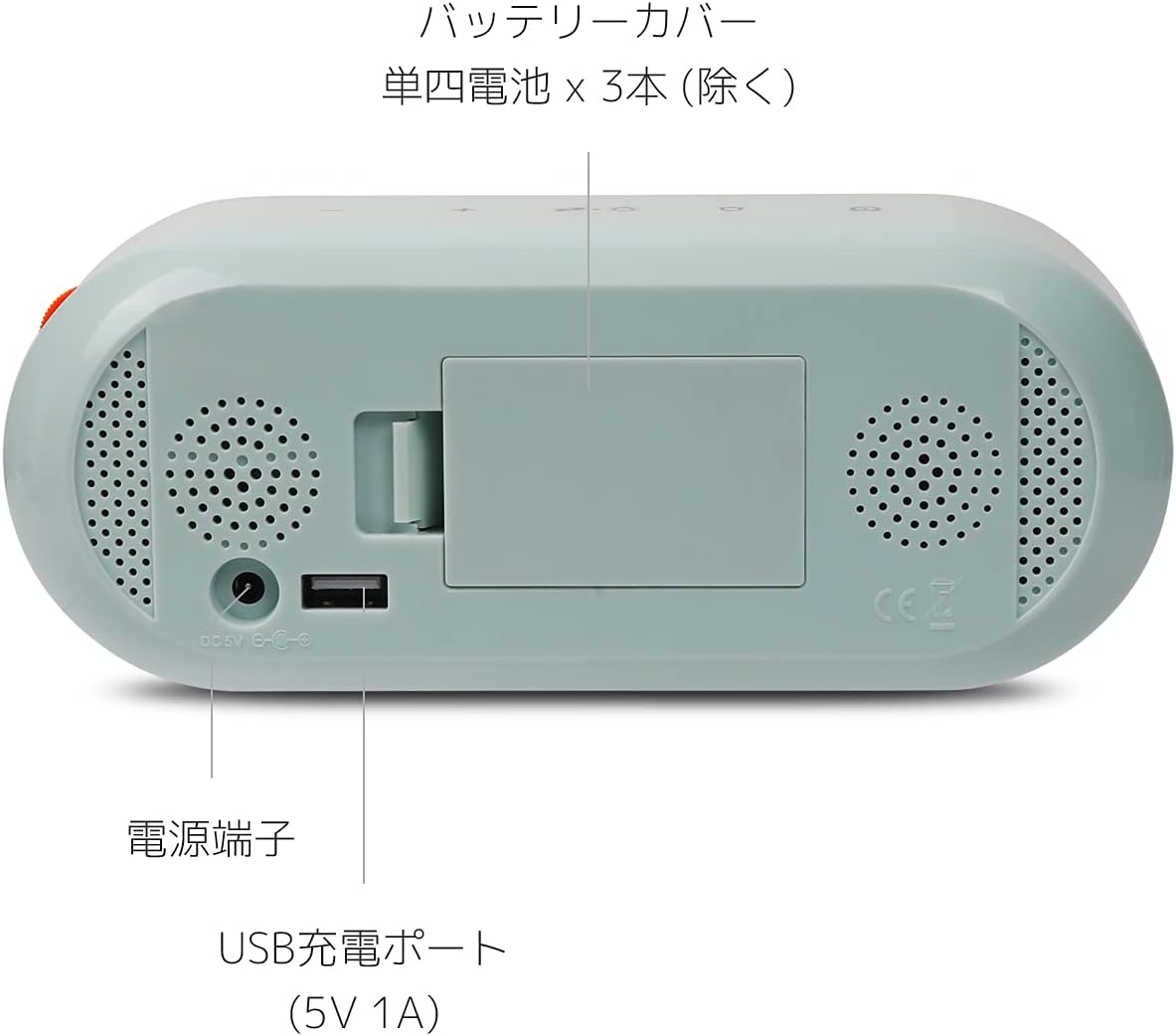
Image: Rear panel of the clock, highlighting the battery cover, power input, and USB charging port.
Operating Instructions
Control Buttons Overview
The clock features intuitive touch sensor buttons on the top panel and a rolling button on the side for brightness control.

Image: Top panel of the clock with touch sensor buttons clearly visible.
Setting Time and Date
- Press and hold the Time button (clock icon) on the top panel until the time display flashes.
- Use the + and - buttons to adjust the hour.
- Press the Time button again to move to minute setting, then use + and - to adjust.
- Continue pressing the Time button to cycle through year, month, and day settings, adjusting each with + and -.
- Press the Time button one last time to confirm and exit time/date setting.
Setting Alarms (Dual Alarms)
- Press and hold the Alarm button (bell icon) on the top panel until the alarm time display flashes. The alarm indicator (1 or 2) will also flash.
- Use the + and - buttons to adjust the alarm hour.
- Press the Alarm button again to move to minute setting, then use + and - to adjust.
- Press the Alarm button again to set the second alarm, repeating steps 2 and 3.
- Press the Alarm button one last time to confirm and exit alarm setting.
To activate or deactivate an alarm, short press the Alarm button. The corresponding alarm indicator (1 or 2) will appear or disappear on the display.

Image: Detailed view of the display, indicating time, alarm status, humidity, and temperature.
Snooze Function
When an alarm sounds, press the Snooze button (Zz icon) on the top panel to activate the snooze function. The alarm will temporarily stop and sound again after a set interval. If no buttons are pressed when the alarm rings, it will automatically sound at the same time the next day.
Brightness Adjustment
Adjust the LED display brightness using the orange rolling button located on the upper right side of the clock. Roll the button up or down to increase or decrease brightness. This allows for fine-tuned adjustment to suit various lighting conditions, including dimming for nighttime use.

Image: The rolling button for detailed brightness control.
12/24 Hour Mode and Temperature Units
To switch between 12-hour and 24-hour time formats, or between Celsius (°C) and Fahrenheit (°F) for temperature display, short press the Mode button (sun/moon icon with Zz) on the top panel. Cycle through the options until your desired format is displayed.
USB Charging Port
The clock is equipped with a USB charging port on its back, allowing you to charge compatible devices such as smartphones. The maximum output for this port is 5V 1A.

Image: The clock displaying time, temperature, and humidity, with a smartphone charging from its USB port.
Maintenance
- Clean the clock's surface with a soft, dry cloth. Avoid abrasive cleaners or solvents.
- Ensure the USB cable and power adapter are in good condition.
- If using batteries, replace them when the display becomes dim or unresponsive (when not connected to USB power).
- Avoid exposing the clock to extreme temperatures, direct sunlight, or high humidity.
Troubleshooting
| Problem | Possible Cause | Solution |
|---|---|---|
| Display is off or very dim. | Not connected to USB power, or batteries are low/dead. | Connect the clock to a USB power source for continuous display. If using batteries, replace them. Adjust brightness with the rolling button. |
| Alarm does not sound. | Alarm is not activated or set incorrectly. | Ensure the alarm indicator (1 or 2) is visible on the display. Re-check alarm time settings. |
| Time/Date is incorrect. | Time/Date was not set or reset due to power interruption. | Follow the "Setting Time and Date" instructions to reset. |
| USB charging port not working. | Device not properly connected or power source insufficient. | Ensure the clock is connected to a stable USB power source. Check the charging cable of the device you are trying to charge. |
Specifications
| Brand | mooas |
| Model Number | MC-M3 |
| Display Type | Digital LED |
| Power Source | Corded Electric (USB DC 5V) / 3 x AAA Batteries (not included) |
| USB Output | 5V 1A (Max) |
| Product Dimensions | 8"W x 4"H (20.32 cm W x 10.16 cm H) |
| Item Weight | 6 ounces (170.1 Grams) |
| Material | Acrylonitrile Butadiene Styrene (ABS) |
| Special Features | Dual Alarm, Snooze, Brightness Adjustment, 12/24H Mode, Temperature (°C/°F) & Humidity Display, Mirror Display |

Image: The mooas MC-M3 clock in its three available colors, illustrating its compact size.
Warranty and Support
Specific warranty information is not provided in the product details. For support or warranty inquiries, please contact mooas customer service through their official website or the retailer where the product was purchased.


