
1. Product Overview
The SanDisk Professional G-DRIVE SSD is a high-performance, ultra-rugged portable external NVMe Solid State Drive designed for professionals who require reliable storage in demanding environments. It offers fast data transfer speeds and robust durability.

Image: Front view of the SanDisk Professional G-DRIVE SSD, showcasing its sleek black design with the 'G' logo and ventilation grilles.
Key Features:
- Ultra-rugged durability: IP67 water/dust resistance, up to 3-meter drop protection, and 2000lb crush resistance.
- Pro-grade transfer speeds: Up to 1050MB/s Read and 1000MB/s Write.
- Sustained performance: Features a cooling aluminum core to maintain optimal speed.
- High capacity: Available in capacities up to 2TB (this model).
- Broad compatibility: Ready for Mac (HFS+) and works with Windows via reformat.
2. What's in the Box
- G-DRIVE SSD
- USB-C Cable
- USB-C to USB-A Cable
- Quick Start Guide
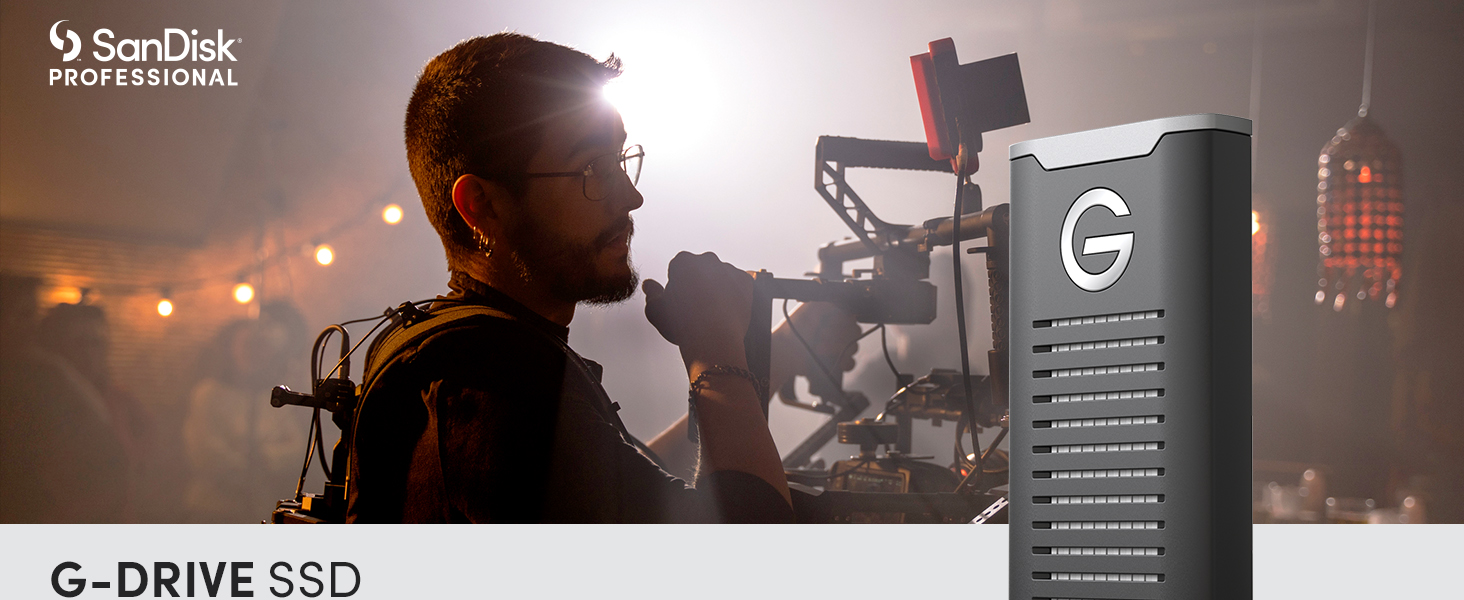
Image: A banner displaying the SanDisk Professional G-DRIVE SSD with its branding, highlighting its ultra-rugged storage and high-speed transfers.
3. Setup Instructions
3.1 Connecting to Your Computer
- Identify the appropriate cable: Use the provided USB-C to USB-C cable for direct connection to USB-C ports, or the USB-C to USB-A cable for older USB-A ports.
- Connect the SSD: Plug the USB-C end of the cable into the G-DRIVE SSD and the other end into an available port on your computer.
- Power On: The SSD is bus-powered and does not require an external power adapter. It will power on automatically upon connection.

Image: The G-DRIVE SSD connected to a laptop, demonstrating its USB-C connectivity for modern devices.
3.2 Initial Use and Formatting
The G-DRIVE SSD comes pre-formatted for macOS (HFS+). If you are using a Windows computer, you will need to reformat the drive before use. Refer to your operating system's documentation for instructions on how to format an external drive.
4. Operating Instructions
4.1 Data Transfer
To transfer files, simply drag and drop them to and from the G-DRIVE SSD icon on your desktop or in your file explorer. The drive supports transfer speeds up to 1050MB/s Read and 1000MB/s Write, enabling rapid file transfers for large media files and projects.
Video: An official product video from SanDisk Professional showcasing the G-DRIVE SSD's features and performance.
4.2 Safe Ejection
Always safely eject the G-DRIVE SSD from your computer before disconnecting it to prevent data corruption. On macOS, drag the drive icon to the Trash or use the 'Eject' option. On Windows, use the 'Safely Remove Hardware and Eject Media' icon in the taskbar.
5. Durability Features
The G-DRIVE SSD is engineered for extreme conditions:
- IP67 Water and Dust Resistance: Provides protection against dust ingress and temporary immersion in water.
- 3-Meter Drop Protection: Designed to withstand drops from up to 3 meters onto a carpeted concrete floor.
- 2000lb Crush Resistance: Built to endure significant pressure without damage.

Image: The G-DRIVE SSD resting on a sandy beach, illustrating its ultra-rugged durability and resistance to environmental elements.
6. Maintenance
To ensure the longevity and optimal performance of your G-DRIVE SSD:
- Keep the device clean and free from excessive dust or debris.
- Avoid exposing the drive to extreme temperatures or direct sunlight for prolonged periods.
- Always perform a safe ejection before disconnecting the drive.
- While the drive has a cooling aluminum core, prolonged heavy use may cause it to warm up. Ensure adequate ventilation during intensive operations.
7. Troubleshooting
7.1 Drive Not Mounting or Recognized
- Check Cable Connection: Ensure the USB cable is securely connected to both the SSD and your computer. Try a different USB port or cable if available.
- Restart Computer: Sometimes a simple restart can resolve connectivity issues.
- Check Disk Management (Windows) / Disk Utility (macOS): Verify if the drive is visible in your operating system's disk management tools. If it appears but is not assigned a drive letter (Windows) or is unmounted (macOS), you may need to assign a drive letter or mount it manually.
- Driver Updates: Ensure your computer's USB drivers are up to date.
- Operating System Version: For macOS users, ensure your operating system is updated to a recent version (e.g., Monterey 12.6.1 or later) as older versions may have compatibility issues with newer drives.
7.2 Slow Performance or Heating
- Ensure Proper Connection: Use the provided USB 3.2 Gen 2 compatible cables and ports for optimal speed. Older USB ports may limit performance.
- Ventilation: While the aluminum core aids cooling, ensure the drive is placed in a well-ventilated area, especially during long periods of heavy data transfer or editing.
- Background Processes: Close any unnecessary applications that might be consuming system resources or performing background disk operations.
- Drive Fragmentation (less common for SSDs): While SSDs don't suffer from fragmentation like HDDs, ensure sufficient free space for optimal performance.
8. Specifications
| Brand | SanDisk Professional |
| Series | G-Drive SSD |
| Model Number | SDPS11A-002T-GBANB |
| Digital Storage Capacity | 2 TB |
| Hard Disk Interface | USB 3.2 Gen 2 |
| Connectivity Technology | USB |
| Read Speed | Up to 1050 MB/s |
| Write Speed | Up to 1000 MB/s |
| Durability | IP67 Water/Dust Resistant, 3-meter Drop Protection, 2000lb Crush Resistance |
| Hardware Platform | Mac (Works with Windows via reformat) |
| Item Weight | 0.45 ounces |
| Product Dimensions | 3.74 x 1.97 x 0.59 inches |
| Color | Black |
9. Warranty and Support
9.1 Limited Warranty
The SanDisk Professional G-DRIVE SSD comes with an industry-leading 5-year limited warranty. Please retain your proof of purchase for warranty claims.
9.2 Technical Support
For technical assistance, product registration, or to access additional resources, please visit the official SanDisk Professional support website. You can find the latest drivers, firmware updates, and FAQs there.
For more information, visit: SanDisk Professional Store


