
SUNBA P425
SUNBA P425 5MP PoE+ Auto Tracking PTZ IP Camera User Manual
Comprehensive instructions for setup, operation, and maintenance of your SUNBA P425 security camera.
Product Overview
The SUNBA P425 is a 5MP PoE+ Auto Tracking PTZ IP Camera designed for outdoor surveillance. It features 25X optical zoom, deep AI capabilities for intelligent tracking, two-way audio, and long-range infrared night vision up to 1000ft. This camera offers enhanced user experiences with a renovated UI and advanced smart features.

Image: The SUNBA P425 PTZ IP Camera, a high-speed dome security camera, mounted for outdoor use.
What's in the Box
Verify that all components are present before proceeding with installation.
- User Manual
- SUNBA P425 Camera
- Wall Bracket
- 12V2A Power Adapter (PoE adapter not included)

Image: A detailed view of the SUNBA P425 camera and its included accessories, such as the wall bracket and power adapter.
Setup and Installation
1. Physical Installation
The SUNBA P425 is designed for outdoor wall mounting. Ensure the mounting surface is sturdy enough to support the camera's weight and provide a clear field of view.
- Attach the wall bracket securely to the desired outdoor location.
- Mount the camera onto the bracket.
- Connect the RJ45 network cable for Power over Ethernet (PoE+) and data. Alternatively, use the DC12V female port with the provided power adapter if PoE+ is not available.

Image: Labeled diagram of the SUNBA P425 camera highlighting its components like the wall bracket, infrared LEDs, built-in mic, RJ45 network port, and DC12V female port.
2. Network Configuration
The camera connects via Ethernet. For initial setup and configuration, access the camera's interface through a web browser (Firefox/Chrome on Mac & Windows are supported without plugins). Review playback and snapshots using the client software.
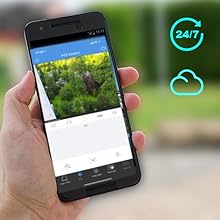
Image: A smartphone screen showing a live view from the camera, demonstrating remote monitoring capabilities.
Operating Instructions
Auto Tracking Setup
The SUNBA P425 features advanced auto-tracking capabilities. Refer to the video below for a detailed guide on setting up auto-tracking modes.
Video: A step-by-step guide on configuring auto-tracking for SUNBA P525, P652 V2, and P636 V2 cameras, which applies to the P425 model's auto-tracking features.
Normal Tracking Mode
In Normal Tracking Mode, the camera tracks objects within its full pre-designated view. You can define filter types (Motor Vehicle, Non-Motor Vehicle, Pedestrian) and set maximum and minimum sizes for objects to be tracked. Objects outside this size range will be filtered out.
- Navigate to the 'Smart' section in the camera's setup interface.
- Select 'Auto Tracking' and ensure it is initially unchecked.
- Under 'Rule Settings', select the desired 'Tracking Object' types (e.g., Motor Vehicle, Non-Motor Vehicle, Pedestrian).
- Adjust 'Max. Size' and 'Min. Size' to define the range of objects to be tracked. The maximum width/height must be greater than the minimum.
- Click 'Tracking' settings to configure 'Tracking Timeout' (in seconds) and 'Zoom Ratio' (e.g., Current Zoom).
- If 'Continuously Track' is selected, the camera will track an object until it can no longer be detected.
- Add a pre-designated view as a home position preset (e.g., Preset 1) for tracking.
- In 'PTZ' > 'Home Position', set the 'Mode' to 'Preset' and select the ID of your home position preset. Configure 'Idle State(s)' (e.g., 60 seconds) for the camera to return to the designated position after a period of inactivity.
- Finally, enable 'Auto Tracking' and click 'Save'.

Image: An example of the camera's AI capabilities, demonstrating face capture.
Smart Tracking Mode
Smart Tracking Mode allows for setting different rules to trigger tracking, including Cross Line, Enter Area, Leave Area, and Intrusion detection. This example focuses on Cross Line detection.
- Ensure 'Auto Tracking' is unchecked after configuring its settings.
- Select 'Cross Line' under 'Perimeter Protection' in the 'Smart' section. Ensure it is initially unchecked.
- In the 'Detection Rule' area, click the '+' icon to add a new line.
- Draw the cross line on the live view.
- Set the 'Trigger Direction' (e.g., A->B, B->A, A<->B), 'Sensitivity', and 'Level' (High, Medium, Low).
- Define 'Detection Object' types and 'Filter Type' (e.g., Motor Vehicle, Non-Motor Vehicle, Pedestrian) along with 'Max. Size' and 'Min. Size'.
- Click 'Trigger Actions' and select 'Tracking' under the 'PTZ' column.
- In the 'Plan' tab, enable the plan and set the schedule for when the cross-line detection should be active.
- Add a pre-designated view as a home position preset (e.g., Preset 1, named "Cross line").
- In 'PTZ' > 'Home Position', set the 'Mode' to 'Preset' and select the ID of your "Cross line" preset. Configure 'Idle State(s)' (e.g., 30 seconds).
- Finally, enable 'Cross Line' detection and click 'Save'.

Image: Visual representation of perimeter protection, showing how detection zones can be configured.
Recording Options
The SUNBA P425 offers various recording and storage options:
- TF Card: Insert a TF card (microSD) into the camera for local storage. Follow instructions to remove the camera cover first.
- NAS (Network Attached Storage): Compatible with NAS devices like Synology and QNAP for centralized storage.
- NVR (Network Video Recorder): Connect to a compatible NVR for continuous recording and management.
- Computer: Utilize client software on a computer for recording and playback.

Image: An illustration of the different recording options available for the camera, including TF card, NAS, NVR, and direct computer connection.
Two-Way Audio
The camera supports two-way audio, allowing you to communicate with individuals at the camera's location. This feature is useful for deterrence or direct communication.
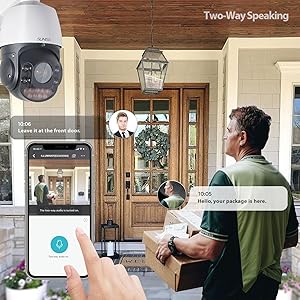
Image: A visual demonstration of the two-way audio feature, where a user can speak to someone near the camera via a mobile app.
Maintenance
To ensure optimal performance and longevity of your SUNBA P425 camera, regular maintenance is recommended:
- Cleaning: Periodically clean the camera lens and housing with a soft, damp cloth to remove dust, dirt, or water spots that may obstruct the view. Avoid abrasive cleaners.
- Firmware Updates: Check the manufacturer's website for the latest firmware updates. Keeping the firmware updated ensures access to new features and security enhancements.
- Cable Inspection: Regularly inspect all cables (power and network) for any signs of wear, damage, or loose connections.
- Environmental Protection: The camera has an IP66 rating for weather resistance. However, extreme weather conditions may still impact performance. Ensure proper installation to minimize exposure to direct harsh elements.
Troubleshooting
If you encounter issues with your SUNBA P425 camera, refer to the following common troubleshooting steps:
- No Power:
- Verify the power connection. If using PoE+, ensure the PoE+ injector or switch is functioning correctly.
- If using the 12V2A adapter, check the power outlet and adapter connection.
- No Video Feed:
- Check network cable connections.
- Ensure the camera is properly configured on your network and accessible via its IP address.
- Restart the camera and your network equipment.
- Auto Tracking Not Working:
- Review the auto-tracking settings as described in the 'Operating Instructions' section. Ensure 'Enable Auto Tracking' is checked and filter settings are correctly configured.
- Check if the home position preset is correctly set.
- Poor Image Quality:
- Clean the camera lens.
- Check network bandwidth if streaming quality is low.
- Adjust image settings (brightness, contrast, etc.) in the camera's interface.
For further assistance, please contact SUNBA customer support.
Specifications
| Feature | Detail |
|---|---|
| Model Number | P425 |
| Video Capture Resolution | 5 MP |
| Optical Zoom | 25x |
| Night Vision Range | Up to 1000 Feet |
| Connectivity Technology | Ethernet (PoE+) |
| Power Source | Corded Electric |
| Voltage | 12 Volts (DC) |
| Wattage | 25 watts |
| Frame Rate | 25 fps |
| Water Resistance Level | Waterproof (IP66) |
| Item Dimensions (L x W x H) | 8 x 12.2 x 7.5 inches |
| Item Weight | 6.52 pounds |
| Compatible Devices | ONVIF, Blue Iris, Security Spy, Milestone, Geovision |
| Special Feature | Auto Tracking, 2-Way Audio, Deep AI |
Warranty and Support
The SUNBA P425 camera comes with a 2-Year US Warranty. For technical support, warranty claims, or any product-related inquiries, please contact SUNBA customer service. Refer to the official SUNBA website for contact information and additional resources.