
Heayzoki Heayzokiv4m87g9aqp6352
HXSJ A883 Gaming Mouse User Manual
Model: A883 | Brand: Heayzoki
1. Introduction
Thank you for choosing the HXSJ A883 Gaming Mouse. This manual provides detailed instructions on how to set up, operate, and maintain your new gaming mouse. Designed for comfort and performance, the A883 offers a superior gaming and computing experience.
Key features of your HXSJ A883 Gaming Mouse include:
- Adjustable DPI settings: 800, 1600, 3200, and 6400 DPI for precise control.
- Vibrant RGB breathing light effect for an immersive experience.
- Ergonomic design ensuring comfort during extended use.
- Plug-and-play functionality for immediate use with desktop and notebook computers.
- Ambidextrous design, suitable for both left and right-handed users.
2. Package Contents
Please verify that all items are present in your package:
- 1 x HXSJ A883 Gaming Mouse
- 1 x User Manual (this document)
3. Product Overview
Familiarize yourself with the components of your HXSJ A883 Gaming Mouse.

Figure 3.1: Top view of the HXSJ A883 Gaming Mouse, showing the scroll wheel and DPI adjustment buttons.

Figure 3.2: Angled view of the HXSJ A883 Gaming Mouse, highlighting the ergonomic shape and programmable side buttons.

Figure 3.3: Image showing both the bottom of the mouse with its optical sensor and regulatory marks, and the top view demonstrating the vibrant RGB lighting effect.
4. Setup
The HXSJ A883 Gaming Mouse is designed for simple plug-and-play operation.
- Locate an available USB port on your desktop or notebook computer.
- Insert the USB connector of the HXSJ A883 Gaming Mouse into the USB port.
- Your operating system will automatically detect and install the necessary drivers. This process may take a few moments.
- Once the installation is complete, the mouse will be ready for use.
5. Operating Instructions
5.1. DPI Adjustment
The HXSJ A883 Gaming Mouse features adjustable DPI (Dots Per Inch) settings, allowing you to change the mouse sensitivity on the fly. This is particularly useful for different tasks, such as precise aiming in games or fast navigation on the desktop.
- Locate the DPI adjustment buttons, typically positioned below the scroll wheel.
- Pressing these buttons will cycle through the available DPI settings: 800, 1600, 3200, and 6400 DPI.
- The change in DPI is usually indicated by a change in the mouse's RGB lighting color or a brief visual cue.
5.2. RGB Lighting Effect
The mouse features a cool color breathing light effect that enhances its aesthetic appeal. The lighting effect is automatic and does not require manual configuration.
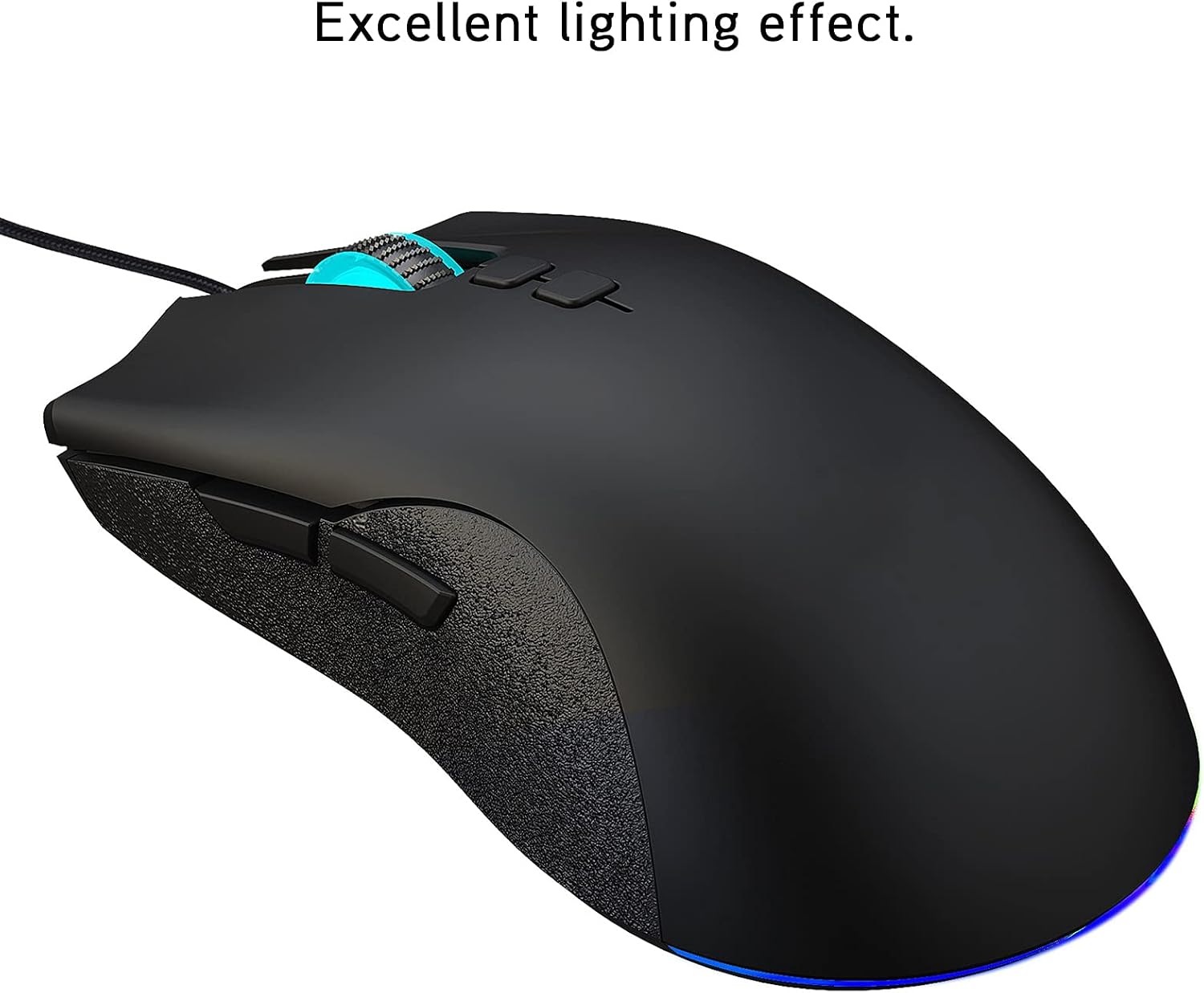
Figure 5.1: The HXSJ A883 Gaming Mouse showcasing its dynamic RGB lighting effect.
6. Maintenance
To ensure the longevity and optimal performance of your HXSJ A883 Gaming Mouse, follow these simple maintenance guidelines:
- Cleaning: Use a soft, dry cloth to wipe the surface of the mouse. For stubborn dirt, slightly dampen the cloth with water or a mild, non-abrasive cleaner. Avoid using harsh chemicals or abrasive materials.
- Sensor Care: Keep the optical sensor on the bottom of the mouse clean and free from dust or debris. Use a cotton swab or compressed air to gently clean the sensor area if needed.
- Cable Management: Avoid sharp bends or excessive pulling on the mouse cable to prevent damage.
- Storage: When not in use, store the mouse in a clean, dry environment away from extreme temperatures.
7. Troubleshooting
If you encounter any issues with your HXSJ A883 Gaming Mouse, please refer to the following common problems and solutions:
| Problem | Possible Cause | Solution |
|---|---|---|
| Mouse is not responding. | Loose USB connection, faulty USB port, driver issue. | Ensure the USB cable is securely plugged in. Try a different USB port. Restart your computer. |
| Cursor movement is erratic or jumpy. | Dirty optical sensor, unsuitable mouse pad surface. | Clean the optical sensor on the bottom of the mouse. Use a clean, uniform mouse pad or surface. |
| DPI adjustment buttons not working. | Software conflict, temporary glitch. | Restart your computer. Ensure no other mouse software is interfering. |
| RGB lighting is off or flickering. | Power issue, internal fault. | Ensure the mouse is properly connected. Try a different USB port. If the issue persists, contact customer support. |
8. Specifications
Detailed technical specifications for the HXSJ A883 Gaming Mouse:
| Feature | Description |
|---|---|
| Model | A883 |
| Material | ABS Plastic |
| Type | Optical Mouse |
| Lighting Effect | RGB Breathing Light |
| DPI Settings | 800-1600-3200-6400 (4 gears adjustable) |
| Rate | 125Hz |
| Cable Length | Approx. 1.5 meters (4.9 ft) |
| Number of Keys | 7 keys |
| Applicable Equipment | General desktop and notebook computers |
| Operating System Compatibility | Linux, Windows XP (and newer versions) |
| Hand Orientation | Ambidextrous |
| Product Dimensions | 1 x 1 x 1 cm; 156 g (approximate) |
9. Warranty and Support
Your HXSJ A883 Gaming Mouse comes with a standard manufacturer's warranty. Please refer to the warranty card included with your purchase or contact your retailer for specific warranty terms and conditions.
For technical support, troubleshooting assistance beyond this manual, or warranty claims, please contact the Heayzoki customer support team through the retailer's platform or the official brand website.
Ask a question about this manual
Ask about setup, troubleshooting, compatibility, parts, safety, or missing instructions. Manuals+ will review the question and use this page’s manual context to help answer it.