
Gen Game S6
Gen Game S6 Wireless Bluetooth Gamepad User Manual
Introduction
This manual provides comprehensive instructions for the setup, operation, and maintenance of your Gen Game S6 Wireless Bluetooth Gamepad. This device is designed to enhance your gaming experience on compatible Android smartphones, tablets, PCs, and TV boxes.
Product Overview
Package Contents
- Gen Game S6 Wireless Bluetooth Gamepad
- USB Charging Cable
- User Manual (this document)
Component Identification
Familiarize yourself with the various buttons and features of your gamepad:

Image: Front view of the Gen Game S6 Wireless Bluetooth Gamepad, showing the D-pad, left and right analog joysticks, action buttons (A, B, X, Y), Start, Select, and Home buttons, and the 'GEN GAME' logo.
- Left Analog Joystick: For directional control.
- Right Analog Joystick: For camera control or additional directional input.
- D-Pad: Digital directional pad for precise movements.
- Action Buttons (A, B, X, Y): For in-game actions.
- Shoulder Buttons (L1, R1): Top-mounted buttons.
- Trigger Buttons (L2, R2): Bottom-mounted buttons.
- START Button: Typically for pausing or menu access.
- SELECT Button: For various in-game functions.
- HOME Button: To power on/off or return to the main menu.
- Phone Holder: Integrated adjustable clip for mounting smartphones.
- Charging Port: For connecting the USB charging cable.
- Indicator Lights: To show connection status, charging status, or mode.
Setup
1. Charging the Gamepad
- Connect the small end of the USB charging cable to the charging port on the gamepad.
- Connect the larger end of the USB charging cable to a USB power source (e.g., computer, USB wall adapter).
- The indicator light will typically show red during charging and turn off or change color when fully charged.
- Allow approximately 2-3 hours for a full charge before first use.
2. Bluetooth Pairing
The Gen Game S6 supports various pairing modes for different devices. Refer to your device's specific requirements for optimal connection.
- Power On: Press and hold the HOME button for 3 seconds to power on the gamepad. The indicator lights will flash.
- Enter Pairing Mode: Depending on your device, you may need to press a specific button combination while powering on (e.g., HOME + X for Android, HOME + A for PC). Refer to the quick start guide included with your gamepad for specific mode instructions. The indicator lights will flash rapidly, indicating it's searching for a device.
- Enable Bluetooth on Your Device: On your Android smartphone, tablet, PC, or TV Box, go to the Bluetooth settings and ensure Bluetooth is enabled.
- Scan for Devices: Your device will scan for available Bluetooth devices. Look for "Gen Game S6" or a similar name in the list.
- Connect: Select the gamepad from the list to initiate pairing. Once successfully paired, the indicator light on the gamepad will typically become solid.
- Test Connection: Open a compatible game or a gamepad testing application to verify the connection and button functionality.
Operating Instructions
Basic Operation
- Power On: Press and hold the HOME button for 3 seconds.
- Power Off: Press and hold the HOME button for 5 seconds until the indicator lights turn off. The gamepad will also automatically power off after a period of inactivity to conserve battery.
- Reconnecting: Once paired, the gamepad should automatically reconnect to the last paired device when powered on and Bluetooth is active on the device. If not, manually select it from your device's Bluetooth settings.
Using the Phone Holder
- Gently extend the integrated phone holder upwards.
- Carefully place your smartphone into the holder, ensuring it is securely gripped without obstructing any buttons or ports.
- Adjust the angle for optimal viewing during gameplay.
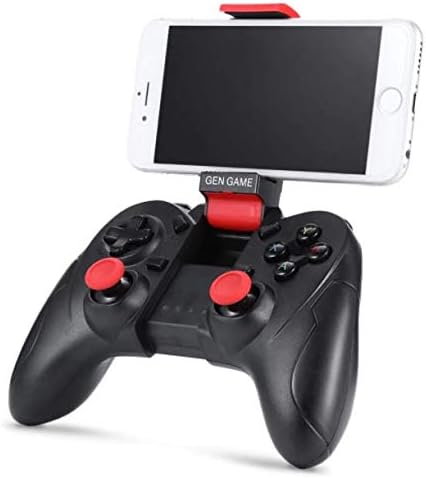
Image: The Gen Game S6 Gamepad with a smartphone securely mounted in the integrated holder, demonstrating its use for mobile gaming.
Maintenance
- Cleaning: Use a soft, dry cloth to wipe the surface of the gamepad. Avoid using harsh chemicals or abrasive materials.
- Storage: Store the gamepad in a cool, dry place away from direct sunlight and extreme temperatures.
- Battery Care: To prolong battery life, avoid fully discharging the gamepad frequently. Charge it regularly, even if not in use for extended periods.
- Avoid Drops: Protect the gamepad from drops and impacts, which can damage internal components.
Troubleshooting
| Problem | Possible Cause | Solution |
|---|---|---|
| Gamepad does not power on. | Low battery. | Charge the gamepad fully. |
| Cannot pair with device. | Bluetooth not enabled on device; Gamepad not in pairing mode; Device out of range. | Ensure Bluetooth is on; Put gamepad in pairing mode (refer to Setup); Move gamepad closer to device (within 8 meters). |
| Gamepad disconnects frequently. | Low battery; Interference; Device out of range. | Charge the gamepad; Avoid strong electromagnetic interference; Stay within Bluetooth range. |
| Buttons are unresponsive or incorrect. | Incorrect pairing mode; Game not compatible; Software glitch. | Ensure correct pairing mode for your device; Verify game compatibility; Restart gamepad and device. |
Specifications
- Model: S6
- Brand: Gen Game
- Connectivity: Bluetooth 3.0 Wireless
- Compatible Devices: Android Smartphones, Tablets, PCs, TV Boxes
- Item Weight: 240 g
- Package Dimensions: 20 x 14.2 x 7.2 cm
- Color: Black
Warranty and Support
For warranty information or technical support, please refer to the documentation provided at the time of purchase or contact your retailer. Keep your proof of purchase for any warranty claims.
Related documentsS6


Ask a question about this manual
Ask about setup, troubleshooting, compatibility, parts, safety, or missing instructions. Manuals+ will review the question and use this page’s manual context to help answer it.