
1. Introduction
Thank you for purchasing the GMS-X5 Gaming Mouse Pad. This large RGB mouse pad is designed to enhance your gaming and computing experience with its spacious surface, vibrant lighting, and stable anti-slip base. This manual provides essential information for setting up, operating, maintaining, and troubleshooting your new mouse pad.

Image 1: GMS-X5 Gaming Mouse Pad with illuminated RGB edges.
2. Product Features
- Large Surface Area: Dimensions of 80cm x 30cm provide ample space for both mouse and keyboard.
- RGB Lighting: Features 10 distinct RGB lighting modes for customizable aesthetics.
- Anti-Slip Base: Constructed with a rubber base to ensure stability during intense use.
- Durable Material: Made from superfine fiber braided material for smooth mouse movement and durability.
- Ultra-Thick Design: 4mm thickness for enhanced comfort and stability.
- Detachable USB Cable: For easy connection and portability.
3. Package Contents
The package includes the following items:
- 1 x RGB Soft Gaming Mouse Pad (GMS-X5)
- 1 x USB Cable
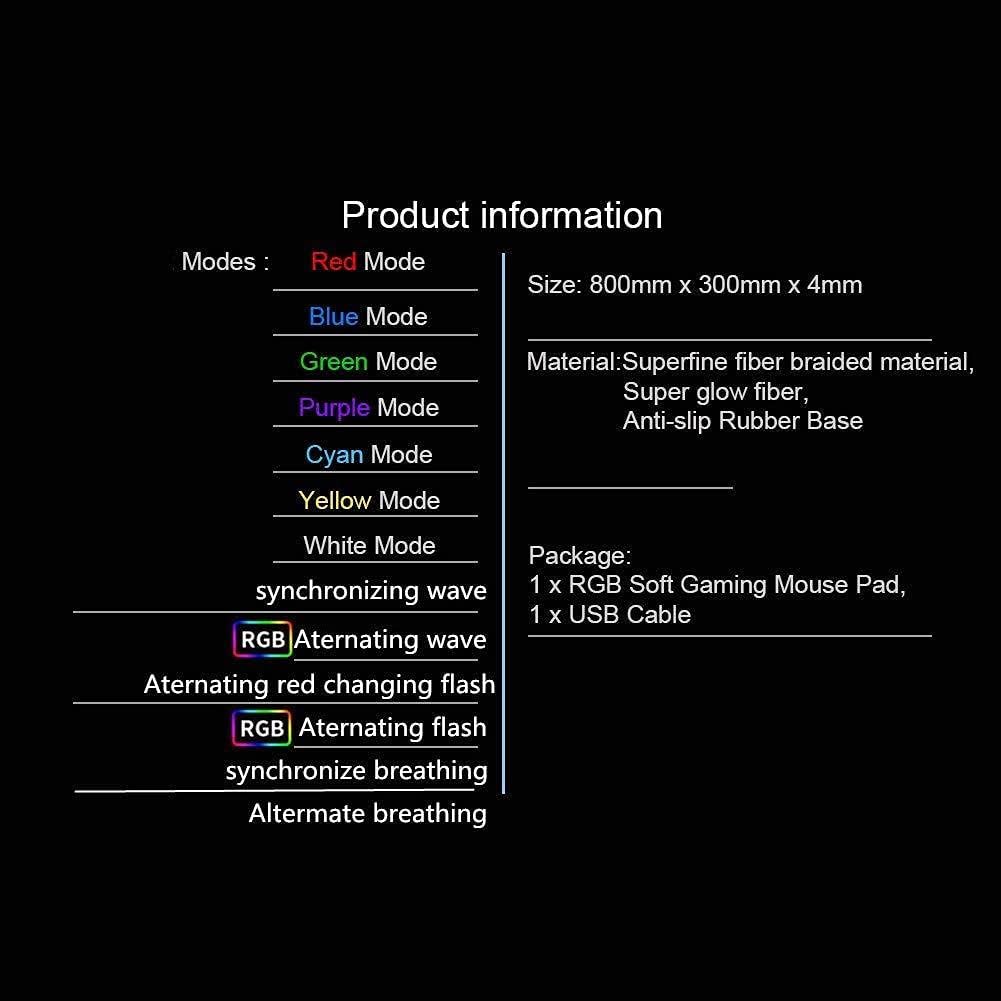
Image 2: Product information detailing package contents and specifications.
4. Setup Guide
Follow these steps to set up your GMS-X5 Gaming Mouse Pad:
- Unroll the mouse pad on a flat, clean surface.
- Locate the connection port on the mouse pad.
- Connect the provided USB cable to the mouse pad's connection port.
- Plug the other end of the USB cable into an available USB port on your computer or a compatible USB power adapter.
- The RGB lighting will illuminate, indicating the pad is powered on.

Image 3: Detail of the USB connection port on the mouse pad.
5. Operating Instructions
The GMS-X5 Gaming Mouse Pad features a control button for managing its RGB lighting. This button is typically located near the USB connection port.
Controlling RGB Lighting:
- Change Lighting Mode: Press the control button once to cycle through the 10 available RGB lighting modes.
- Adjust Brightness: Press the control button twice continuously to adjust the brightness level of the lighting.
- Turn On/Off: Press and hold the control button for 3 seconds to turn the RGB lighting on or off.
Available Lighting Modes:
- Red Mode
- Blue Mode
- Green Mode
- Purple Mode
- Cyan Mode
- Yellow Mode
- White Mode
- Synchronizing Wave
- Alternating Red Changing Flash
- RGB Alternating Flash
- Synchronize Breathing
- Alternate Breathing

Image 4: The control button for changing colors and managing power, with the detachable USB cable.
6. Care and Maintenance
To ensure the longevity and optimal performance of your GMS-X5 Gaming Mouse Pad, follow these care instructions:
- Cleaning: Gently wipe the surface with a damp cloth. Avoid using harsh chemicals or abrasive cleaners, as these can damage the material and lighting components. Do not submerge the mouse pad in water.
- Spills: In case of liquid spills, immediately disconnect the USB cable and gently blot the liquid with a dry cloth. Allow the pad to air dry completely before reconnecting power.
- Storage: When not in use, store the mouse pad flat or gently rolled to prevent creases or damage to the lighting strips. Avoid folding the pad sharply.
- Avoid Extreme Temperatures: Do not expose the mouse pad to direct sunlight for extended periods or to extreme hot or cold temperatures.
7. Troubleshooting
If you encounter any issues with your GMS-X5 Gaming Mouse Pad, please refer to the following common problems and solutions:
| Problem | Possible Cause | Solution |
|---|---|---|
| RGB lighting does not turn on. | No power or loose connection. | Ensure the USB cable is securely connected to both the mouse pad and a powered USB port. Try a different USB port or power source. |
| Lighting modes do not change. | Control button malfunction or incorrect press. | Press the control button firmly and briefly to cycle modes. If unresponsive, try disconnecting and reconnecting the USB cable. |
| Lighting appears dim or flickers. | Insufficient power or brightness setting. | Ensure the USB port provides sufficient power. Press the control button twice continuously to adjust brightness. |
| Mouse pad edges are detaching. | Wear and tear or manufacturing defect. | This may indicate a manufacturing issue or extensive use. If within return period, contact retailer. Otherwise, gentle adhesive may be used for minor separation. |
| Mouse movement is not smooth. | Dirty surface or incompatible mouse. | Clean the mouse pad surface as per maintenance instructions. Ensure your mouse sensor is clean. |
8. Technical Specifications
Detailed specifications for the GMS-X5 Gaming Mouse Pad:
| Specification | Detail |
|---|---|
| Brand | GMS |
| Model Number | GMS-X5 (Internal: 11111) |
| Dimensions (Length x Width) | 80 cm x 30 cm (31.5 inches x 11.8 inches) |
| Thickness | 4 mm |
| Material | Superfine fiber braided material, Anti-slip Rubber Base |
| Lighting Modes | 10 RGB Modes (Red, Blue, Green, Purple, Cyan, Yellow, White, Synchronizing Wave, Alternating Red Changing Flash, RGB Alternating Flash, Synchronize Breathing, Alternate Breathing) |
| Special Features | Anti-slip, RGB Lighting |
| Recommended Use | Gaming |
| Connectivity | USB (Detachable Cable) |
| Color | Multicolor (RGB) |
| Country of Origin | Egypt |

Image 5: GMS-X5 mouse pad illustrating its large size and 4mm thickness.
9. Warranty and Support
This product is provided without an explicit warranty. For any product-related inquiries or support, please contact your retailer or the manufacturer directly through their official channels.
Please retain your purchase receipt for any potential support needs.